 KiloDrive
End User Manual
A practical guide to booking rides, sending parcels, renting vehicles, managing money, privacy, safety, and your KiloDrive account.
Reconciled 27 October 2026
Current package and contract: official release facts
Country operating policies updated 23 October 2026. Current build: official release facts.
Copyright and publication information
Copyright © 2026 Eprecus LLC. All rights reserved.
KiloDrive, the KiloDrive road mark, product names, interfaces, documentation, and original illustrations are owned by or licensed to Eprecus LLC. No part of this publication may be reproduced, redistributed, altered, sold, or represented as official KiloDrive guidance without written permission, except for reasonable personal use and quotations permitted by law.
Edition: 5.7 Publication date: 27 October 2026
Applies to: KiloDrive mobile
applications and portal as described at publication.
This manual explains normal product operation; it is not legal, financial, tax, insurance, medical, or emergency-services advice. In-app terms, plan limits, prices, jurisdiction rules, and administrator-configured controls prevail where they differ from an example in this publication.
OpenStreetMap-derived routing data is used under the Open Database License. Apple, iOS, App Store, Google, Android, Google Play, and other third-party marks belong to their respective owners.
Contents and task finder
Choose a task to open its instructions. Page numbers refer to this PDF edition.
Minimum requirements and permissions 5
Create an account and return safely 7
Find profile, contacts and security 8
Check the vehicle and complete the journey 12
Create a delivery in the guided steps 14
Approve shopping, delivery and returns 17
Find a suitable rental and branch 18
Check whether you can rent this vehicle 25
Reserve, book and confirm payment 28
Collect, extend and return a rental 54
Share a contact card and save trusted people 58
Add money and verify one credit 59
Earn, inspect and convert rewards 60
Deactivate, export or delete your account 64
Link sign-in methods and protect a shared phone 66
Keep receipts, history and reports 69
Read errors without repeating a payment 71
Submit identity evidence once 72
Request, bid, and complete a ride 73
Choose, ride, and close out safely 74
Safety, security, and privacy 75
RideCheck, live sharing, and your data 76
Support and troubleshooting 80
Top-ups, cashouts, taxes, refunds, and disputes 82
Breakdown, towing, collision, and injury 83
Display, navigation and the right next action 84
Sign-out, reinstall and shared phones 88
Pickup checks, Journey and communication 89
Find the search and filter controls 20
Inspect the vehicle before requesting it 26
Glossary 154
More workflows: recurrence, assistance, transfers and courier 122
More workflows: vehicle tools and provider operations 123
Current onboarding screenshots, videos and official channels 127
Trust, safety, security and privacy: detailed field guide 132
Introduction
This manual is the operating reference for riders, passengers, parcel senders, and vehicle renters. It explains how to prepare a secure account, complete the main service workflows, understand money and membership controls, respond to safety events, and obtain support.
How to use this manual
- Read Requirements and permissions before installing or using the portal.
- Complete the account, identity, and role-specific setup chapters in order.
- Use the operational chapters while performing rides, deliveries, rentals, billing, or administration.
- Consult the safety and incident material before an emergency occurs.
- Use the task chapters and the final index for subject lookup.
Conventions
Menu → Destination identifies a navigation path. A green callout is operational guidance, amber is a warning, and red identifies immediate safety or loss risk. Currency means the ISO currency of the active country unless expressly stated otherwise. Times originate as UTC and display in the appropriate local timezone.
Minimum requirements and permissions
Mobile application
| Platform | Minimum | Recommended operating condition |
|---|---|---|
| Apple iPhone/iPad | iOS/iPadOS 15.1 or later | Current supported OS release, automatic security updates, working GPS, camera, microphone, notifications, and internet. |
| Android phone/tablet | Android 7.0 (API 24) or later | Android 10 or later, Google Play services where required, current security patches, working GPS, camera, microphone, notifications, and internet. |
Install only from the official App Store or Google Play listing. A stable mobile-data or Wi-Fi connection and access to https://api.kilodrive.com are required for sign-in, current availability, live trip/rental state, payments, and synchronization. Offline-safe actions remain limited and will clearly show pending or failed state.
Permissions
- Location while using the app: pickup, nearby services, navigation, dispatch, route safety, and live trip progress.
- Background/always location: requested only for role and active-service functions that require continued trip or driver telemetry; users receive an explanation before the OS prompt.
- Camera: profile, identity, vehicle, damage, and document capture; in-app calling does not require camera unless a future video feature expressly requests it.
- Photos/files: user-selected images and PDFs through the operating-system picker; KiloDrive does not require broad library access for occasional uploads.
- Microphone: in-app voice calls and voice-enabled features.
- Notifications: OTP/security, bids, trip, delivery, rental, membership, payment, and support alerts.
- Biometrics: optional device biometric app lock; biometric templates remain under operating-system control.
Accessibility and display
Settings → Appearance supports light/dark themes, high contrast, and font scaling up to 1.3×. Critical screens are designed for 320-pixel phones, portrait/landscape tablets, keyboard insets, semantic labels, logical screen-reader order, and minimum touch targets. Currency, timezone, and kilometre/mile presentation follow the selected country and device preferences. Report a clipped, unlabeled, or unreachable control through Support with the screen and device details.
Portal
Use a currently supported version of Chrome, Edge, Safari, or Firefox with JavaScript, TLS 1.2 or later, cookies/session storage, and a screen width of at least 320 CSS pixels. A 1280 × 720 display or larger is recommended for dashboards. PDF downloads require a viewer; exports require sufficient device storage. WebAuthn/passkeys require a compatible browser, HTTPS, and a device/platform authenticator. Do not use compatibility mode or an unsupported embedded browser.
5 / 155Choose the task you need
This edition brings account, service, money and recovery instructions together by task. Follow the numbered steps, confirm the resulting state, and use the recovery guidance if an action is interrupted.
Illustrations are genuine device captures. Each caption identifies retained earlier-build examples where applicable; current controls, prices and policy prevail. Demonstration data is not a guarantee of availability, payment or readiness. No generated interface is presented as a live screenshot.
Current source build and schema are identified by the source-derived release facts. Your installed version, country, service permissions and current published policies control available actions.
Three checks before acting
- Are you in the correct account, country and workspace?
- Have you read the actual price, period, policy and prerequisites?
- After confirmation, did the original record reach the expected state?
Create an account and return safely
Start screen → customer or transportation service provider
Before you begin
Use your own accessible email or phone and select the country where you will use the service. Operational country, wallet currency and store billing country are separate choices.
Do this
- For a new account, explicitly choose your audience. A provider also selects Individual or Organization and the first transportation service to set up. Existing users can choose Login without repeating registration.
- Enter the requested details or use a supported social sign-in. Check the country and account summary before creating the account. Correct validation beside the affected field rather than submitting the same invalid form repeatedly.
- Complete contact confirmation and required legal acceptance. Enter a confirmation code only in the app; do not share it with a driver, courier or another customer.
- A customer selects an offered startup transportation screen. A new provider opens My Services and completes the readiness wizard for the chosen service.
- On later visits, sign in with the same identity. To add a provider service, use enrollment/workspace controls instead of creating a duplicate account.
Check the result
You reach the selected customer screen or the correct provider setup/workspace. An email being verified does not by itself verify a driving licence or business.
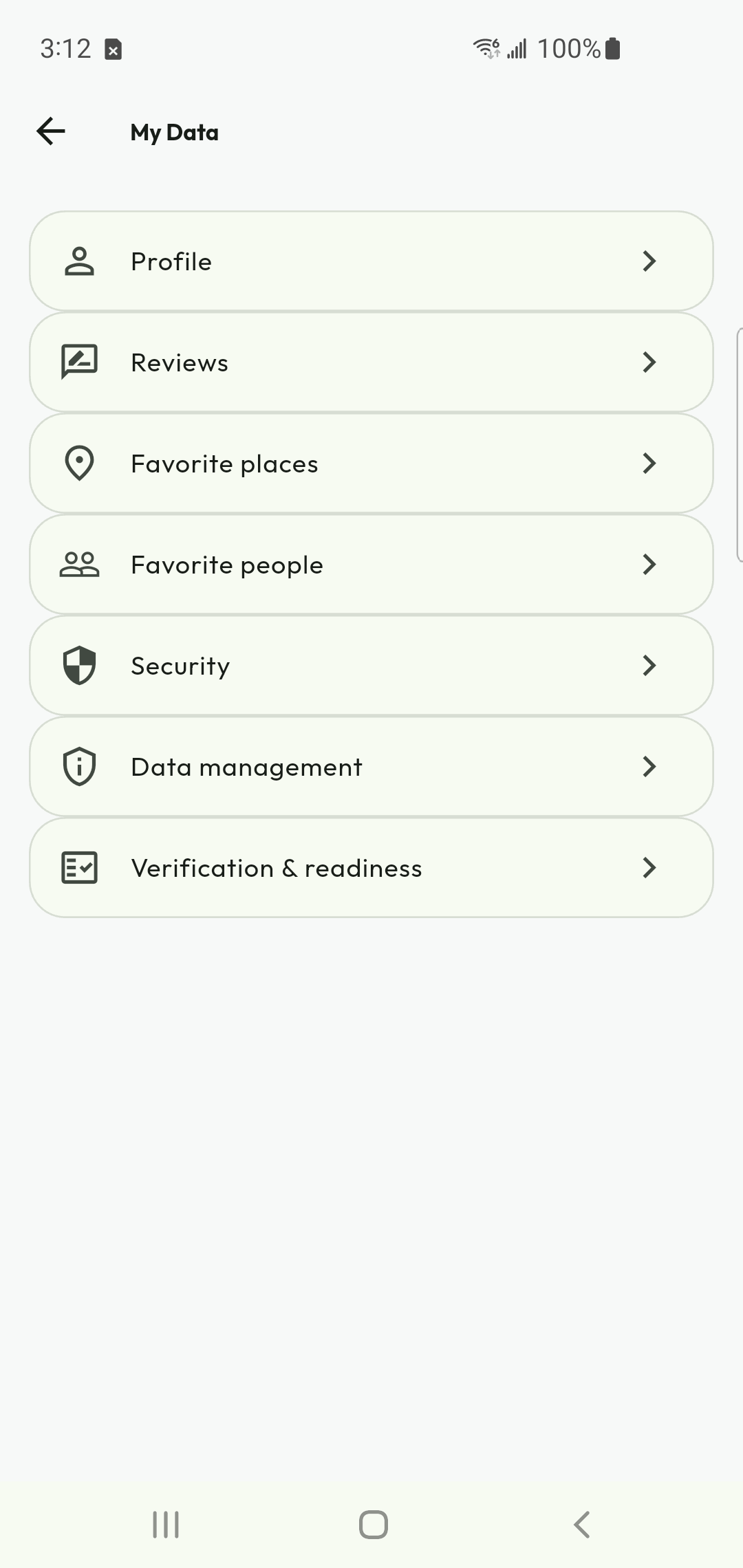
Find your personal data controls
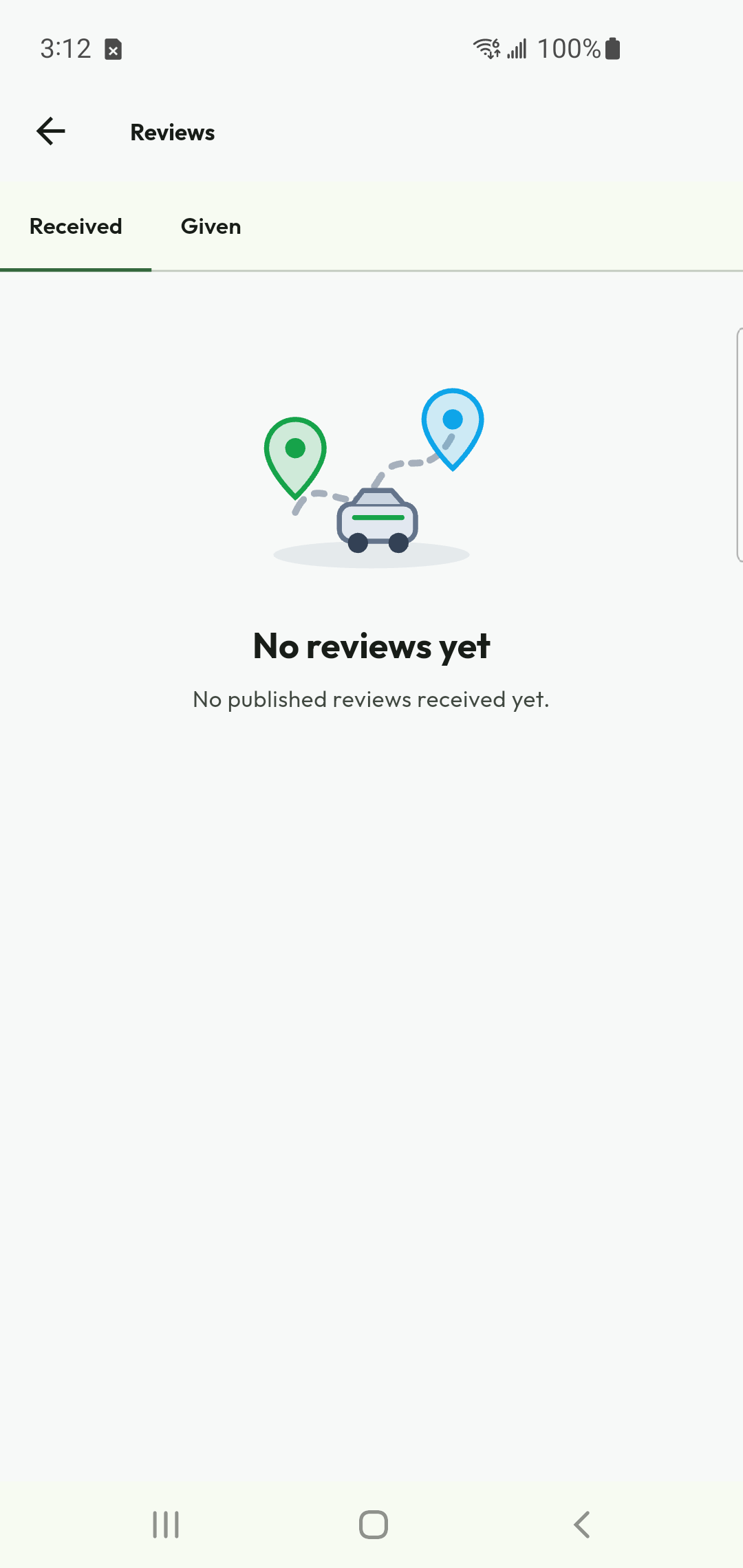
Reviews received and given
Request your first ride
Hail a Ride / Hail a Cab
Before you begin
Enable location if you want a current-position pickup, or select the pickup explicitly. Check the marker against the street entrance where you will actually wait.
Do this
- Set origin and destination. Check addresses and map pins, passengers and any supported trip options before requesting a fare.
- Read Proposed fare and its estimated points. Tap the fare card for the calculation, assumptions and reward estimate; the proposal is not a completed payment.
- Review your offered amount and payment method. Request Bids asks drivers to respond; the automatic exact-fare acceptance choice changes how an eligible offer can be assigned.
- Send the request once and remain with its offer screen. Compare the provider, vehicle, amount and relevant verification information before accepting.
- After acceptance, open the assigned trip to follow pickup progress. Use trip chat/calling for safe coordination instead of sharing authentication details.
Check the result
The trip moves from a request awaiting offers to an assigned driver. Neither a submitted request nor a preferred invitation guarantees that a driver is available.
Check the vehicle and complete the journey
Assigned trip → arrival → Journey
Before you begin
Wait in a safe location. Match the actual driver, vehicle, colour and plate to the trip details before entering.
Do this
- Read the arrival/vehicle-check card. If details match, confirm them using the offered action. Report a mismatch immediately; do not enter an unrecognized vehicle.
- If a matching countdown is displayed, actively inspect the vehicle before it expires. A countdown is not a substitute for your safety check.
- Follow Journey status once the driver starts the trip. Location age, accuracy and ETA are estimates; a stale point is not proof of the vehicle’s current location.
- Use the trip’s sharing, chat, calling and safety controls as appropriate. For immediate danger, contact local emergency services; app alerts do not guarantee an emergency response.
- At completion, confirm the final fare and payment state, view the receipt/history and submit a factual review. For a cash trip, follow the confirmed amount and avoid paying it again through an unrelated transfer.
Check the result
Completed trip history and payment evidence describe the finished journey. A cancelled trip is not a completed journey and may have different financial treatment.
Find the Safety shield
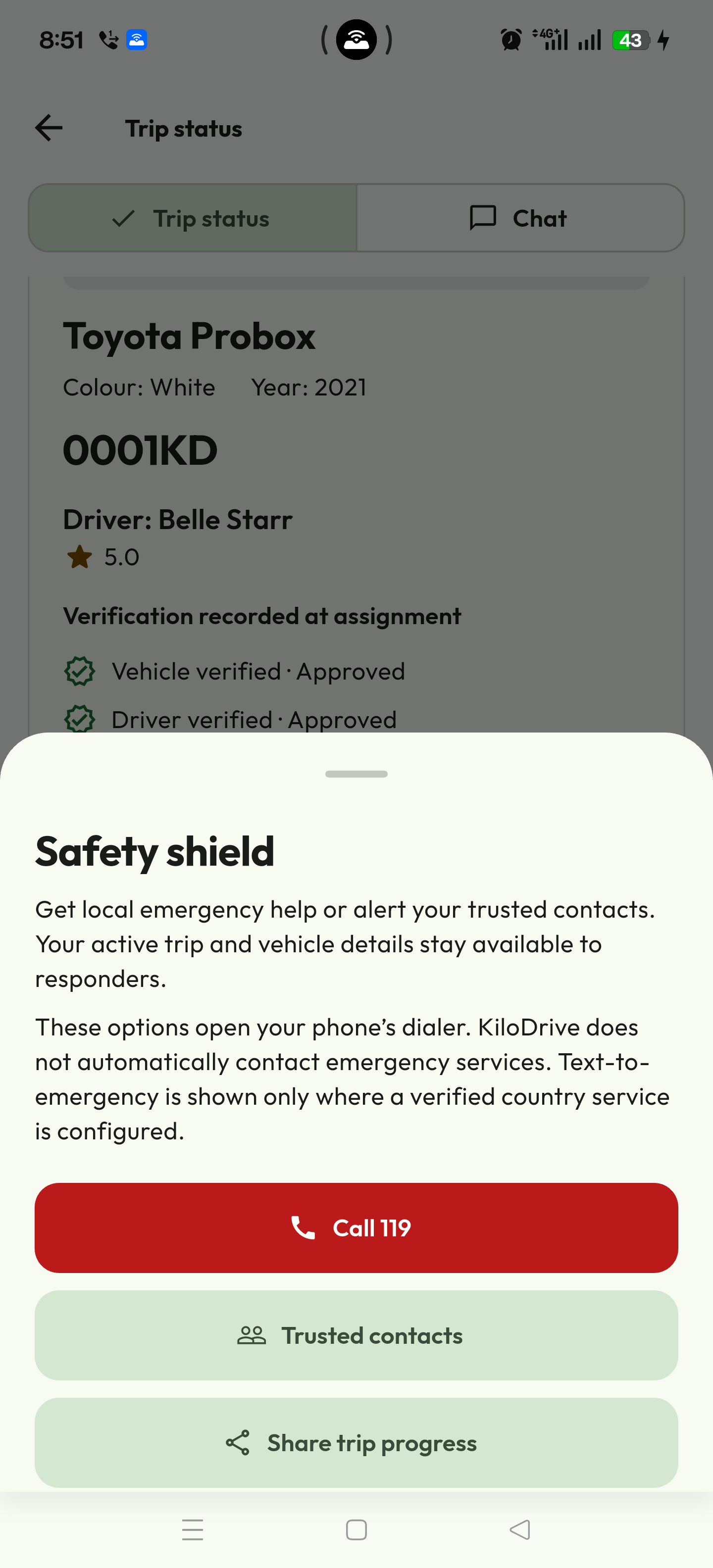
Create a delivery in the guided steps
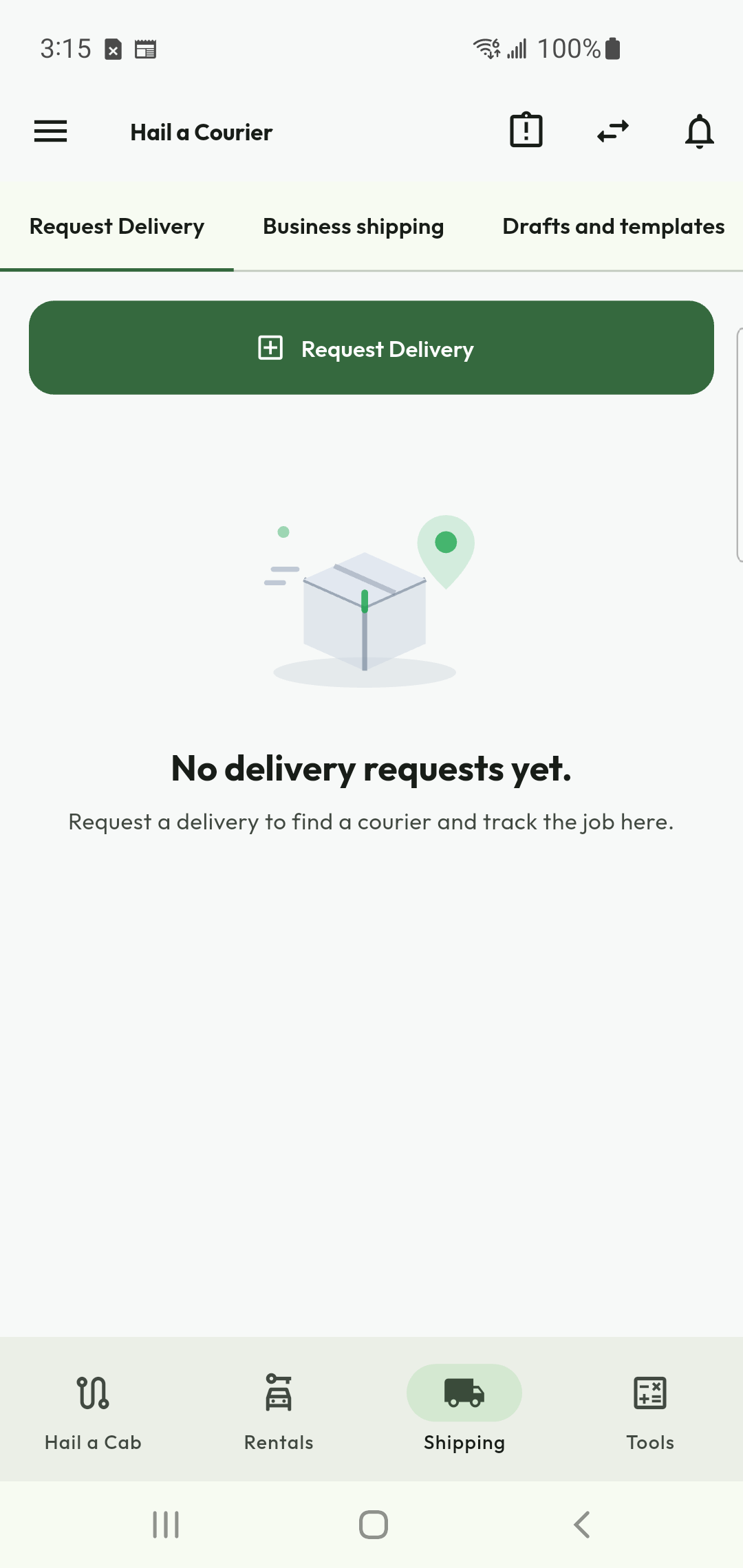
Shipping / Hail a Courier → new delivery
Before you begin
Decide whether this is a parcel collection, delivery from your location, or a shopping errand. The courier travels with the goods; this is not passenger transport.
Do this
- Describe what needs moving, quantities, size/value and handling needs. Read prohibited-goods rules and give truthful declarations.
- Set the sender/pickup and destination. Add recipient details when applicable; optional name/phone fields need not be filled simply to advance.
- Choose immediate or scheduled work. Review each wizard step for validation and preserve a draft if you cannot finish now.
- Attach useful photographs or documents through the provided controls. Include delivery instructions, not payment passwords or unrelated personal information.
- Review the budget, route, payment mode and final summary. Submit once, compare offers and confirm an eligible courier. Save the tracking reference.
Check the result
A published job can receive offers; assignment identifies the courier who will take custody. A draft or reusable template has not booked a courier or authorized payment.
Start the three-step delivery request
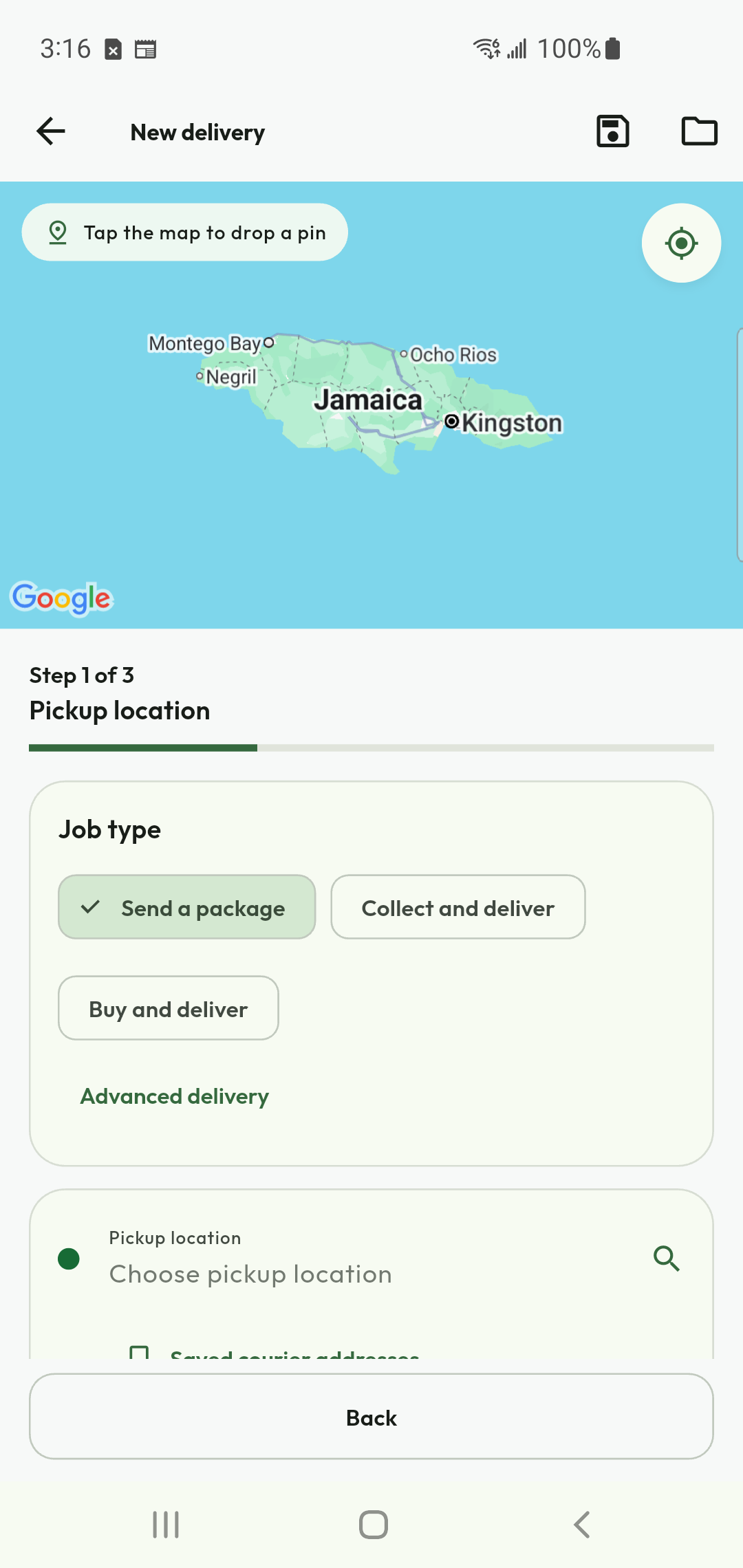
Open the delivery workspace
Approve shopping, delivery and returns
Delivery details → receipts / custody / support
Before you begin
For buy-and-deliver work, separate the courier fare from the goods budget. Specify substitutions and the maximum authorized spend before purchase.
Do this
- Review any extra-spend or substitution request in the job. Approve only the amount and items you actually accept; a chat message does not replace the recorded financial action.
- Inspect the merchant receipt against the agreed items and actual spend. Reject a mismatch with a clear reason rather than approving it just to close the journey.
- Follow pickup and custody status. Arrange recipient evidence using the method requested by the job, such as a code, photo or signature.
- If purchase or delivery cannot happen, use the inability-to-buy, return or dispute workflow. Do not ask the courier to improvise an undocumented cash settlement.
- Review outstanding receipts even if the route is Completed, Cancelled or Returned to sender. Inspect service-fare settlement, unused goods money and merchant refunds separately.
Check the result
The transport record and money records each have their own final state. A finished route can still need a receipt decision or dispute resolution.
Find a suitable rental and branch
Rentals → Vehicles / Nearby map / Rental providers
Before you begin
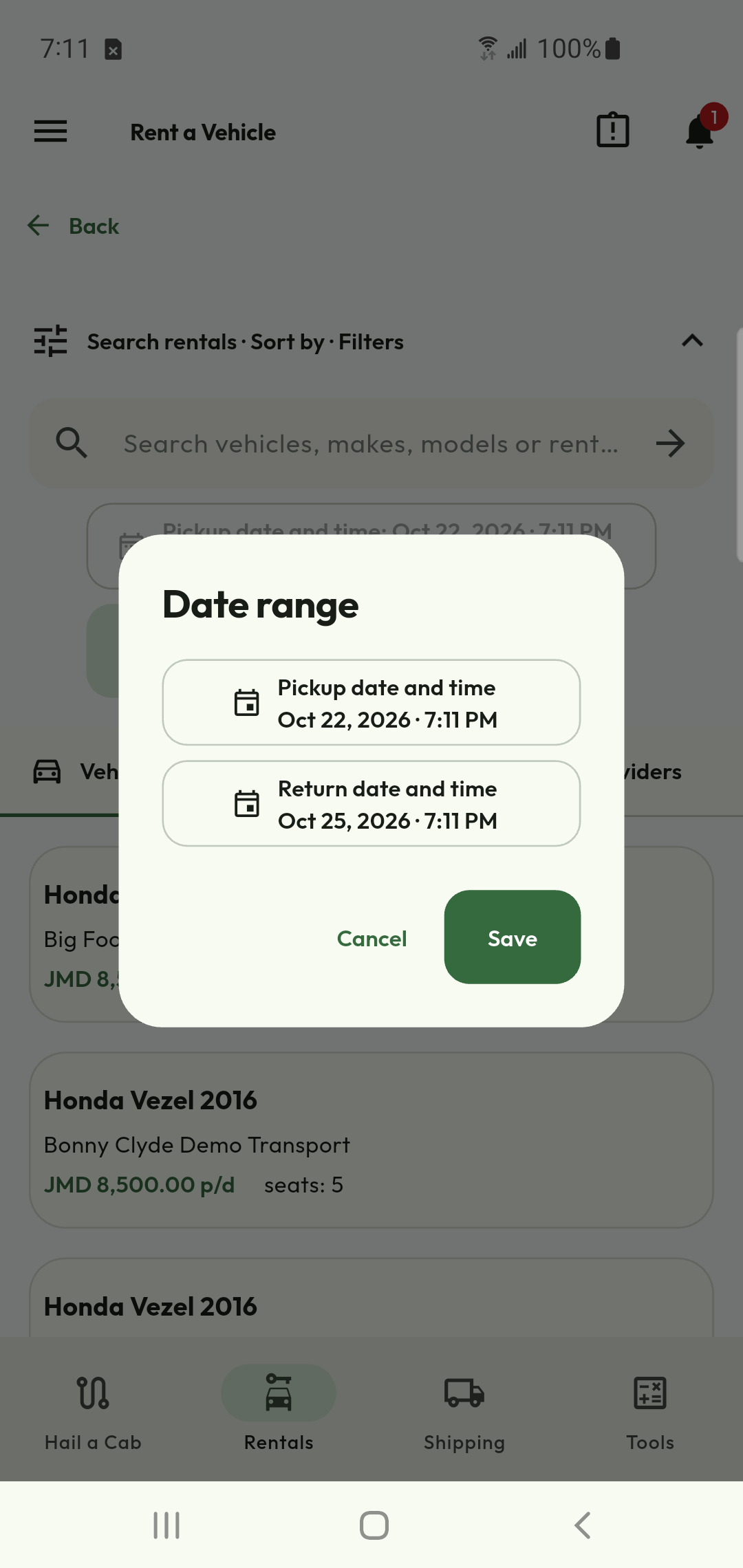
Choose pickup and return dates/times before comparing availability. The branch timezone and operating hours affect whether those times can be accepted.
Do this
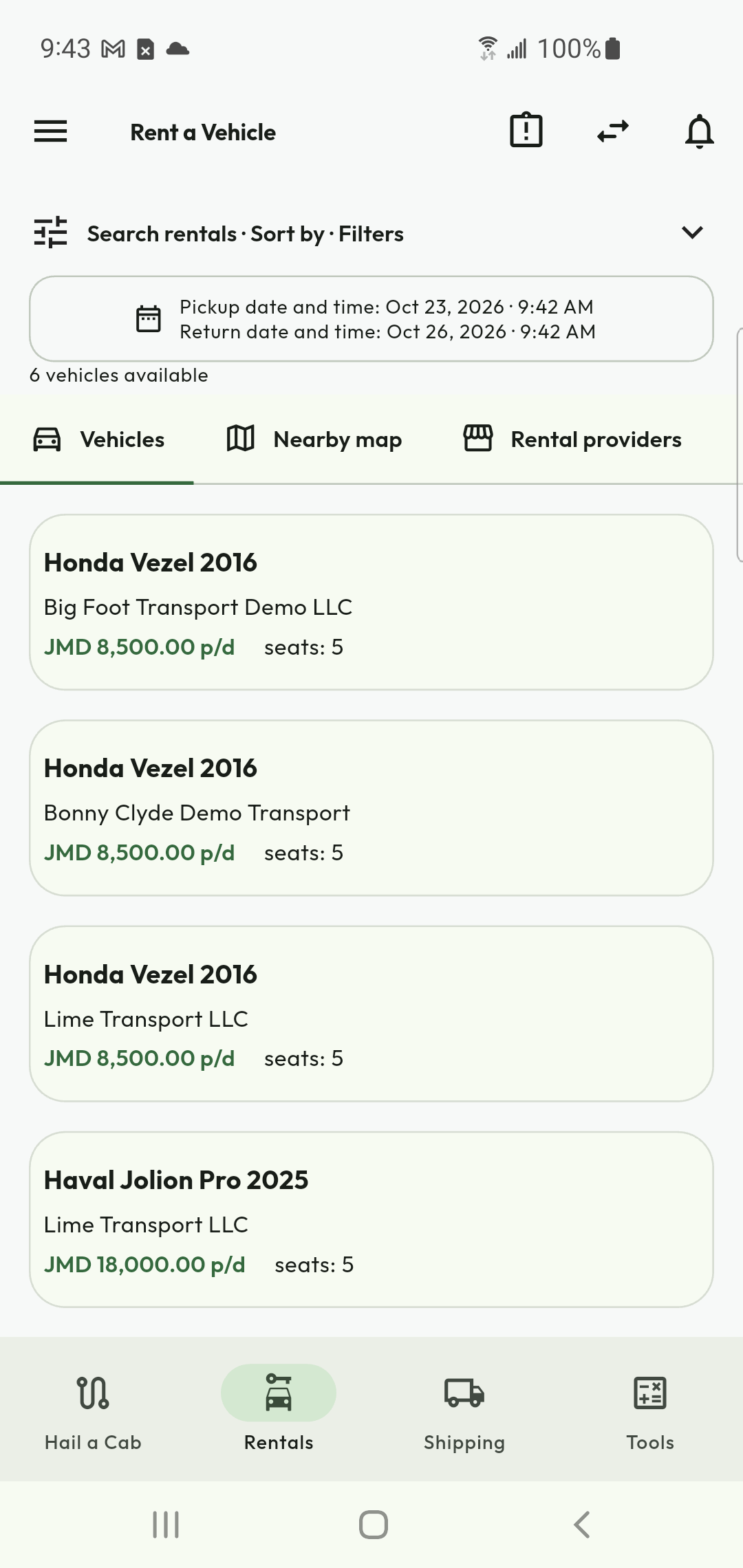
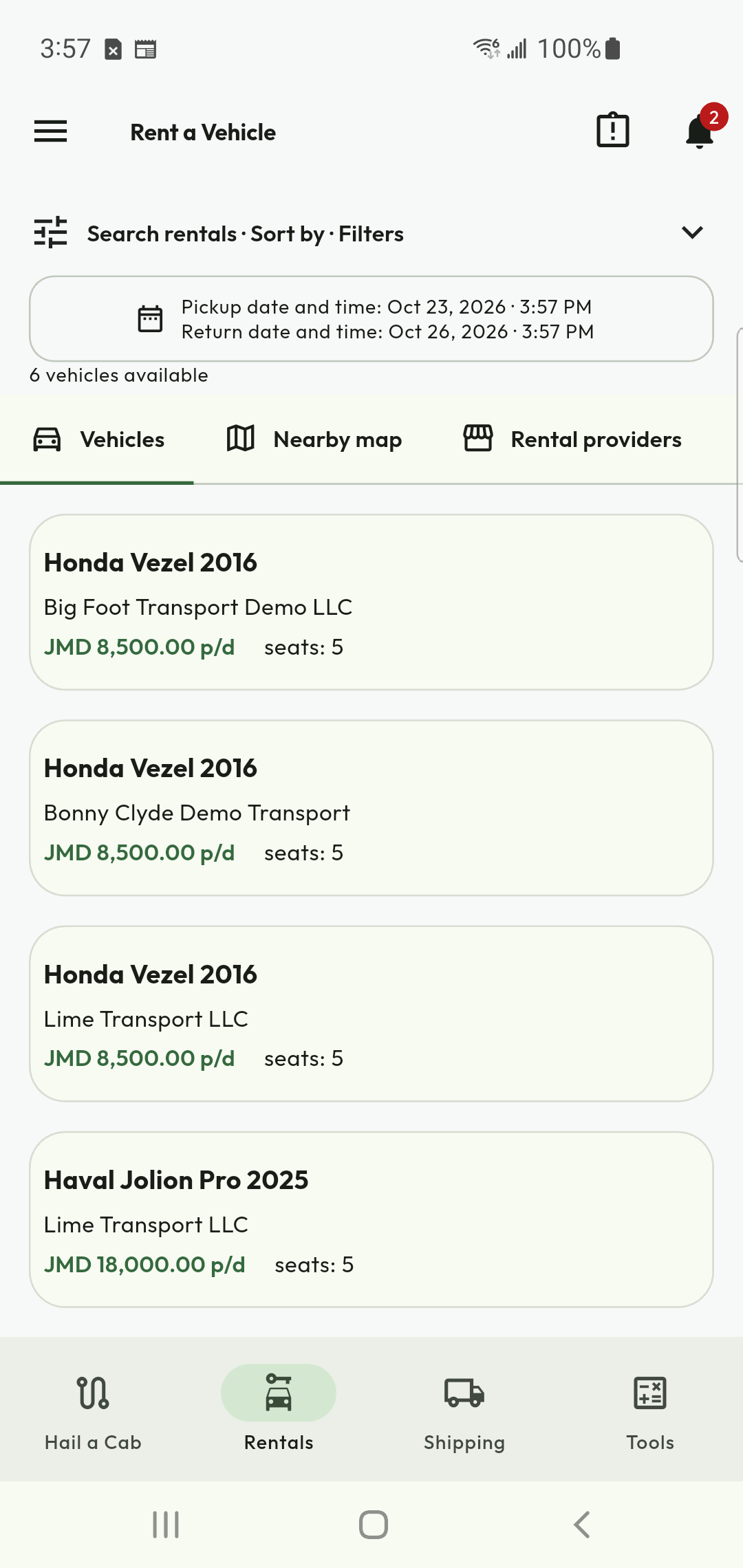
- Expand Search rentals · Sort by · Filters when you need to narrow results. Apply your dates, search and filters, then review the current list.
- Read the bold make/model/year, rental company, price marked p/d and seat count. The daily rate is not the full booking total or deposit.
- Use Nearby map to inspect branch locations. A branch pin and vehicle count describe inventory, not a renter’s live position.
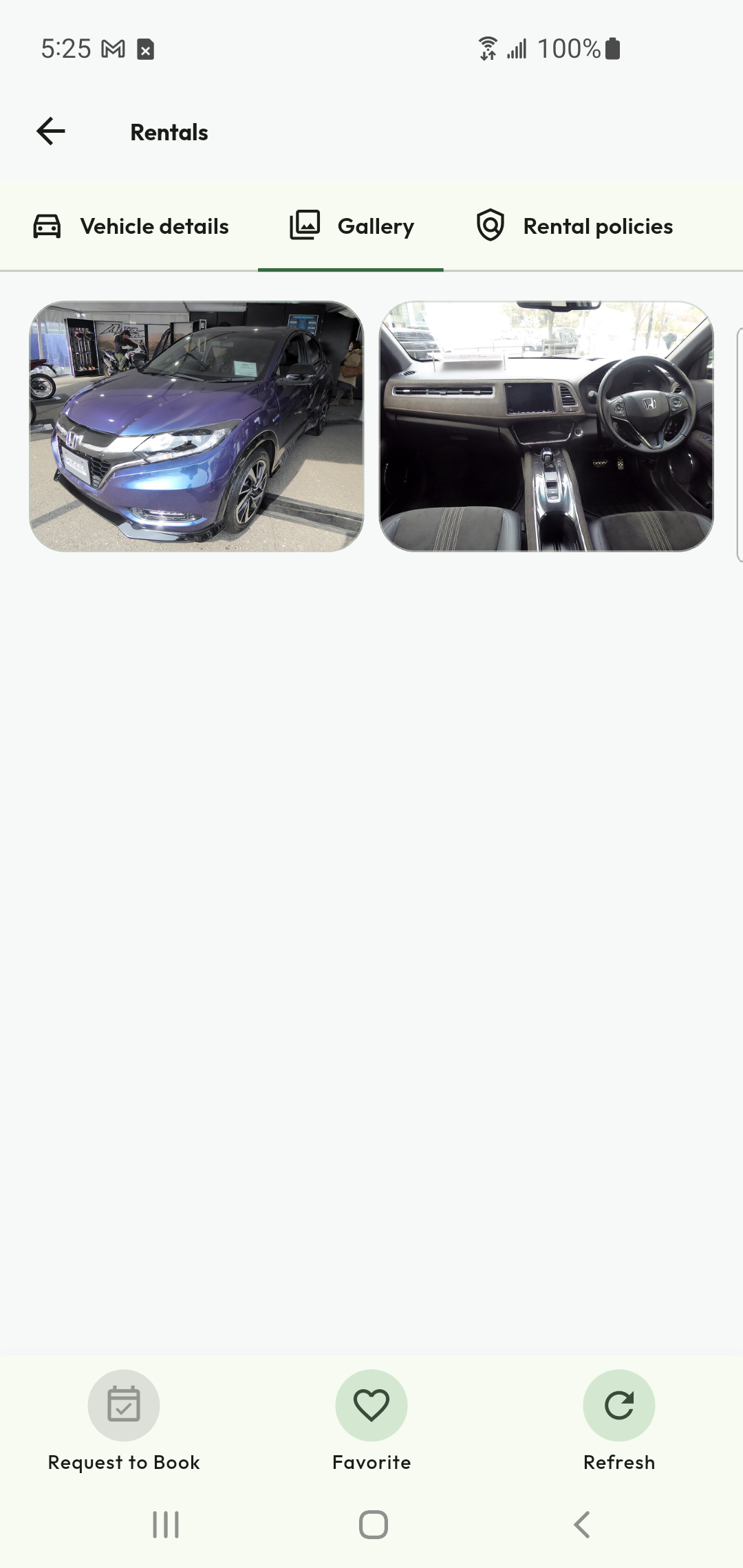
- Open vehicle details, its provider details, Gallery and Rental policies. Inspect configuration, condition, accessories, rental duration limits and requirements.
- Open a gallery image to inspect it, move between images and download where offered. Check the vehicle’s actual condition at collection; catalog images are not handover evidence.
Check the result
You have a vehicle and branch that fit the proposed period and your requirements. A catalog listing is not reserved until the server confirms a reservation/booking.
Understand the rental map
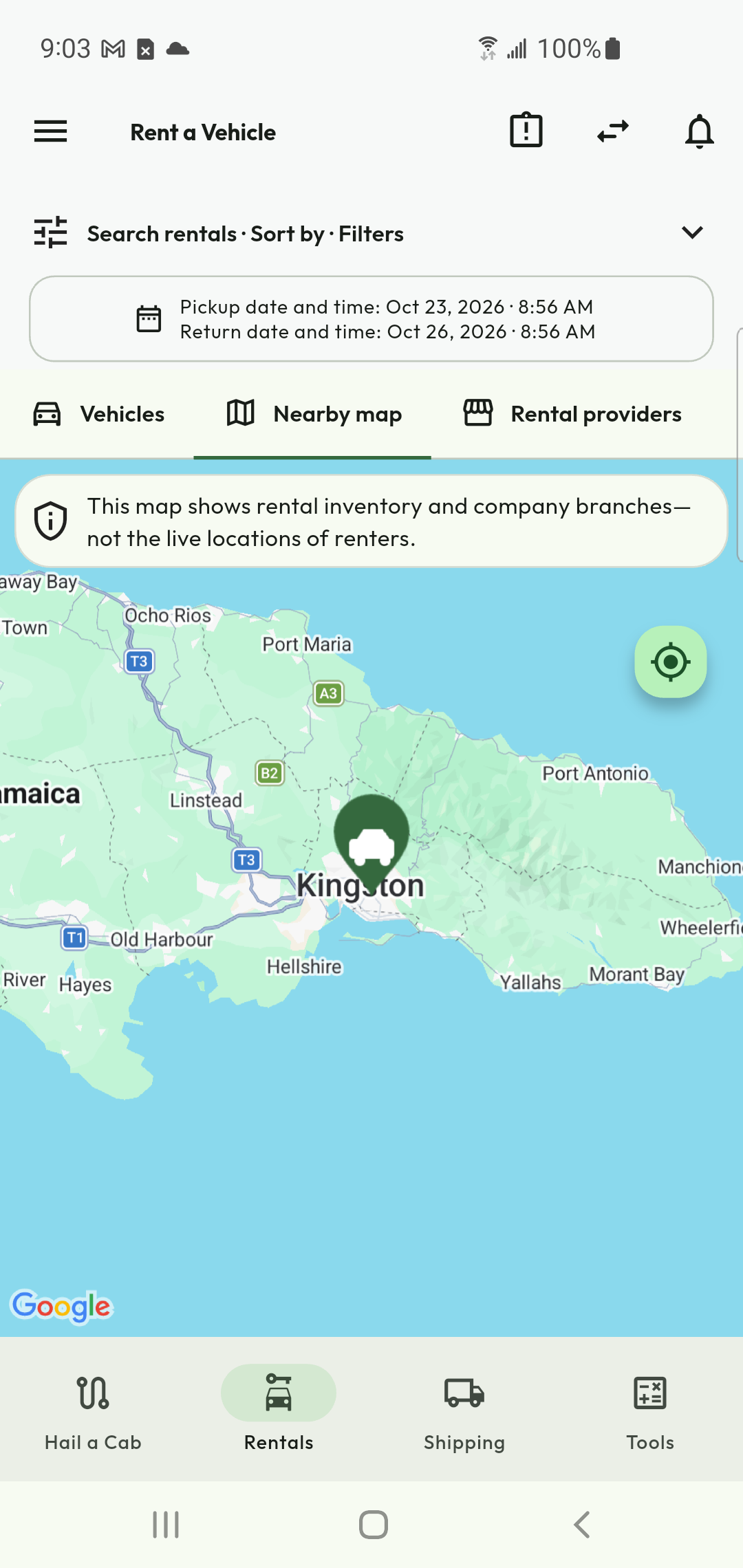
Find the search and filter controls
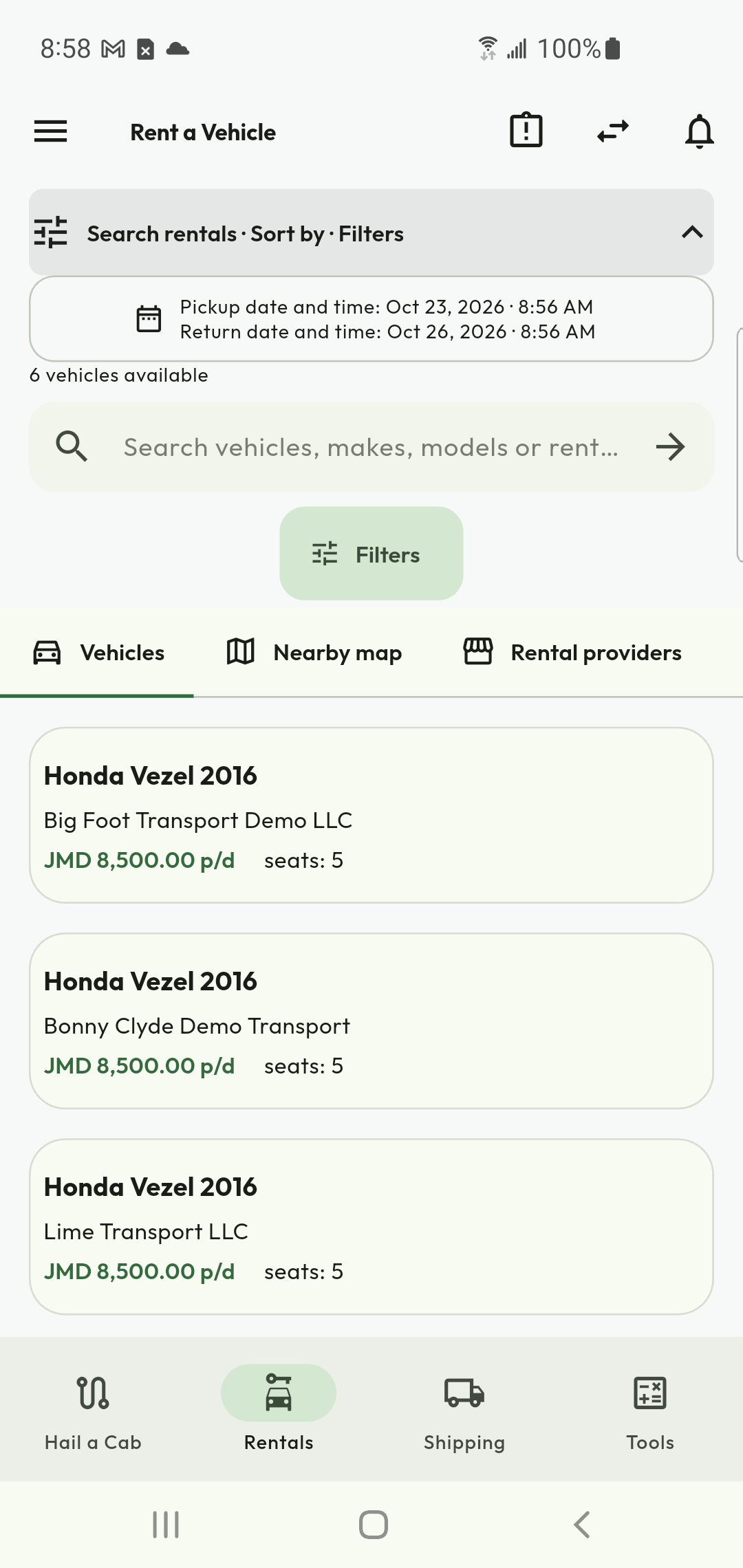
Compare rental listings
Select pickup and return times
Browse the vehicle gallery
Inspect an individual vehicle image
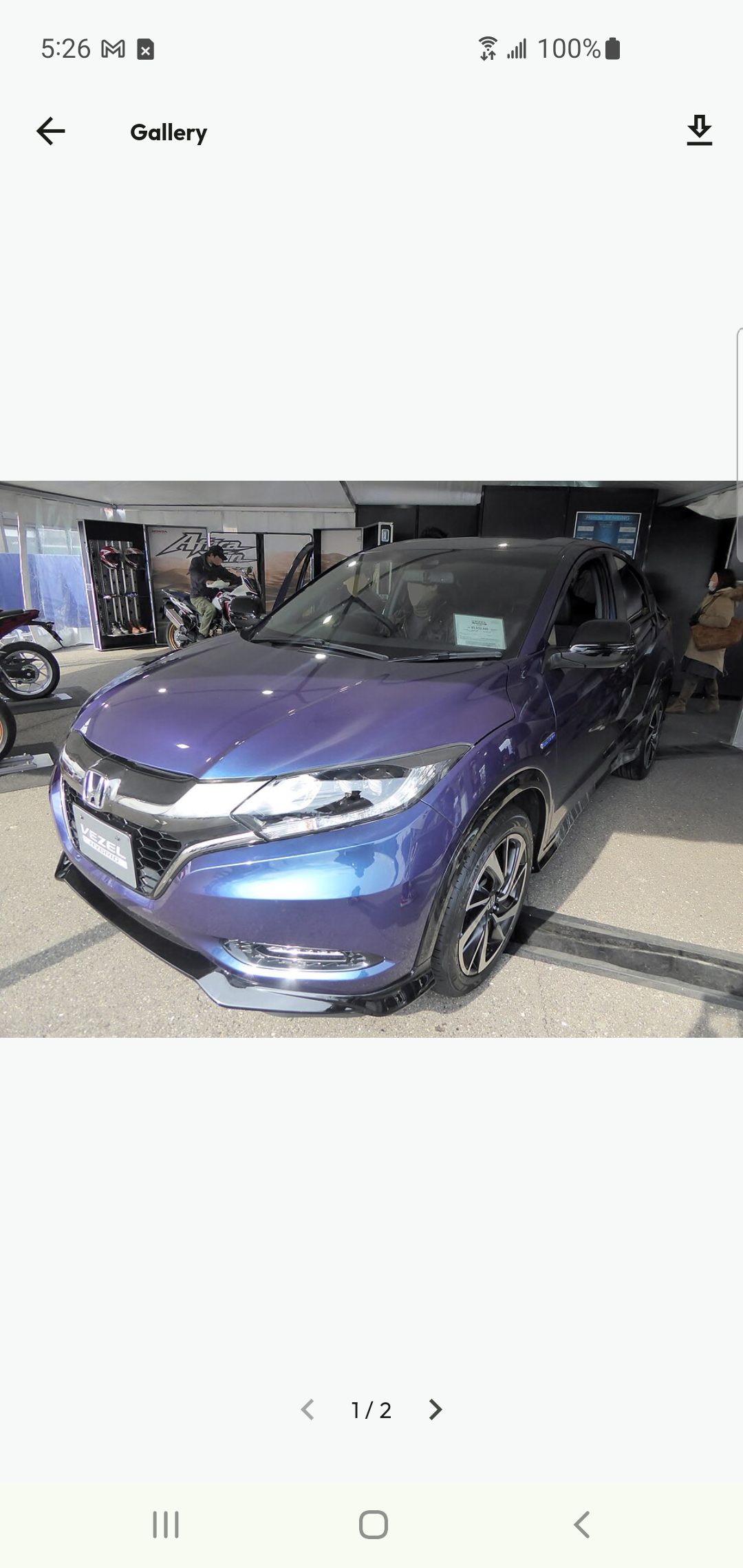
Check whether you can rent this vehicle
Vehicle details → requirements / rental qualification
Before you begin
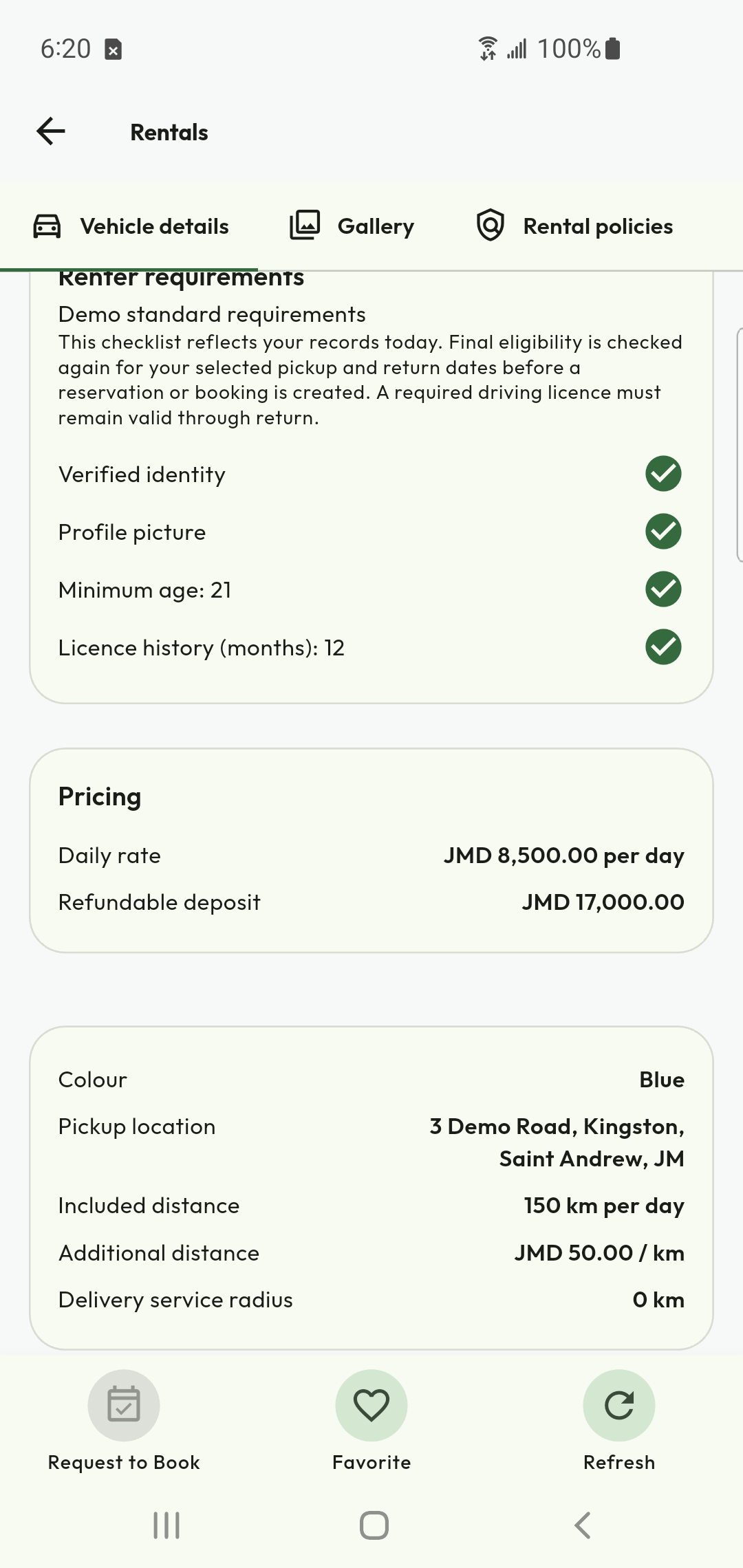
Use the same verified identity. Each provider can apply a reusable requirement profile to a vehicle, so different vehicles may have different requirements.
Do this
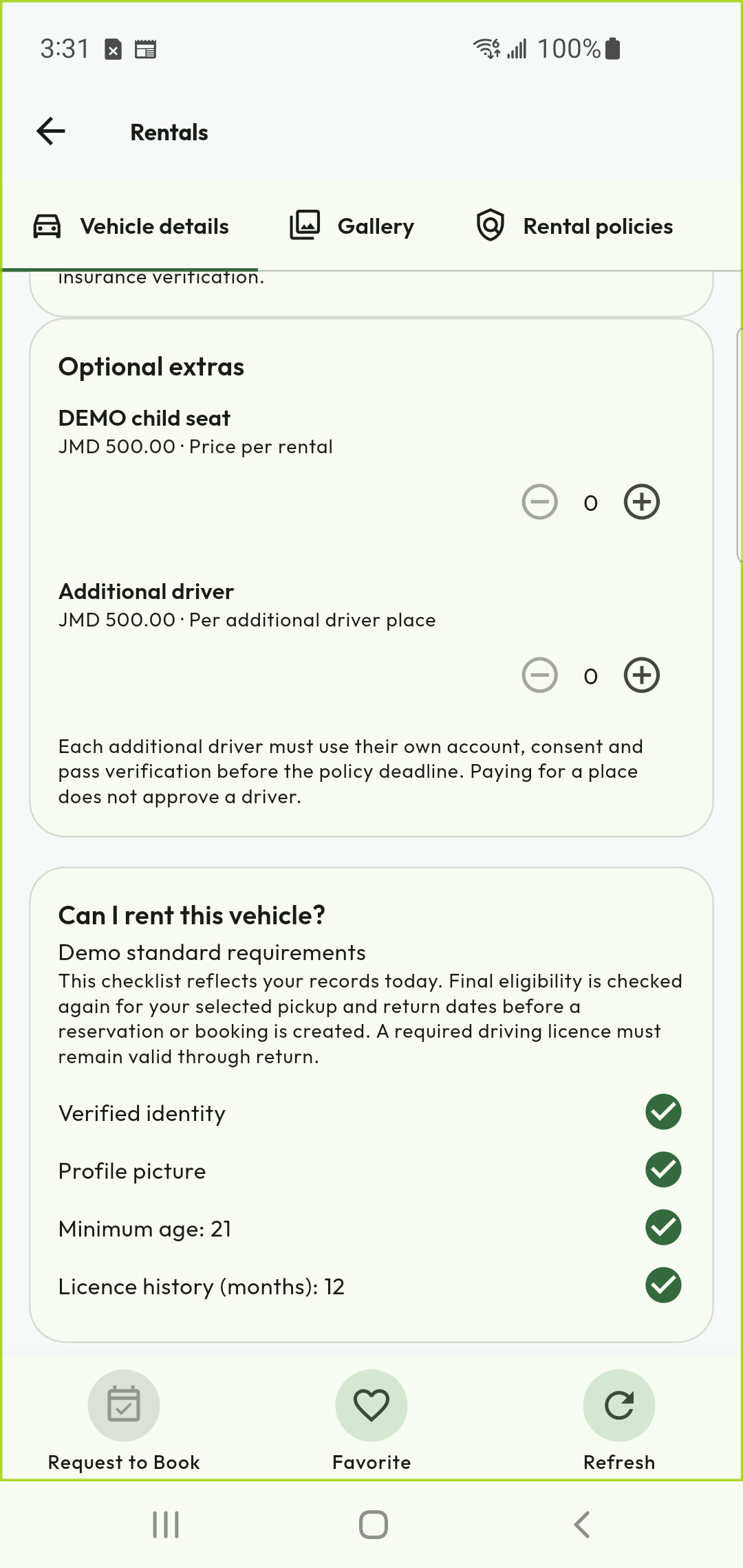
- Read each requirement beside your standing. A green check records the current evidence; a red X identifies something to resolve.
- Review driving-licence verification, supported licence category, expiry, required photo, minimum age and required licence holding period. Follow any additional published lawful requirement shown.
- Open the missing-item action and supply the requested evidence once. A generally verified account does not necessarily include reviewed driving-licence facts.
- Wait for review where required. For rejection, read the reason and replace the specified evidence rather than submitting unrelated documents.
- Return to the selected vehicle and obtain a fresh quote. The final check covers the selected rental dates, including document validity through return.
Check the result
The final quote/booking validation accepts the recorded requirements for this vehicle and period. A successful upload or today’s green preview is not a guarantee of future eligibility.
Inspect the vehicle before requesting it
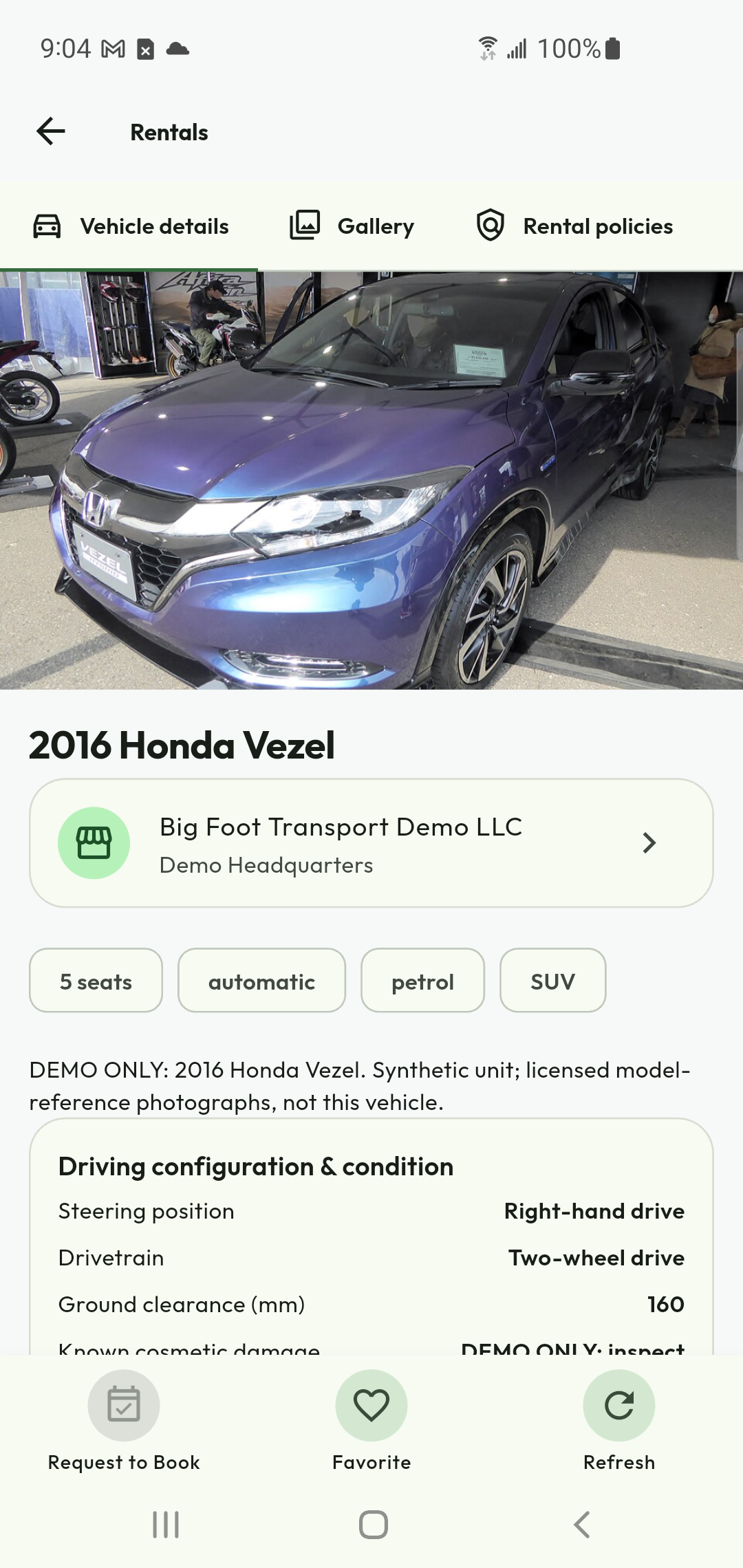
Check your rental eligibility
Reserve, book and confirm payment
Vehicle details → Request to Book / reservation option
Before you begin
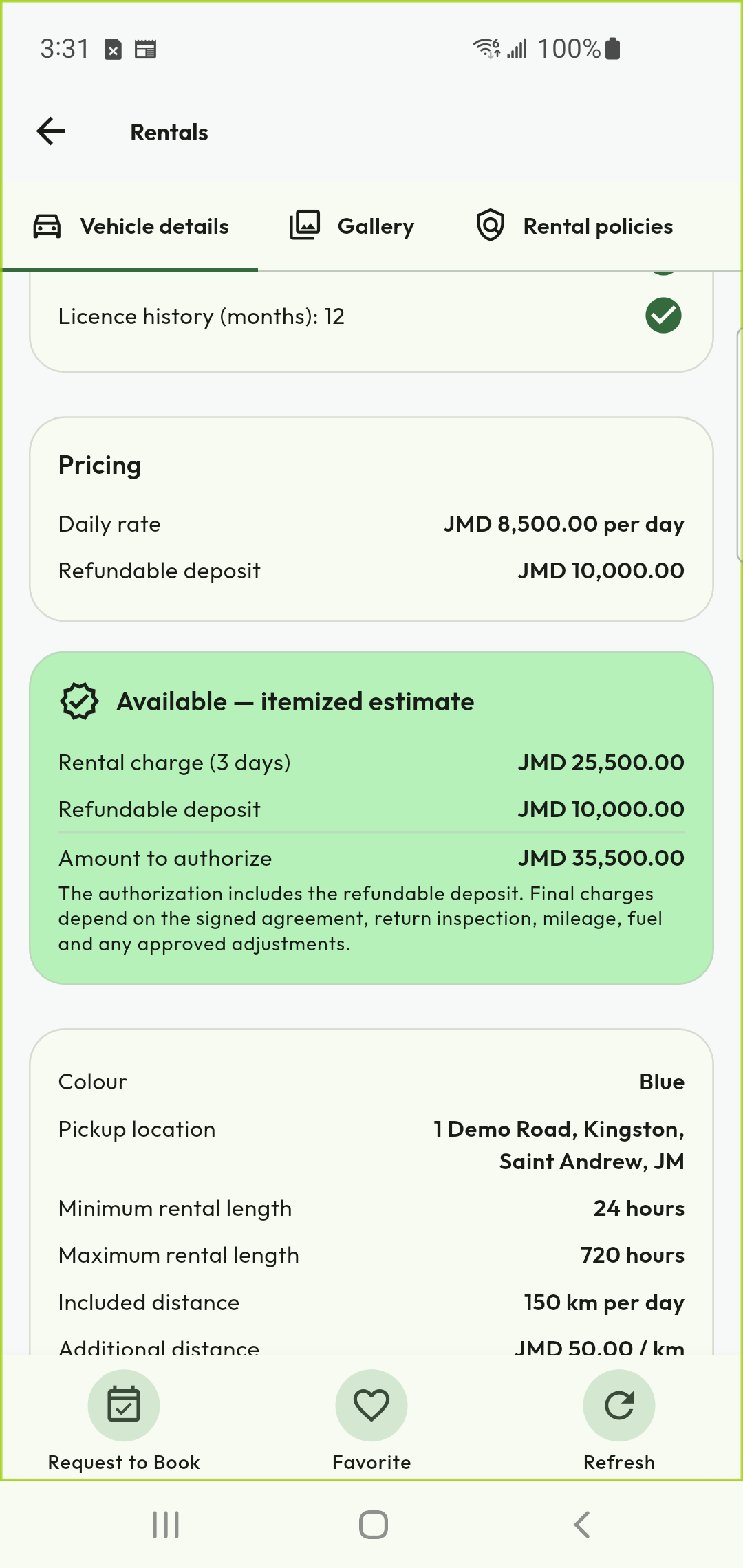
Review total price, dates, pickup/return branch, duration limits, deposit, cancellation rules and eligibility. Ensure the displayed currency is understood.
Do this
- Choose the supported collection/delivery arrangement and supply any required address. Re-read the final quote after changing dates or options.
- Use Reserve when offered for a temporary unpaid hold, or follow Request to Book for the ordinary approval process. Read the server’s reservation expiry.
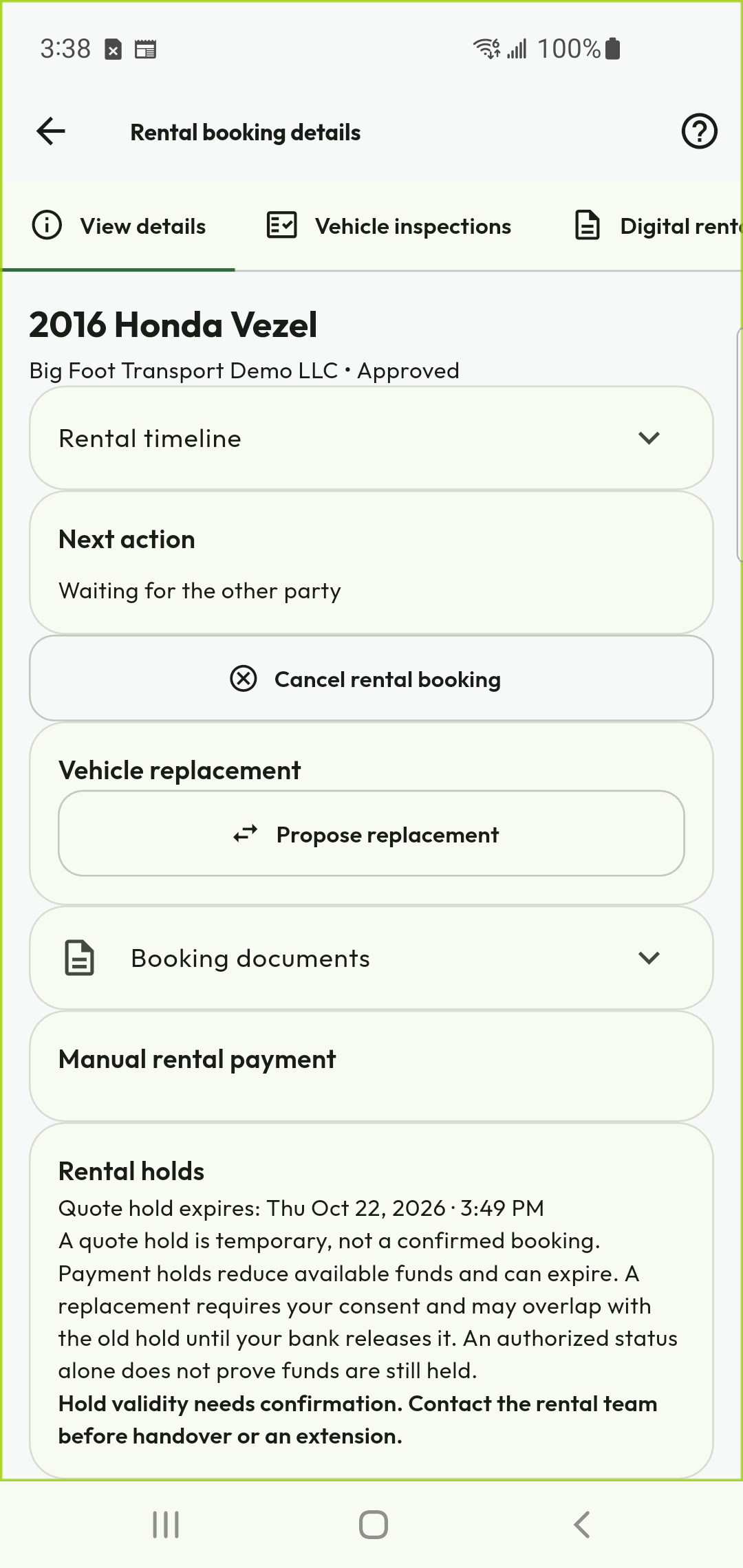
- Open the resulting record and follow the next required action: provider decision, contract, payment or other prerequisite. Do not assume every booking skips approval.
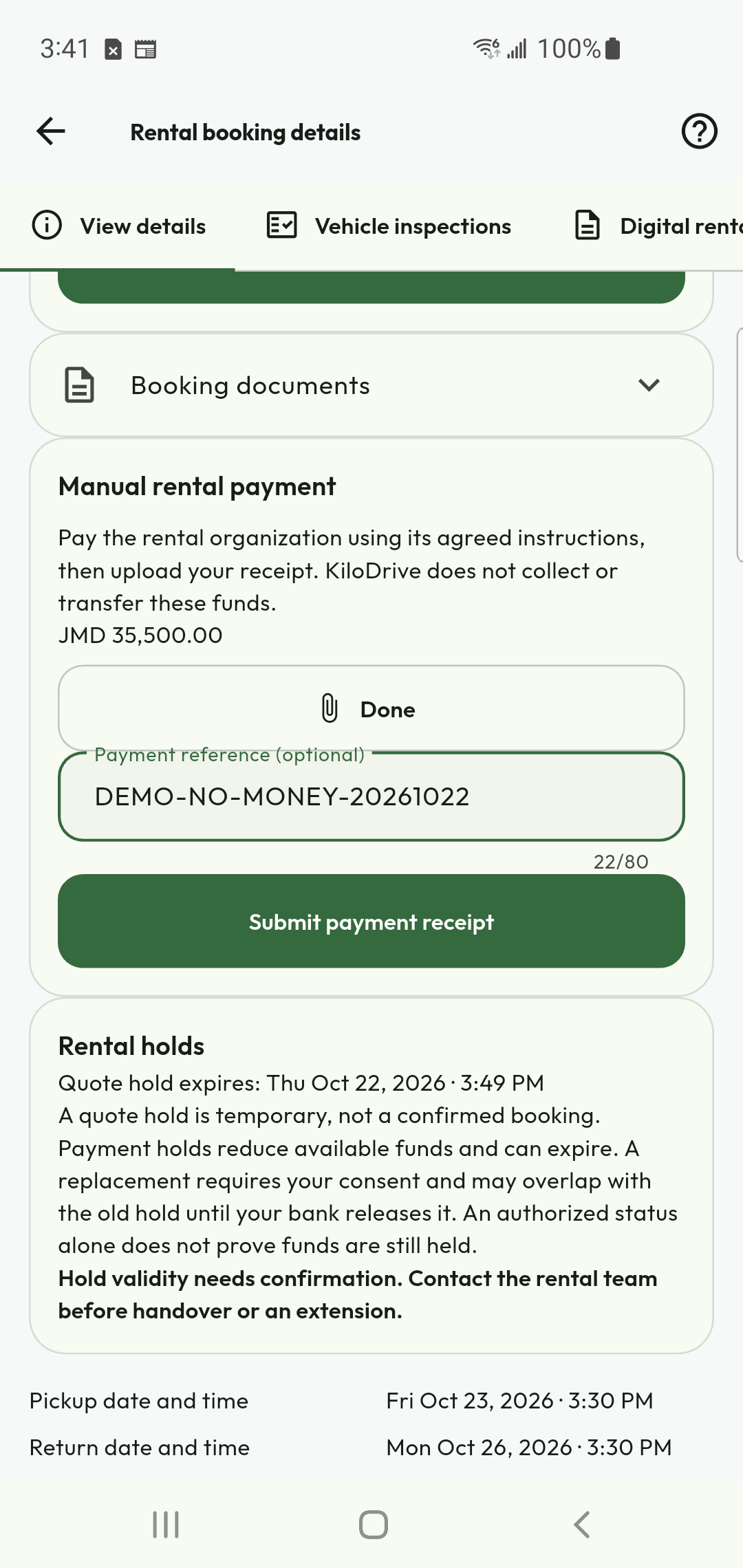
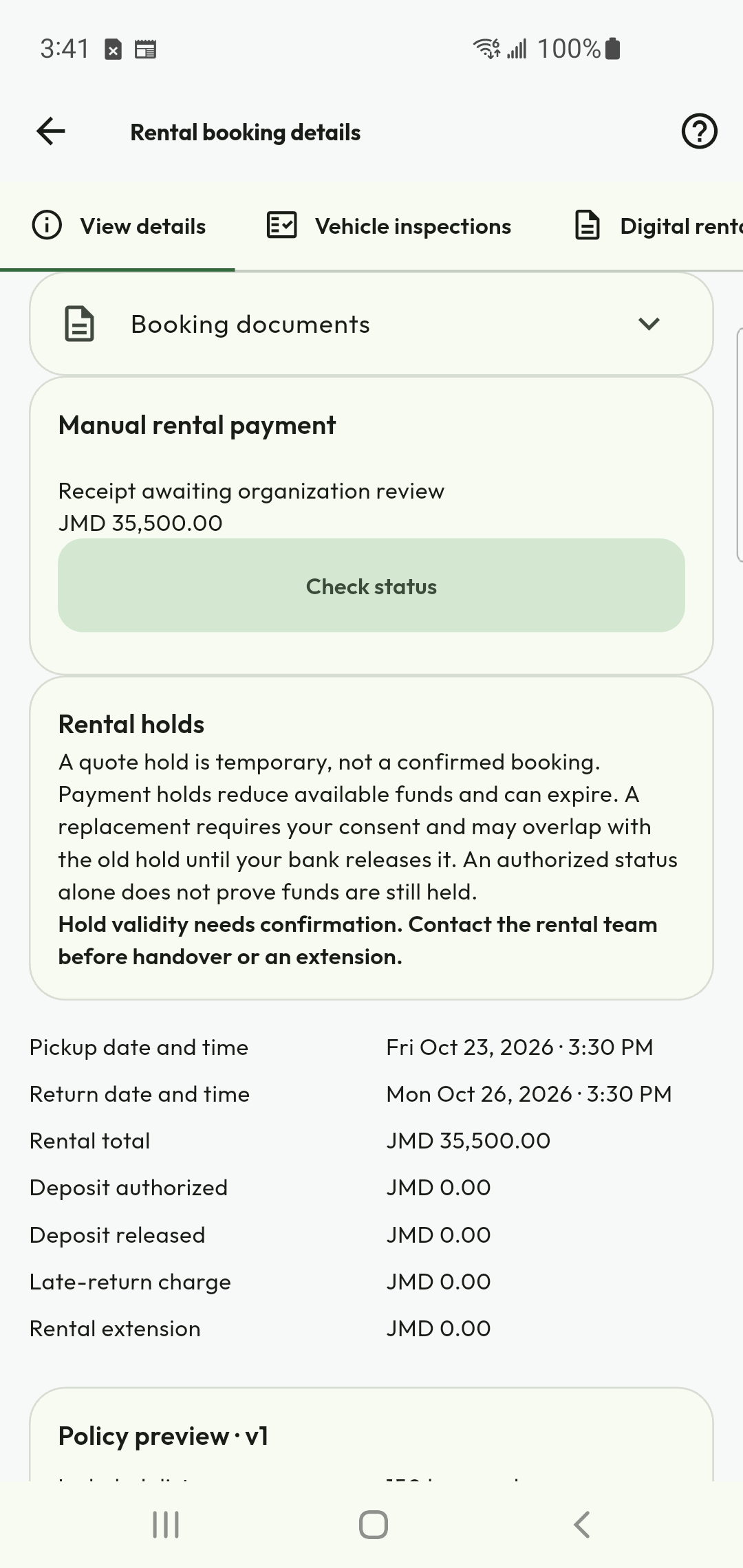
- Pay through the offered method only. For manual confirmation, provide the requested reference/evidence and wait for verified confirmation; an uploaded receipt is not confirmation itself.
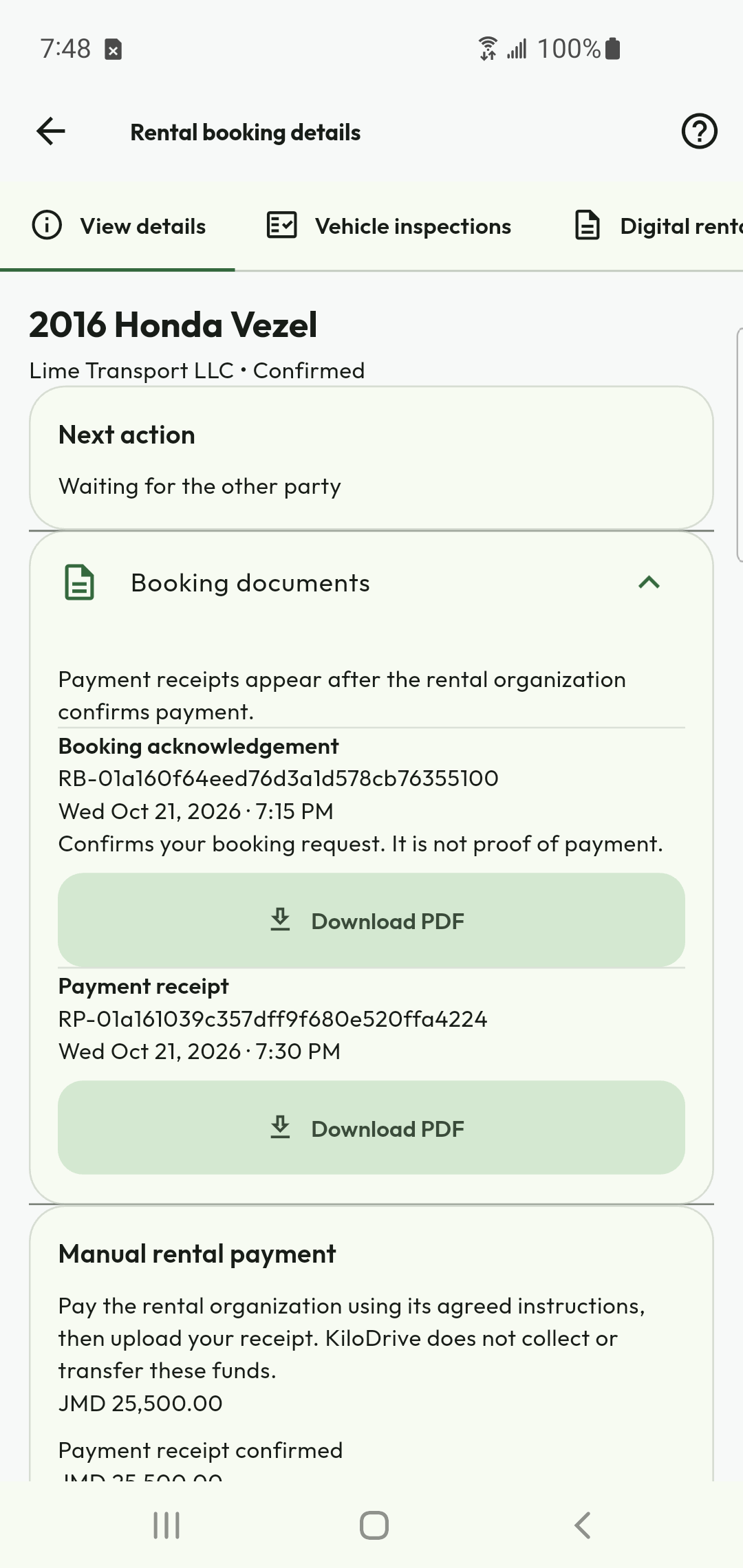
- Check booking status and payment status independently. Open the issued receipt and retain/download it from the record when available. Keep the booking reference for collection.
Check the result
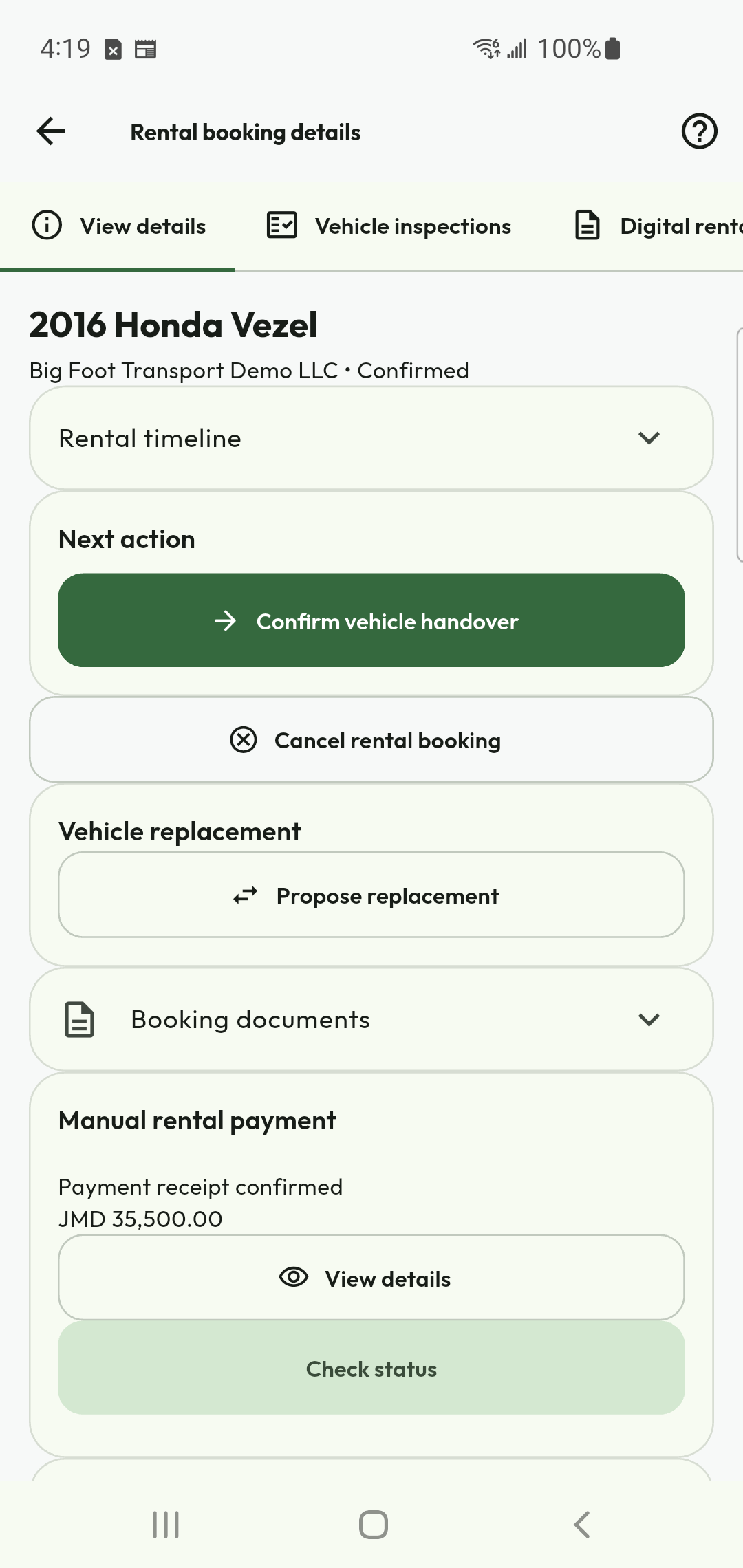
A confirmed booking allocates the vehicle for its interval. Payment confirmed is still distinct from collection ready and actual handover.
Browse available rentals
Check your eligibility
Review the complete rental quote
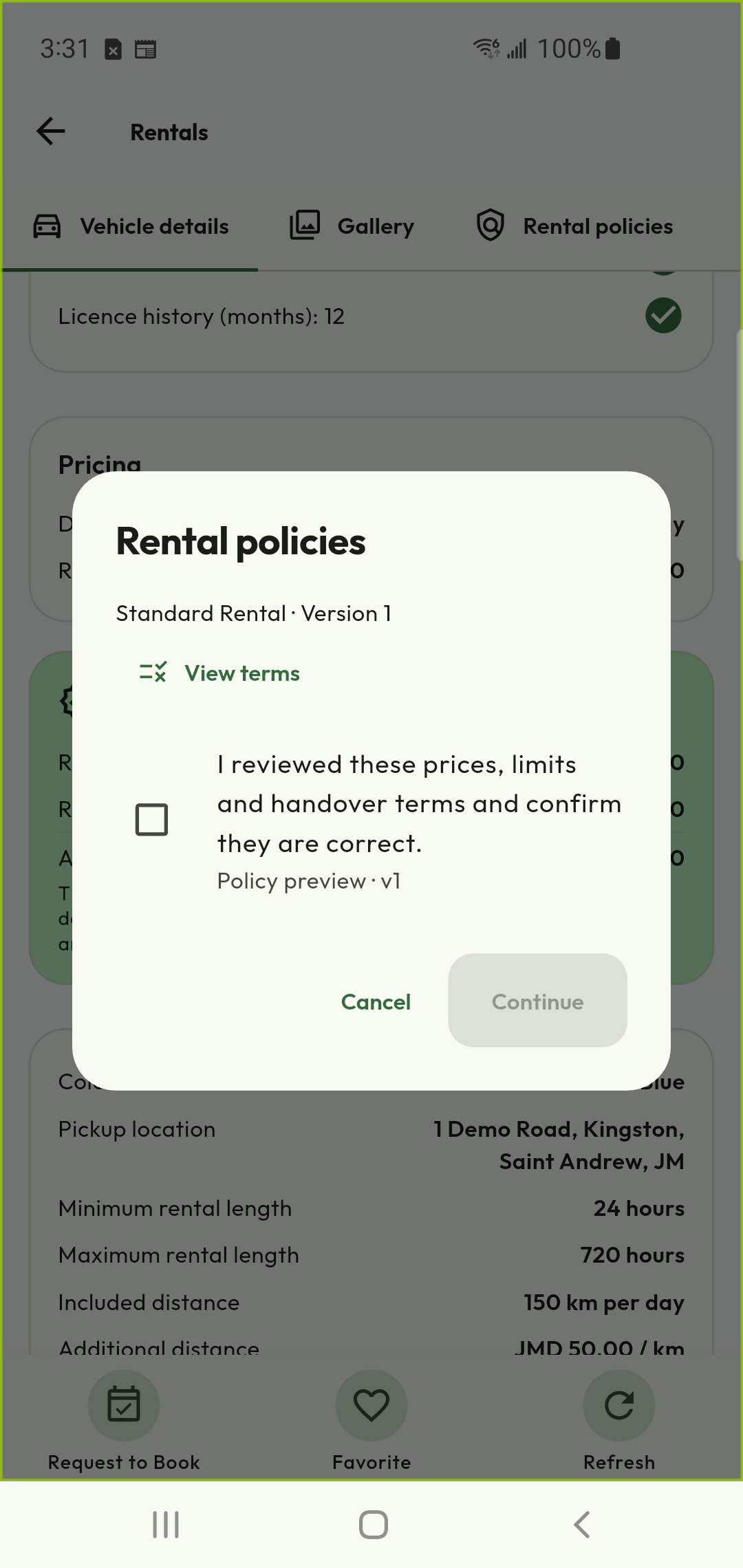
Accept the applicable rental policy
Track the booking request
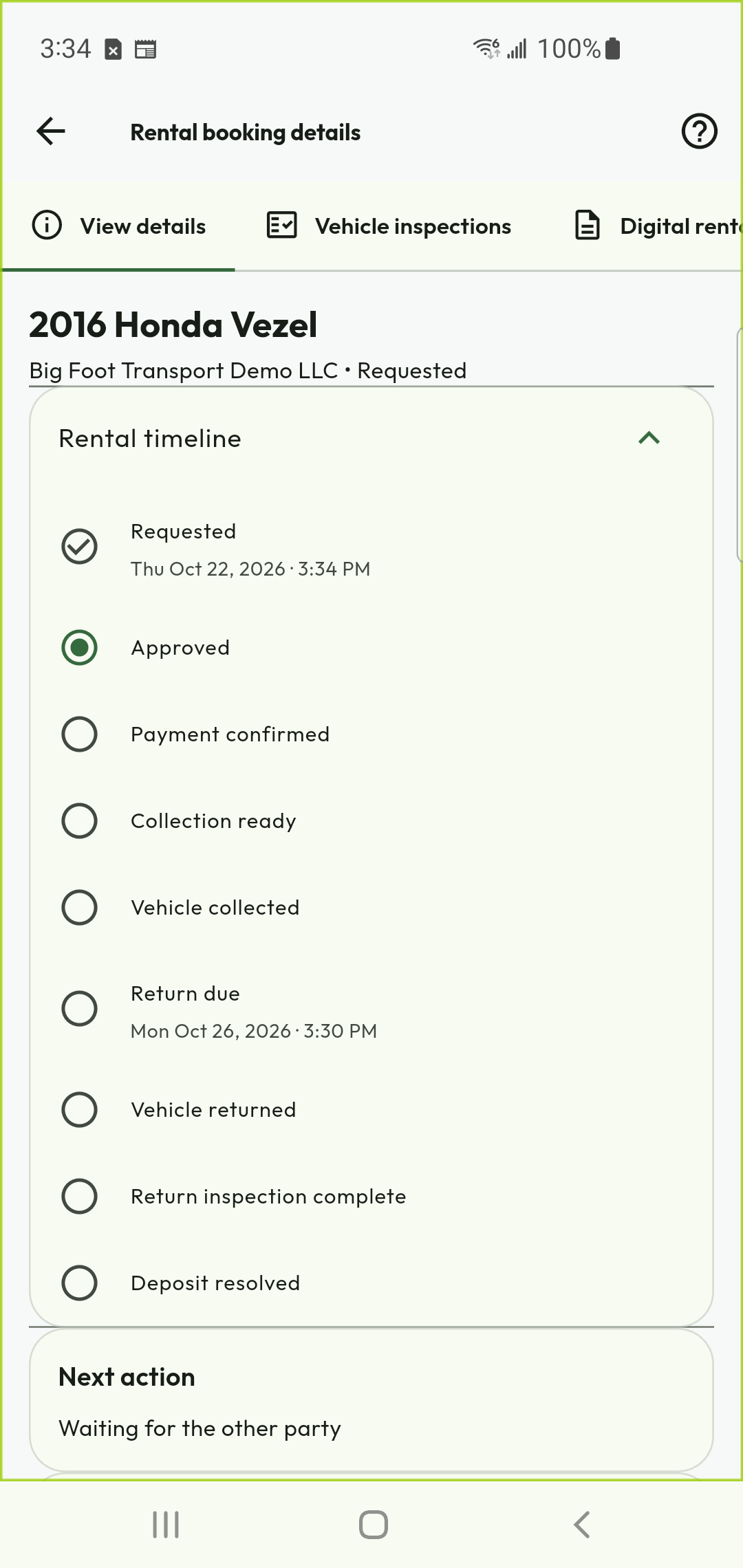
Distinguish approval from payment
Submit manual payment evidence
Wait for payment review
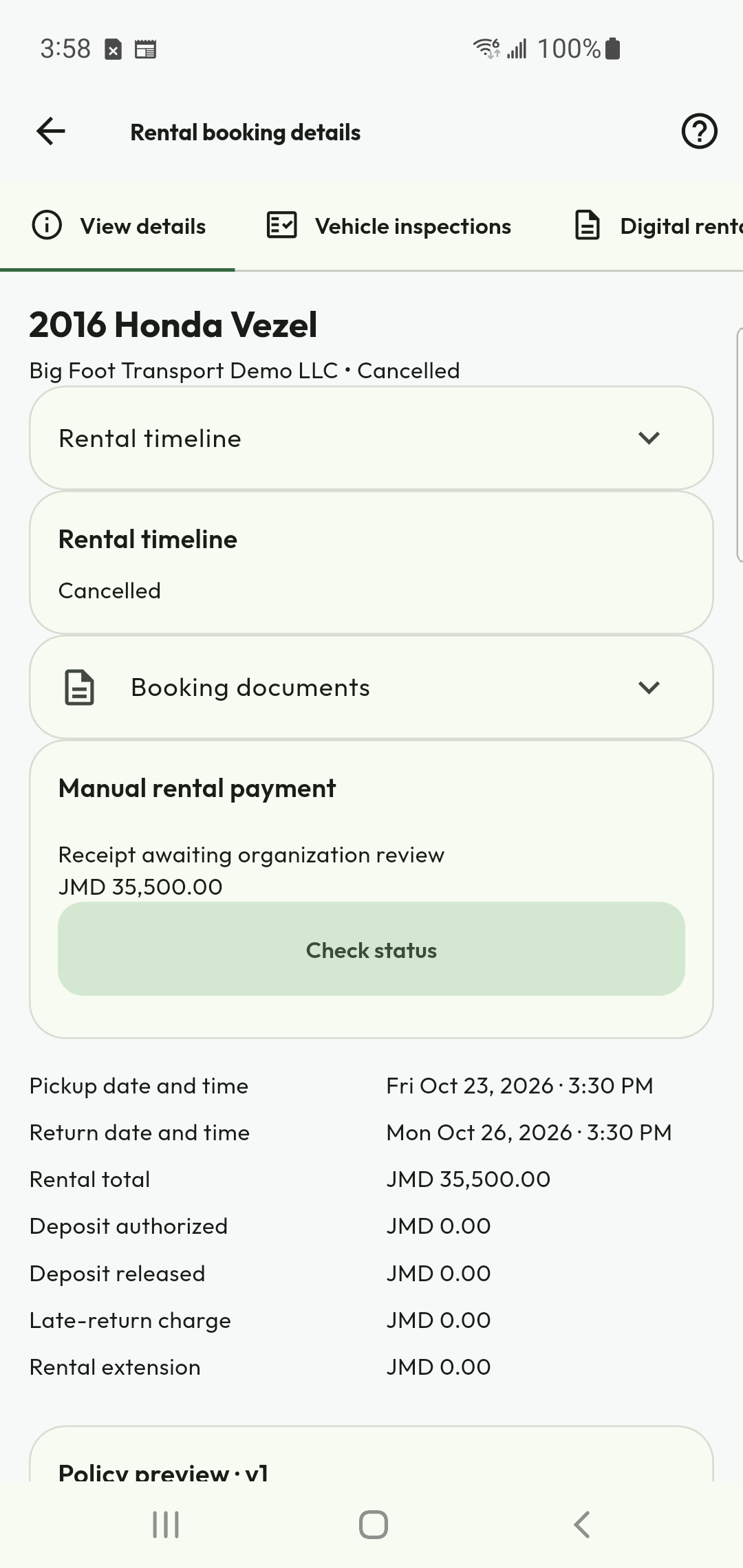
Recover after the inventory deadline
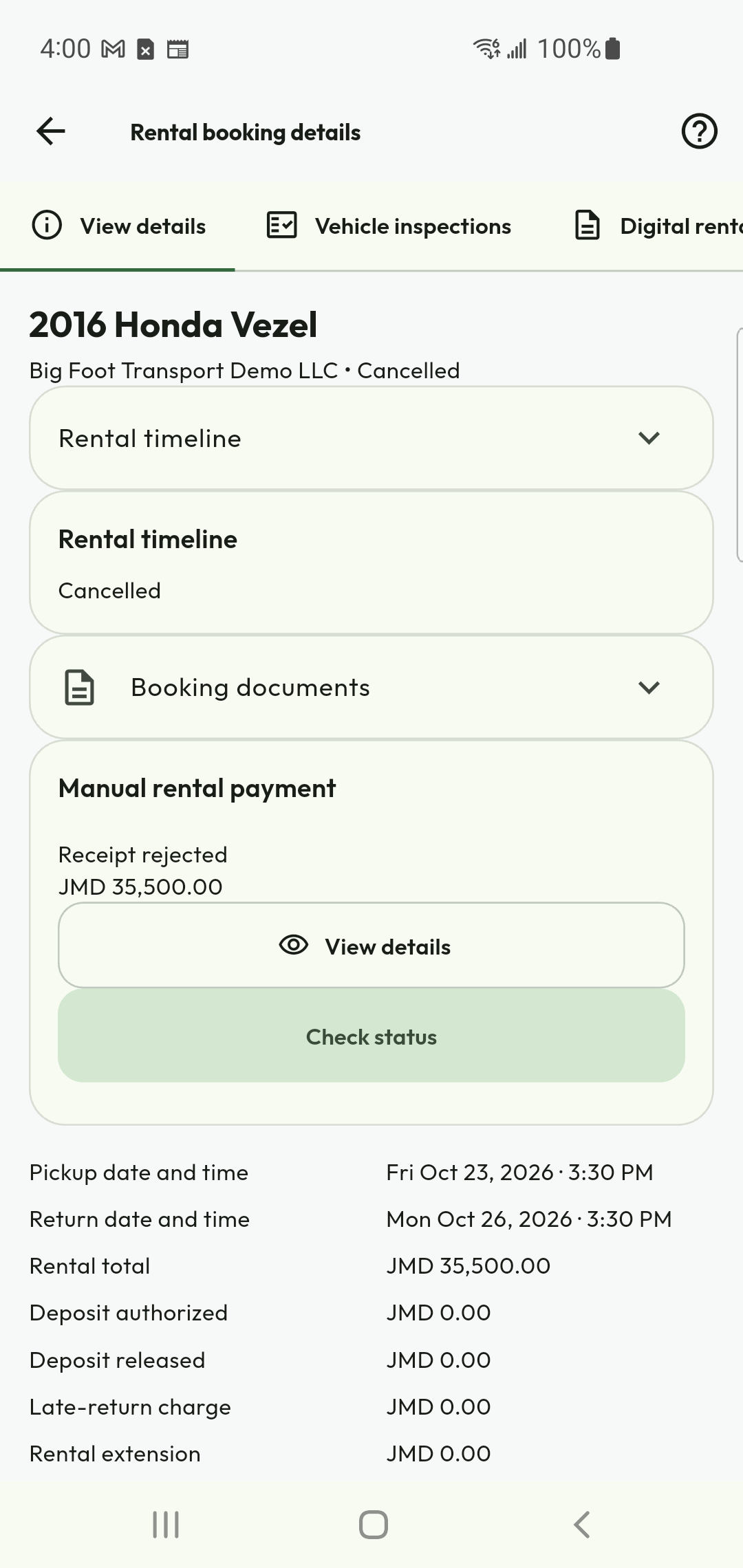
Understand a rejected receipt
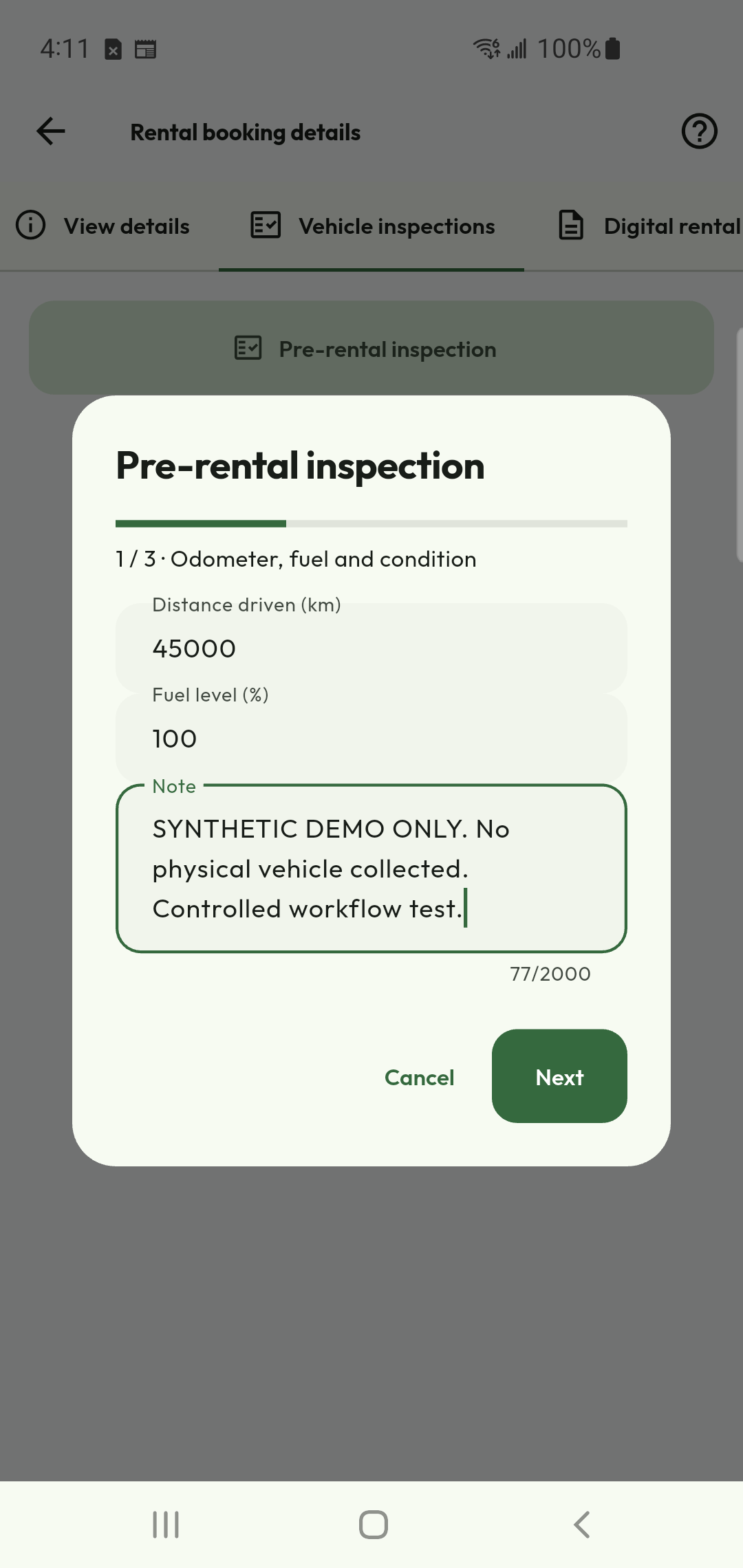
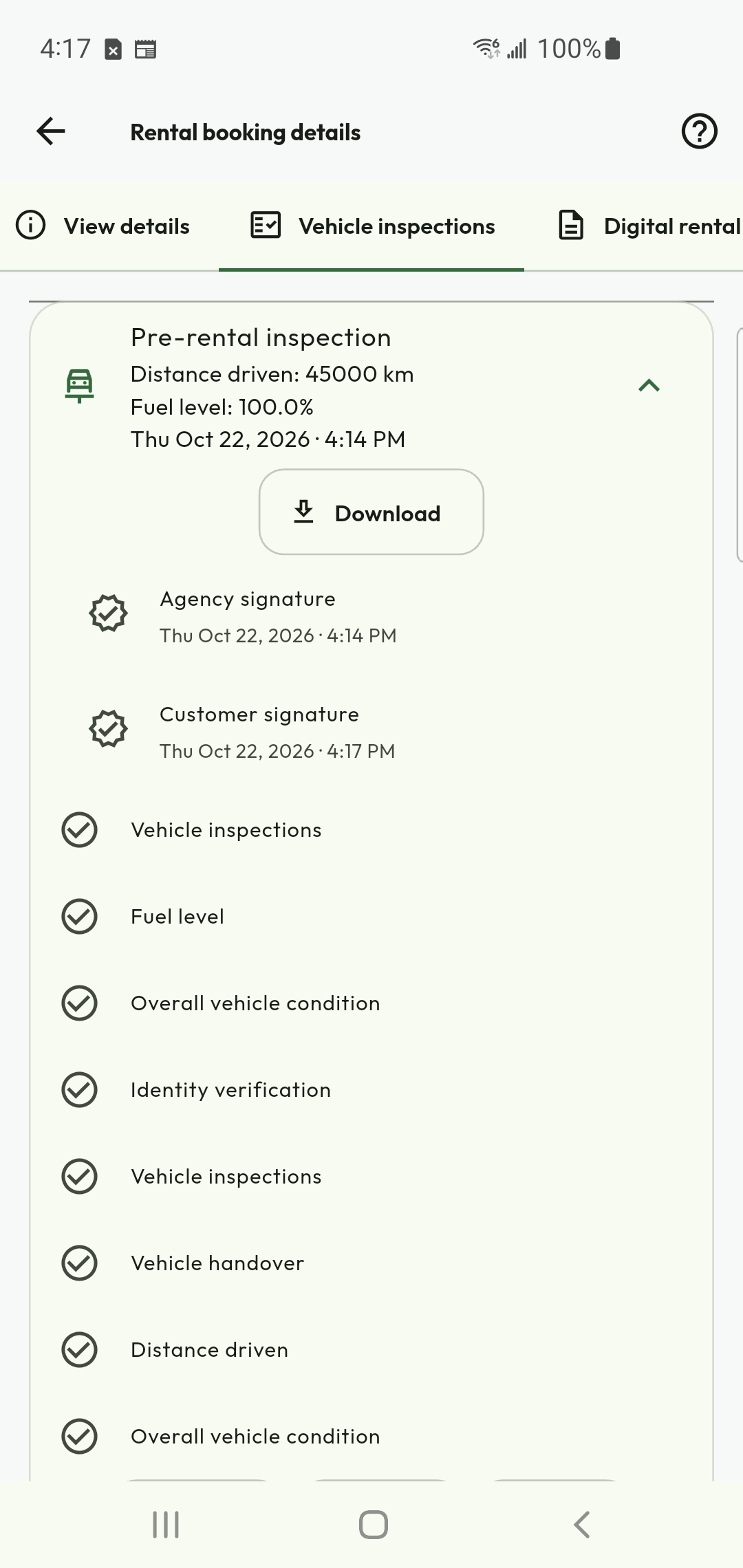
Record collection readings
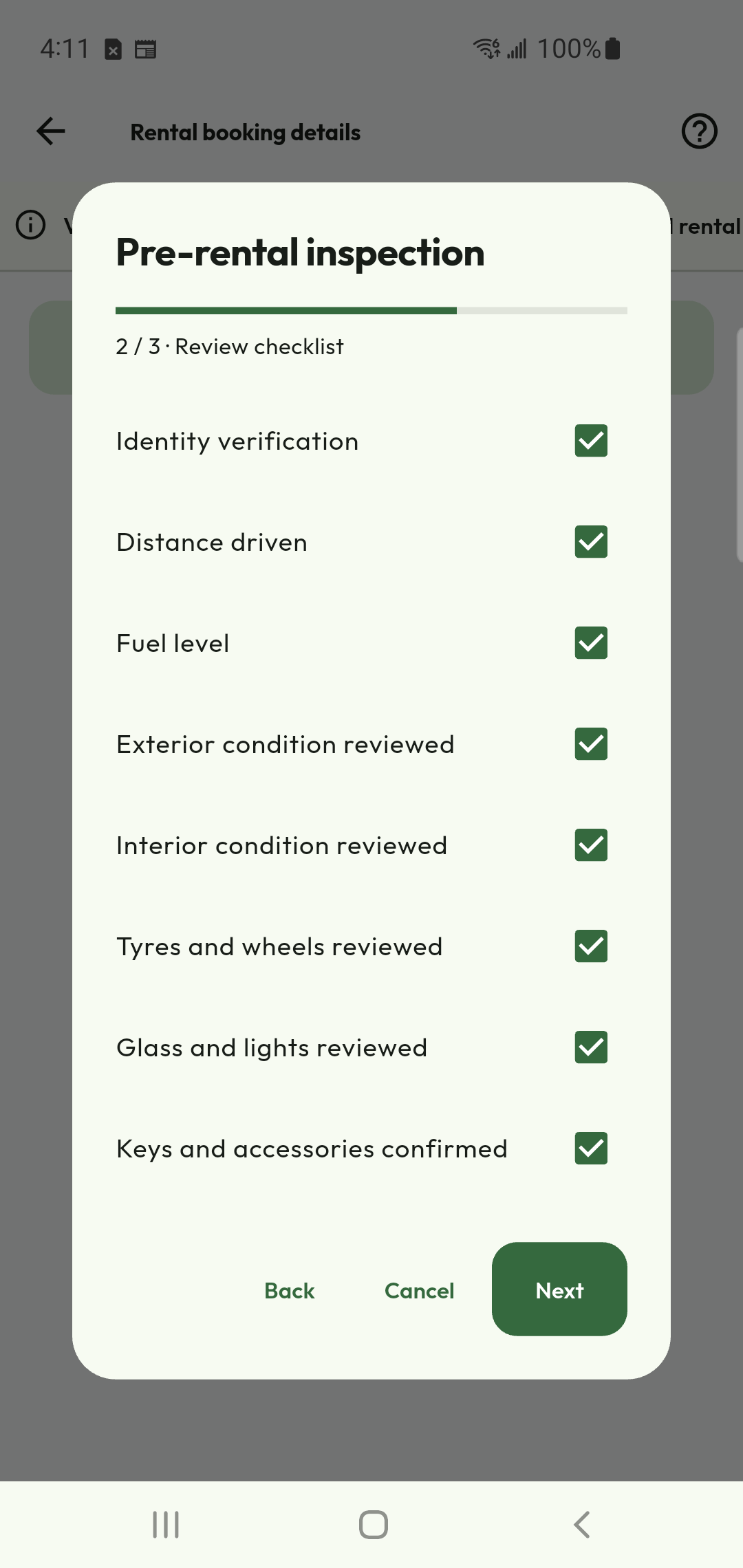
Complete the collection checklist
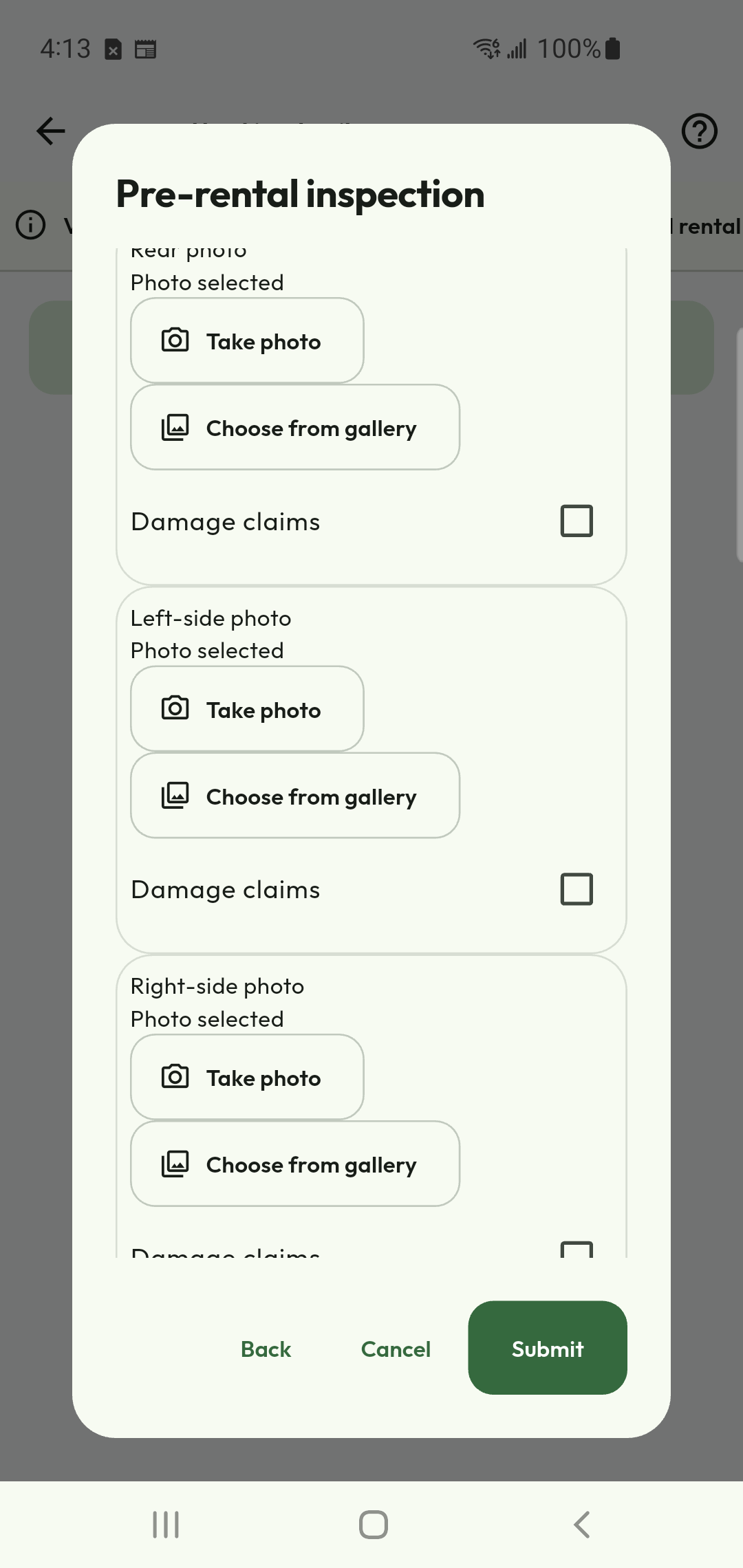
Photograph the collection condition
Both parties sign the collection record
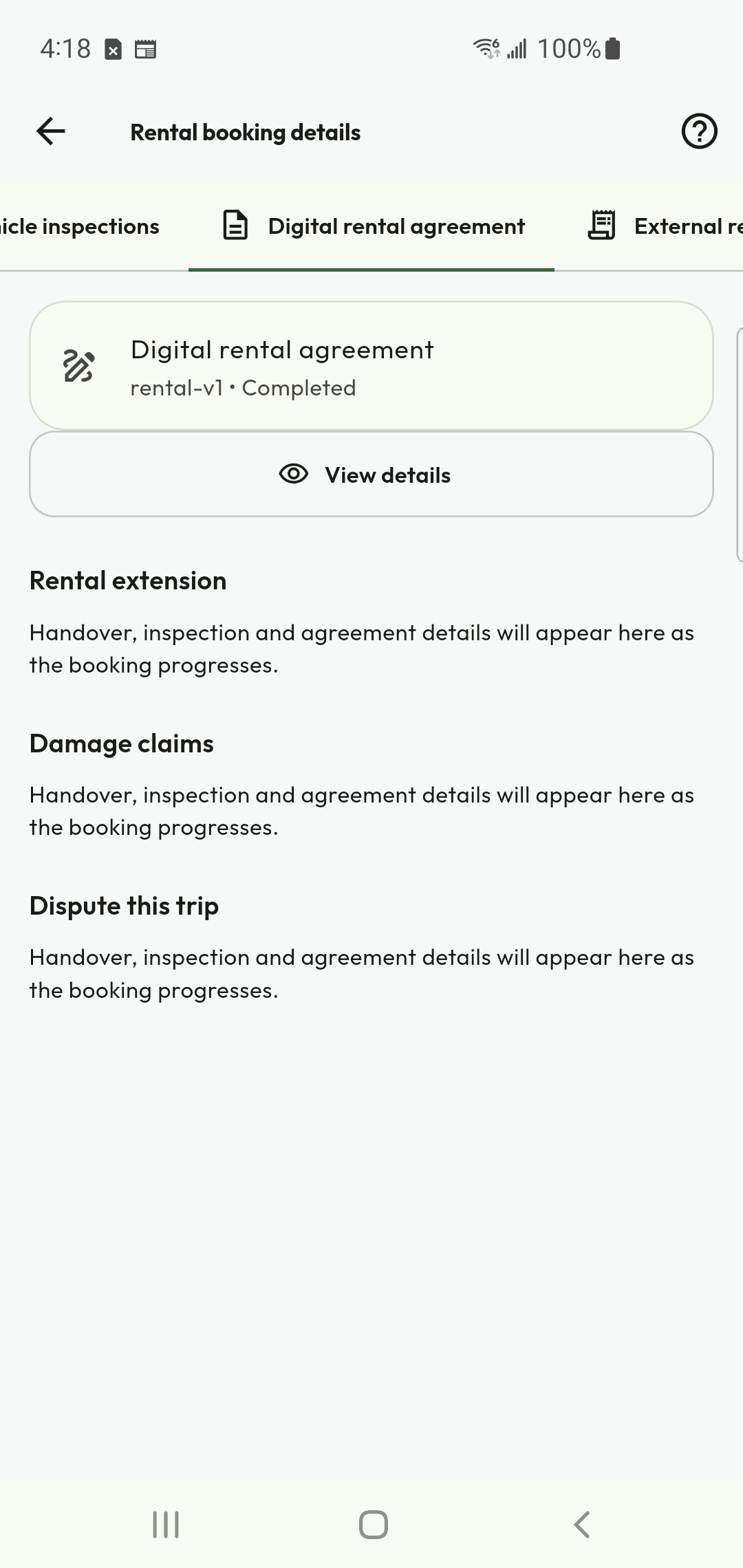
Complete the rental agreement
Confirm physical collection
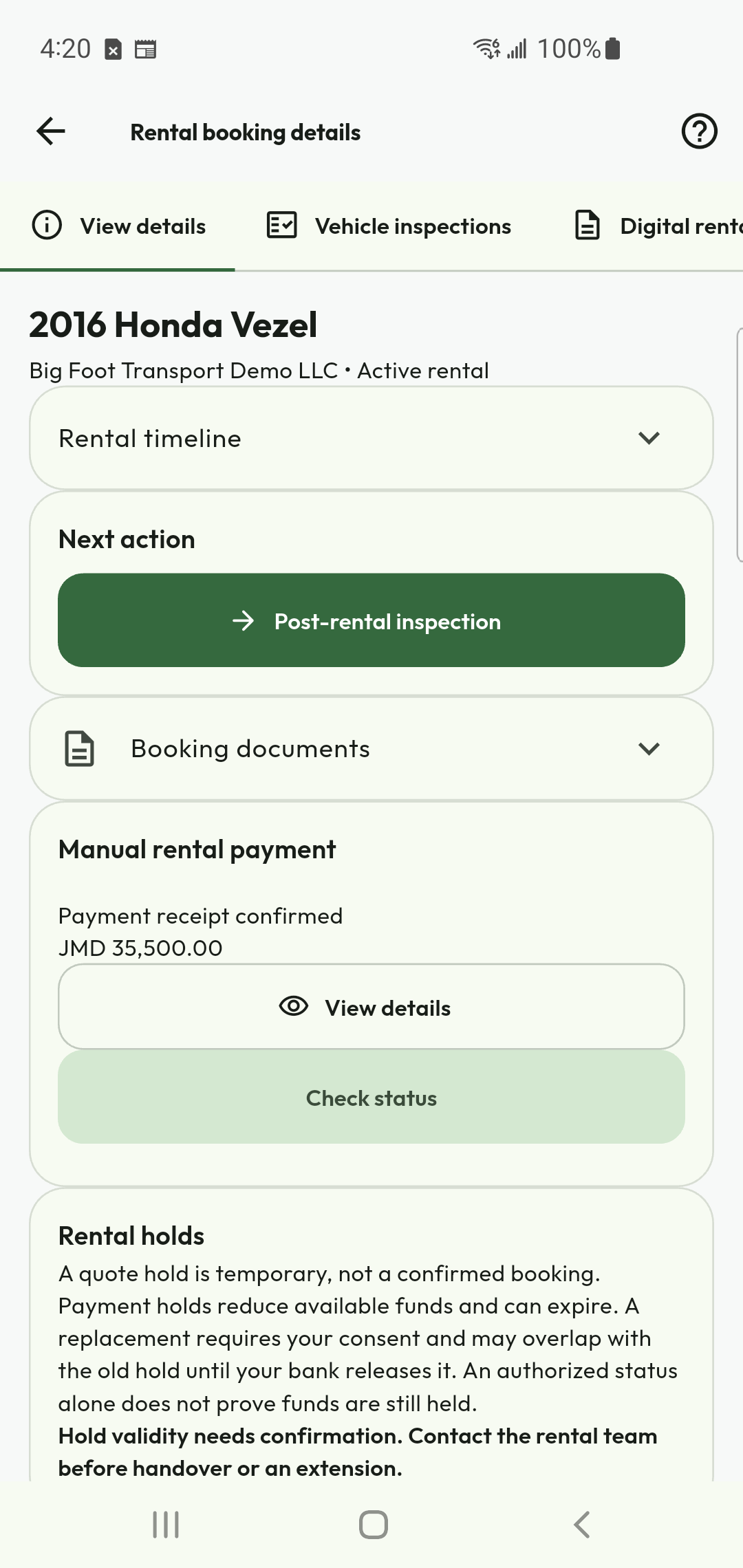
Track an active rental
Record return readings
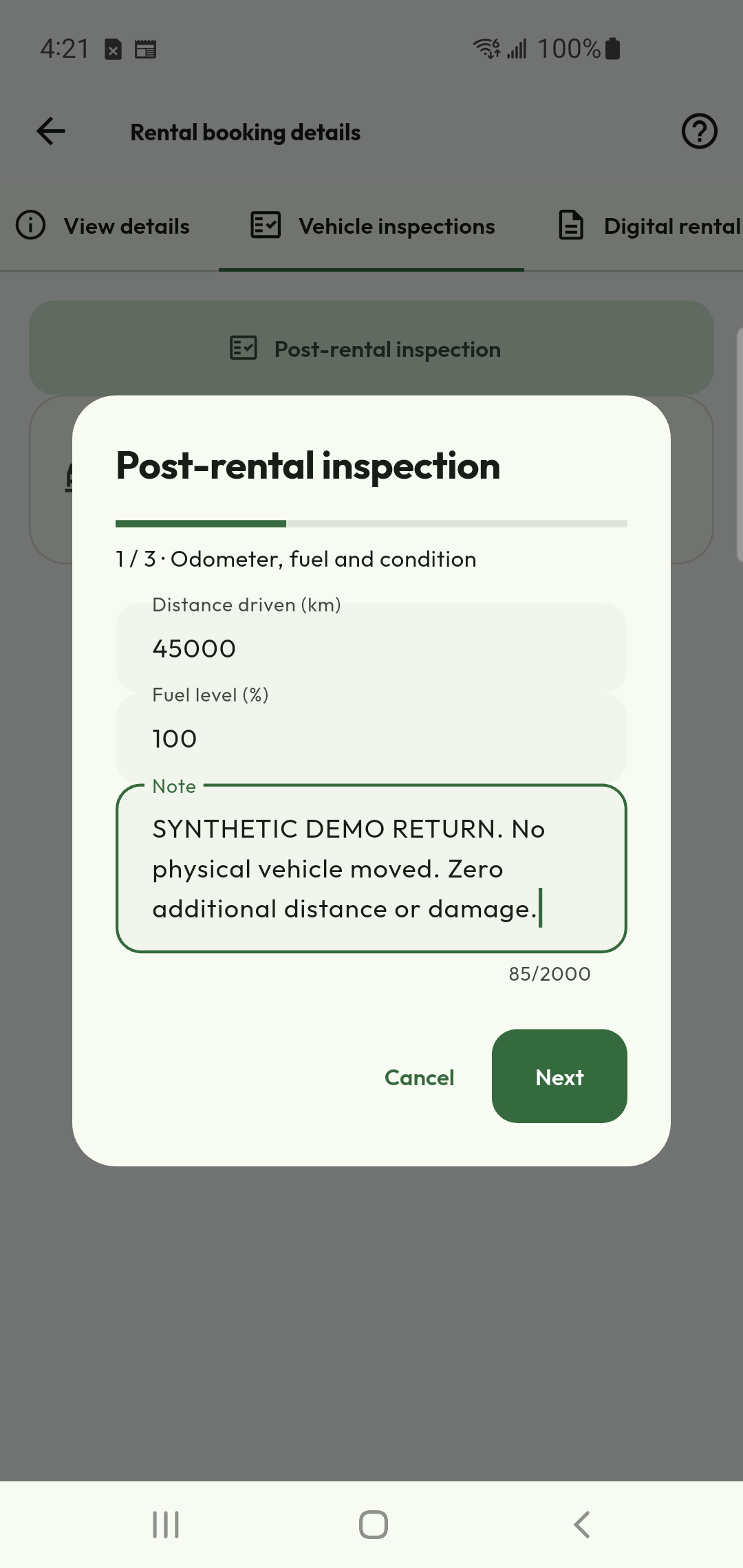
Record the vehicle return
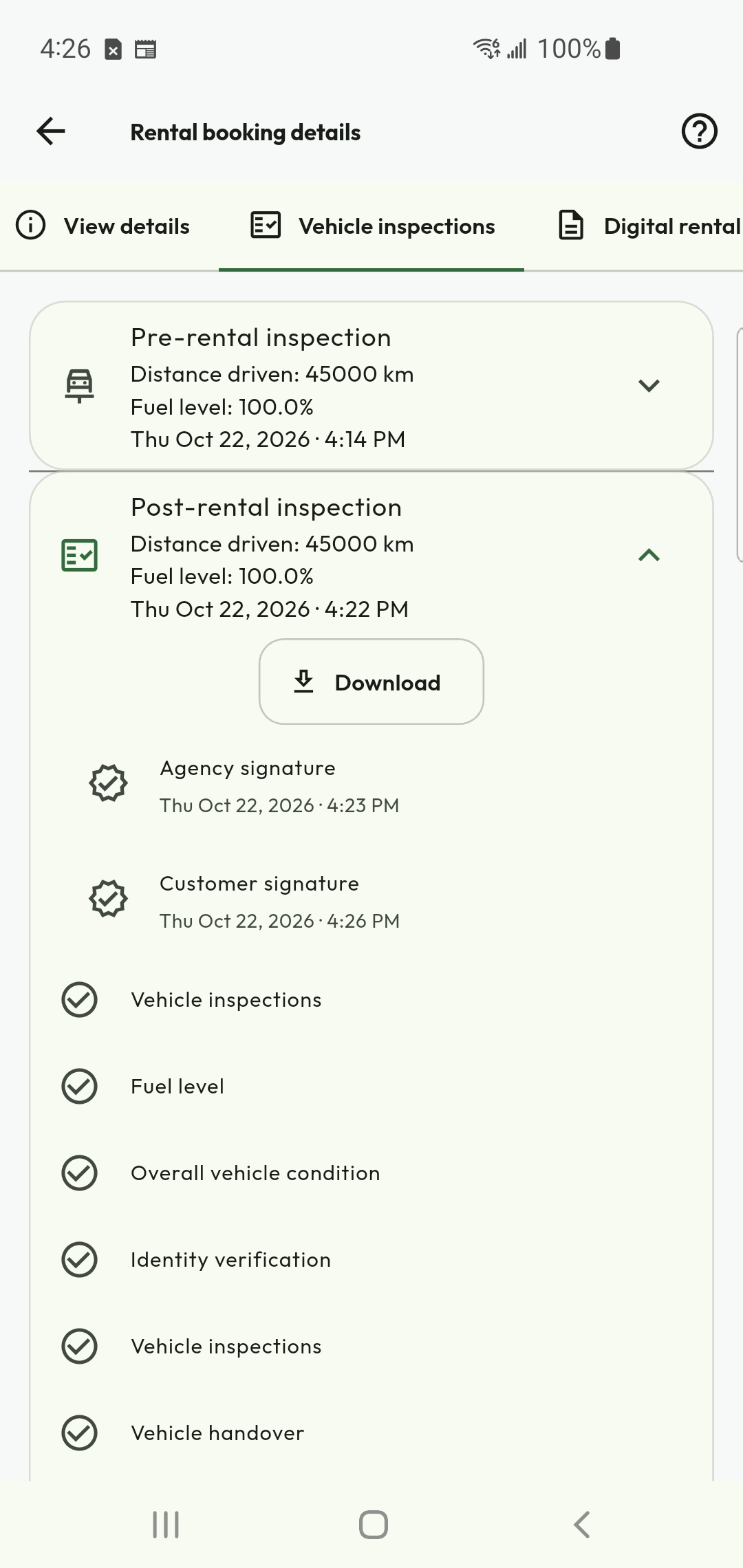
Download the signed return record
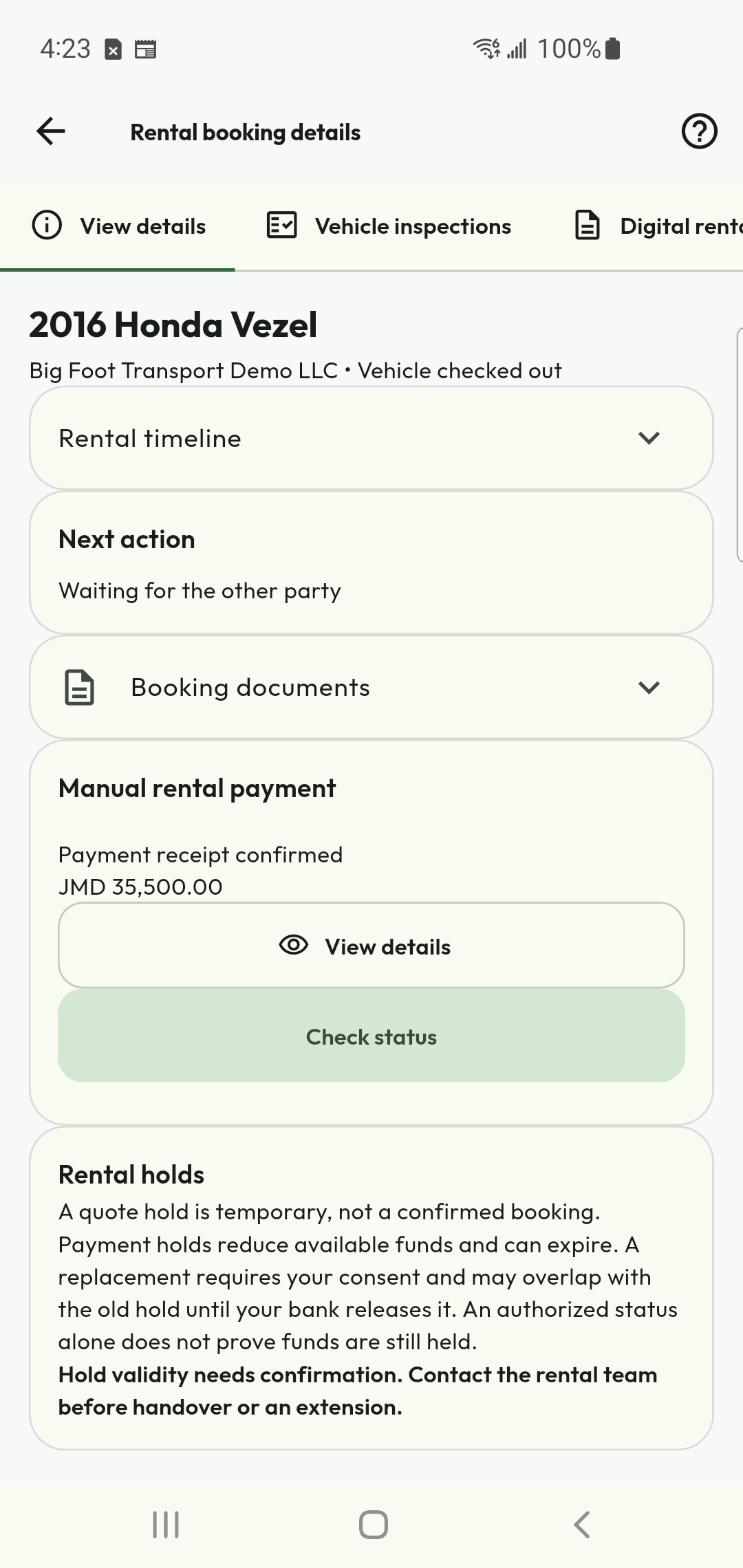
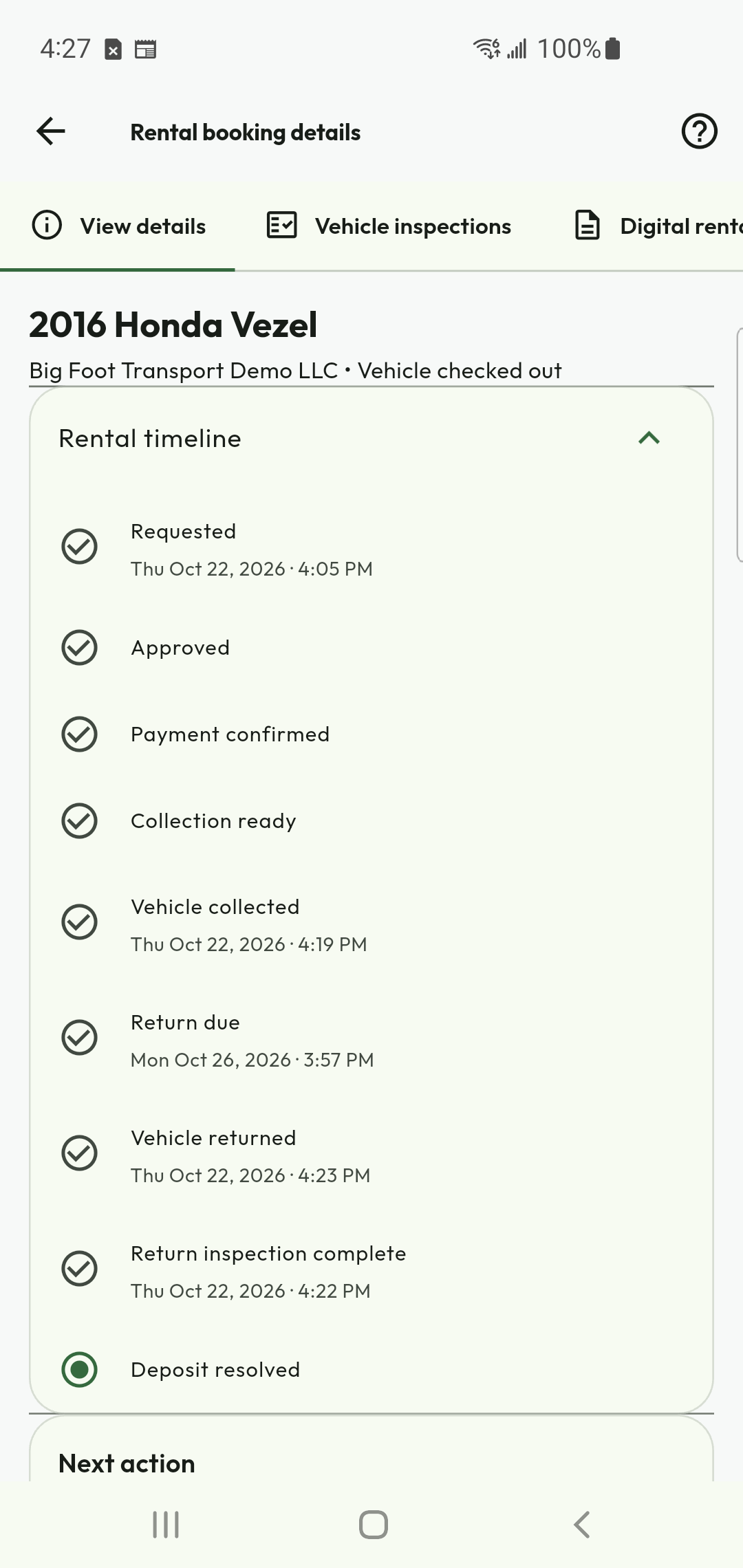
Check return and financial completion separately
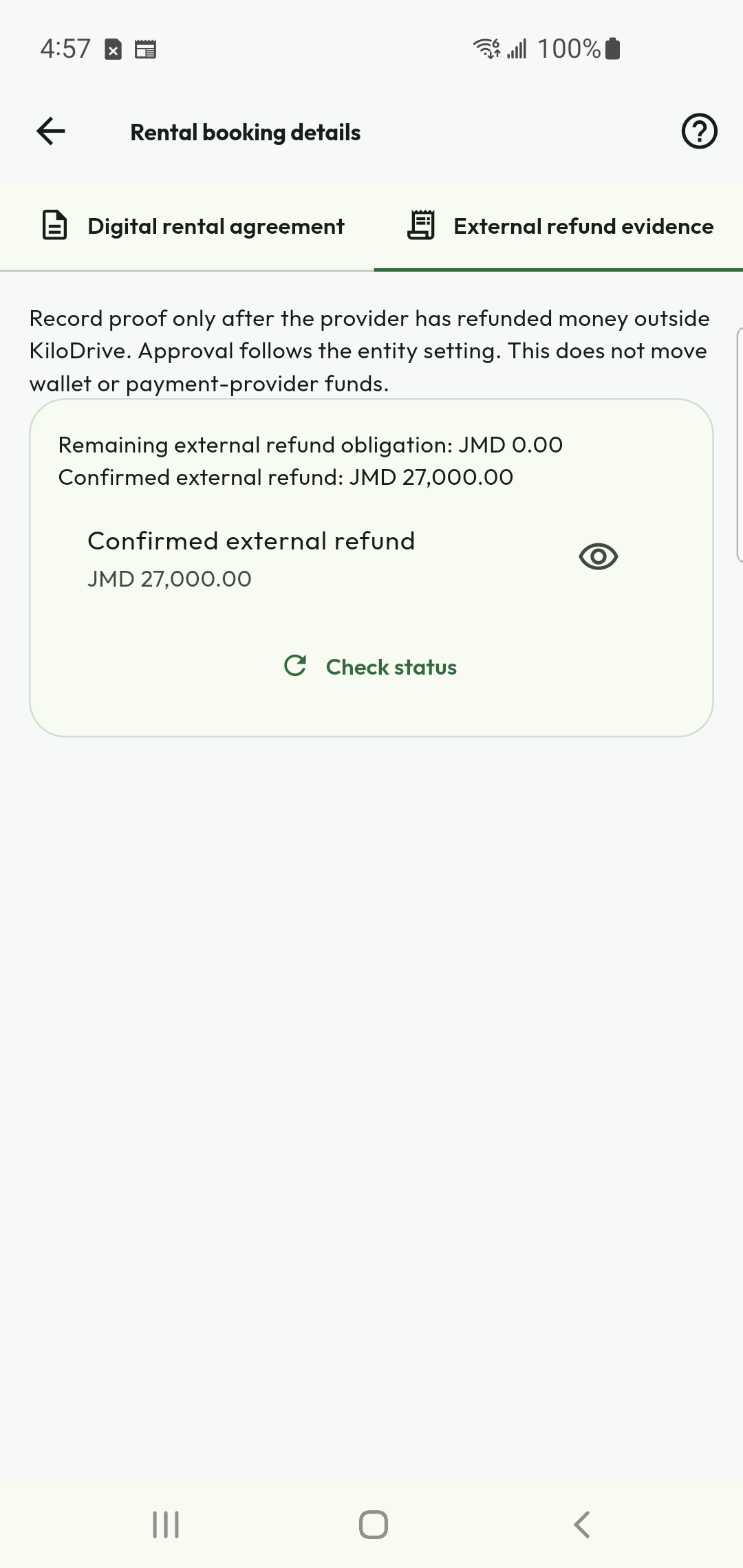
Record an external refund without moving wallet funds
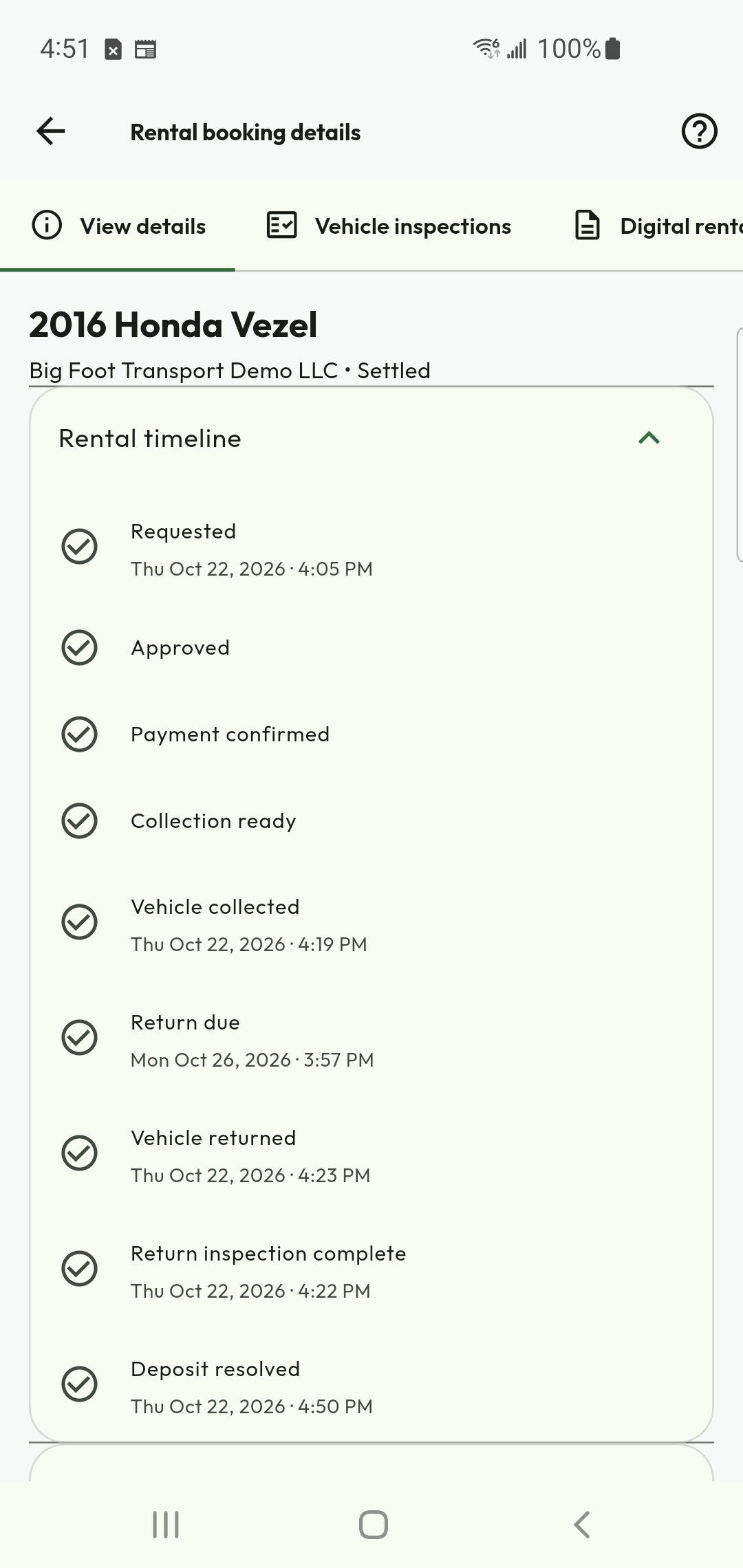
Verify that the rental is settled
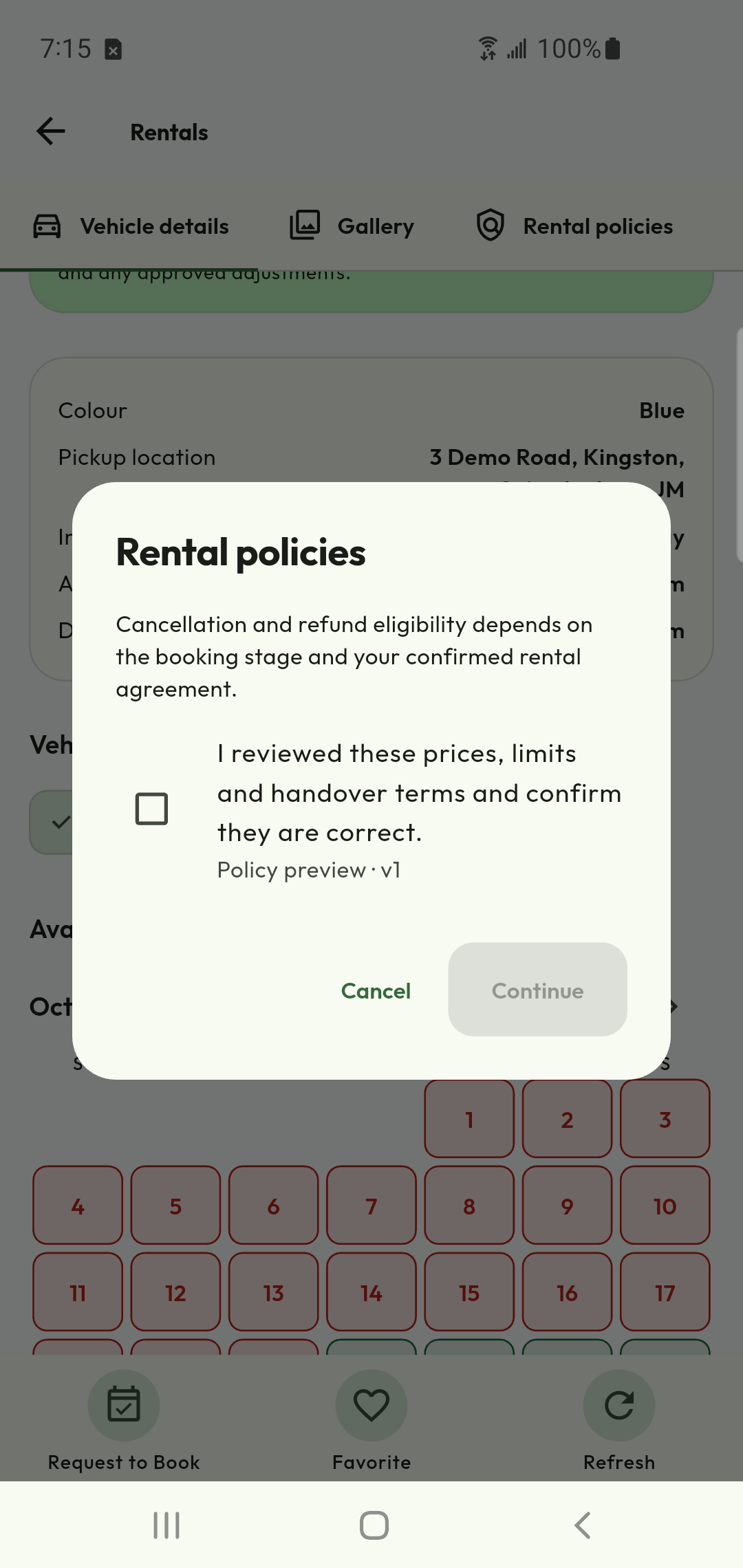
Acknowledge the actual rental terms
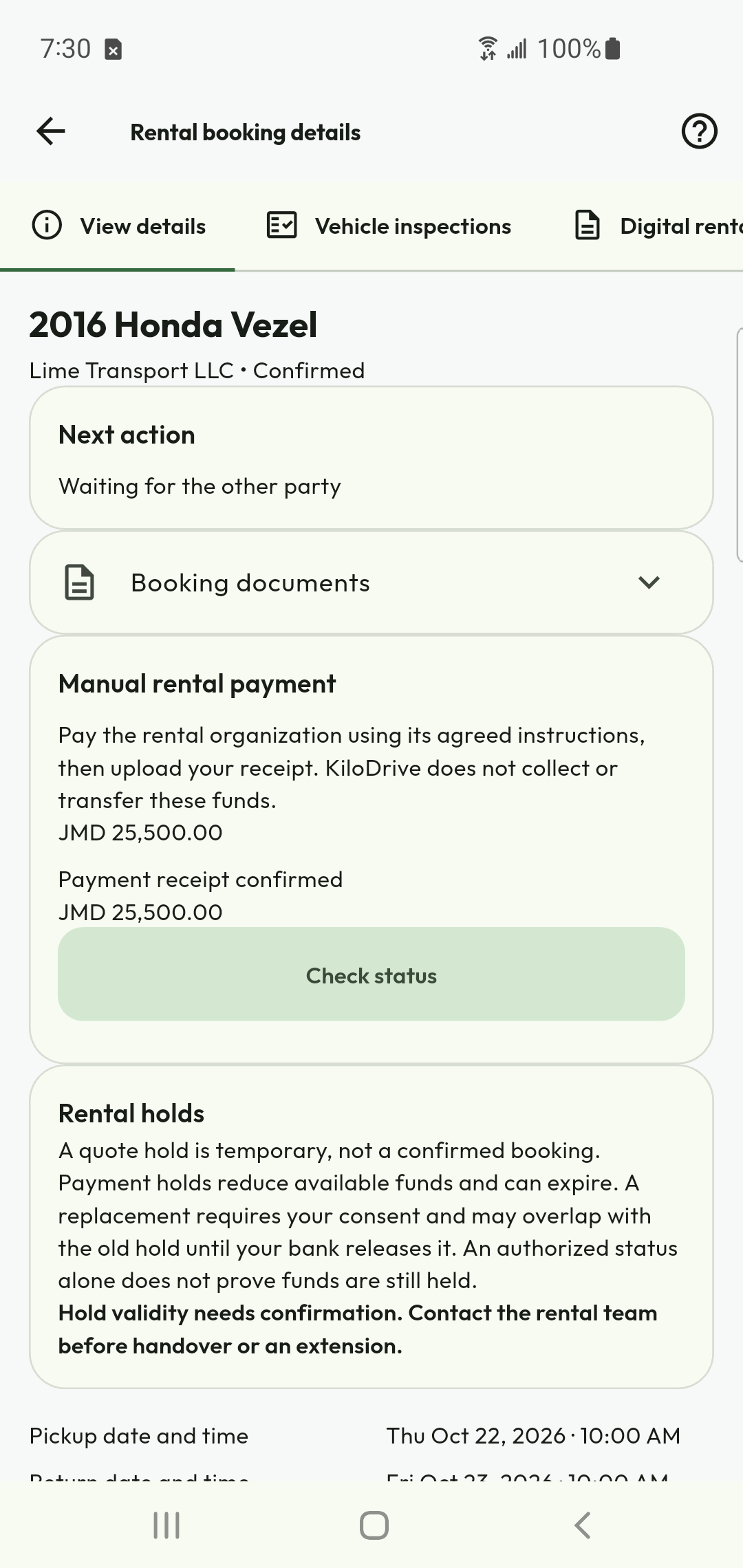
Check the confirmed booking state
Collect, extend and return a rental
My rental booking → handover / return / changes
Before you begin
Meet at the agreed branch/time. Ensure every additional driver is approved under the policy before allowing them to drive.
Do this
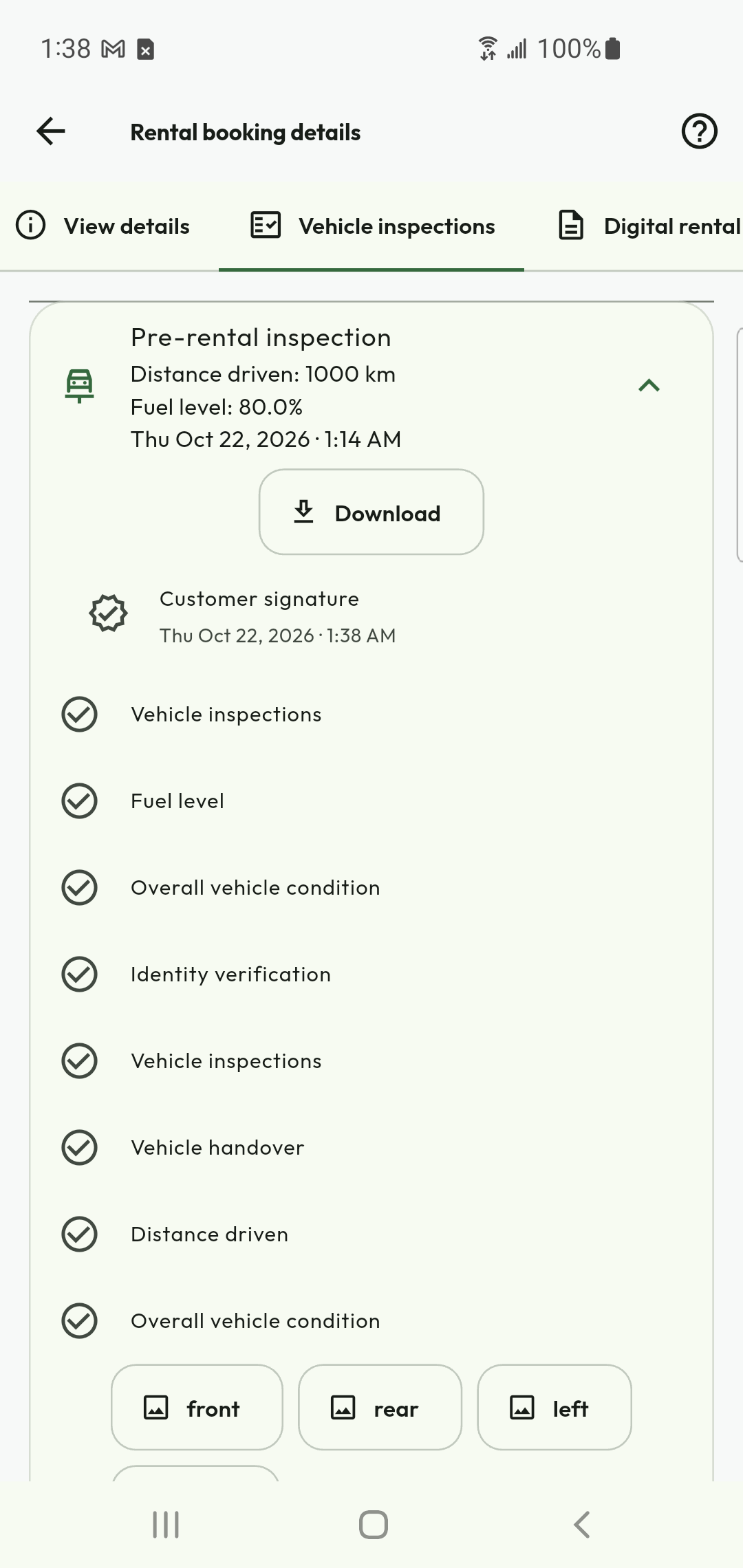
- Complete the collection record with the provider: photographs, known damage, odometer, fuel/charge, keys/accessories and requested signatures. Read before confirming.
- Use the vehicle only for permitted purposes and areas. Do not assume a rental allows ride-hailing, courier work, cross-border or ferry travel.
- Request an extension before the policy deadline. Read the new quote and wait for availability and acceptance; submitting an extension does not authorize late return.
- For cancellation, early return or substitution, review the displayed financial consequences and changed vehicle/policy details before consenting.
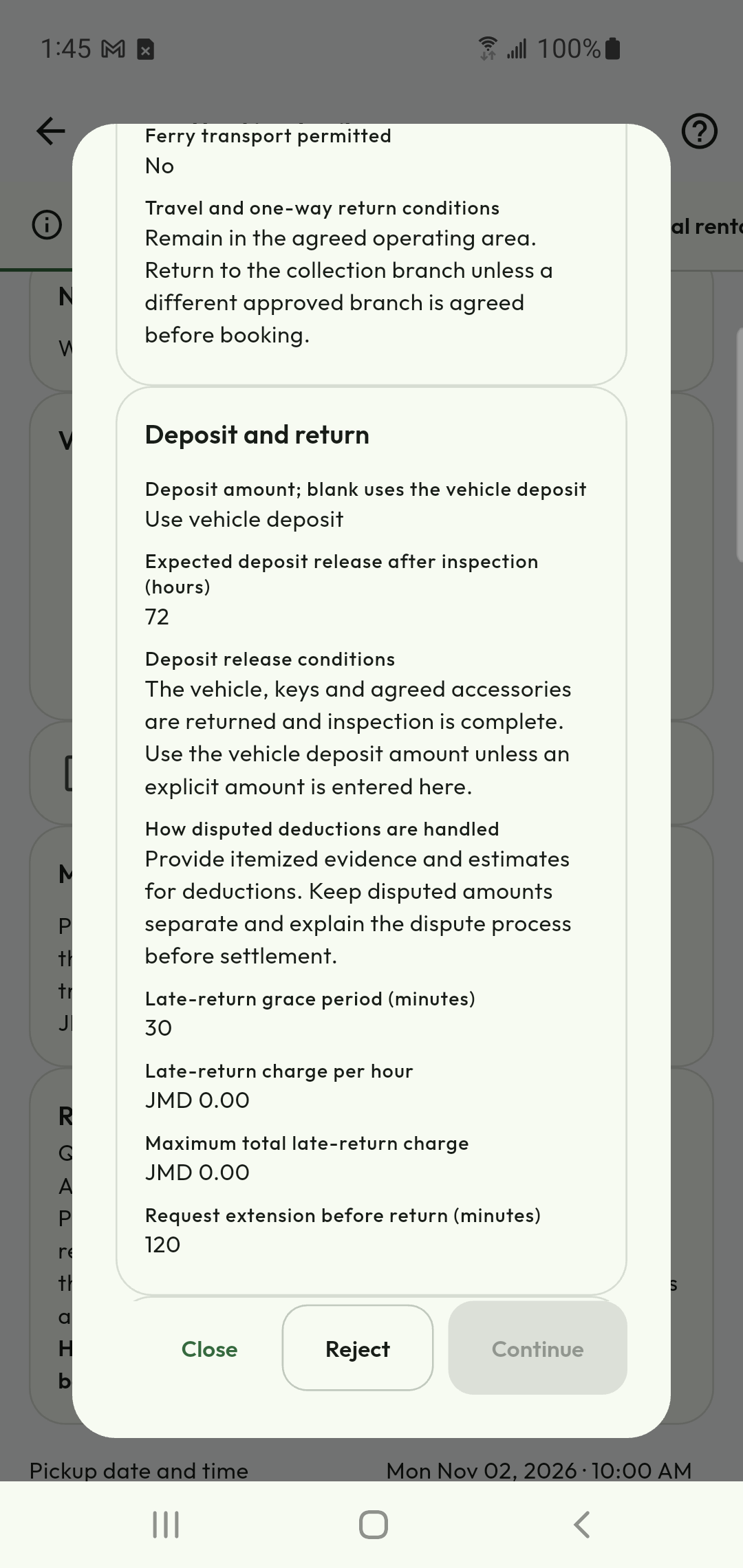
- At return, complete the matching condition record. Track inspection, deposit deductions/release and any dispute. Save the completed records and receipts.
Check the result
Returned, inspection complete and deposit resolved are separate stages. The rental is financially closed only when its remaining obligations are resolved.
Review before signing a condition record
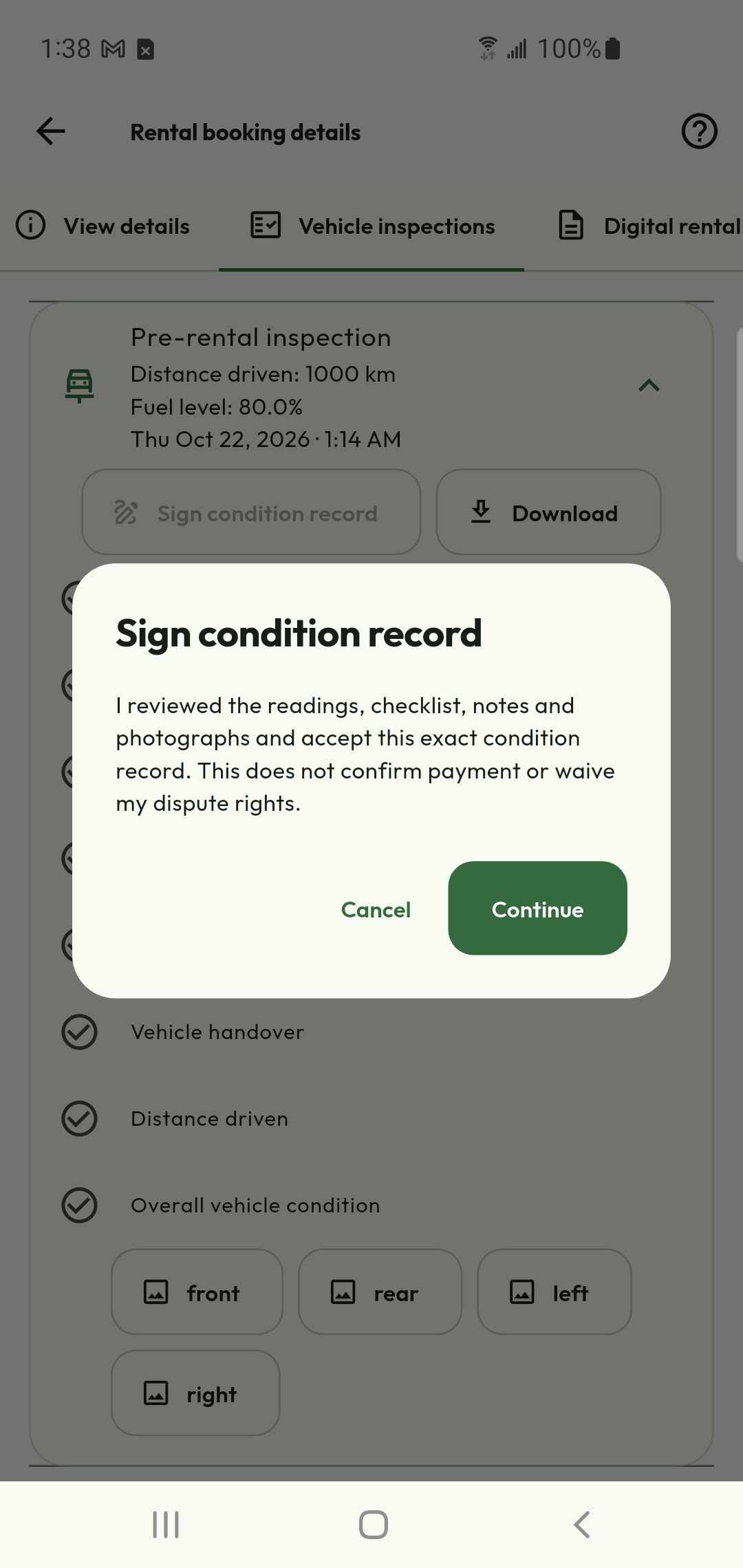
Keep the signed inspection evidence
Read deposit and return rules
Share a contact card and save trusted people
My Account → contact card / contacts / favorites
Before you begin
Decide who needs your card. A shared card is a way to find a person, not proof that a payment or service has been authorized.
Do this
- Open My KiloDrive Card and review the public-facing identity before sharing its QR code or link.
- When scanning a card, wait for the app to resolve the person and check the displayed identity. Save the appropriate favorite type, such as driver, courier, recipient or trusted contact.
- Use a saved person in the corresponding ride, courier, transfer or sharing flow. Review the recipient and service details again at confirmation.
- If a card was shared with the wrong audience, use its available revoke/rotate action. Report impersonation or harassment from the contact controls.
- For preferred service requests, read whether the request waits only for that provider or may open to the marketplace after the shown deadline.
Check the result
The person appears in your contact/favorite list with the correct type. A preferred invitation still needs acceptance and current provider eligibility.
Add money and verify one credit
Billing & Financial → Wallet / top-up
Before you begin
Read the active wallet currency, requested amount, funding currency, fee and estimated conversion. The final quote may differ from an old screenshot.
Do this
- Choose a supported funding method and amount. Review the total charged and expected wallet credit before leaving the app for a provider checkout.
- Complete the checkout once. Return through its app-return action; closing a browser is not payment confirmation.
- Open the wallet and find the original payment. Confirm both its final status and the corresponding ledger credit before spending the money.
- Tap the available balance to inspect held money and the balance breakdown. Held funds are reserved for an obligation and are not available to spend.
- If a return shows an unconfirmed result, open the recovery/status action for that same payment. Retain its reference for Support.
Check the result
A successful top-up has a confirmed payment and one wallet credit. A provider receipt alone does not prove that KiloDrive has reconciled the wallet.
Earn, inspect and convert rewards
Home → Loyalty rewards, or Billing & Financial → Rewards & Referrals
Before you begin
Points are separate from wallet cash. Eligibility, earning rates, qualifying services and conversion thresholds follow the current published rules.
Do this
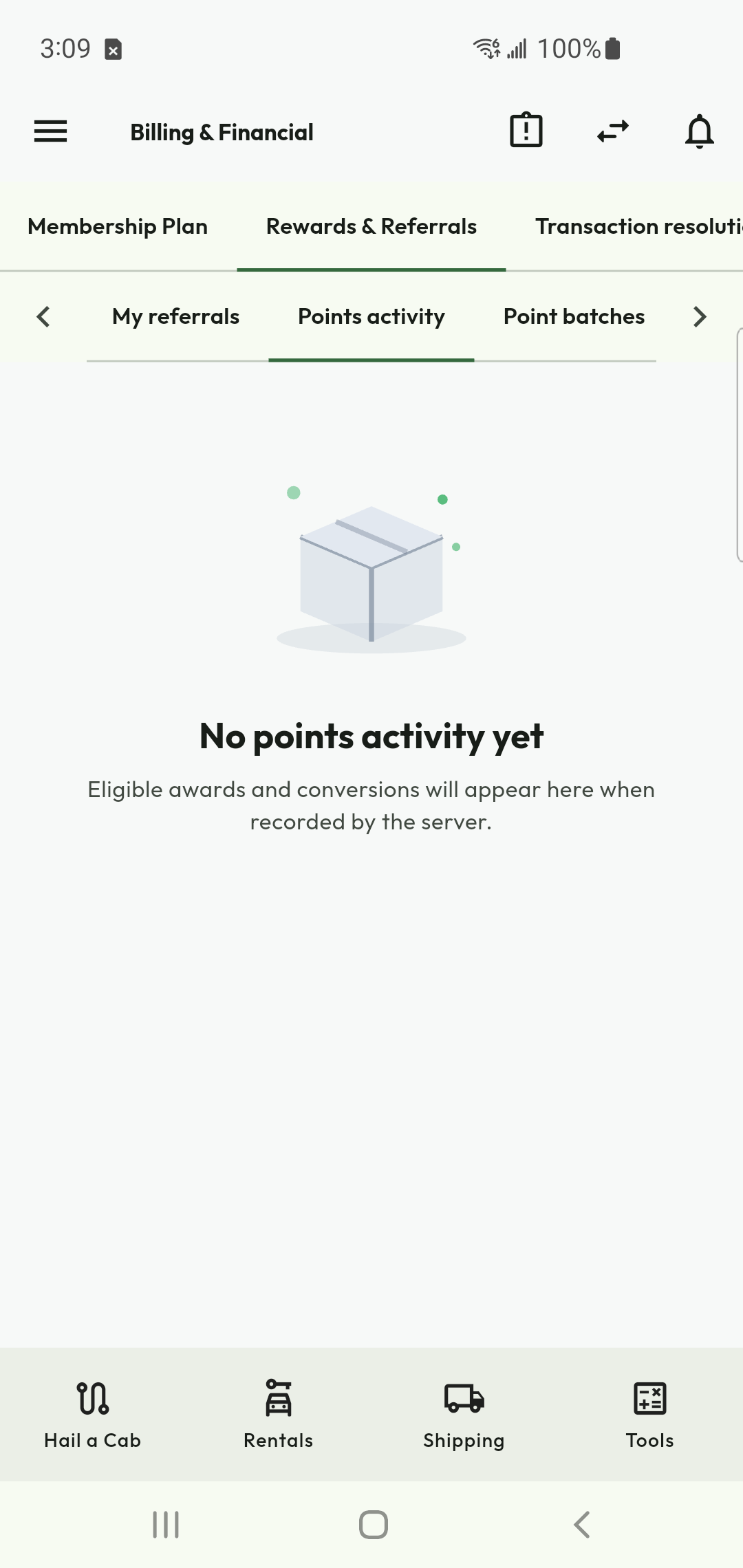
- Open rewards and inspect the available points balance and points history. Check whether an entry is earned, pending, converted or reversed.
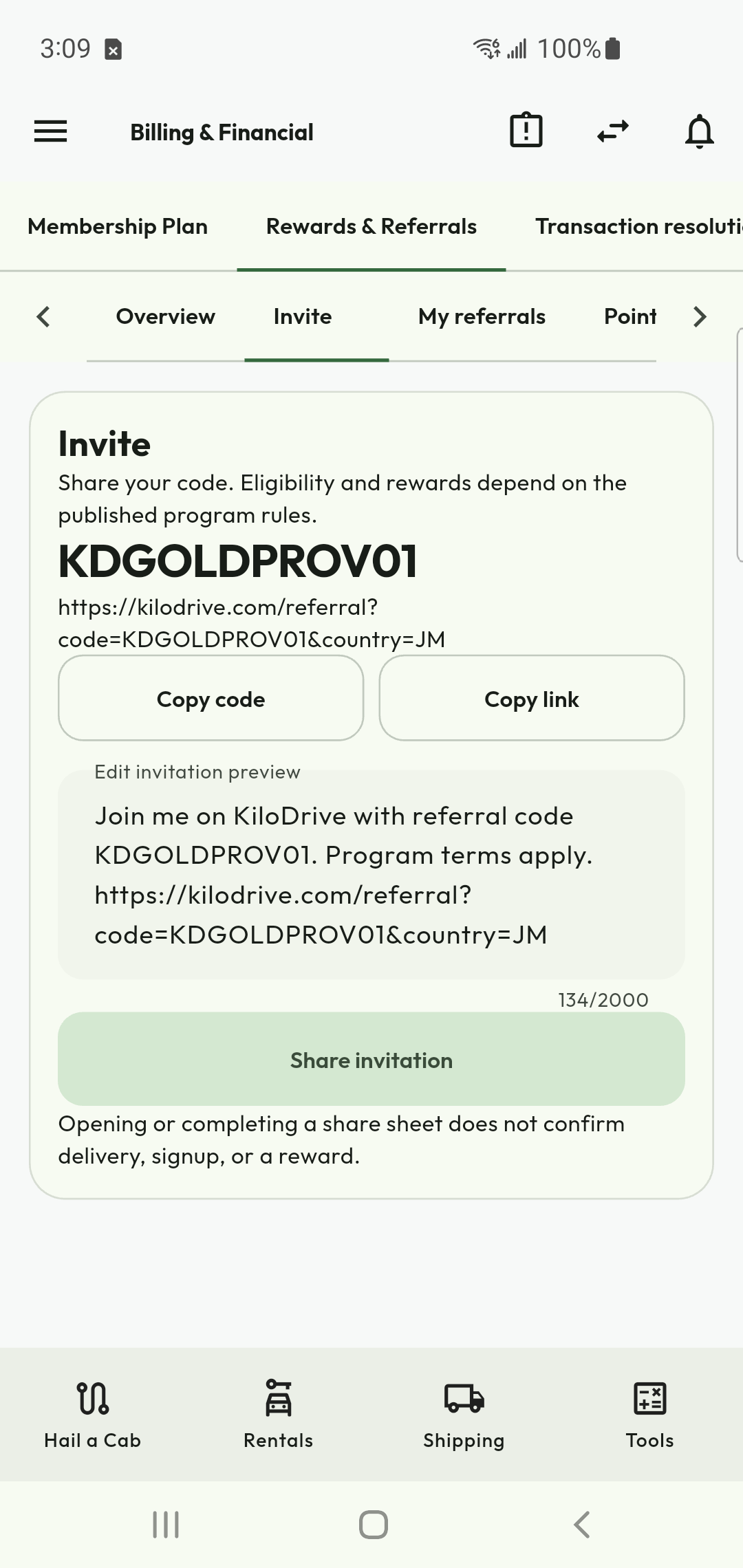
- Generate or open your referral code and share it using the provided action. A code being used at signup is not yet proof of an earned reward.
- The referred person must satisfy the stated qualifying activity, such as an eligible completed trip or rental, and any fraud or settlement checks.
- Before conversion, read the minimum points, proposed points debit, wallet credit and currency. Confirm the quote once.
- Check the conversion record, points history and wallet ledger. If the outcome is unresolved, use its recovery action instead of creating a second conversion.
Check the result
A completed conversion has matching points and wallet records. Estimated points on a proposed fare remain an estimate until the activity qualifies.
Rewards balance and conversion
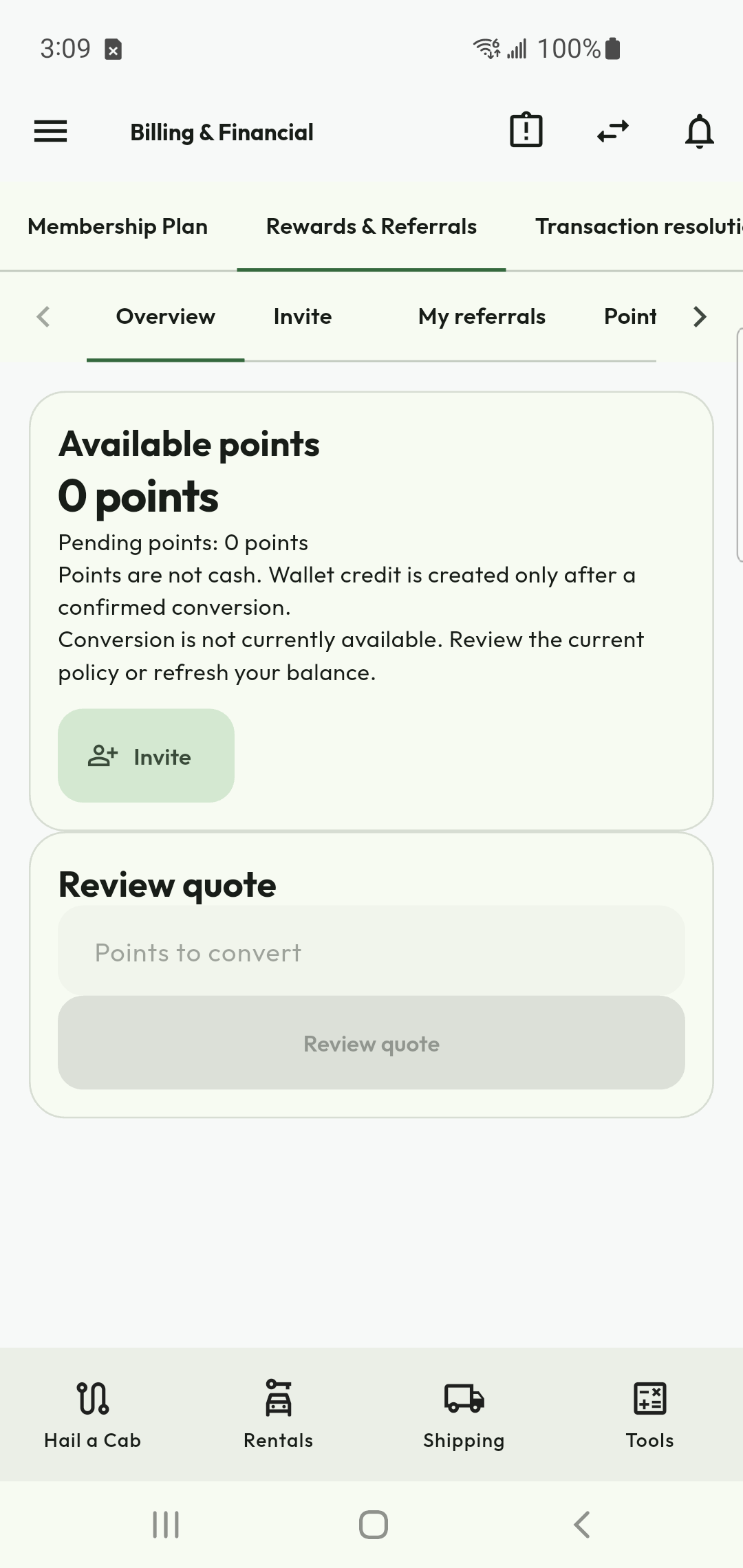
Share your referral invitation
Check points activity
Deactivate, export or delete your account
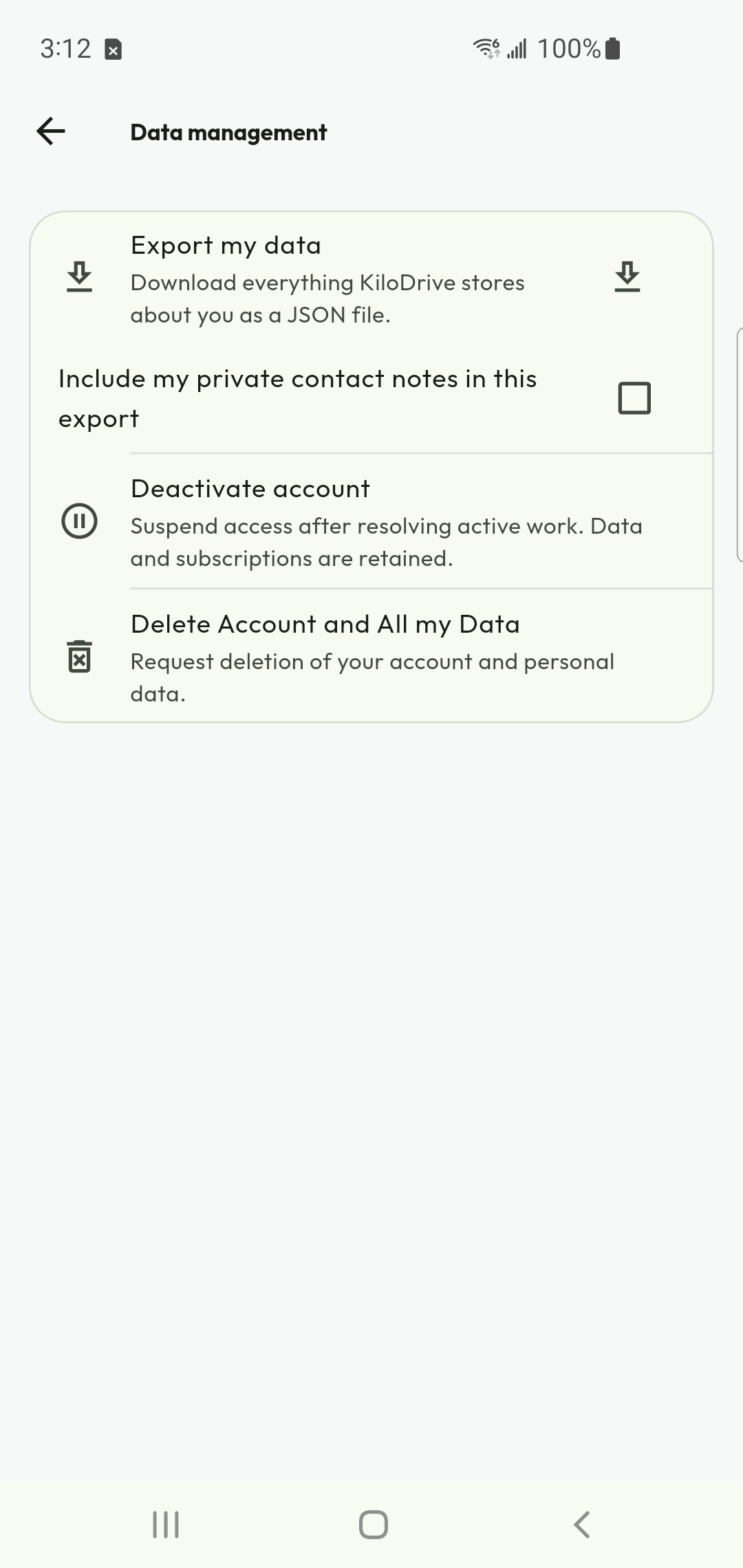
My Account → data management
Before you begin
Review active rides, courier custody, rentals, wallet obligations and store subscriptions first. Deactivation, deletion and cancelling store renewal are different actions.
Do this
- Export your data if you need a personal record. Store the download privately; it may contain account, activity and financial information.
- For a temporary suspension, read the deactivation disclosure, including retained records and the reactivation route.
- For permanent removal, choose Delete Account and All my Data. Complete required recent authentication and read the effects before confirming.
- Follow the displayed resolution steps for active work, unsettled payments or organization obligations. Account deletion cannot safely erase another person’s ongoing booking or custody evidence.
- Track the deletion request to its confirmed outcome. A request submission is not proof that every erasure stage has finished. Manage Apple/Google renewal separately in the store.
Check the result
The account screen gives the authoritative request/status. Records retained for applicable obligations are distinct from an active usable account.
Export, deactivate or request deletion
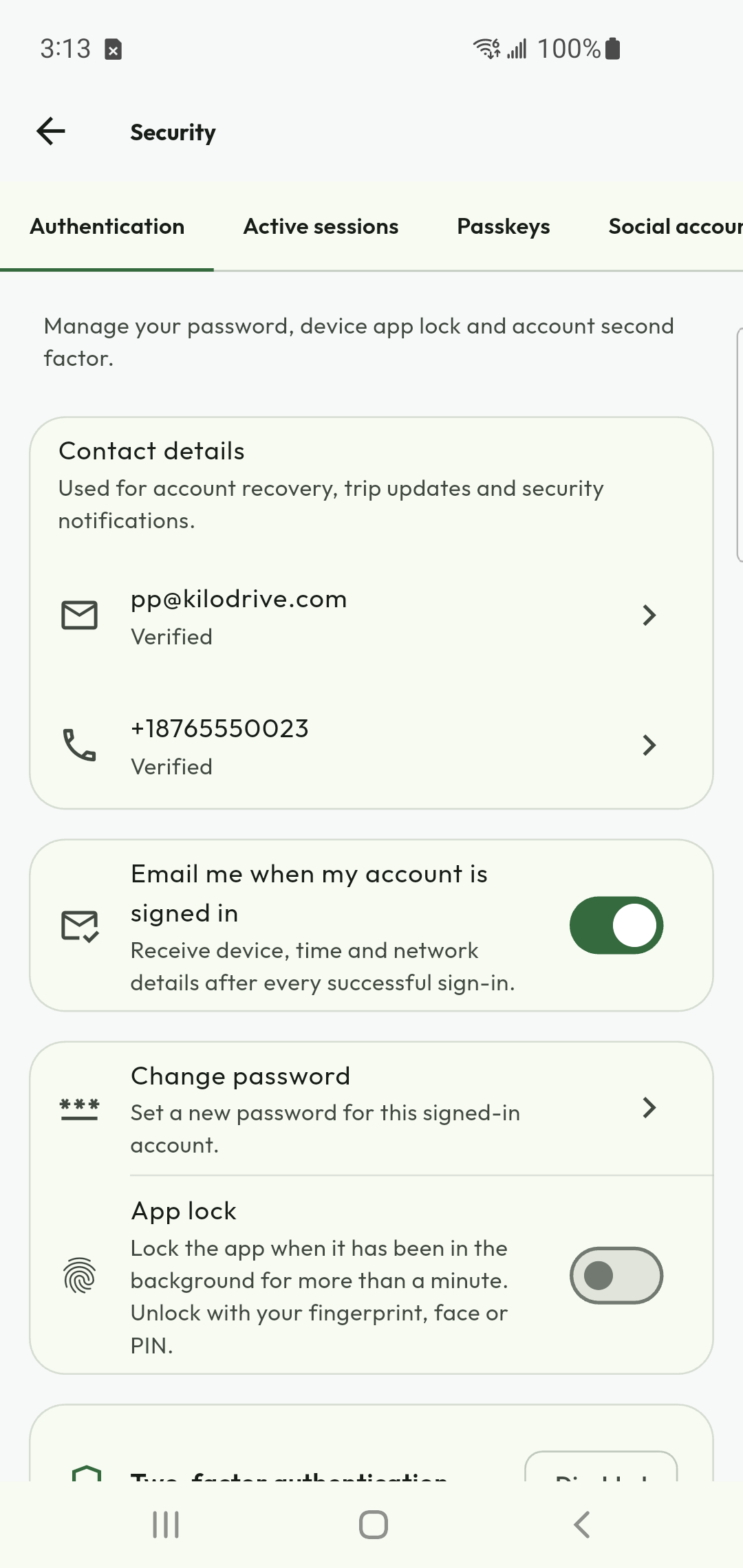
Link sign-in methods and protect a shared phone
My Account → Security → authentication / social accounts
Before you begin
Keep at least one working sign-in method and access to its recovery contact. Linking a social identity is not the same as signing in with it.
Do this
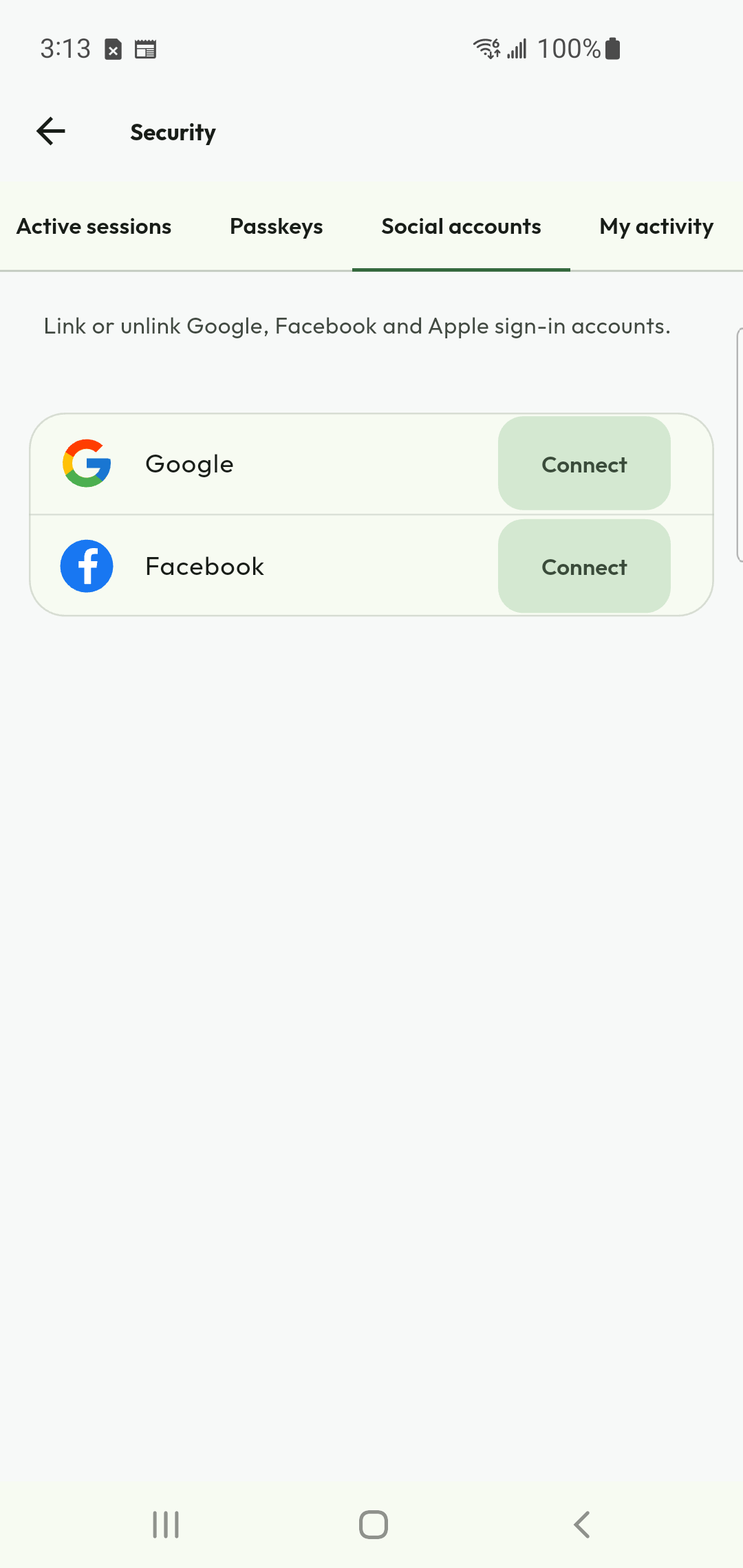
- Open the linked-account controls and choose the provider you intend to attach. Complete the provider’s own authentication and the current KiloDrive security challenge.
- Read the result and refresh the linked-account list. If the identity belongs to another KiloDrive account, do not assume the accounts were merged.
- Before disconnecting a method, verify that another method works. Follow any restriction that prevents removing your last usable sign-in route.
- Review active sessions and passkeys. Revoke a lost device or unwanted session with the offered action, and secure the underlying email/social account too.
- Before another person uses the phone, sign out. Reinstallation does not cancel store subscriptions or resolve payments. Keep each person’s KiloDrive account separate from the device’s Apple/Google billing account.
Check the result
The authentication screen shows the intended linked methods and sessions. A dismissed browser sheet or biometric prompt alone is not confirmation of linking.
Manage linked social accounts
Authentication and sign-in alerts
Keep receipts, history and reports
Billing & Financial → transactions / reports; completed service record
Before you begin
Use the account and organization that own the transaction. A receipt for a store subscription, wallet top-up and rental payment describes different obligations.
Do this
- Open the original ride, delivery, rental or payment and read its final status before saving a receipt.
- Filter transactions by date range and type, then sort to find the matching reference. Separate a hold, its release, a refund and the final charge.
- Use the available download/export action and verify that the file opens. Store personal records privately rather than posting them to a shared group.
- Where scheduled reports are offered, choose the supported report type, cadence and format and verify the destination. Keep email contact details current.
- For a missing receipt or unexpected entry, send Support the safe reference, period and problem. Preserve the original record until the investigation is complete.
Check the result
The downloaded report matches the selected account and range. A missing email does not mean a confirmed payment failed; check the in-app record and download route.
Download booking and payment documents
Read errors without repeating a payment
Open the current KiloDrive code directory for the exact KD-XXXXX shown. The code explains a situation; the separate correlation reference identifies this occurrence.
| What you see | What to do |
|---|---|
| Not completed | Correct the named field, permission or prerequisite. Retry only when the actual notice says the action did not complete and it is safe. |
| In progress | Wait or check the original operation. Another request may be resolving it. |
| Unknown / result not confirmed | Reconcile the existing payment, booking or purchase. Do not buy or submit again with a new operation. |
| Unavailable data | A failed read does not mean zero balance, no bookings or no subscription. Restore connectivity and refresh the same screen. |
| Device registration required | Follow the app's session/device recovery and sign-in instructions. Do not use a different person's account to bypass device admission. |
Send a useful support report
Include the operation, local time and timezone, app version, exact code, correlation reference and safe trip/booking/payment reference. Explain the last confirmed state and what appeared next. Remove passwords, confirmation codes, private documents and full payment credentials from screenshots.
A success with a warning is different from a failure. Refreshing a screen, dismissing an alert or clearing app data cannot reverse a completed server transaction. A code page is not a receipt or a live account lookup.
71 / 155Submit identity evidence once
Open My Account and use the identity or readiness action for the service you need. Customer identity requirements depend on the current country/service policy; rental driving-licence qualification is a separate check.
- Read the requested document type and required sides/pages. Use the currently accepted list in the app, not a document list from another country.
- Enter accurate personal details and choose a clear, genuine document through the camera or file picker. Follow the displayed file type and size limit.
- Check the preview for glare, cut-off edges, missing pages and unreadable dates. Submit through the protected document workflow.
- Monitor Missing, Submitted, Rejected, Expired or Approved. Correct the specific rejection reason and resubmit the required evidence.
- Return to the original service and refresh readiness. An uploaded document is not yet an approved document.
Keep evidence private
Use the designated upload control. Do not send identity documents through trip chat or a public sharing link. Support needs the case/reference and reason, not your password or authentication code. Do not reuse another person’s document or repeatedly submit the same rejected image.
Request, bid, and complete a ride
Create the request
- From Home choose Hail a Ride.
- For origin, type an address, choose a saved place, or use current GPS location. Type the destination and select a verified search result.
- Choose the vehicle category, number of adults, pickup time, and payment method. Cash is selected by default when it is the only usable option.
- Choose Near Me or Any driver, then review distance, traffic-aware ETA, alternate routes, toll indication, realistic response time, pickup probability, and the suggested fare range.
- Enter your fare proposal. If paying by wallet, it cannot exceed available funds. Optionally enable exact-fare auto-accept, then submit the offer.
Choose the ride shape
Immediate and scheduled rides can include ordered intermediate stops. Round trips record a turnaround and waiting period. Hourly hire shows the booked minutes, the driver's disclosed hourly rate, and any configured minimum/maximum. Editing the fare from the offers screen updates the shared request so the creation and offer views do not show different amounts.
Scheduled guarantee status
If replacement cannot be secured before the country cutoff, the app says Not guaranteed. KiloDrive never hides that outcome behind a vague confirmed label.
73 / 155Choose, ride, and close out safely
Choose a driver
The map displays eligible drivers while dispatch expands within configured limits. Compare offer amount, completed trips, categorized rating, achievements, verification, ETA, and vehicle. Exact-fare auto-accept applies only to a qualifying driver's acceptance of your current amount. Otherwise accept one offer yourself. Wallet payment is preauthorized when the bid is accepted.
Family and business travel
An authorized family manager or business administrator can invite members, delegate a booking, choose a cost center, apply ride/budget policy, centralize receipts/statements, and enable selected trip notifications or live tracking. Members see only what their role permits; a profile never grants unrestricted access to another user's account, chat, or location.
During and after the ride
- Confirm the assigned vehicle and plate before boarding.
- Use state-gated chat or the call button after bid acceptance. Chat closes when the trip completes or is cancelled.
- Follow driver-arrived and trip-started states. Use the persistent safety controls during the active trip.
- At destination, completion captures/releases payment as applicable. Review the chronological trip timeline and submit a fair rating.
- To repeat a past route, open ride history and choose Repeat ride. The app clearly reports when no history exists.
Safety, security and privacy: start here
Use the detailed field guide for practical steps, expected outcomes and limits. Security protects account and data access; safety supports decisions during physical services; privacy controls the use and sharing of information. Each has a distinct role.
Protect your account
Open Account & Settings → My Account → Security. Review authentication, linked social accounts, passkeys, active sessions and My Activity. Enable available two-factor and sign-in alert controls. Keep recovery contacts accessible and never share passwords or one-time sign-in codes.
Protect a journey
Compare the actual person, vehicle and plate with the assignment, use trusted sharing deliberately and read location freshness. Respond to safety check-ins. Use emergency services directly for immediate danger; app support and telemetry cannot guarantee intervention.
Protect private information
Use protected upload fields for identity, compliance and service evidence. Keep private documents out of social media and informal groups. Sharing a trip or contact link reveals only its authorized view, but recipients may retain what they see.
Manage relationships and data
Open Privacy & Safety → Blocklist for eligible blocking controls. Blocking is separate from reporting an incident. Use My Account → Data Management for export, deactivation and Delete Account and All my Data. Resolve ongoing work and check subscription renewal separately.
Check the outcome
Review the actual trip, job, booking, transaction or account state after a sensitive action. A delayed notification, dismissed checkout or submitted request is not proof of completion. Keep the support code and operation reference if the result is uncertain.
RideCheck, live sharing and private information
Configure before travelling
Use Privacy & Safety to review supported driver trust preferences, RideCheck, pickup confirmation and trusted contacts. A preference filters or changes a supported workflow; it does not create a guarantee about another person's conduct.
Understand an alert
RideCheck can identify a substantial route deviation or unexpected stop from available telemetry. Respond accurately to the prompt. An unanswered check can enter the configured safety-case process, but device, connectivity and operational limits affect detection and response.
Share intentionally
Send the active trip's sharing link only to a trusted recipient. The limited view can include route, driver/vehicle, status and recent location. It does not expose your whole account. Check update times and use revocation when appropriate; expiration cannot erase a screenshot already taken.
Know when location is collected
Eligible live-service and dispatch/queue workflows can need provider location while the app is in the background. Read the app and OS explanations. Freshness labels, permission controls, battery policy and network conditions matter. Revoking a required permission can interrupt live tracking and service operation.
Keep data access purposeful
Protected documents and transaction records are not public profiles. Authorized service and review roles determine access. Use My Account → Data Management for your export and account-closure controls; required finance, safety, dispute and legal records can have separate retention obligations.
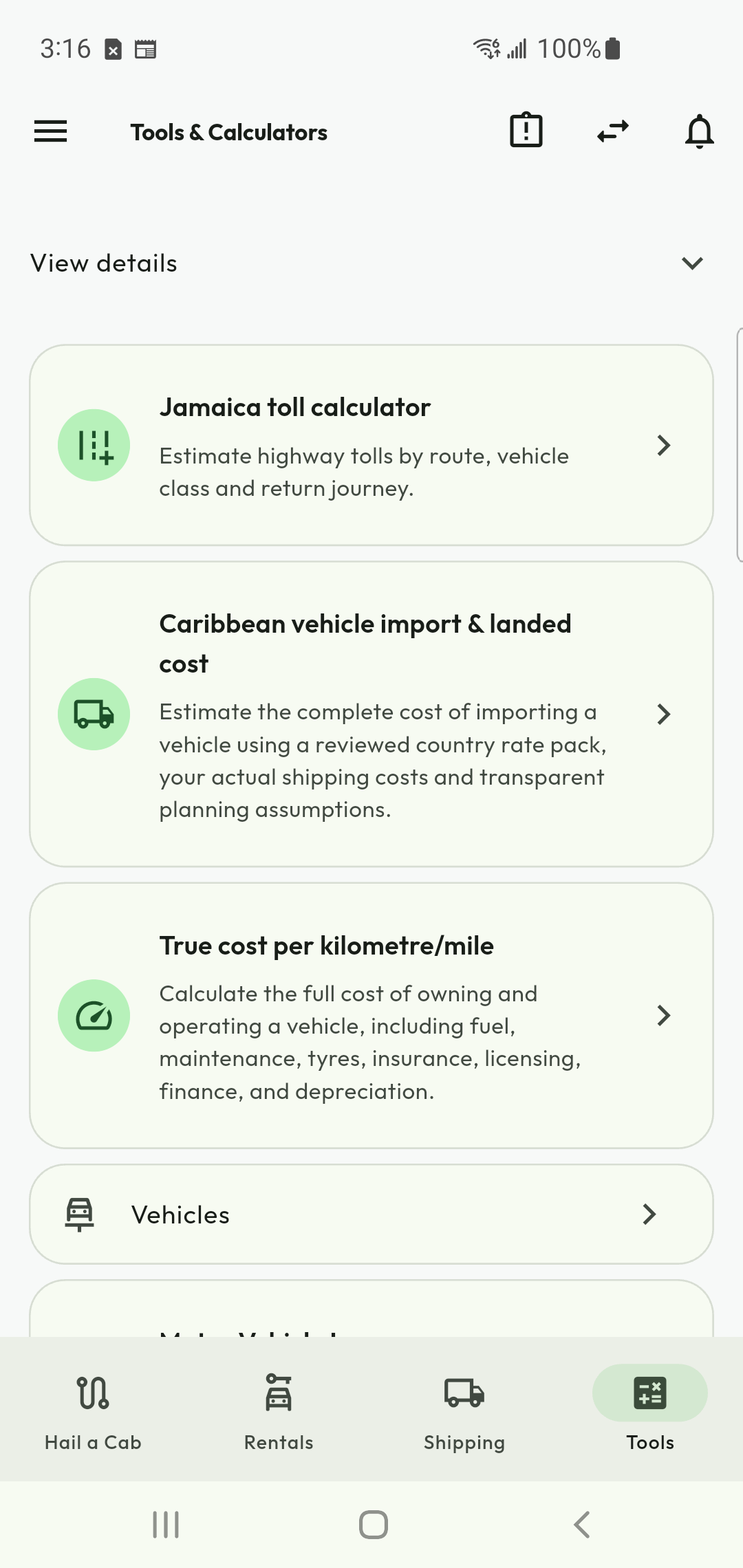
Calculator tools
| Tool | Purpose | Key outputs |
|---|---|---|
| Fare calculator | Estimate a trip using distance, time, category, country fare table and toll selection. | Suggested fare and assumptions |
| Jamaica toll calculator | Select vehicle class, start/end points and return option. | km/miles, plazas, each toll and total |
| Fuel calculator | Estimate fuel quantity and spend for a journey. | Consumption and cost |
| Mileage calculator | Convert/estimate trip distance and operating mileage. | Kilometres and miles |
| Vehicle-loan calculator | Enter price, deposit, rate and term. | Payment, interest, amortization schedule |
- Open Calculator Tools in the app or portal.
- Enter all required values; negative numbers are rejected.
- Review assumptions and results. Save a calculation when signed in.
- Export a professional Letter-size PDF where offered. It includes the KiloDrive logo, title and generation date.
Calculators are estimates, not fare guarantees, lender offers, tax advice or legal advice.
77 / 155Find planning calculators
Use the Rider portal
- Visit the official portal at https://my.kilodrive.com.
- Sign in using your approved account method and complete 2FA when prompted.
- Use the rider-aware menu to open dashboard, ride history, wallet, reports, settings and support.
- Open a ride to inspect status and available route/timeline information. Portal content follows your role and permissions.
- Download reports from the Reports area using a preset or valid custom UTC range.
- Manage notification categories, language and available account settings.
- Use the Notification Center's unread and category filters, then open an item to reach the authoritative trip, wallet, membership, support or security workspace.
- Sign out on shared computers.
Support and troubleshooting
Before opening a ticket
- Check internet and API connectivity in Settings.
- Confirm the selected country and that the service/category is active there.
- Refresh the screen once; do not repeatedly submit payment or booking actions.
- Record the time, screen, exact message and transaction/trip reference. Never include passwords or OTPs.
- Open Support, select the affected trip/payment/document/delivery or rental, choose the structured issue type, and attach safe evidence.
Continue the conversation in the case message tab and add evidence to the same case. A closed case can retain finance, fraud, safety, or legal evidence even when the account later requests deletion.
Common situations
| 401 / session expired | Sign in again; check that the device time is correct. |
| Location results slow/empty | Check connection and location permission; type a complete place name. |
| Wallet unavailable | Retry once, then report the correlation ID; do not repeat a charge. |
| Emergency | Use active-trip safety controls and call 119 in Jamaica or the local emergency number. |
Available support options
| Option | Use it for | What to provide |
|---|---|---|
| In-app Help & Support | FAQs, troubleshooting, and authenticated ticket creation. | Category, concise description, affected reference, time, and safe attachment. |
| Portal Support | Ticket history, detailed follow-up, reports, billing, verification, and organization issues. | Sign in at https://my.kilodrive.com and quote the exact transaction, trip, booking, vehicle, or ticket reference. |
| General assistance when account access is unavailable. | Email [email protected] from the registered address where possible; never send passwords, OTPs, recovery codes, full cards, or unredacted banking credentials. | |
| Safety toolkit | Active-trip safety check-ins, trusted contacts, live sharing, and incident context. | Use during the active service and preserve the displayed trip/vehicle information. |
| Emergency services | Immediate threats, injury, crime, fire, collision, or kidnapping. | Call the local authority directly—119 in Jamaica—and state location, people involved, vehicle/plate, and direction of travel. |
Severity and response
Choose the category that reflects actual impact. Duplicate tickets slow investigation. Money, safety, privacy, identity, and account-compromise cases receive specialized handling; response time depends on urgency, evidence, provider dependencies, and jurisdiction.
Top-ups, cashouts, taxes, refunds, and disputes
- Card top-up: a hosted provider handles card credentials. KiloDrive credits only after an authenticated idempotent callback and does not store PAN/CVV.
- Cashout: funds move to held balance while limits, cooldown, velocity and fraud checks run; rejection returns the hold.
- Taxes/fees: amounts use local ISO currency/minor units. Displays are records or estimates, not personal tax advice.
- Refund: eligible cancellation releases a hold or writes a linked reversal; bank posting may take longer.
- Dispute/chargeback: quote the original reference. A chargeback can reverse an earlier credit, make a wallet negative and restrict cashout.
Safety, fraud, verification, legal or payment risk can temporarily cool off/suspend an account. KiloDrive provides remediation/appeal where allowed. Termination does not erase valid debts, refunds or required finance, tax, fraud, safety, dispute or legal-hold records.
How data is protected
Account, country, organization and participant checks limit protected access. Sensitive records need an authorized purpose, and disclosure requests follow the applicable law and published privacy policy. See the detailed trust and privacy field guide for encryption boundaries, data rights and incident reporting. These controls do not establish universal legal compliance or independent security certification.
82 / 155Breakdown, towing, collision, and injury
- For injury, fire, crime or traffic danger, call emergency services immediately (119 in Jamaica).
- Move to safety, use hazards and account for occupants. Do not move an injured person except on professional instruction or to escape immediate danger.
- Use active-trip safety; do not falsely complete the trip. The vehicle must stop accepting work.
- When safe, record location, plate, damage, road/weather, parties/insurer and police report number. Do not admit liability or publish private evidence.
- Follow police/insurer/approved roadside towing instructions; verify operator, destination and custody.
- For bodily injury, seek care, notify the insurer, preserve records and open a restricted case. Insurers/authorities determine fault and compensation.
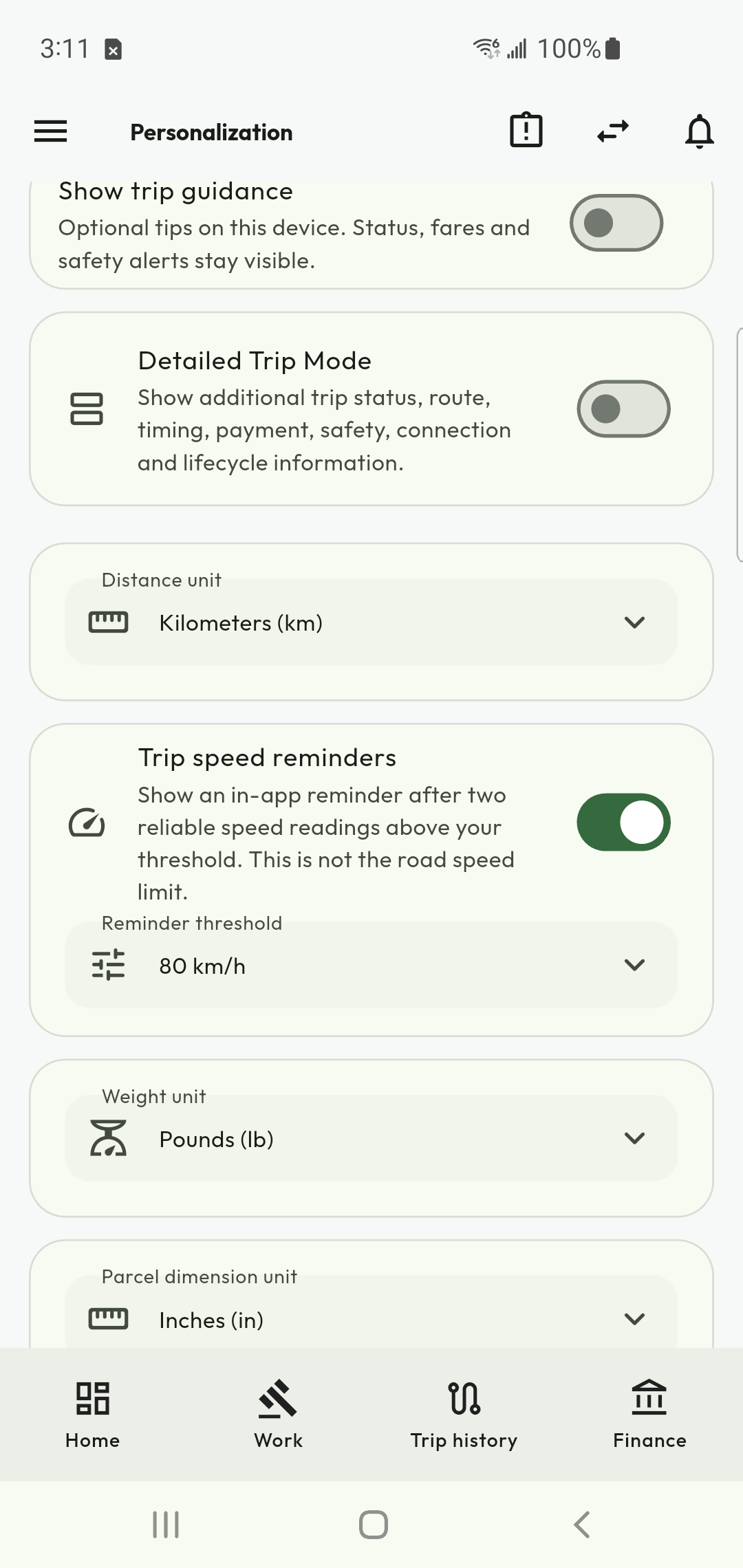
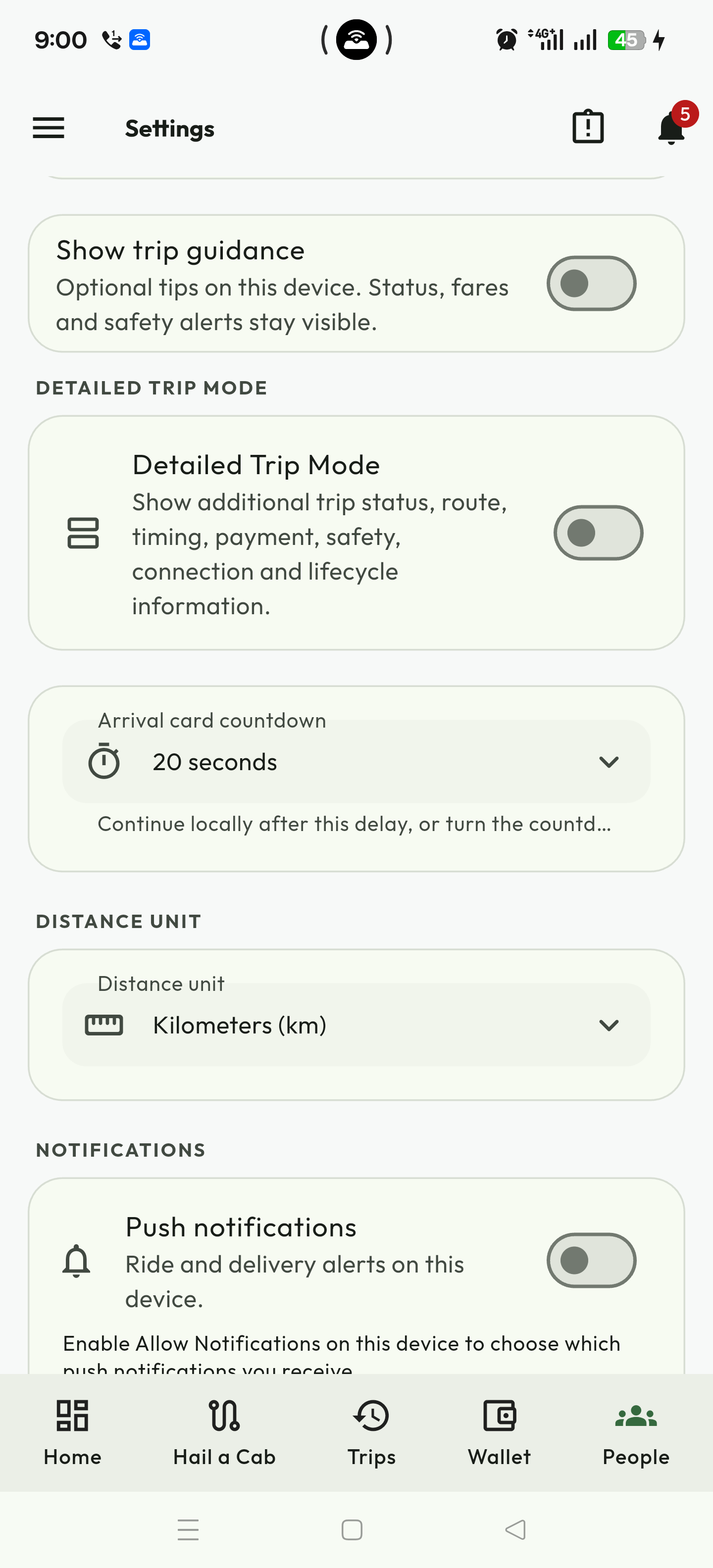
Configure trip guidance and speed reminders
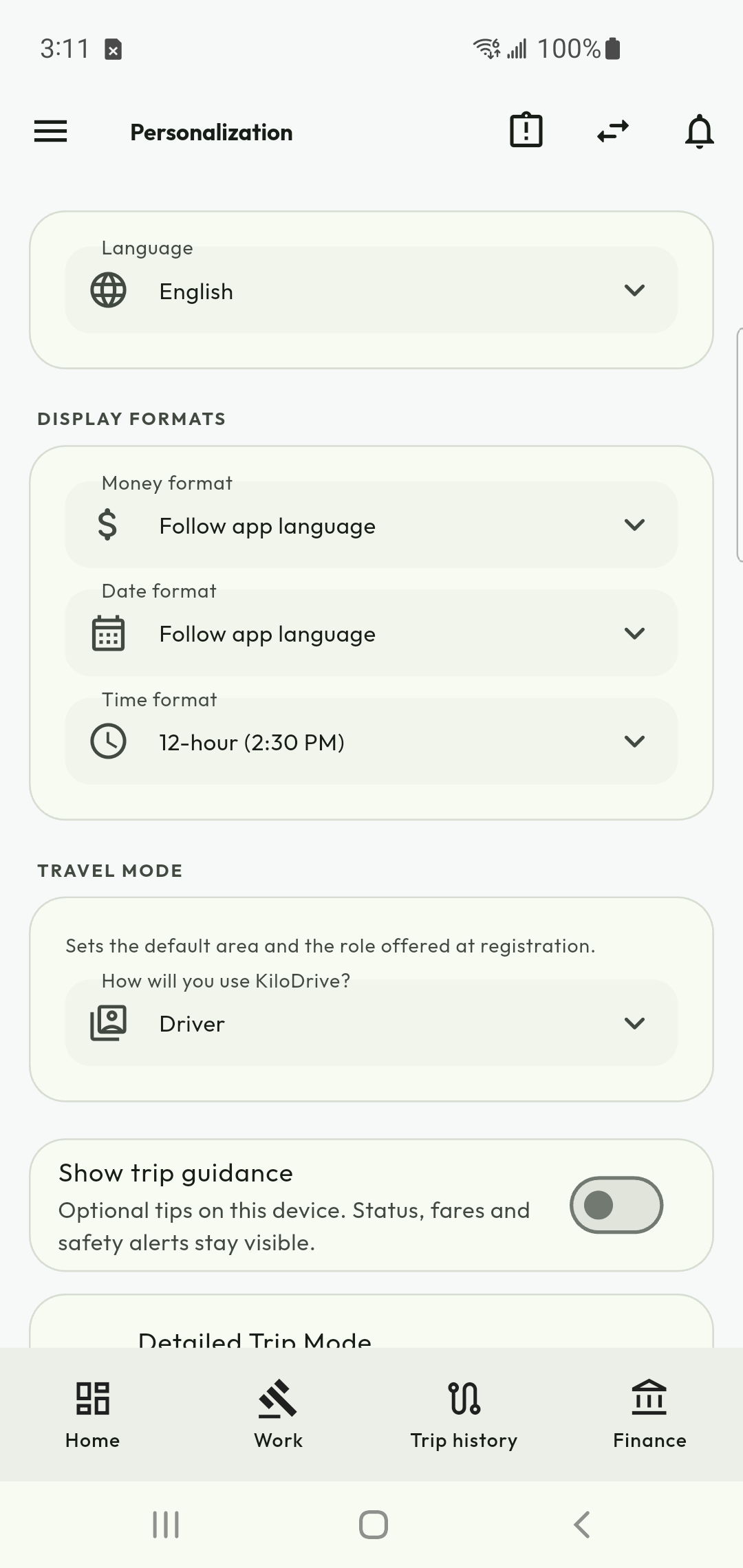
Personalize language and formats
Configure trip information and notifications
Sign-out, reinstall and shared phones
Protect the person who uses the phone next
Sign out before handing the phone to another person. KiloDrive clears account authentication and account-bound screen/notification state. A new login establishes its own session. The previous user's wallet or purchase is not evidence of ownership for the next user.
A fresh iPhone installation resets KiloDrive's saved credentials and installation state and requests a one-time Firebase notification-token refresh. It does not erase another app's Keychain data, change the Apple Account, cancel a subscription or remove Apple's purchase history. Reinstalling cannot fix a subscription belonging to a different KiloDrive account.
Understand a device-check problem
App-attestation failure, missing connectivity and server failure are separate conditions. Read the explanation and support code. Check the network for a connection error and use the offered retry for a recoverable device-check or service failure. Retrying a device check differs from repeating a financial action.
Notification permission, a current token and its authenticated account binding affect delivery. After sign-in, keep the app connected to register this installation. Android channels and iPhone controls can override requested sound or haptics. iOS has no KiloDrive-specific native vibration switch; follow in-app guidance.
Recover an account securely
Use Reset your password and the code delivered to your confirmed contact. Linking a social account to an existing identity requires explicit ownership confirmation; matching email text alone does not merge accounts. Never provide passwords, verification codes, receipts or full documents in public reviews.
App lock protects the local interface. It is separate from server authorization and payment confirmation. Use account recovery or support instead of repeatedly creating accounts for the same store purchase.
88 / 155Pickup checks, Journey and communication
Check the vehicle before boarding
Inspect Your driver has arrived: the driver, vehicle image where available, make/model, plate, colour, year and recorded verification indicators. Compare them with the person and vehicle physically present. A badge describes recorded verification, not a promise that every optional document is mandatory.
Select Everything matches only after your own check. For a mismatch, use This is not my driver or vehicle and its safety/reporting path. Do not bury a mismatch in an ordinary cancellation reason or enter a vehicle you cannot confidently identify.
Settings - Arrival card countdown offers a delay or Off - wait for my choice. The default is 20 seconds. The countdown pauses while its control is hidden or trip information is unconfirmed. Automatic continuation only changes the local view: it does not certify a visual match and does not start the trip. Check the vehicle yourself even after the card continues.
Read lifecycle and map evidence separately
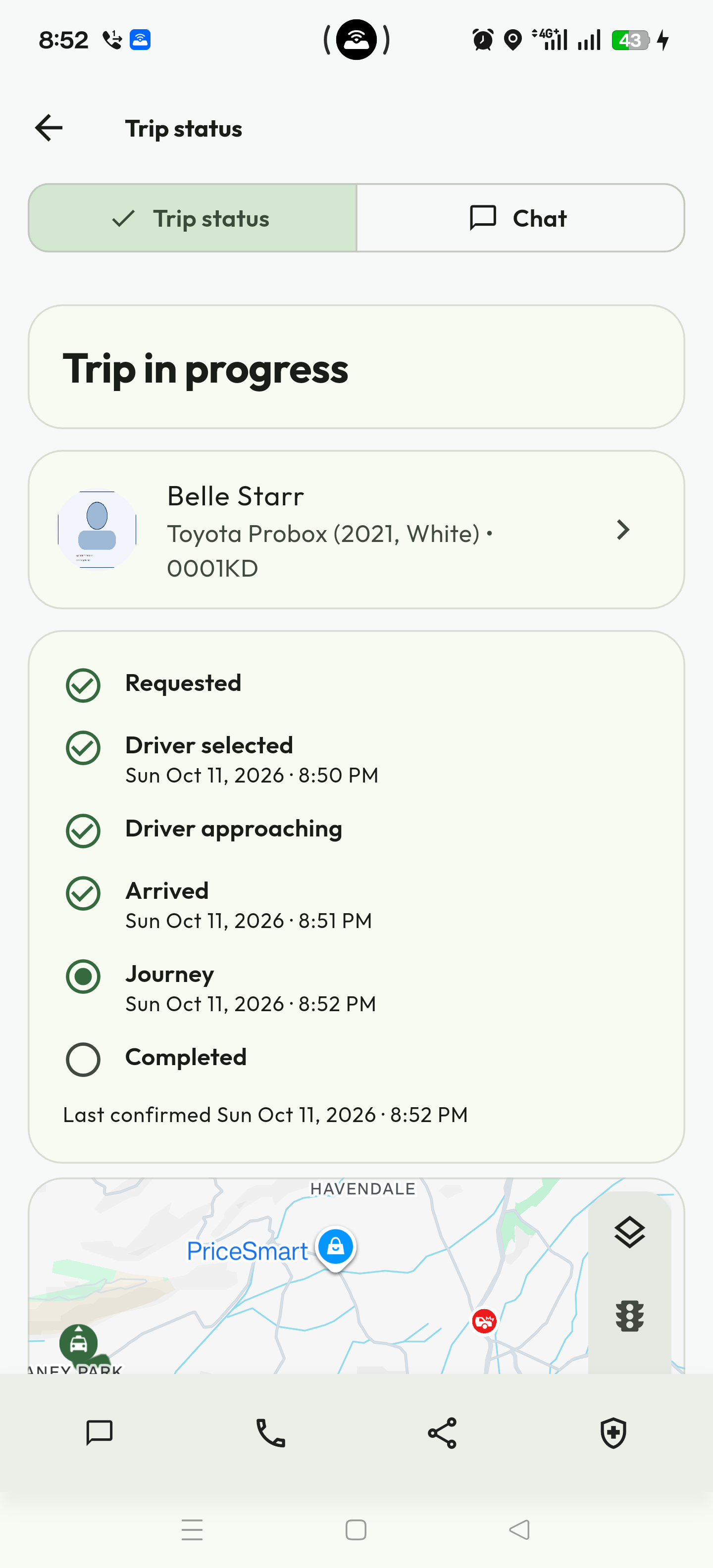
Journey is the in-progress stage. Distance to pickup is relevant before pickup, not an instruction to board an already-started journey. Sample age and accuracy describe location evidence, not the trip's server state. A parked driver can be at pickup without visible movement.
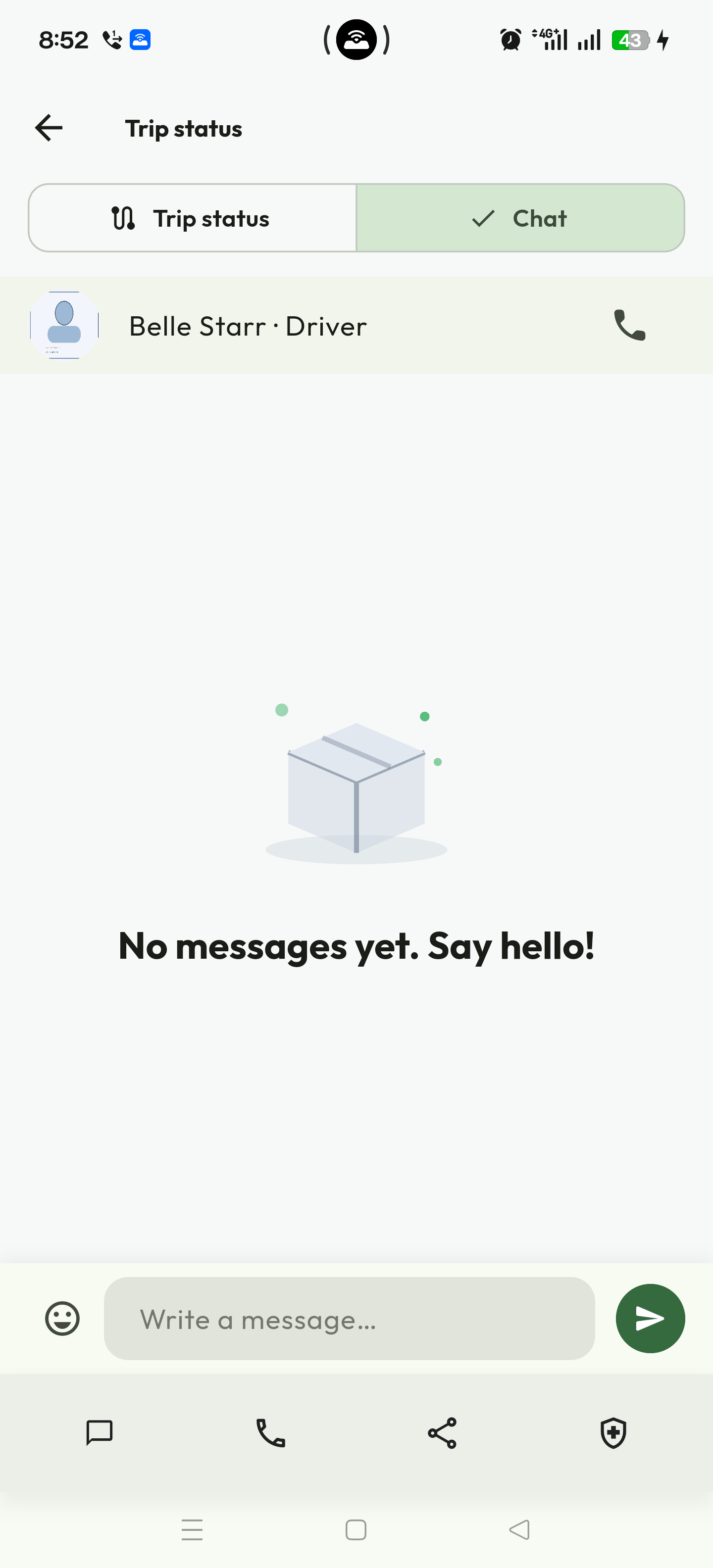
Use the trip's chat for its assigned participant. Open incoming messages or their in-app destination and check the sender and trip. Sound depends on permission, channel settings, quiet hours and operating-system controls. Do not rely on sound alone for safety-critical instructions.
Emergency stop, termination and ordinary cancellation have different consequences. Enter a meaningful explanation and review the confirmed result. After an interrupted command, refresh the same trip and saved outcome before acting again.
89 / 155Message the assigned driver
Follow the Journey timeline
Recurring rides and splitting a fare
Ride Hailing → Recurring rides; eligible ride → Split fare
- For a recurring ride, choose pickup and destination, category, proposed fare, pickup time and at least one weekday. Read the displayed scheduling timezone before saving. Use Schedule active to suspend future requests when your routine changes.
- Open the saved schedule to inspect its generated rides. A recurring request is not a guaranteed driver assignment. Review each occurrence and its offer, payment and cancellation state separately; changing the schedule does not prove that an already-created ride was cancelled.
- To split an eligible fare, first save the intended people as wallet transfer recipients. Open Split fare, select payers and enter a positive amount or percentage within the fare total. Review and send payment invitations.
- Each invited payer must authorize their own share. Inspect accepted, declined, expired and unpaid invitations before relying on their contribution. The requester remains the fallback payer; exact rounding and any remainder belong to the requester.
- If sending invitations has an unconfirmed outcome, check that original request or use Retry original request when offered. Do not issue a second set of invitations to repair an uncertain result.
Assisted, family and business travel
My Account / travel profiles → applicable assistance or travel profile
- Open Assisted rider profile when available. Enable the profile and specify practical boarding, mobility, hearing or vision preferences, service animal and extra boarding time. Enter wheelchair dimensions or weight only when relevant. Save and review the preferences before requesting a ride.
- A caregiver contact and caregiver updates are optional. Provide only the information needed for the trip; do not put diagnoses or unrelated private records in instructions. Minimum trip-specific assistance is shared with a capable driver.
- For a family or business travel profile, create or open the authorized profile, invite a member and assign the appropriate traveler, booker or manager role. An invitation must be accepted before treating it as active access.
- Set per-ride and monthly limits, approved days/hours, payment rules and cost center where applicable. Select whom you are booking for and review central billing and notifications before submission.
- Use the trip’s supervised conversation and pickup/drop-off confirmation controls when offered. Keep communications in the authorized trip context. Inspect monthly statements and remove unnecessary member access from the profile.
Wallet transfers and top-up cards
Billing & Financial → wallet transfers / top-up cards, where available
- Check the wallet account, available balance and currency. Add the recipient by their email or phone through the recipient selector and confirm the resolved person. A saved contact alone does not authorize a transfer.
- Select the recipient and amount, review the exact destination and displayed terms, and confirm once. Reopen transaction history to verify the resulting debit and credit status. Do not repeat an unconfirmed transfer with a new request.
- For a top-up card purchase, review its denomination, price and funding terms. After confirmation, save the voucher code securely when it is shown. A code may be displayed only once; do not put it in screenshots or public messages.
- To redeem, choose Redeem top-up card and enter the code or use the scanner. Confirm the resulting wallet entry rather than assuming that a scan added money.
- If a recipient is unavailable, a restriction applies or a voucher result is uncertain, retain the operation reference and use its status/recovery action. Ask Support to investigate that original operation; reinstalling does not reverse it.
Courier schedules, changes and refund decisions
Shipping → saved drafts / recurring jobs; assigned job → changes and refunds
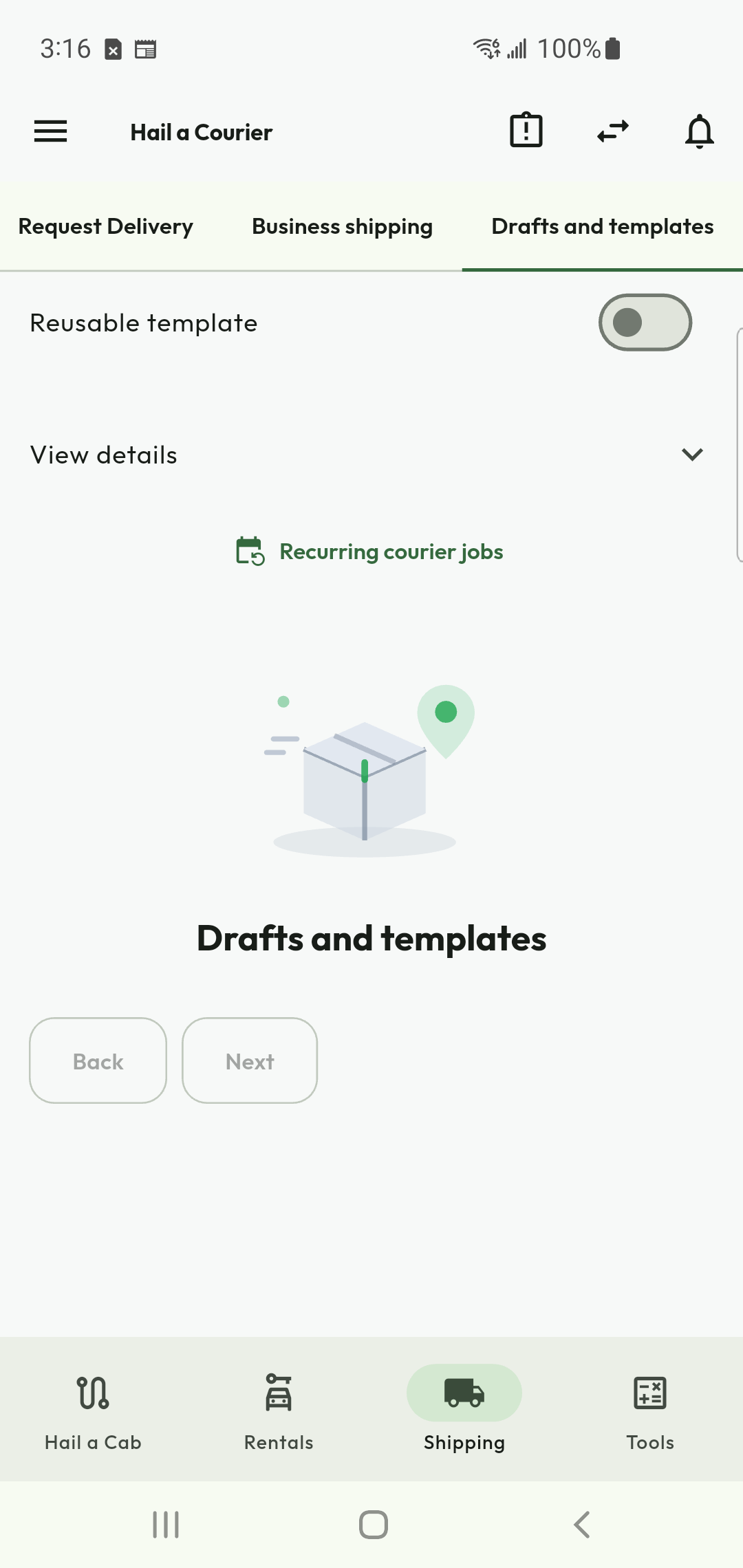
- Save a package-delivery draft before creating a recurring courier schedule. Choose daily or weekly frequency, collection time, IANA timezone, first/last date, skip dates and maximum quote per job. Read the consent and save.
- Inspect each occurrence. A fresh quote is required; Needs review means no job was created. Pause future occurrences when necessary. Recurrence supports package bidding, not shopping or automatic offer acceptance or wallet charging.
- For an assigned job, use Job changes and waiting to propose a recipient change, extra stop, rescheduling or a supported payment-method change. Read the original and proposed terms. Both participants must agree before relying on the change.
- If an item or merchant is unavailable, pause shopping and propose the allowed substitution or next action. Agree quantity, maximum unit price and additional funding before buying. Starting or ending waiting does not automatically authorize a waiting charge.
- For a merchant goods refund, select the approved purchase receipt, record the actual amount, reference, recipient of the refund and private evidence. The requester reviews the report. Check the final reconciled state before treating money as returned.
Reuse delivery drafts and templates
Vehicle care, calculators and discovery controls
My Account / Vehicles; Tools; Personalization; About
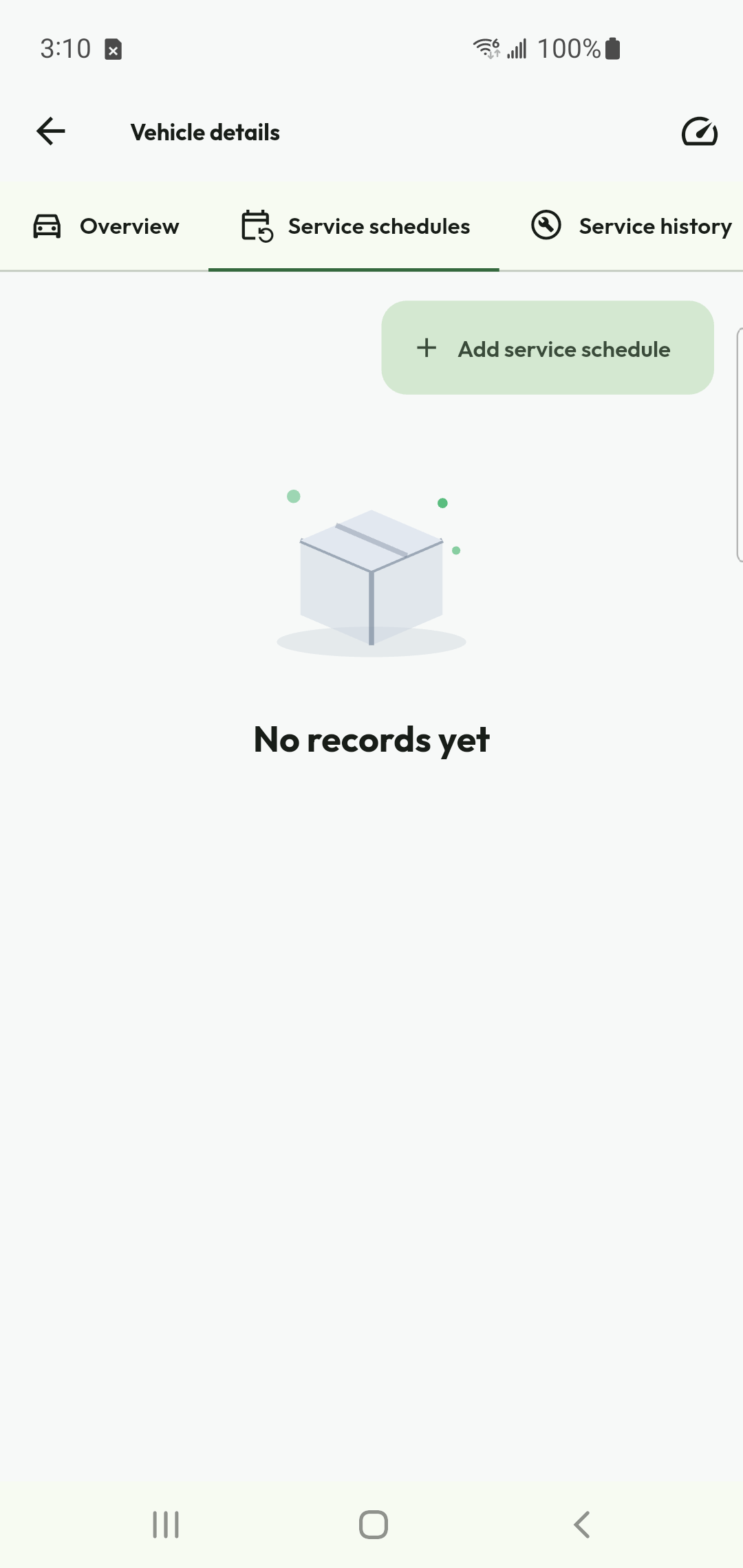
- Where account-owned vehicle tools are available, open the vehicle and record odometer, servicing, tyres, brakes, defects, documents and expenses. Review upcoming maintenance before using the vehicle for work. Saving a vehicle does not make it approved for passenger, courier or rental service.
- Open Tools and choose the required calculator. Besides fares, tolls, fuel, mileage and loans, use the offered vehicle ownership-cost or Jamaica import calculator. Enter the actual assumptions, inspect the breakdown and export only where the tool provides it.
- Open Personalization to select display mode, language, distance units and text size. Check larger text on your device. Notification preferences and native operating-system permissions are separate; use the appropriate app or OS setting.
- Use My Account for reviews received/given and the available leaderboard for its stated period. Ranking and achievement information is not a guarantee of safety, availability or earnings.
- Use About for the installed version and published app information. For a failed workflow, open Support with the precise operation, KD code, time and reference. Do not attach passwords, voucher codes or private identity documents to a general message.
Create a vehicle service schedule
Feature directory 1
Choose a feature below. Each linked chapter explains prerequisites, steps, the expected result and recovery when the action does not complete. Country, workspace, permissions and readiness determine availability.
Create an account and return safely
Start screen → customer or transportation service provider
- For a new account, explicitly choose your audience. A provider also selects Individual or Organization and the first transportation service to set up. Existing users can choose Login without repeating registration.
- Enter the requested details or use a supported social sign-in. Check the country and account summary before creating the account. Correct validation beside the affected field rather than submitting the same invalid form repeatedly.
Find profile, contacts and security
Side menu → Account & Settings → My Account / Personalization / Security
- Open My Account for identity/profile details, your photo, reputation, contact and data-management controls. Use the displayed verification action to correct missing or rejected evidence.
- Open Security for authentication, active sessions, passkeys, linked social accounts, My Activity and Blocklist. Review unfamiliar sessions and revoke access using the available action.
Request your first ride
Hail a Ride / Hail a Cab
- Set origin and destination. Check addresses and map pins, passengers and any supported trip options before requesting a fare.
- Read Proposed fare and its estimated points. Tap the fare card for the calculation, assumptions and reward estimate; the proposal is not a completed payment.
Check the vehicle and complete the journey
Assigned trip → arrival → Journey
- Read the arrival/vehicle-check card. If details match, confirm them using the offered action. Report a mismatch immediately; do not enter an unrecognized vehicle.
- If a matching countdown is displayed, actively inspect the vehicle before it expires. A countdown is not a substitute for your safety check.
Feature directory 2
Choose a feature below. Each linked chapter explains prerequisites, steps, the expected result and recovery when the action does not complete. Country, workspace, permissions and readiness determine availability.
Create a delivery in the guided steps
Shipping / Hail a Courier → new delivery
- Describe what needs moving, quantities, size/value and handling needs. Read prohibited-goods rules and give truthful declarations.
- Set the sender/pickup and destination. Add recipient details when applicable; optional name/phone fields need not be filled simply to advance.
Approve shopping, delivery and returns
Delivery details → receipts / custody / support
- Review any extra-spend or substitution request in the job. Approve only the amount and items you actually accept; a chat message does not replace the recorded financial action.
- Inspect the merchant receipt against the agreed items and actual spend. Reject a mismatch with a clear reason rather than approving it just to close the journey.
Find a suitable rental and branch
Rentals → Vehicles / Nearby map / Rental providers
- Expand Search rentals · Sort by · Filters when you need to narrow results. Apply your dates, search and filters, then review the current list.
- Read the bold make/model/year, rental company, price marked p/d and seat count. The daily rate is not the full booking total or deposit.
Check whether you can rent this vehicle
Vehicle details → requirements / rental qualification
- Read each requirement beside your standing. A green check records the current evidence; a red X identifies something to resolve.
- Review driving-licence verification, supported licence category, expiry, required photo, minimum age and required licence holding period. Follow any additional published lawful requirement shown.
Feature directory 3
Choose a feature below. Each linked chapter explains prerequisites, steps, the expected result and recovery when the action does not complete. Country, workspace, permissions and readiness determine availability.
Reserve, book and confirm payment
Vehicle details → Request to Book / reservation option
- Choose the supported collection/delivery arrangement and supply any required address. Re-read the final quote after changing dates or options.
- Use Reserve when offered for a temporary unpaid hold, or follow Request to Book for the ordinary approval process. Read the server’s reservation expiry.
Collect, extend and return a rental
My rental booking → handover / return / changes
- Complete the collection record with the provider: photographs, known damage, odometer, fuel/charge, keys/accessories and requested signatures. Read before confirming.
- Use the vehicle only for permitted purposes and areas. Do not assume a rental allows ride-hailing, courier work, cross-border or ferry travel.
Share a contact card and save trusted people
My Account → contact card / contacts / favorites
- Open My KiloDrive Card and review the public-facing identity before sharing its QR code or link.
- When scanning a card, wait for the app to resolve the person and check the displayed identity. Save the appropriate favorite type, such as driver, courier, recipient or trusted contact.
Add money and verify one credit
Billing & Financial → Wallet / top-up
- Choose a supported funding method and amount. Review the total charged and expected wallet credit before leaving the app for a provider checkout.
- Complete the checkout once. Return through its app-return action; closing a browser is not payment confirmation.
Feature directory 4
Choose a feature below. Each linked chapter explains prerequisites, steps, the expected result and recovery when the action does not complete. Country, workspace, permissions and readiness determine availability.
Earn, inspect and convert rewards
Home → Loyalty rewards, or Billing & Financial → Rewards & Referrals
- Open rewards and inspect the available points balance and points history. Check whether an entry is earned, pending, converted or reversed.
- Generate or open your referral code and share it using the provided action. A code being used at signup is not yet proof of an earned reward.
Deactivate, export or delete your account
My Account → data management
- Export your data if you need a personal record. Store the download privately; it may contain account, activity and financial information.
- For a temporary suspension, read the deactivation disclosure, including retained records and the reactivation route.
Link sign-in methods and protect a shared phone
My Account → Security → authentication / social accounts
- Open the linked-account controls and choose the provider you intend to attach. Complete the provider’s own authentication and the current KiloDrive security challenge.
- Read the result and refresh the linked-account list. If the identity belongs to another KiloDrive account, do not assume the accounts were merged.
Keep receipts, history and reports
Billing & Financial → transactions / reports; completed service record
- Open the original ride, delivery, rental or payment and read its final status before saving a receipt.
- Filter transactions by date range and type, then sort to find the matching reference. Separate a hold, its release, a refund and the final charge.
Feature directory 5
Choose a feature below. Each linked chapter explains prerequisites, steps, the expected result and recovery when the action does not complete. Country, workspace, permissions and readiness determine availability.
Read errors without repeating a payment
Open the current KiloDrive code directory for the exact KD-XXXXX shown. The code explains a situation; the separate correlation reference identifies this occurrence.
Open the linked chapter for its instructions and feature-specific controls.
Submit identity evidence once
- Read the requested document type and required sides/pages. Use the currently accepted list in the app, not a document list from another country.
- Enter accurate personal details and choose a clear, genuine document through the camera or file picker. Follow the displayed file type and size limit.
Request, bid, and complete a ride
- From Home choose Hail a Ride .
- For origin, type an address, choose a saved place, or use current GPS location. Type the destination and select a verified search result.
Choose, ride, and close out safely
- Confirm the assigned vehicle and plate before boarding.
- Use state-gated chat or the call button after bid acceptance. Chat closes when the trip completes or is cancelled.
Feature directory 6
Choose a feature below. Each linked chapter explains prerequisites, steps, the expected result and recovery when the action does not complete. Country, workspace, permissions and readiness determine availability.
Safety, security, and privacy
Use a unique password, phone/email verification, optional 2FA, social-login review, device sessions, biometric app lock and recovery codes. Keep the app and OS updated.
Open the linked chapter for its instructions and feature-specific controls.
RideCheck, live sharing, and your data
- Add up to five trusted contacts and permit live-trip messages.
- During a trip choose Share live trip and send the short KiloDrive link.
Calculator tools
- Open Calculator Tools in the app or portal.
- Enter all required values; negative numbers are rejected.
Use the Rider portal
- Visit the official portal at https://my.kilodrive.com .
- Sign in using your approved account method and complete 2FA when prompted.
Feature directory 7
Choose a feature below. Each linked chapter explains prerequisites, steps, the expected result and recovery when the action does not complete. Country, workspace, permissions and readiness determine availability.
Support and troubleshooting
- Check internet and API connectivity in Settings.
- Confirm the selected country and that the service/category is active there.
Available support options
Choose the category that reflects actual impact. Duplicate tickets slow investigation. Money, safety, privacy, identity, and account-compromise cases receive specialized handling; response time depends on urgency, evidence, provider dependencies, and jurisdiction.
Open the linked chapter for its instructions and feature-specific controls.
Top-ups, cashouts, taxes, refunds, and disputes
Safety, fraud, verification, legal or payment risk can temporarily cool off/suspend an account. KiloDrive provides remediation/appeal where allowed. Termination does not erase valid debts, refunds or required finance, tax, fraud, safety, dispute or legal-hold records.
Open the linked chapter for its instructions and feature-specific controls.
Breakdown, towing, collision, and injury
- For injury, fire, crime or traffic danger, call emergency services immediately (119 in Jamaica).
- Move to safety, use hazards and account for occupants. Do not move an injured person except on professional instruction or to escape immediate danger.
Feature directory 8
Choose a feature below. Each linked chapter explains prerequisites, steps, the expected result and recovery when the action does not complete. Country, workspace, permissions and readiness determine availability.
Display, navigation and the right next action
Open Settings - Display formats . Choose money separators such as 1,234.56 , 1.234,56 , or the offered space-grouped format, or follow your language. Currency codes remain part of money displays. This changes presentation, not the wallet currency, fare, exchange rate or amount charged.
Open the linked chapter for its instructions and feature-specific controls.
Sign-out, reinstall and shared phones
Sign out before handing the phone to another person. KiloDrive clears account authentication and account-bound screen/notification state. A new login establishes its own session. The previous user's wallet or purchase is not evidence of ownership for the next user.
Open the linked chapter for its instructions and feature-specific controls.
Pickup checks, Journey and communication
Inspect Your driver has arrived : the driver, vehicle image where available, make/model, plate, colour, year and recorded verification indicators. Compare them with the person and vehicle physically present. A badge describes recorded verification, not a promise that every optional document is mandatory.
Open the linked chapter for its instructions and feature-specific controls.
106 / 155Sign-in and device access - error guidance
Use the exact KD code and occurrence message. The live outcome and correlation reference take precedence over a catalogue default. For an unknown or in-progress payment, booking or membership result, reconcile the original action; do not submit another payment.
KD-10026
Meaning: The request lacks the authoritative installation credential required by admission or does not match the installation bound to its existing session.
Next action: Follow the device-registration or sign-in recovery prompt. If reopening KiloDrive once does not restore access, contact Support with this code. Do not repeatedly reinstall or create another account.
Prevention: Retain the registered installation credential securely and restore a session only on the installation to which it is bound.
KD-10033
Meaning: The sign-in could not establish accepted credentials and authorized access to the selected tenant.
Next action: Check the sign-in details and selected workspace, or use password recovery for your own account. Contact support if the correct identity has no authorized workspace.
Prevention: Use your own verified login method and the correct tenant workspace; avoid repeated guesses and use supported password recovery when needed.
KD-10073
Meaning: The verified provider subject is already owned by a different KiloDrive identity, so linking it to this account was denied.
Next action: This Apple, Google or Facebook identity is already attached to another KiloDrive account. Use that original account or contact Support to resolve ownership; trying again will not merge the accounts.
Prevention: Confirm both the active KiloDrive account and provider account before linking; do not infer ownership from a matching email.
Other codes: open https://kilodrive.com/help/codes and search the complete code. Include the task, time, app version and correlation reference when contacting Support; never send passwords, verification codes or payment tokens.
107 / 155Sign-in and device access - error guidance
Use the exact KD code and occurrence message. The live outcome and correlation reference take precedence over a catalogue default. For an unknown or in-progress payment, booking or membership result, reconcile the original action; do not submit another payment.
KD-10074
Meaning: A verified provider identity has no stored social connection, and the request explicitly asked to sign in rather than create an account.
Next action: Sign in through an existing KiloDrive method; if you intend to create a new account, choose registration and review the account details.
Prevention: Choose registration for a new account or the already-linked sign-in method for an existing account.
KD-10091
Meaning: Another delivery confirmation cannot be issued while this delivery purpose's request limit is reached.
Next action: Wait for the limit to clear and use the current valid confirmation; request another only while the stop and delivery remain eligible.
Prevention: Avoid repeatedly requesting recipient or delivery confirmation codes.
KD-90121
Meaning: The request exceeded an enforced admission or endpoint budget.
Next action: Honor Retry-After, then repeat only the same intended request if still needed.
Prevention: Use bounded polling and preserve mutation identity while waiting.
Other codes: open https://kilodrive.com/help/codes and search the complete code. Include the task, time, app version and correlation reference when contacting Support; never send passwords, verification codes or payment tokens.
108 / 155Forms and uncertain results - error guidance
Use the exact KD code and occurrence message. The live outcome and correlation reference take precedence over a catalogue default. For an unknown or in-progress payment, booking or membership result, reconcile the original action; do not submit another payment.
KD-90148
Meaning: The request’s fields, format, range, or selected contract values could not be accepted.
Next action: Correct the highlighted fields. If a payment or booking was already submitted, check its original result before resubmitting.
Prevention: Use the operation’s accepted values, lengths, range limits, language and request format.
KD-90049
Meaning: An operation with the original identity is still running or being reconciled.
Next action: The original request is still being checked. Wait, then use Check status for that same request. Do not create a duplicate payment, booking or offer.
Prevention: Keep the same key, payload and revision until the original operation finishes.
KD-90050
Meaning: An authenticated retry-sensitive mutation lacks its required operation key.
Next action: Return to the original task and use its recovery or status action. You do not need to create a technical key yourself. If the app cannot continue, give Support this code and the original transaction reference.
Prevention: Prepare the operation identity before submitting a retry-sensitive mutation.
Other codes: open https://kilodrive.com/help/codes and search the complete code. Include the task, time, app version and correlation reference when contacting Support; never send passwords, verification codes or payment tokens.
109 / 155Forms and uncertain results - error guidance
Use the exact KD code and occurrence message. The live outcome and correlation reference take precedence over a catalogue default. For an unknown or in-progress payment, booking or membership result, reconcile the original action; do not submit another payment.
KD-90057
Meaning: An unhandled server failure prevented an authoritative response for this request.
Next action: Inspect original operation status and provide the support/correlation reference if unresolved.
Prevention: Keep durable keys and revisions and avoid replacement mutations after an interrupted response.
Other codes: open https://kilodrive.com/help/codes and search the complete code. Include the task, time, app version and correlation reference when contacting Support; never send passwords, verification codes or payment tokens.
110 / 155Identity and rental requirements - error guidance
Use the exact KD code and occurrence message. The live outcome and correlation reference take precedence over a catalogue default. For an unknown or in-progress payment, booking or membership result, reconcile the original action; do not submit another payment.
KD-20023
Meaning: The selected identity document is expired and cannot be approved.
Next action: Request renewed evidence and review the replacement document before approval.
Prevention: Submit current evidence and review expiry before approval.
KD-20024
Meaning: The identity approval lacks the required current pending document or licence back image.
Next action: Request complete replacement evidence before recording approval.
Prevention: Review the exact account-owned current submission and both required licence images.
KD-20233
Meaning: The approved identity or licence document cannot be trusted through the rental return date.
Next action: Ask the rental provider to review current identity and licence documents before continuing.
Prevention: Keep approved identity and licence evidence current for the entire rental, including any extension.
Other codes: open https://kilodrive.com/help/codes and search the complete code. Include the task, time, app version and correlation reference when contacting Support; never send passwords, verification codes or payment tokens.
111 / 155Identity and rental requirements - error guidance
Use the exact KD code and occurrence message. The live outcome and correlation reference take precedence over a catalogue default. For an unknown or in-progress payment, booking or membership result, reconcile the original action; do not submit another payment.
KD-20234
Meaning: A driver on this rental is not currently verified as an active account.
Next action: Complete account identity verification, then ask the provider to recheck every driver on this rental.
Prevention: Complete identity verification for every active rental driver before reserving or extending.
KD-20316
Meaning: The rental provider requires the renter to have a profile picture.
Next action: Add a profile picture in My Data, then refresh rental eligibility.
Prevention: Review the vehicle's requirement checklist and current provider profile before submitting the booking or edit.
KD-20317
Meaning: This rental requires KiloDrive-verified identity before a booking can proceed.
Next action: Complete identity verification, then refresh the vehicle's requirements.
Prevention: Review the vehicle's requirement checklist and current provider profile before submitting the booking or edit.
Other codes: open https://kilodrive.com/help/codes and search the complete code. Include the task, time, app version and correlation reference when contacting Support; never send passwords, verification codes or payment tokens.
112 / 155Wallet and rewards - error guidance
Use the exact KD code and occurrence message. The live outcome and correlation reference take precedence over a catalogue default. For an unknown or in-progress payment, booking or membership result, reconcile the original action; do not submit another payment.
KD-40029
Meaning: The available wallet balance does not cover the amount required for this action; held funds are not spendable.
Next action: Refresh wallet and original operation status; add funds or reduce the amount only after resolving any earlier pending operation.
Prevention: Review the authoritative quote, account currency, permitted payment method, amount and fees; check the original operation before any replacement monetary request.
KD-40179
Meaning: The quoted conversion would credit more than the receiving wallet current top-up limit.
Next action: Enter a smaller USD amount and review a new quote.
Prevention: Use this operation’s supported fields and current source-owned amounts/state; retain its original payment reference whenever a prior monetary outcome is unresolved.
KD-40192
Meaning: The outstanding balance requires reviewed settlement before erasure.
Next action: Settle any outstanding balance, or review cashout and explicit forfeiture options for a positive balance before deletion.
Prevention: Use the current signed-in country workspace, saved recipient and reviewed amounts/fees; preserve original operation evidence if an earlier financial result is unresolved.
Other codes: open https://kilodrive.com/help/codes and search the complete code. Include the task, time, app version and correlation reference when contacting Support; never send passwords, verification codes or payment tokens.
113 / 155Wallet and rewards - error guidance
Use the exact KD code and occurrence message. The live outcome and correlation reference take precedence over a catalogue default. For an unknown or in-progress payment, booking or membership result, reconcile the original action; do not submit another payment.
KD-40193
Meaning: A wallet update could not complete within the safe contention limit.
Next action: Refresh wallet and original operation status before confirming another financial attempt.
Prevention: Use this operation’s supported fields and current source-owned amounts/state; retain its original payment reference whenever a prior monetary outcome is unresolved.
KD-40614
Meaning: A quoted reward lot or policy revision no longer matches. Check the original conversion status before requesting a replacement quote.
Next action: Check original status before requesting a replacement quote.
Prevention: Keep the exact quote and revision through confirmation.
KD-40615
Meaning: This quote is past its validity period. Check whether its original conversion completed before requesting another quote.
Next action: Check whether the original conversion completed before requesting a new quote.
Prevention: Confirm only a current quote after checking previous outcomes.
Other codes: open https://kilodrive.com/help/codes and search the complete code. Include the task, time, app version and correlation reference when contacting Support; never send passwords, verification codes or payment tokens.
114 / 155Wallet and rewards - error guidance
Use the exact KD code and occurrence message. The live outcome and correlation reference take precedence over a catalogue default. For an unknown or in-progress payment, booking or membership result, reconcile the original action; do not submit another payment.
KD-90675
Meaning: Your available points cannot cover this amount. Pending, expired or otherwise unavailable points do not count toward conversion.
Next action: Review available points and lower the requested amount.
Prevention: Exclude pending, expired, reversed and already-converted points from spendable totals.
KD-10307
Meaning: A referral cannot name the same account as both referrer and new user. Review the optional referral information before continuing.
Next action: Correct or remove the optional referral to continue registration.
Prevention: Use the original optional owned referral link and remove invalid intent rather than attaching it to an existing account.
KD-10310
Meaning: The system could not find an unused referral code for this account. Contact support if this continues; do not replace an existing account to obtain a code.
Next action: Retry account creation only after checking its original outcome; an operator can review allocation.
Prevention: Retain the permanent issued-code namespace even after erasure.
Other codes: open https://kilodrive.com/help/codes and search the complete code. Include the task, time, app version and correlation reference when contacting Support; never send passwords, verification codes or payment tokens.
115 / 155Account closure - error guidance
Use the exact KD code and occurrence message. The live outcome and correlation reference take precedence over a catalogue default. For an unknown or in-progress payment, booking or membership result, reconcile the original action; do not submit another payment.
KD-10265
Meaning: The account-deletion eligibility check could not confirm the account's outstanding obligations. This attempt did not create a deletion request, suspend the account or revoke its sessions.
Next action: Contact support with this code and the occurrence reference so the incomplete obligation check can be resolved before requesting account deletion again.
Prevention: Keep every linked country workspace and its account projection available for the deletion eligibility check; do not suspend the account before that read-only check succeeds.
KD-10266
Meaning: Account deletion is blocked by an unsettled payment or store purchase. This does not mean the payment failed or that another purchase is safe.
Next action: Review the original payment or purchase in Resolution Center and have its result reconciled before requesting deletion again; do not start a replacement purchase.
Prevention: Reconcile original provider operations to a confirmed settled or no-charge result before account deletion; a zero wallet balance alone does not prove that payments are settled.
KD-10274
Meaning: Account deletion cannot proceed while you still own a rental company that is not closed. Deletion will not invent a successor or silently abandon the company's obligations.
Next action: Close the rental company after resolving its obligations.
Prevention: Resolve the company's bookings and financial obligations, then use its supported closure workflow before requesting account deletion.
Other codes: open https://kilodrive.com/help/codes and search the complete code. Include the task, time, app version and correlation reference when contacting Support; never send passwords, verification codes or payment tokens.
116 / 155Account closure - error guidance
Use the exact KD code and occurrence message. The live outcome and correlation reference take precedence over a catalogue default. For an unknown or in-progress payment, booking or membership result, reconcile the original action; do not submit another payment.
KD-10275
Meaning: Account deletion is blocked by an unresolved rental reservation, vehicle-return record, claim, dispute or extension. A completed or closed label alone does not prove every obligation was resolved.
Next action: Open the existing rental booking and resolve its outstanding requirement.
Prevention: Finish vehicle return and resolve rental cases and extensions through their recorded workflows before requesting account deletion.
KD-10276
Meaning: Account deletion cannot proceed because rental payment, deposit, settlement or external refund evidence is unresolved. A manual receipt or refund label does not itself prove independently reviewed money movement.
Next action: Ask rental finance to resolve the existing payment evidence before account deletion.
Prevention: Retain the original rental payment and receipt references until finance confirms settlement, deposit handling and any external refund.
KD-10314
Meaning: Review your available and pending reward points. Before requesting deletion, explicitly agree to permanently give up those points when deletion is carried out. This is separate from any wallet balance consent.
Next action: Review a complete account-wide preview and explicitly accept points forfeiture separately from wallet balance decisions.
Prevention: Review a complete account-wide preview and explicitly accept points forfeiture separately from wallet balance decisions.
Other codes: open https://kilodrive.com/help/codes and search the complete code. Include the task, time, app version and correlation reference when contacting Support; never send passwords, verification codes or payment tokens.
117 / 155Account closure - error guidance
Use the exact KD code and occurrence message. The live outcome and correlation reference take precedence over a catalogue default. For an unknown or in-progress payment, booking or membership result, reconcile the original action; do not submit another payment.
KD-10315
Meaning: The saved points evidence is no longer current or no longer matches this deletion checkpoint. Review the existing deletion request status before acting. Obtain and review a fresh points preview only when making a new request.
Next action: For a new request obtain a fresh complete preview. For an existing request inspect its original country checkpoints before any supervised recovery.
Prevention: For a new request obtain a fresh complete preview. For an existing request inspect its original country checkpoints before any supervised recovery.
KD-10318
Meaning: A reward points conversion is pending or its result is unconfirmed. Check and resolve that original conversion before account deletion. Do not start a replacement conversion while its outcome is unknown.
Next action: Inspect and reconcile the original points conversion using its original command identity; do not create a replacement conversion.
Prevention: Inspect and reconcile the original points conversion using its original command identity; do not create a replacement conversion.
Other codes: open https://kilodrive.com/help/codes and search the complete code. Include the task, time, app version and correlation reference when contacting Support; never send passwords, verification codes or payment tokens.
118 / 155Courier and shopping - error guidance
Use the exact KD code and occurrence message. The live outcome and correlation reference take precedence over a catalogue default. For an unknown or in-progress payment, booking or membership result, reconcile the original action; do not submit another payment.
KD-10337
Meaning: Receipt items, quantities or prices do not match the current requester-approved list.
Next action: Agree substitutions or additional budget before spending
Prevention: Agree substitutions or additional budget before spending. Keep any interrupted original operation key and revision until its outcome is reconciled.
KD-20286
Meaning: The bearer no longer meets the current country identity and vehicle requirements.
Next action: Review current courier readiness
Prevention: Review current courier readiness. Keep any interrupted original operation key and revision until its outcome is reconciled.
KD-20287
Meaning: The selected vehicle lacks current verification or sufficient declared capacity.
Next action: Choose a verified vehicle that fits the parcels
Prevention: Choose a verified vehicle that fits the parcels. Keep any interrupted original operation key and revision until its outcome is reconciled.
Other codes: open https://kilodrive.com/help/codes and search the complete code. Include the task, time, app version and correlation reference when contacting Support; never send passwords, verification codes or payment tokens.
119 / 155Courier and shopping - error guidance
Use the exact KD code and occurrence message. The live outcome and correlation reference take precedence over a catalogue default. For an unknown or in-progress payment, booking or membership result, reconcile the original action; do not submit another payment.
KD-30525
Meaning: The bearer has not agreed to advance the approved goods budget and reimbursement terms.
Next action: Review and accept the goods advance terms
Prevention: Review and accept the goods advance terms. Keep any interrupted original operation key and revision until its outcome is reconciled.
KD-30527
Meaning: The agreement expired or its job changed before the decision.
Next action: Decline it and request fresh terms
Prevention: Decline it and request fresh terms. Keep any interrupted original operation key and revision until its outcome is reconciled.
KD-30531
Meaning: The route exceeds the country's service areas or road-distance limit.
Next action: Choose stops within current courier coverage
Prevention: Choose stops within current courier coverage. Keep any interrupted original operation key and revision until its outcome is reconciled.
Other codes: open https://kilodrive.com/help/codes and search the complete code. Include the task, time, app version and correlation reference when contacting Support; never send passwords, verification codes or payment tokens.
120 / 155Courier and shopping - error guidance
Use the exact KD code and occurrence message. The live outcome and correlation reference take precedence over a catalogue default. For an unknown or in-progress payment, booking or membership result, reconcile the original action; do not submit another payment.
KD-30535
Meaning: The spending request expired, was decided or no longer matches the current budget.
Next action: Check the recorded budget decision
Prevention: Check the recorded budget decision. Keep any interrupted original operation key and revision until its outcome is reconciled.
KD-30536
Meaning: The proposed budget increase or its explanation does not meet the purchasing rules.
Next action: Enter a permitted higher budget and reason
Prevention: Enter a permitted higher budget and reason. Keep any interrupted original operation key and revision until its outcome is reconciled.
KD-30537
Meaning: This job has reached its limit for additional budget decisions.
Next action: Ask support to review further spending
Prevention: Ask support to review further spending. Keep any interrupted original operation key and revision until its outcome is reconciled.
Other codes: open https://kilodrive.com/help/codes and search the complete code. Include the task, time, app version and correlation reference when contacting Support; never send passwords, verification codes or payment tokens.
121 / 155More supported workflows
Open the linked procedure for steps and outcome checks. Availability remains country-, account- and permission-dependent.
Recurring rides and splitting a fare
Ride Hailing → Recurring rides; eligible ride → Split fare
For a recurring ride, choose pickup and destination, category, proposed fare, pickup time and at least one weekday. Read the displayed scheduling timezone before saving. Use Schedule active to suspend future requests when your routine changes.
Assisted, family and business travel
My Account / travel profiles → applicable assistance or travel profile
Open Assisted rider profile when available. Enable the profile and specify practical boarding, mobility, hearing or vision preferences, service animal and extra boarding time. Enter wheelchair dimensions or weight only when relevant. Save and review the preferences before requesting a ride.
Wallet transfers and top-up cards
Billing & Financial → wallet transfers / top-up cards, where available
Check the wallet account, available balance and currency. Add the recipient by their email or phone through the recipient selector and confirm the resolved person. A saved contact alone does not authorize a transfer.
Courier schedules, changes and refund decisions
Shipping → saved drafts / recurring jobs; assigned job → changes and refunds
Save a package-delivery draft before creating a recurring courier schedule. Choose daily or weekly frequency, collection time, IANA timezone, first/last date, skip dates and maximum quote per job. Read the consent and save.
122 / 155More supported workflows
Open the linked procedure for steps and outcome checks. Availability remains country-, account- and permission-dependent.
Vehicle care, calculators and discovery controls
My Account / Vehicles; Tools; Personalization; About
Where account-owned vehicle tools are available, open the vehicle and record odometer, servicing, tyres, brakes, defects, documents and expenses. Review upcoming maintenance before using the vehicle for work. Saving a vehicle does not make it approved for passenger, courier or rental service.
123 / 155Small rewards that add up
Ride awards belong to the customer; courier-request awards belong to the sender. Providers can earn qualifying referral rewards. Completing work as a driver or courier is not a separate provider award under these defaults.
Open Billing & Financial, then Rewards & referrals to see your available and pending points, history and conversion options. The default programme applies to Jamaica, Cayman Islands, Barbados, Trinidad and Tobago, Bermuda, United States and Canada. Country wallet currency and provider-plan minimums remain separate.
| Qualifying activity | Default points |
|---|---|
| Completed, verified customer ride | 5 |
| Completed, verified courier request (sender) | 5 |
| Once-only qualified referral | 25 |
| Registration alone | 0 |
Ten points have a reference value of one US cent. A single point can therefore preserve a tenth of a cent without rounding it away. Convert at least 100 points, in increments of 10; a provider plan may require a higher minimum. The app quotes the actual credit in your wallet currency using an approved current exchange rate.
- Complete eligible work and wait for verified settlement. Inspect the pending, available and expiry information in Rewards; configured hold periods and reversal rules determine when points can be used.
- Check available points and the displayed conversion minimum.
- Review the exact wallet-credit quote, currency and expiry, then confirm once.
- If interrupted, check the existing conversion status before trying again. Verify the receipt and balance.
No time-only expiry is applied by these defaults. The programme has a 1,000,000-point country issuance budget and a 10,000-point individual lifetime cap. Fraud review, refunds and reversals can delay or reverse points. Cash trip completion alone is not proof of collection. Rewards never bypass cashout limits, source verification or wallet safeguards.
124 / 155Choose goods cash collection only when needed
Goods cash collection is an optional courier workflow. It is separate from the courier service fare and from a shopping reimbursement. An ordinary delivery does not automatically ask the recipient to pay for its contents.
- Create the delivery with accurate pickup, destination, package and handling information. Choose cash or wallet for the service fare where offered.
- Once a courier is assigned, open the job's goods-cash collection action before pickup.
- Choose the payer, recipient stop where applicable, currency and itemised parcel prices and quantities. Read and accept the cash-goods terms.
- The courier reviews and accepts the agreement. Until that consent is recorded, do not assume cash collection is authorized.
- At the actual handoff, record collected quantities, amount and receipt evidence. Follow the separate remittance process and verify its final status.
| Country currency | Per-job goods limit |
|---|---|
| JMD / KYD / BBD | 10,000 / 80 / 200 |
| TTD / BMD | 700 / 100 |
| USD / CAD | 100 / 140 |
Outstanding courier exposure is capped at five times the per-job limit. Already-paid goods and buy-and-deliver reimbursement cannot be charged again as goods COD. A delivery status is not a receipt for remitted cash. If the amount, payer or receipt differs, preserve evidence and use the job-linked dispute/support path. Do not create a replacement payment merely because the app was interrupted.
Read the current country Courier and Bearer Agreement. A new required version must be accepted explicitly; past acceptance is not silently copied. Local licensing, mandatory rights, language requirements and restricted-goods rules still apply.
125 / 155Choose bidding or exact-fare assignment
When requesting a ride, leave the exact-fare automatic acceptance checkbox off to review driver bids yourself. Select it only if you want KiloDrive to accept an eligible driver's offer at exactly your proposed fare. A counteroffer or different amount still requires your review. Ranking nearby drivers does not itself assign someone.
Automatic acceptance uses the same current driver readiness, membership, vehicle, blocking, wallet and revision checks as manual acceptance. Review the confirmed driver, vehicle and fare before travelling. If no eligible driver accepts, no assignment is guaranteed.
At the destination
Automatic trip completion can settle a wallet-funded, in-progress, unpaused trip when the server confirms stationary arrival. It requires at least one minute since the start, all planned stops completed or explicitly skipped, and at least three accurate destination observations over at least 30 seconds. Samples must remain within 50 metres, have accuracy within 25 metres and show speed no higher than 1 metre per second. The latest observation must be fresh and gaps must be no longer than 15 seconds.
The server rechecks trip state and the normal safety and financial rules before settlement. Poor GPS, movement, a pause, unfinished stops, an unresolved obligation or a concurrent trip change can defer completion. Automatic completion cannot invent a location exception or confirm cash collection. Cash and external-payment trips still require manual completion. Continue to use the trip's normal completion or support action when necessary.
Confirm the result
Look for Completed, the payment result and the receipt. Do not interpret a disconnected map or closed screen as completion. If the result is uncertain, refresh the existing trip before taking another financial action. A retry reconciles committed server state; it must not charge the same trip twice.
Choose your language and operating country
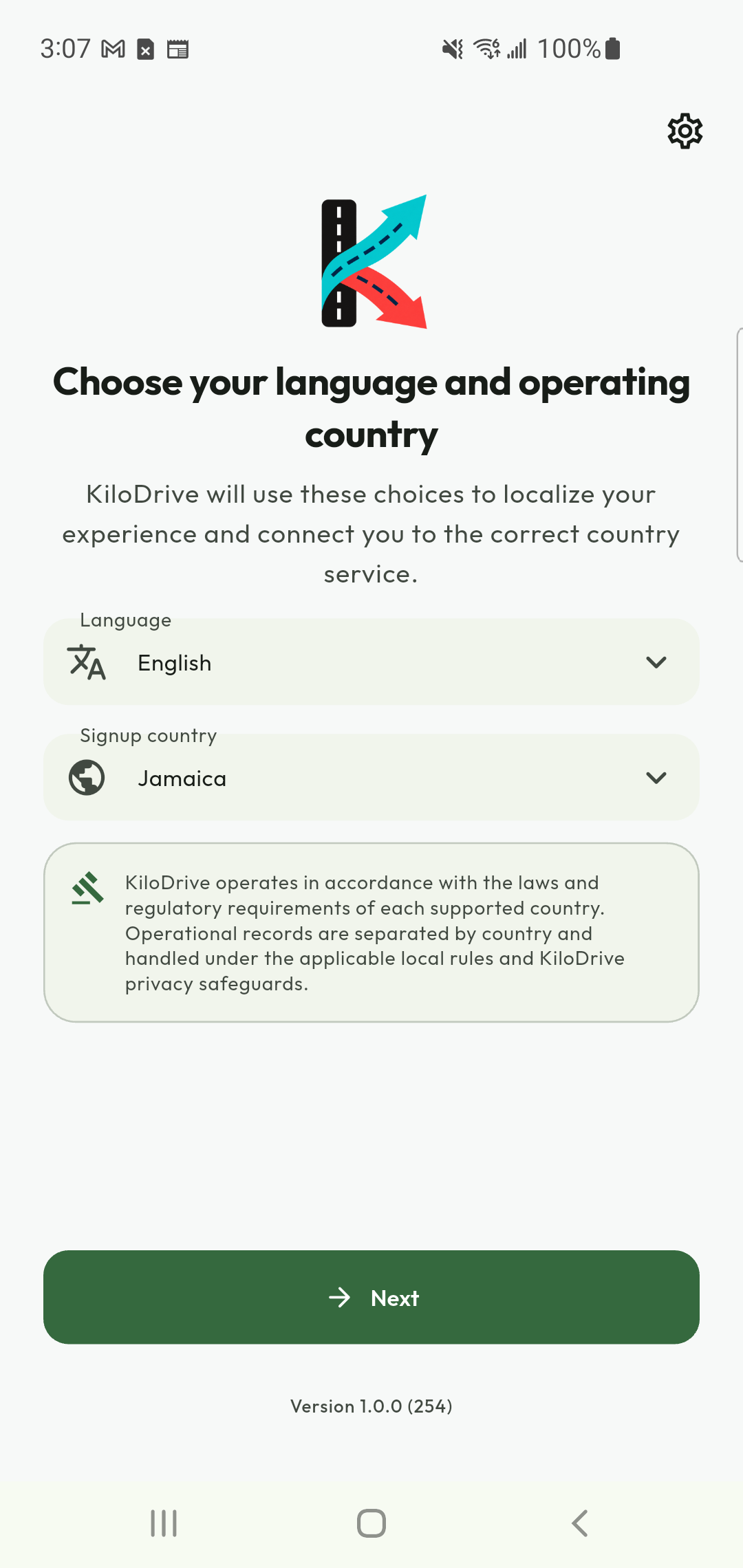
Select customer services
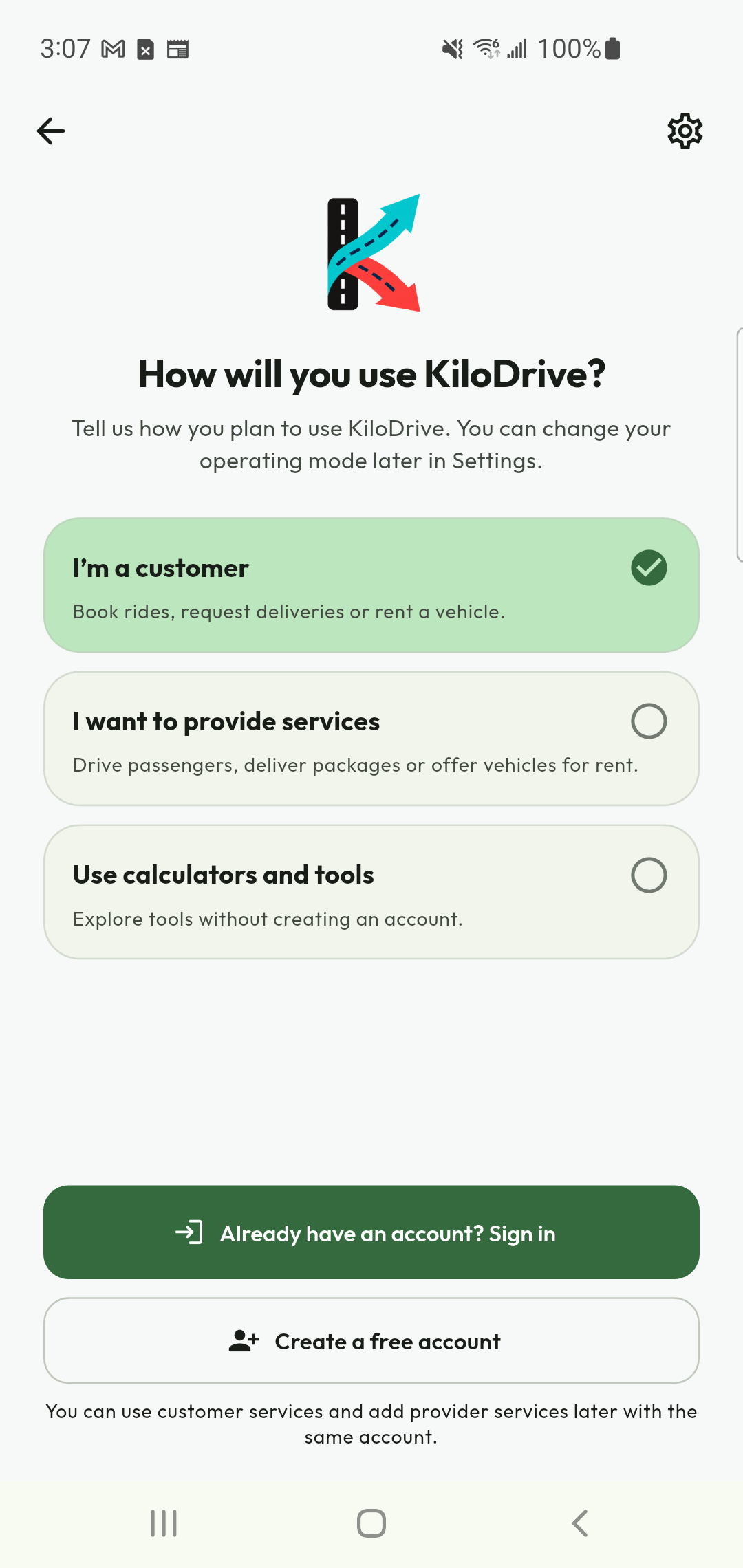
Open your customer welcome resources
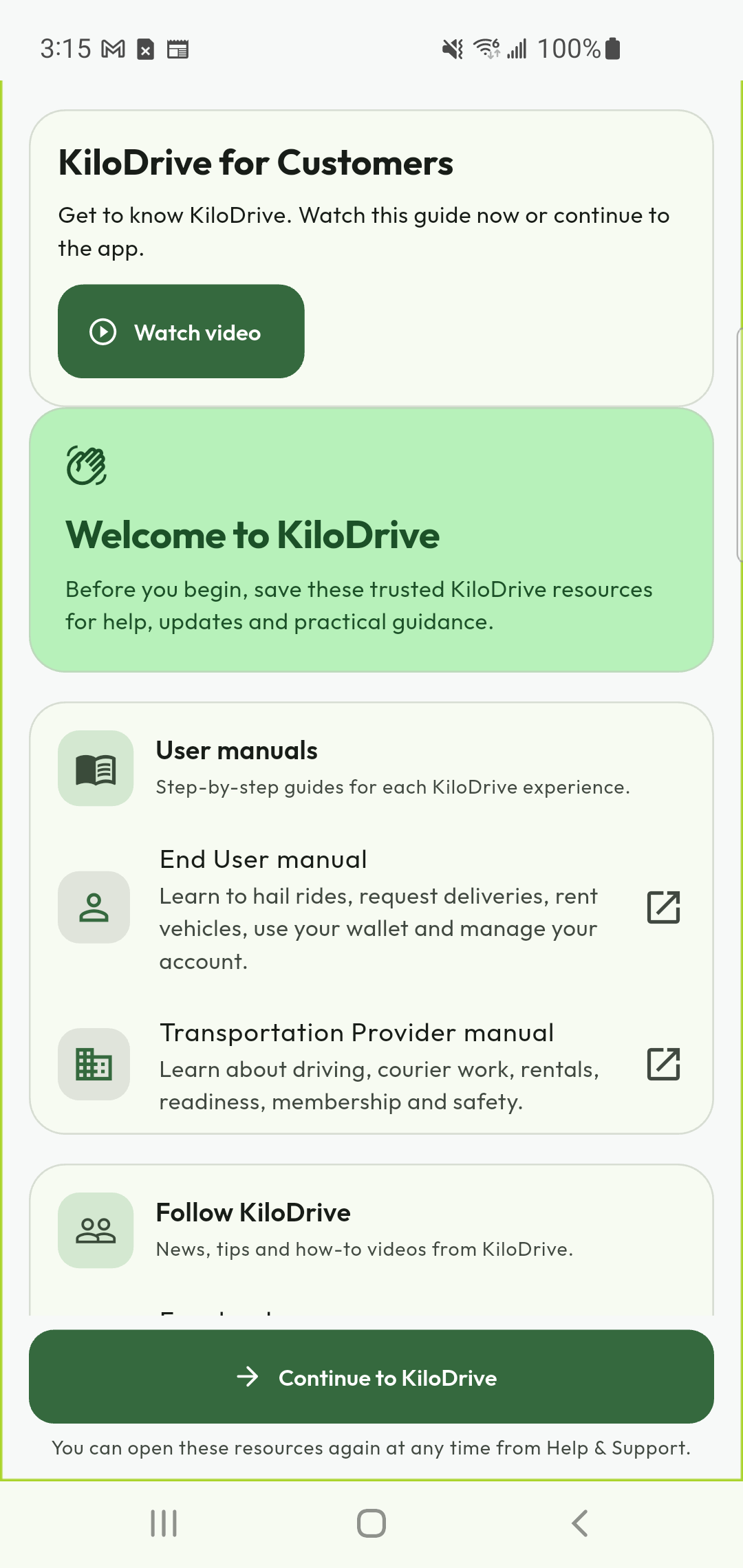
Replay the customer video in the app
Getting-started videos and official channels
After required initial setup, the app may offer an optional welcome video. Select Watch video to play it inside KiloDrive, or Continue to KiloDrive to proceed immediately. If the network or video is unavailable, continue and try again later. Replay either guide from Help & Support → Getting Started.
Start with this guide: KiloDrive for Customers. Other audience: KiloDrive for Transportation Providers. The videos are optional orientation; they do not grant service approval, identity verification or a paid membership. YouTube playback uses YouTube and its privacy terms.
Follow KiloDrive
For an account, payment, trip or safety issue, use in-app Help & Support and keep the support code and correlation reference. Do not send passwords, verification codes or private documents to a social-media account.
131 / 155Trust, safety, security and privacy: field guide
Use these detailed chapters to understand a safeguard, apply it in the app, check the result and recover when something goes wrong. Feature availability depends on country, role, device, policy and current service status.
What trust means in KiloDrive 133
Protect sign-in, recovery and account changes 134
A secure phone and a trustworthy installation 135
Identity, licences and document review 136
Private uploads and evidence handling 137
What information is used, and why 138
Encryption, access controls and their limits 139
Permissions, location and notification choices 140
Safer trips: before, during and after 141
Live sharing, trusted contacts and confidentiality 142
Check-ins, incidents and emergency help 143
Protect wallet payments, receipts and refunds 144
Membership purchases, recovery and cancellation 145
Contact cards, blocking, reviews and fair reporting 146
Export, correct, deactivate or delete your data 148
Privacy choices, analytics and external services 149
Scams, account compromise and useful support evidence 150
Rental trust: qualification, custody and money 151
Courier trust: instructions, custody and recipient access 152
Read the Safety information, Privacy Policy and Terms of Service with the in-app Legal Center. These instructions describe source-supported workflows, not an independent security audit or a promise of emergency response.
132 / 155What trust means in KiloDrive
KiloDrive combines account controls, service-specific readiness, recorded service events, restricted evidence access and financial records. These help people make informed decisions and investigate problems. They do not guarantee that a person, vehicle, journey or payment will be risk-free.
Read the right evidence
| What you see | What it means—and its limit |
|---|---|
| Verified email or phone | The account completed a contact check. This alone does not verify the holder's legal identity. |
| Approved identity | Identity evidence passed the applicable review. A passport is not a driving licence. |
| Service readiness | The applicable driver, courier or rental-provider requirements have been reviewed. Read expiry dates and outstanding actions. |
| Free, Silver or Gold | A membership and its benefits. Paying for Gold does not approve documents, insurance or legal permission to work. |
| Ratings and reviews | Recorded experiences from eligible interactions. A high rating is not a guarantee about the next service. |
| GPS and ETA | Recent device observations and an estimate. They can be delayed or inaccurate. |
Use three independent checks
First check account access: can this person sign in and use the account? Next check readiness: can they lawfully and operationally provide this service? Then check entitlement: does their plan allow the requested action? A success in one area does not resolve a blocker in another.
Protect sign-in, recovery and account changes
Account & Settings → My Account → Security
Your email account and linked Apple, Google or Facebook identity are part of your security boundary. Protect those accounts as carefully as KiloDrive. Use your own account; an agency should invite staff rather than share its owner's password.
- Choose a unique password. Use a password manager where possible. KiloDrive's password implementation stores a salted password verifier, not a recoverable copy of your password.
- Review authentication options. Enable available two-factor protection, register a passkey if supported, and store recovery codes privately. A passkey uses your device or credential provider; a lost device still needs session review.
- Check active sessions and My Activity. Look for unfamiliar devices, times or actions. Revoke a suspicious session and secure the associated email or social account. An unfamiliar approximate location alone is not conclusive proof of intrusion.
- Enable sign-in email alerts. Use the control in Security → Authentication. Read alerts as a reason to inspect your account, not as a request to send a code to someone.
- Keep recovery contacts current. Complete the supported confirmation when changing a contact. A recent-authentication request protects a sensitive action even when you are already signed in.
Linking is different from signing in
Use Social accounts while signed in to attach an identity. Finish the provider's authentication and check the linked-account list. If it is already attached to another KiloDrive account, use recovery or Support; the app must not silently merge the accounts. Keep a working sign-in method before disconnecting another.
See the app: Authentication and sign-in alerts; Linked social accounts. Captions identify the capture edition.
134 / 155A secure phone and a trustworthy installation
Account authentication and device admission are separate checks. The device check helps the service assess whether an installation can safely access protected features. It does not replace your password, identity review or service approval.
If device access cannot be checked
- Confirm that the app came from its official Google Play or Apple App Store listing and install available updates.
- Check connectivity and the phone's automatic date/time. On Android, keep Google Play services and the Play Store current.
- Retry the displayed check once after restoring connectivity. A network or verification-provider outage can prevent a decision; the message does not by itself mean your account was banned.
- Record the safe diagnostic/support code, time, phone model, operating-system version and app build. Use Support if the error persists.
If device registration is required and the app signs you out, complete the supported sign-in/device-registration flow. Do not bypass it with an unofficial APK or share integrity tokens. Changing the store account does not transfer a KiloDrive membership or prove that the installation has been admitted.
Protect the phone itself
Use an operating-system screen lock and the app's available biometric/app-lock controls. Local app lock restricts access on that phone; it does not revoke server sessions or secure a compromised email account. Avoid using a rooted, modified or shared device for sensitive documents and financial operations.
Lost or shared phone
Revoke the lost session from a trusted device where possible, secure the email/social account, and use the operating system's lost-device tools. Sign out before lending a phone. Delete exported PDFs, downloaded evidence and sensitive screenshots from shared storage separately; signing out cannot recall files already shared elsewhere.
135 / 155Identity, licences and document review
Use My Account and the service readiness checklist to see which evidence is required. Choose the actual document type and enter the holder's details accurately. A driving licence is preferred when you intend to rent a vehicle; another identity document may establish identity but cannot establish permission to drive.
Submit useful evidence once
- Check country, document type, name, date of birth, issue/expiry dates and any required category or licence number.
- Photograph the complete document in good light. Keep required edges and text readable. Supply both sides when requested; do not alter dates, replace a portrait or hide a field needed for review.
- Use the specific identity or service-document upload field. A package photograph, profile picture or generic attachment is not a substitute for identity evidence.
- Wait for upload confirmation, then submit the case. Return to its status instead of repeatedly sending duplicates.
- If rejected, read the reason, correct the identified issue and follow the resubmission action. If the result seems wrong, request a review through Support.
Interpret the status
Missing needs evidence; Submitted awaits a decision; Rejected needs the stated correction; Expired needs renewal; Approved applies to the reviewed scope. Approval may not cover another country, vehicle category or service.
Rental qualification also considers the vehicle's requirement profile, including age and licence history where applicable. Correcting your typed birthday does not automatically replace the date confirmed by reviewed evidence. Report a mismatch rather than inventing a new identity.
Private uploads and evidence handling
Identity files, service documents, parcel evidence and vehicle condition photos serve different purposes. Their visibility follows the relevant case or transaction. Uploading a file does not make it public or grant other users permission to open it.
Before and after uploading
- Use the field's displayed file types and size limit. Camera, gallery and document-picker choices can differ by field and operating system.
- Check the preview for glare, cropping, unrelated people and unnecessary personal information. Keep required evidence intact.
- Allow the upload and file checks to finish. File type, size, content-signature and scan checks are separate from reviewing the identity or service claim.
- If a file is quarantined or its scan cannot be confirmed, wait for the stated recovery action or contact Support. Renaming the file is not a safe workaround.
- Verify that the submitted record shows the attachment and current status. A successful file transfer alone is not a completed application.
Who can see evidence?
Restricted review screens check the authorized reviewer, account/organization, country and evidence purpose. A storage identifier or a file attached elsewhere must not be used to bypass those checks. Review access can expire and require a fresh authorized session.
The S3 upload implementation requests private access and server-side encryption. That protects stored files within the configured storage boundary; it does not make all documents end-to-end encrypted or prevent an authorized viewer from recording what they can see.
What information is used, and why
KiloDrive needs information to identify accounts, arrange transportation, verify eligibility, settle money and resolve problems. Visibility should follow the task and the person authorized to perform it.
| Information | Purpose and typical visibility |
|---|---|
| Profile and contacts | Sign-in, communication and the permitted profile shown to another participant. Contact verification and identity verification are different. |
| Identity and compliance evidence | Eligibility review by authorized staff. A normal customer or unrelated team member should not receive the underlying private documents. |
| Routes and location | Dispatch, active-service tracking, safety and resolving disputed events. Sharing a trip deliberately exposes a limited view to the recipient. |
| Messages and service evidence | Communication, pickup/return/delivery records, reports and disputes. Keep content relevant to the service. |
| Wallet and store records | Balances, receipts, entitlement verification, refunds and reconciliation. A payment provider also processes information under its own terms. |
| Security and operational records | Session protection, fraud prevention, audit and diagnosing failures. Optional diagnostic/analytics choices are separate from records required to operate the service. |
Country and organization boundaries
Your operating country controls the local workspace, currency, policies and service records. An Apple or Google storefront can be in a different country. Membership purchase availability does not establish local legal permission to provide transportation.
Organization staff should see only records their role and branch scope permit. Becoming a team member does not authorize browsing unrelated customers, other agencies or private evidence.
Encryption, access controls and their limits
Three protections with different jobs
Transport protection protects information travelling between the app and its HTTPS services. It does not make a phishing website trustworthy. Use official links and do not ignore browser or certificate warnings.
Storage protection helps protect information held by the system. KiloDrive's S3 private-upload implementation requests encryption at rest; password handling uses salted verifiers. Neither means staff can recover your password, nor that every device download has the same protection as the server copy.
Authorization decides who may perform an action or open a record. Account, organization, country and participant checks restrict protected operations. Encryption alone cannot substitute for those checks.
Why a second confirmation may be needed
A signed-in session may still need recent authentication or an additional security challenge for a sensitive action. A role may permit viewing a transaction without permitting approval or refund. An expired session must be renewed through the supported flow; an error code is not a reason to remove the safeguard.
What the manual does not promise
- Do not assume chats, calls, uploaded evidence or exports are end-to-end encrypted. Authorized processing and review can require server access.
- No app can guarantee that a recipient will not take a screenshot, record a screen or forward information.
- Device biometrics, TLS, file scanning and cloud encryption are separate controls. None makes the whole service “unhackable.”
- Providers for maps, sign-in, payments, messaging and video have their own access and processing boundaries.
Permissions, location and notification choices
Account & Settings → Personalization; phone Settings → KiloDrive permissions
Grant a permission when its purpose is clear. App preferences and operating-system permissions both matter: enabling a feature inside KiloDrive cannot override a permission denied by Android or iOS.
| Permission | Use and safe recovery |
|---|---|
| Location | Pickup, nearby services and eligible live tracking. Check permission, accuracy and the last-update time before relying on a location. |
| Background location | Eligible provider tracking while the app is not foregrounded. Use the in-app explanation; OS battery restrictions and connectivity can interrupt updates. |
| Camera / photos / files | Identity, package, vehicle and condition evidence. Choose only the required item; denied camera access need not mean a saved file is unusable. |
| Microphone | Supported in-app calls. Test it while stationary, not while driving. |
| Notifications | Offers, service updates, messages and account events. Focus, silent mode and channel settings can suppress visible or audible alerts. |
Use the recorded state, not just a push alert
Open the Notification Center and the actual trip, job, booking or transaction to confirm its current status. A push message can be delayed. An “accepted” notification does not make an expired assignment active again.
Keep essential work notifications enabled while providing a service. Review optional promotion, sound, vibration and read-aloud choices as available. An iPhone does not necessarily expose an app-specific vibration setting; follow the controls actually present on the device.
Safer trips: before, during and after
Before requesting and boarding
- Confirm the pickup pin and destination, proposed fare, payment method and any additional options. Read whether the request invites bids or automatically accepts an eligible exact-fare offer.
- Review the selected provider, vehicle, registration plate and applicable verification information. A company name does not replace checking the actual driver and assigned vehicle.
- Wait in a suitable place. Compare the arriving vehicle and person with the app. If anything does not match, do not confirm that it does; contact the assigned provider or Support and follow the safe cancellation route.
During the journey
Use the active trip's communication and safety controls. Share the live trip with a trusted recipient if useful. Review route changes and check-ins without treating every detour as wrongdoing. Congestion, road closures and GPS errors can affect the route and ETA.
Live speed is informational, not a certified speedometer or a replacement for the driver's attention and road rules. Drivers should interact only when safely stopped. A pause, emergency stop and normal completion have different effects; read the confirmation rather than using one to imitate another.
After the journey
Confirm the recorded completion, payment and receipt. Leave an honest review through the completed service. If payment or review submission remains uncertain, reopen the same trip before repeating the action. Save its reference when raising a fare, conduct or safety concern.
Live sharing, trusted contacts and confidentiality
A live-trip link gives a chosen recipient access to a limited trip view. It is useful because someone else can follow progress, but sharing it also discloses information about the route and people involved.
- Select the recipient deliberately. Use trusted contacts or the trip's sharing action. Confirm the destination in the phone's share sheet before sending.
- Understand the view. It may include the pickup/drop-off route, status, assigned driver's display information, vehicle/plate, recent location and update times. It is not access to your whole KiloDrive account.
- Keep the link private. A recipient may forward it. Do not publish a live link on a public profile, group or social-media post.
- Check expiry and revoke access when needed. Use the available revoke/stop-sharing action if you sent it to the wrong person or no longer want it active.
- Use the location age. “Last updated” is an observation time, not a promise of the person's present position. Agree separately how your contact should respond if they become concerned.
What sharing does not do
It does not authorize the recipient to change the booking, spend wallet funds or see private chat and payment credentials. It is not an emergency dispatch service. Revoking or expiring the link cannot delete screenshots or notes already made by a recipient.
Delivery tracking and assisted travel
A courier tracking number identifies a job; it must not be treated as permission to expose a recipient's personal details or unrestricted location. Use the authorized recipient access route. For a supported assisted/family journey, confirm the participant's consent and the booker's role before sharing information.
Check-ins, incidents and emergency help
Respond to RideCheck
When enabled and supported, RideCheck uses available trip telemetry to identify a significant route deviation or unexpected stationary period. A prompt asks about the situation. If you are safe, use the confirmation offered; if you need help, use the appropriate safety action. If the prompt is wrong, report the context rather than assuming the system measured the road perfectly.
Unanswered checks can enter the configured safety-case process. This depends on telemetry, timing, connectivity and operational availability. It is not a promise of continuous human monitoring, police attendance or a fixed response time.
Choose the correct response
| Situation | What to do |
|---|---|
| Immediate danger, injury or serious collision | Contact the appropriate local emergency service directly when safe. Give your location, direction, vehicle plate and nature of the incident. |
| Breakdown or unsafe vehicle | Stop somewhere safe, follow local road safety advice and contact the provider/assistance route. Do not continue simply to complete the app workflow. |
| Harassment, mismatch or concerning conduct | Use the service's report/support option. Block future contact where available, while preserving the service reference. |
| Fare, receipt, refund or delay dispute | Use the transaction or service dispute route. Do not activate an emergency action to accelerate ordinary support. |
Preserve useful evidence safely
Record the time, service reference and a factual description. Take photographs only when safe and lawful; avoid exposing bystanders or medical/identity documents unnecessarily. Keep the case private and follow authorized requests for additional evidence.
Protect wallet payments, receipts and refunds
Billing & Financial → balance, transactions and transaction resolution
The available balance is the amount shown as available to use. Open its breakdown to inspect held/reserved funds and the underlying balance. A hold reserves value for an obligation; it is not automatically a completed charge or a completed refund.
- Before paying: confirm the account, service reference, currency, amount, fees and payment method. A checkout's currency can differ from the operating wallet currency; read the displayed conversion and expected credit.
- After returning from a provider: inspect KiloDrive's transaction status and ledger/receipt. A payment sheet closing or a success page appearing does not alone establish server credit.
- If the outcome is unknown: use Check status or the available recovery action for the original operation. Do not create a second top-up, payment or refund simply because the first response timed out.
- When money is refunded: distinguish requested, approved, sent/recorded and confirmed outcomes. Check both the KiloDrive entry and the original payment channel where applicable.
External rental payments are a different record
A rental agency may accept cash or another permitted external method and record its evidence in KiloDrive. That is not a KiloDrive wallet transfer. Check the method, payee, amount, reference, evidence status and receipt. A submitted screenshot is not proof that the agency has confirmed receipt.
Cashout and rewards
Confirm beneficiary details, limits and fees before a cashout. Points are distinct from money: eligible completed activity, reversals and the current conversion rules determine what can become wallet value. Check the rewards history rather than assuming every referral or cancelled service earned points.
See the app: External refund evidence; Confirmed financial closure. Captions identify the capture edition.
144 / 155Membership purchases, recovery and cancellation
Paid Service Provider plans support provider benefits. Customers do not need to buy a provider plan merely to request a ride, delivery or rental. A plan's benefits and allowances do not replace legal readiness or document approval.
Read the purchase before confirming
- Choose the intended personal or organization beneficiary where offered. Confirm the current entitlement before changing plans.
- Select Weekly, Monthly or Quarterly and compare the benefits for that term. Check the store's actual currency, price, billing period and renewal conditions.
- Use the native Apple/Google purchase confirmation. The store billing identity can differ from the email used for KiloDrive; keep track of both.
- After purchase, reopen the current-plan card and check the tier, term, beneficiary, effective dates and status. The store receipt and the server entitlement are separate pieces of evidence.
A payment succeeded but benefits did not appear
Stay with the same intended KiloDrive account and store identity. Open the membership actions/recovery area and use Check status or Restore purchases as offered. Restore asks the system to verify existing purchases; it is not a request to buy again. Provide Support the safe operation reference and store order details only through the protected support route.
Change, cancellation and expiry
Read the effective-date explanation for an upgrade or downgrade. A store can schedule a change rather than apply it immediately. A cancellation request/reason recorded in KiloDrive is not proof that the store stopped renewal: open the store's subscription management and verify its result. Access may continue to the paid-period end according to the displayed terms.
Contact cards, blocking, reviews and fair reporting
My KiloDrive Card and saved contacts make it easier to find a familiar participant. They are convenience features, not proof of identity, authority to receive money or a guarantee that a provider is available.
Share and save deliberately
- Use your own card and the supported QR/link action. Preview the intended profile information before sharing.
- When receiving a card, inspect the profile and intended relationship before saving. A QR code should never require handing a stranger your password or signing-in code.
- Keep private notes factual and minimal. Your preferred category—driver, courier, recipient or trusted contact—does not grant that person additional account powers.
- Rotate/revoke a shared card link if needed using the available control. This stops future resolution under the relevant rules; it does not delete someone else's notes about you.
Preferred is not assigned
A preferred-provider invitation still checks eligibility, readiness, blocks, availability and response timing. Read whether the request waits only for that provider or can continue to the wider market. Wait for the actual assignment rather than relying on a saved favourite or an old notification.
Block, report and review have different purposes
Manage blocked accounts from Privacy & Safety → Blocklist. Blocking controls eligible future interactions; it does not erase completed transactions, resolve a current custody obligation or file a safety case automatically. Report unsafe conduct separately with the relevant service reference.
Reviews should describe your own completed interaction. Do not publish phone numbers, addresses, identity documents, threats or accusations unrelated to the service. Use the support/dispute process for evidence that should not be public. If a rating or moderation decision appears wrong, request the available review rather than retaliating against the other participant.
146 / 155In-app calling, chat and communication privacy
Use the communication controls attached to the actual trip or service. They connect the people authorized for that interaction; a saved contact or old notification does not create unlimited permission to call or inspect another person's messages.
Before making or answering a call
- Confirm the service and participant shown. Keep the conversation about pickup, delivery, the booking or another legitimate service need.
- Allow microphone access when you choose to call. Check network and audio controls while stationary.
- If an incoming call does not appear, open the current service and inspect the available contact action. Locked-screen, terminated-app, Focus and battery behavior can differ by phone and operating system.
- Do not read a ringing indicator as proof the other person's phone actually rang. If contact cannot be established, follow the service's safe waiting/cancellation/support process.
Write with privacy in mind
Give useful meeting or delivery instructions without adding passwords, access tokens, payment-card details or unrelated identity files. Use the protected evidence field for documents. A message can remain relevant to a safety case or dispute after a service ends.
Participant access and private transport do not establish end-to-end encryption or absolute anonymity. Another participant may retain what they receive. Do not assume that calling through the app guarantees every communications provider hides every identifier.
Recording, abuse and evidence
Follow applicable consent and recording rules. A microphone permission is not the other person's agreement to record. Where recording is offered, read its specific notice and controls. Report harassment through the service/support route and use blocking where available; preserve evidence privately rather than publishing the conversation.
Export, correct, deactivate or delete your data
Account & Settings → My Account → Data Management
Get and correct your information
Use Export my Data and wait for the download/share result. The export can include profile, service, financial, rewards, contacts, activity and related records within its authorized scope. Check the export's coverage information and any continuation or error notice; an incomplete response is not proof that no further records exist. Private contact notes are an explicit inclusion choice where shown.
Save the file privately. It can contain sensitive history and other participants' permitted information. Correct editable profile/contact data through My Account; reviewed identity or financial evidence may need a supported correction case instead of direct editing.
Choose the right account action
| Action | Consequence to understand |
|---|---|
| Sign out | Ends access on the current session. It does not erase the account or cancel a subscription. |
| Deactivate | Suspends account use with the disclosed reactivation process. Data and obligations remain; store renewal needs separate attention. |
| Delete Account and All my Data | Starts the permanent account-deletion workflow, subject to verified identity, unresolved obligations and applicable retention. |
Before confirming deletion
Resolve active rides, courier custody, rentals, money and organization responsibilities through their own workflows. Read the subscription review, retain needed receipts and complete recent authentication. Keep the request reference and check the final outcome; submitted, approved and fully processed are different stages.
See the app: Account and data controls. Captions identify the capture edition.
148 / 155Privacy choices, analytics and external services
Optional collection and necessary records
Review the crash-diagnostics and service-analytics choices in the available privacy/personalization controls. These are separate preferences. Optional service analytics can help measure failed steps and usability; declining it is not a reason to withhold the underlying service.
Wait for a setting to save. If withdrawal is pending or a save error appears, follow the displayed retry/status action. Changing a preference does not erase already retained financial, security or safety records, nor does it disable processing necessary to deliver an active service.
Third parties have defined roles
- Apple, Google and Facebook sign-in: authenticate the selected identity under their own systems. KiloDrive still checks account linking and session permissions.
- Store/payment providers: handle checkout, charges and relevant purchase records. KiloDrive verifies the result before applying wallet credit or membership.
- Maps, push and communication services: support routes, delivery of alerts and calls. Their outages or device restrictions can interrupt features.
- Cloud and verification services: support storage, processing and configured checks. Read the Privacy Policy for disclosures and relevant rights.
- YouTube and social platforms: receive interactions when you open their content. Their privacy terms apply in addition to KiloDrive's.
Watch the welcome guide on your terms
Use Watch video after initial setup, or Continue to KiloDrive immediately. An unavailable video must not prevent using the app. Replay from Help & Support → Getting Started. Videos explain workflows; they do not change the current price, policy, consent or readiness status.
Scams, account compromise and useful support evidence
Recognize common warning signs
- Someone asks for your password, recovery code, passkey or one-time sign-in code to “approve” a refund, job or identity.
- A message directs you to a look-alike site, unofficial APK, remote-control installation or unexpected payment recipient.
- A person promises a guaranteed job, income, licence approval or instant refund in exchange for an off-platform fee.
- A screenshot of a receipt, plan badge or account balance is offered instead of the confirmed status in the actual transaction.
If you suspect compromise
- Stop the suspicious interaction. Do not approve another prompt or send more money.
- From a trusted device, secure your email/social identity and KiloDrive sign-in, review sessions and revoke unfamiliar access.
- Inspect recent transactions, linked accounts, payout details, active jobs and shared links. Revoke exposed sharing links where possible.
- Contact the appropriate payment provider promptly for a suspected unauthorized charge and report the related KiloDrive reference through Support.
- Preserve the original messages and times privately. Do not publish another person's details or delete evidence needed for investigation.
A useful support report
Include the affected service, account country, app build, device/OS, approximate time with timezone, steps taken, expected result and actual result. Add the KD support code, correlation/operation reference and a redacted screenshot if available. Say whether the outcome is unknown, money moved, or the action was definitely refused.
Never include a password, raw session token, one-time code, complete card number or public link to identity evidence. Give sensitive documents only through the protected route requested for the case.
Rental trust: qualification, custody and money
Before reserving or booking
Inspect the agency, branch, vehicle, dates, collection/delivery option and policy profile. Open “Can I rent this vehicle?” to check each requirement against your status. Approved identity alone does not establish a valid driving-licence category, minimum age or licence holding period.
A disabled booking action can also mean missing collection details, unavailable dates, an expired quote or a pickup time in the past. Resolve the displayed blocker; do not upload the same identity repeatedly when the quote is the problem.
Know what you are agreeing to
Review minimum/maximum rental length, cancellation/no-show rules, deposit, late charges, permitted use, geographical restrictions, additional drivers, accessories and breakdown instructions. Check the actual cancellation/refund quote before confirming. A request or reservation is not automatically approved, paid or ready for collection.
Collection and return evidence
- At collection, confirm the vehicle and authorized driver. Record condition, existing damage, odometer, fuel/charge, keys, agreed extras and signatures through the guided record.
- Do not treat payment confirmation as physical handover. Check that both parties' collection steps are complete.
- Request an extension before its deadline; it needs availability and approval. Do not assume keeping the vehicle longer is permitted.
- At return, record the same condition details and any disagreement before signing. Download the completed record available to each party.
- Check inspection, additional charges, deposit and refund status separately. “Returned” does not necessarily mean financial closure.
See the app: Rental eligibility; Collection checklist; Signed return record. Captions identify the capture edition.
151 / 155Courier trust: instructions, custody and recipient access
A courier job moves goods or performs the agreed errand; it does not include carrying the requester as a passenger. The job type determines which pickup, destination and recipient information is needed.
Agree the scope before pickup
Describe the goods honestly, including quantity, size, handling needs and declared value when requested. Read prohibited-goods and service restrictions. Supply clear instructions without unnecessary private data. Do not put identity documents in a package-photo field.
For buy-and-deliver work, distinguish the service fee from the goods budget, any cash collection and the source of funds. Agree what happens if stock is unavailable. Extra spending, substitutions and changed destinations need the supported authorization rather than an informal assumption.
Keep an accountable chain of custody
- Confirm the assigned courier and actual package at pickup. Record the required pickup receipt, code, photo or acknowledgement.
- Track the job's custody/status events and location age. A tracking number is an identifier, not unrestricted access to private information.
- Use the authorized recipient confirmation and delivery evidence. Share a handover code only for the intended handover; never confuse it with an account sign-in code.
- If delivery fails, follow the documented attempt/return plan. Do not mark delivered merely to close the job or leave goods somewhere unapproved.
- Reconcile shopping receipts, goods cash, unused funds and any refund or dispute separately from the transport fee.
Find and resolve open work
Use Shipping & Delivery and the existing request/job to view progress or the permitted cancellation. If an open job blocks account closure, resolve that same obligation. Repeatedly creating another request can add confusion without releasing custody.
Family, assisted travel and accessibility
Where the supported family, managed-travel or assisted-rider features are enabled, establish who is booking, who is travelling, who pays and who may receive updates. A saved contact does not automatically authorize acting for that person.
Arrange only an appropriate supported service
- Obtain the participant's permission and use the proper travel profile or delegated booking option. Follow age, guardian and country rules; do not treat an ordinary account as permission for unsupported unaccompanied-minor travel.
- Describe practical assistance needs accurately. Share the minimum information needed to provide the service, rather than unnecessary medical history.
- Check the provider's stated capability and the vehicle's suitability. A verified driver is not automatically medically trained or able to provide every accessibility service.
- Confirm pickup contact, meeting point, destination and handoff arrangements. Use authorized tracking recipients and do not post the journey publicly.
- Check that the traveller understands the plan and can access appropriate help. If a requirement cannot be met, choose a suitable alternative rather than relying on a generic badge.
Make the app usable for you
Personalization includes the available language, theme, text-size and notification choices. Use the phone's accessibility support where needed. Recheck a form's labels and validation messages after enlarging text; if an important control is hidden, report the page, device and text-size setting.
Welcome videos and screenshots supplement the written procedures. They must not become a barrier to registration or completing a service. Continue without video when offline, and use the manual or Support for a text explanation.
Glossary
- Bid
- A driver's acceptance or counter-offer for a rider's open request. The rider, not the ranking engine, selects the driver for a standard ride.
- Any driver
- A country-wide request option for eligible drivers beyond the Near Me dispatch expansion.
- Scheduled guarantee
- A future ride state reached only after driver reconfirmation and eligibility checks. A scheduled request can remain not guaranteed.
- Travel profile
- An authorized family or business workspace for members, delegated booking, cost centers, policy, statements, notifications, and selected live tracking.
- Chain of custody
- The ordered parcel pickup, OTP/QR, evidence, stop, delivery, failed-attempt, and return events.
- Country cell
- The country-scoped database boundary that owns local trips, wallets, settlements, rentals, notifications, and operational records.
- Held funds
- Wallet value reserved for an accepted service. It is unavailable for spending until captured, released, or refunded.
- RideCheck
- Consent-based safety monitoring that compares active-trip telemetry with the planned route and checks for material deviation or an unexpected stop.
- Smart ranking
- Candidate filtering and ETA-based ordering used to decide which eligible drivers are notified first. It does not auto-assign standard negotiated rides.
- Trip share
- A short-lived, revocable web link that lets a trusted contact see an authorized subset of active-trip status and location.
- Wallet ledger
- The immutable transaction history supporting the displayed available and held balances. Financial amounts use ISO currency and integer minor units.
Alphabetical task index
Choose a task to open its instructions. Page numbers refer to this PDF edition.
Choose, ride, and close out safely 74
Add money and verify one credit 59
Approve shopping, delivery and returns 17
Breakdown, towing, collision, and injury 83
Check the vehicle and complete the journey 12
Check whether you can rent this vehicle 25
Collect, extend and return a rental 54
Create a delivery in the guided steps 14
Create an account and return safely 7
Deactivate, export or delete your account 64
Display, navigation and the right next action 84
Earn, inspect and convert rewards 60
Find a suitable rental and branch 18
Find profile, contacts and security 8
Find the search and filter controls 20
Glossary 154
Inspect the vehicle before requesting it 26
Keep receipts, history and reports 69
Link sign-in methods and protect a shared phone 66
Minimum requirements and permissions 5
Pickup checks, Journey and communication 89
Read errors without repeating a payment 71
Request, bid, and complete a ride 73
Reserve, book and confirm payment 28
RideCheck, live sharing, and your data 76
Safety, security, and privacy 75
Share a contact card and save trusted people 58
Sign-out, reinstall and shared phones 88
Submit identity evidence once 72
Support and troubleshooting 80
Top-ups, cashouts, taxes, refunds, and disputes 82
More workflows: recurrence, assistance, transfers and courier 122
More workflows: vehicle tools and provider operations 123
Convert small loyalty rewards 124
Choose optional goods cash collection 125
Choose bidding or automatic acceptance 126
Trust, safety, security and privacy: detailed field guide 132