A better rental experience, from browsing to return.
Find a vehicle for the plans ahead. Compare listings, review rental requirements and keep your booking, payment record and collection details together. For agencies, KiloDrive brings vehicle listings, reusable policies and customer requests into one workspace.
Explore 10 features
Compare vehicles, daily rates and requirements.
Enter your pickup in the app to check service availability. A country listing does not guarantee a nearby provider.
Actual app demonstration. Private demo details are redacted where needed; example prices and records are not live offers.
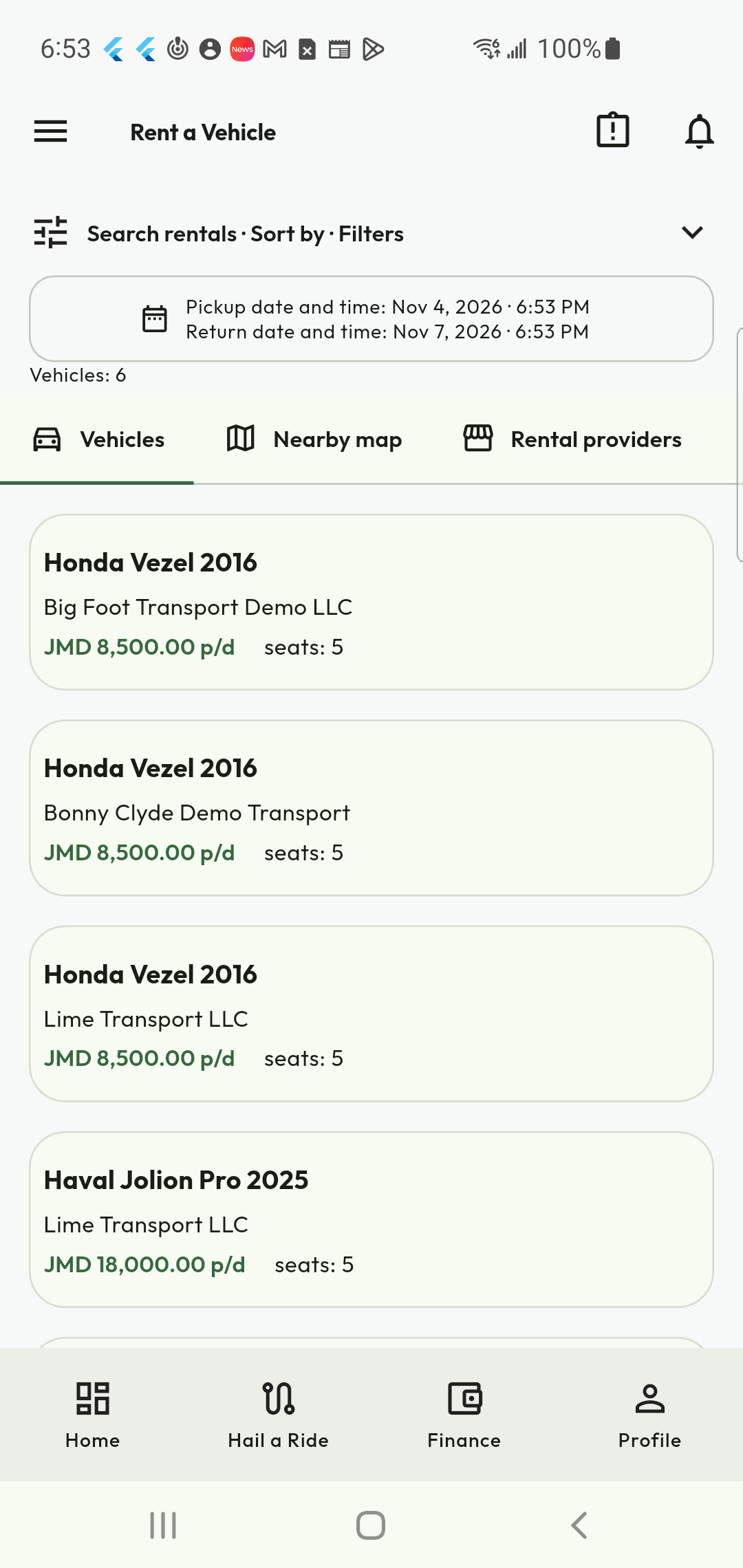
Find a vehicle that fits your plans
A weekend away, a business appointment or a longer stay starts with the right vehicle. Browse the catalog with your dates in mind and compare the vehicle, rental agency, daily rate and seating before opening a listing. Keep the essentials together instead of chasing details across separate conversations.
- Compare vehicles and agencies in one place.
- Review dates and local availability before requesting.
- Open a listing for the full quotation and conditions.
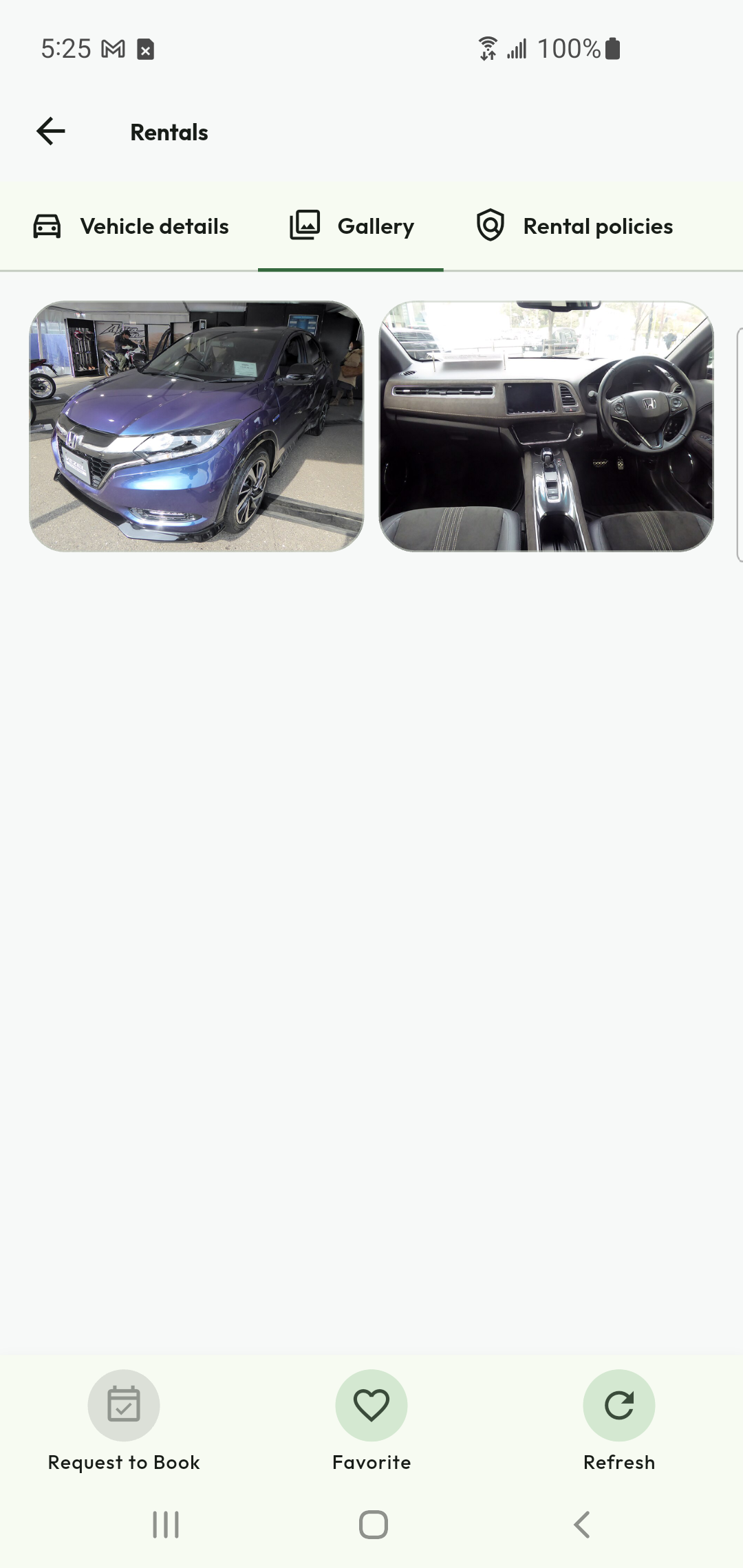
Look closer before you choose
A vehicle name tells only part of the story. Open the gallery to explore the photographs supplied with the listing and inspect the interior and exterior. Use the vehicle details alongside the images to decide whether it suits your passengers, luggage and journey; photographs complement the collection inspection rather than replacing it.
- Browse multiple vehicle photographs.
- Inspect details at a larger size.
- Check specifications and listing information before booking.
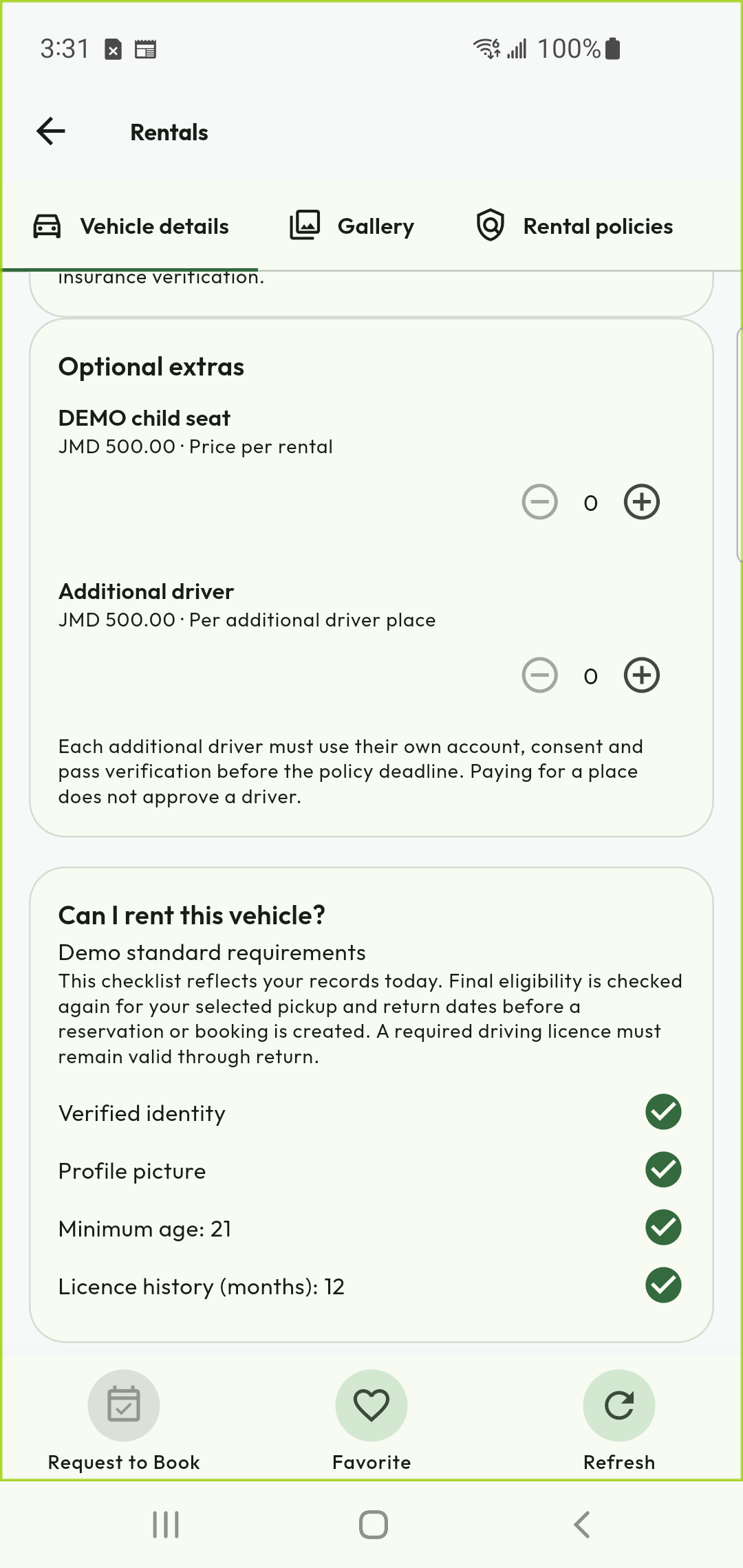
Know whether you qualify
The ‘Can I rent this vehicle?’ panel brings the agency’s requirements together with your account’s standing. See which checks are satisfied and which need attention before you proceed. An approved identity document is not necessarily a verified driving licence: the required licence, age and driving history depend on the vehicle’s eligibility profile.
- Compare requirements with your own readiness.
- Reuse verified information where applicable.
- Resolve missing evidence before requesting a booking.
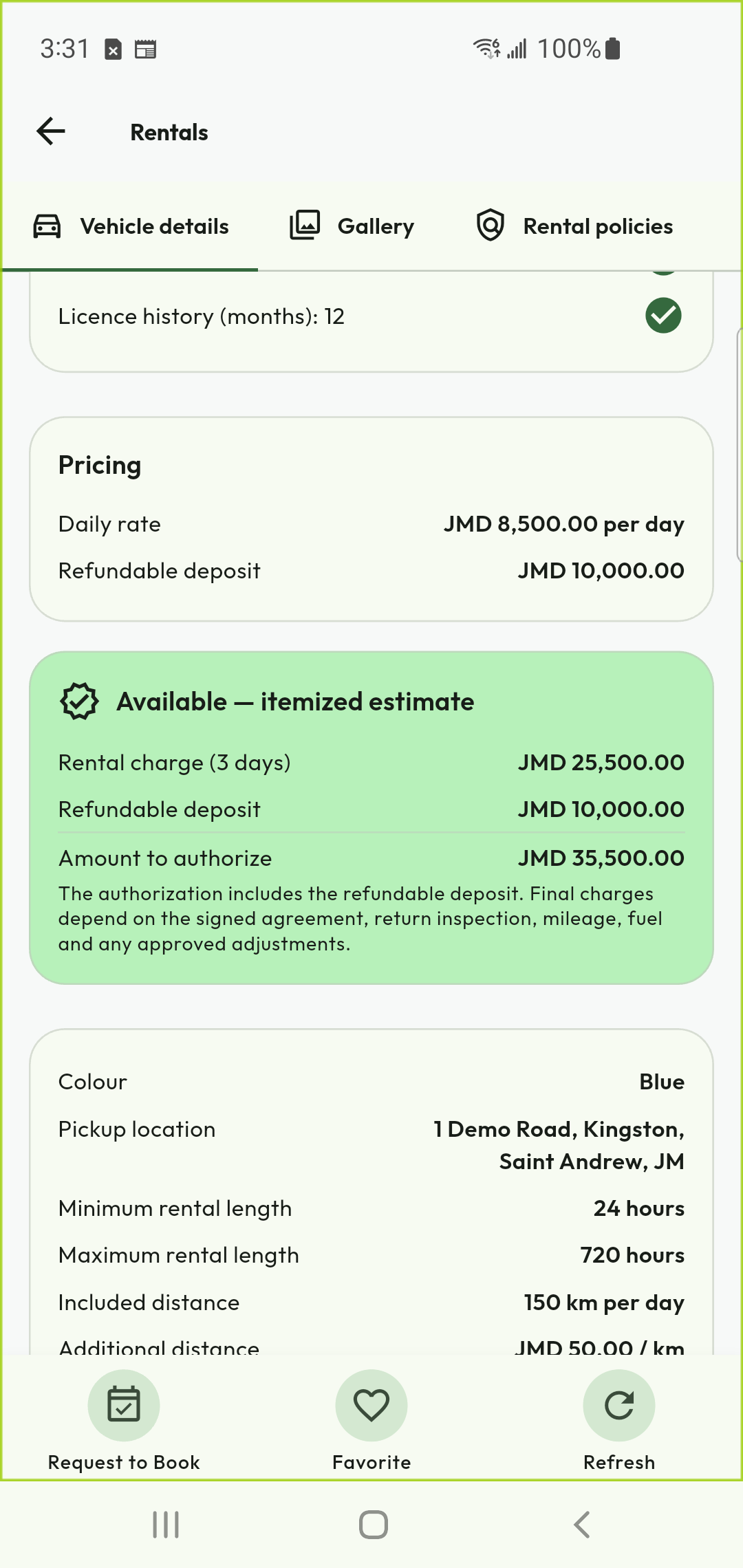
Understand the amount before you commit
Review the itemized estimate for your selected dates and options, including the rental amount, applicable deposit and amount to authorize. The quote also explains the booking conditions shown for that vehicle. Change the dates or choices and review the refreshed quote; a screenshot’s example price is not a live offer.
- Check the rental total and deposit separately.
- Review minimum and maximum rental duration.
- Confirm the collection option and quote validity.
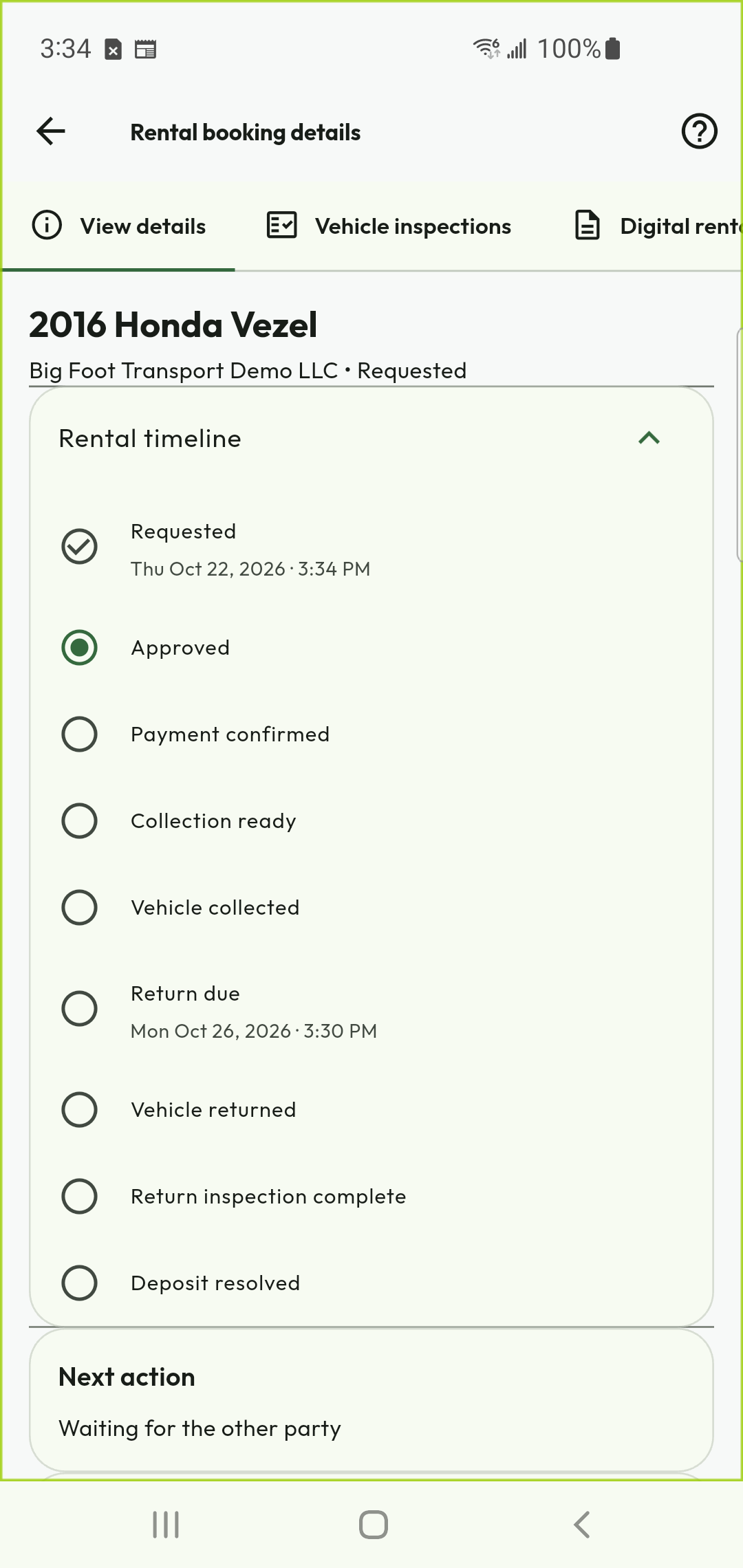
Follow your booking, step by step
Your request becomes a booking record with a clear timeline. See the difference between an agency’s approval, a confirmed payment and a vehicle that is ready for collection. This shared sequence helps you and the agency understand what comes next without treating a payment receipt as proof that the vehicle has already been handed over.
- Follow requested and approved states.
- Keep payment confirmation separate from collection.
- Check the next action in the booking record.
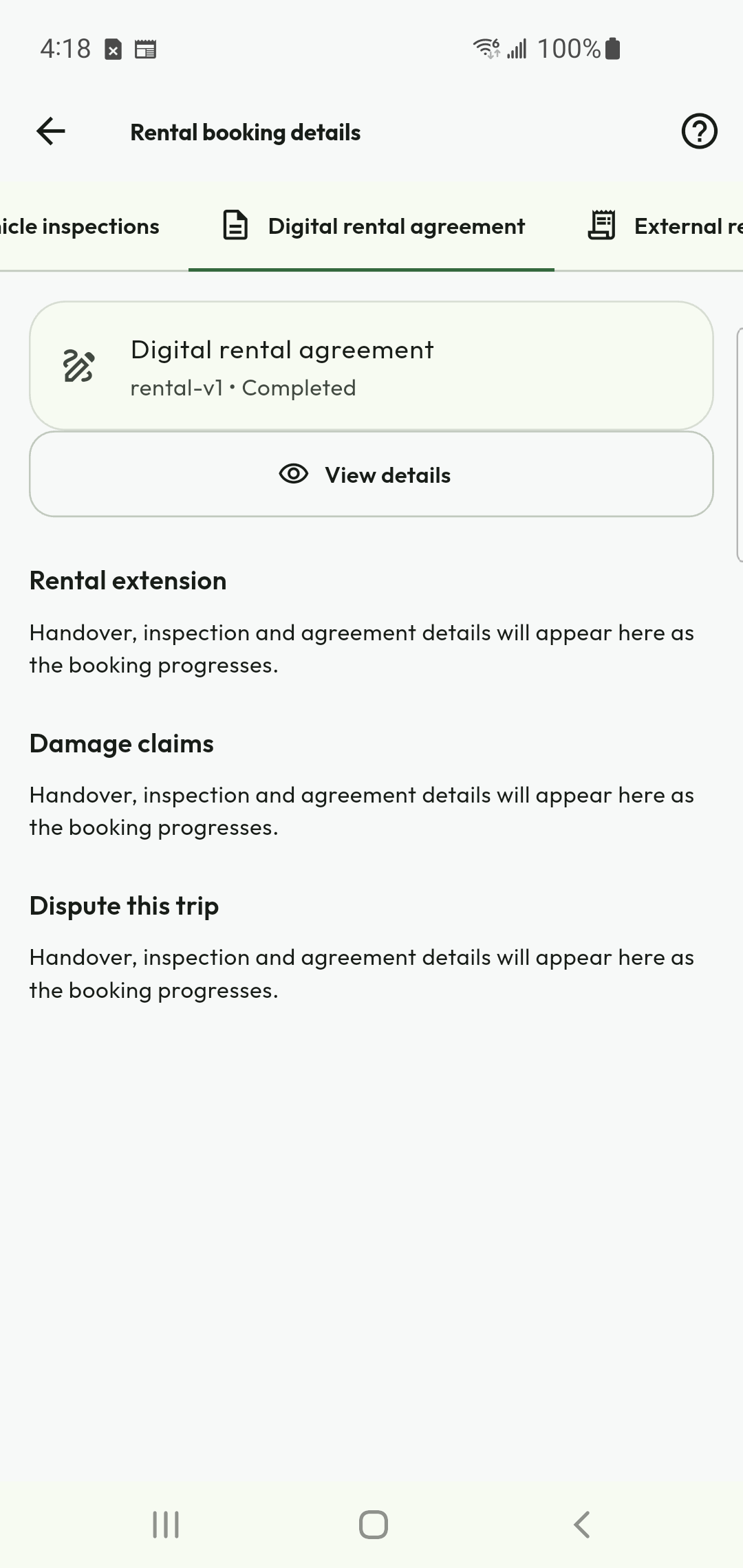
Keep the agreement with the booking
Review the rental agreement and complete the signature steps presented in the app. The booking keeps the agreement’s status alongside other rental actions, making it easier for both parties to find the record later. Read the terms before signing, including any conditions that apply to extensions, damage or disputes.
- Review the agreement before acceptance.
- Follow the signature status for both parties.
- Return to the agreement from the booking.
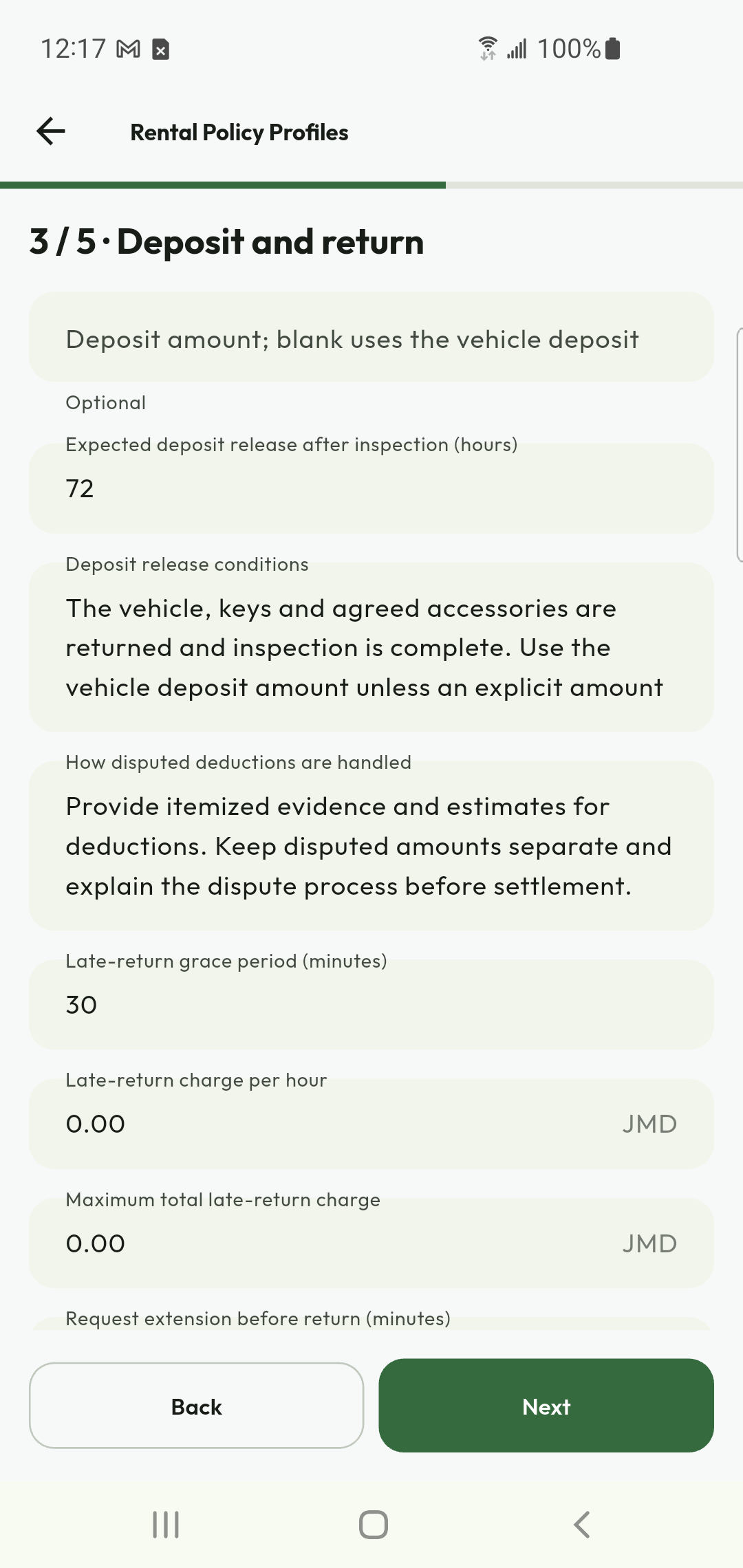
Clear policies across the agency’s fleet
Rental agencies can create reusable policy profiles and assign them to vehicles. Deposit release, late-return grace periods and other disclosed rules can then be managed consistently instead of entered afresh for every listing. Customers should review the policy attached to their selected vehicle, because different vehicles or rental periods may have different conditions.
- Reuse policy profiles across suitable vehicles.
- Disclose deposit and return conditions.
- Review the applicable terms before confirmation.
Collect with a shared condition record
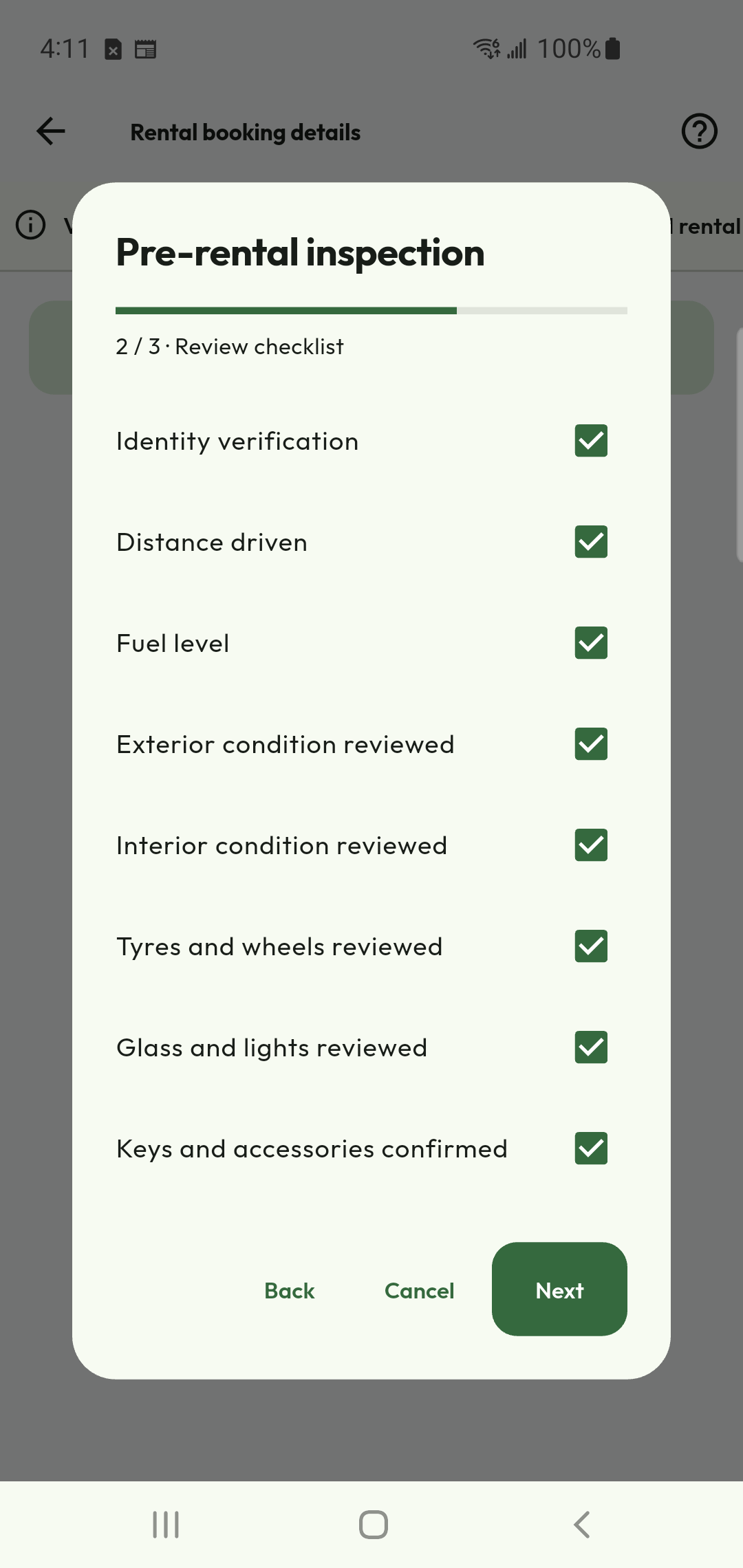
A guided collection checklist helps the customer and agency record what is being handed over. Work through the relevant condition, fuel or charge, keys and accessory checks rather than relying on memory. Record any existing damage and supporting evidence at collection so both parties have a clearer starting point for the rental.
- Inspect the vehicle before driving away.
- Record the relevant condition and handover details.
- Keep collection evidence with the booking.
Return with the next steps in view
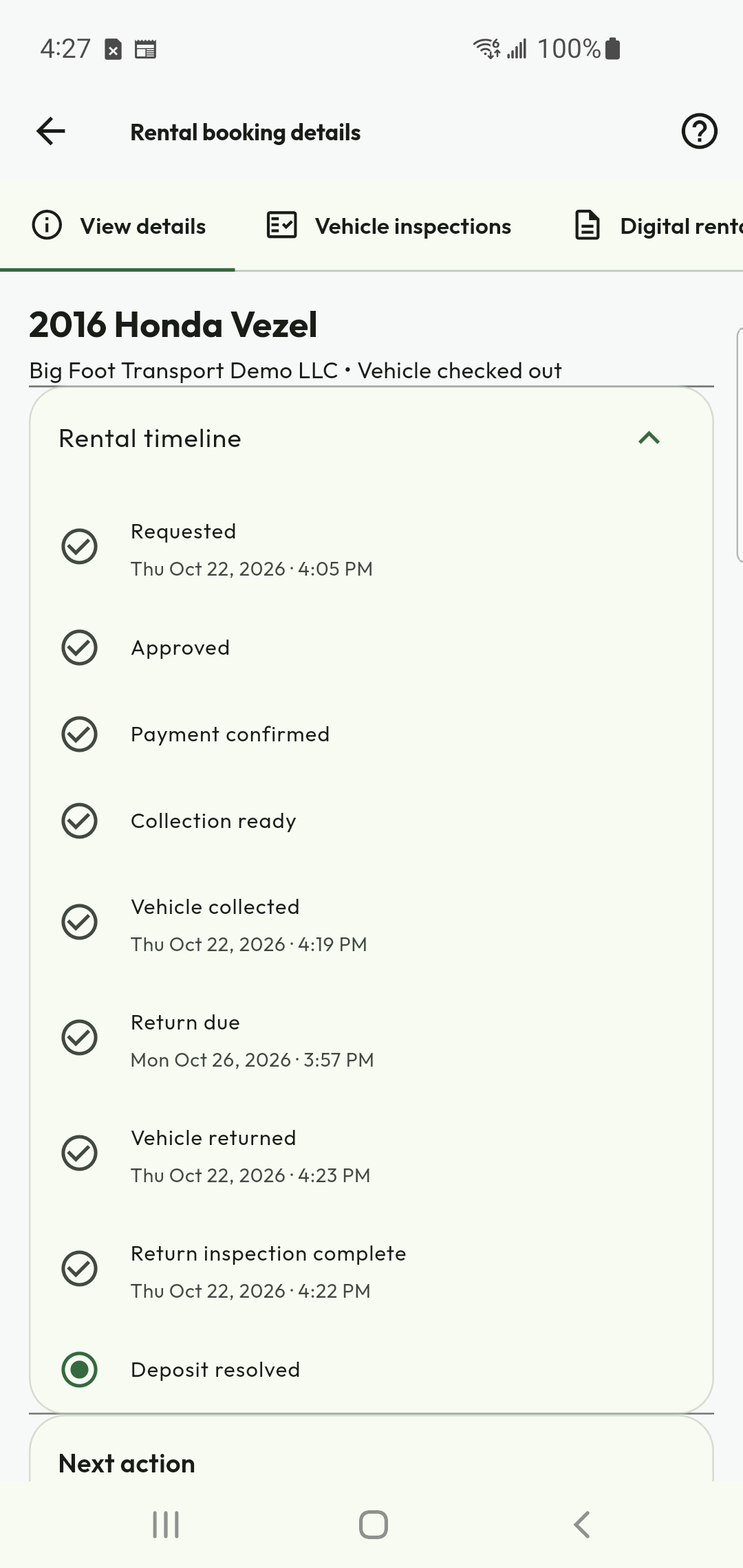
Returning the vehicle is part of the journey, not the end of the record. Follow the return and inspection steps in the timeline, then check what remains for the deposit. Keeping these stages separate helps the agency finish its checks and gives the customer a visible record of progress toward closure.
- Record the return and inspection outcome.
- Check whether any deposit action remains.
- Keep evidence available if an issue needs resolution.
Bring payment and settlement together
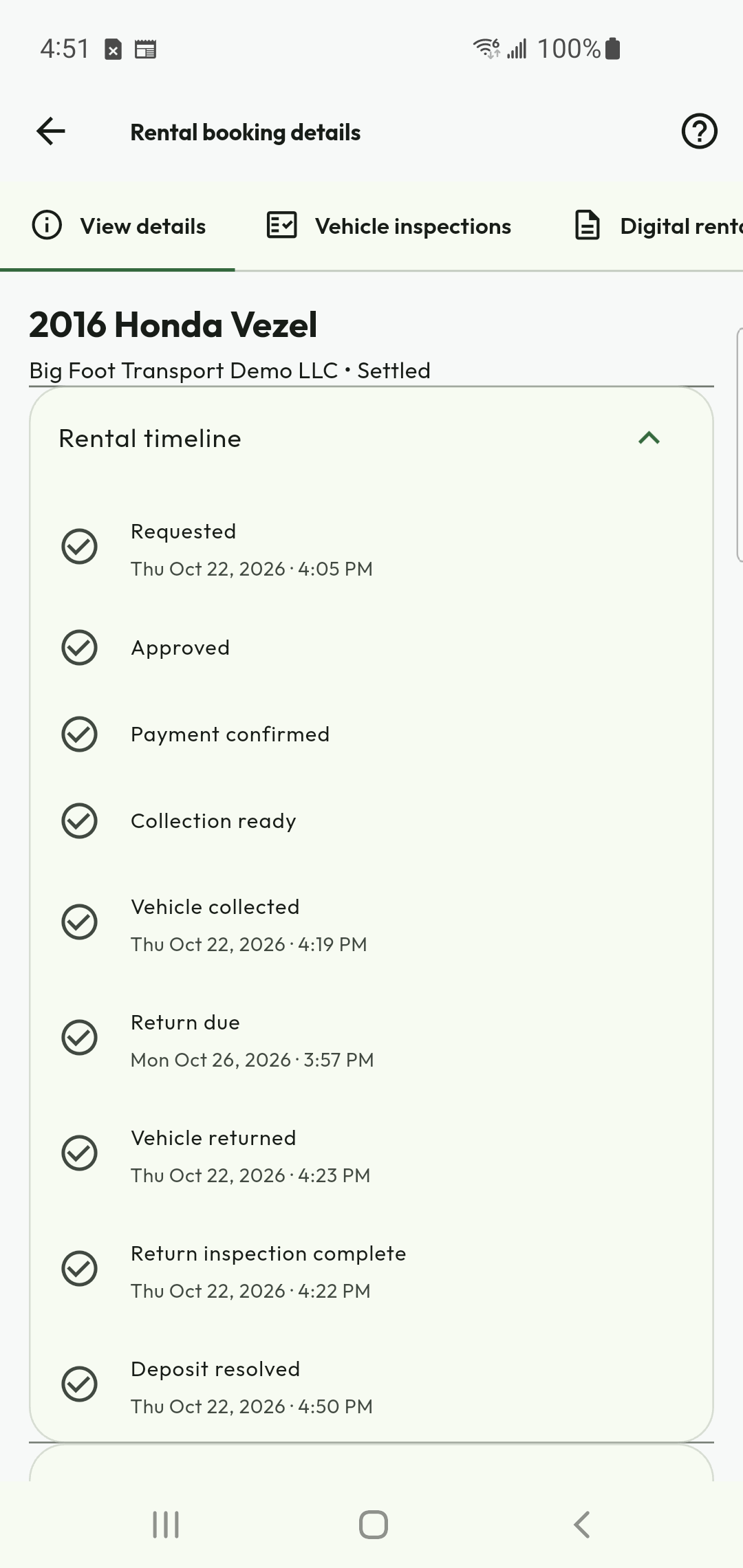
The financial timeline brings payment, inspection and deposit resolution into the booking record. Where supported, use the available KiloDrive payment option or follow the agency’s disclosed external-payment process and record the evidence. A completed settlement should reflect the actual payment or refund outcome, with the relevant conditions and records available to both parties.
- Follow recorded payments and deposit resolution.
- Check refund evidence and the agreed policy.
- Keep the final booking record for reference.
Put your fleet or courier team to work.
Tell us where you operate and which transportation services you offer.
See how Transportation Providers get started
Our provider guide covers the account and onboarding journey. Video in English; playback connects to YouTube.
Ready to make your next move?
Enter your pickup in the app to check service availability. A country listing does not guarantee a nearby provider.