 KiloDrive
Rider Operations Manual
A practical guide to booking rides, sending parcels, renting vehicles, managing money, privacy, safety, and your KiloDrive account.
Reconciled 15 September 2026
Current package and contract: official release facts
Copyright and publication information
Copyright © 2026 Eprecus LLC. All rights reserved.
KiloDrive, the KiloDrive road mark, product names, interfaces, documentation, and original illustrations are owned by or licensed to Eprecus LLC. No part of this publication may be reproduced, redistributed, altered, sold, or represented as official KiloDrive guidance without written permission, except for reasonable personal use and quotations permitted by law.
Edition: 3.0 Publication date: 15
September 2026
Applies to: KiloDrive mobile
applications and portal as described at publication.
This manual explains normal product operation; it is not legal, financial, tax, insurance, medical, or emergency-services advice. In-app terms, plan limits, prices, jurisdiction rules, and administrator-configured controls prevail where they differ from an example in this publication.
OpenStreetMap-derived routing data is used under the Open Database License. Apple, iOS, App Store, Google, Android, Google Play, and other third-party marks belong to their respective owners.
Table of contents
Edition 3.0: current workflow, expected results, and recovery
Illustrated rider registration, ride, communication, and recovery procedures
Introduction
This manual is the operating reference for riders, passengers, parcel senders, and vehicle renters. It explains how to prepare a secure account, complete the main service workflows, understand money and membership controls, respond to safety events, and obtain support.
How to use this manual
- Read Requirements and permissions before installing or using the portal.
- Complete the account, identity, and role-specific setup chapters in order.
- Use the operational chapters while performing rides, deliveries, rentals, billing, or administration.
- Consult the safety and incident material before an emergency occurs.
- Use the appendices for technical detail and the final index for subject lookup.
Conventions
Menu → Destination identifies a navigation path. A green callout is operational guidance, amber is a warning, and red identifies immediate safety or loss risk. Currency means the ISO currency of the active country unless expressly stated otherwise. Times originate as UTC and display in the appropriate local timezone.
Minimum requirements and permissions
Mobile application
| Platform | Minimum | Recommended operating condition |
|---|---|---|
| Apple iPhone/iPad | iOS/iPadOS 15.0 or later | Current supported OS release, automatic security updates, working GPS, camera, microphone, notifications, and internet. |
| Android phone/tablet | Android 7.0 (API 24) or later | Android 10 or later, Google Play services where required, current security patches, working GPS, camera, microphone, notifications, and internet. |
Install only from the official App Store or Google Play listing. A stable mobile-data or Wi-Fi connection and access to https://api.kilodrive.com are required for sign-in, current availability, live trip/rental state, payments, and synchronization. Offline-safe actions remain limited and will clearly show pending or failed state.
Permissions
- Location while using the app: pickup, nearby services, navigation, dispatch, route safety, and live trip progress.
- Background/always location: requested only for role and active-service functions that require continued trip or driver telemetry; users receive an explanation before the OS prompt.
- Camera: profile, identity, vehicle, damage, and document capture; in-app calling does not require camera unless a future video feature expressly requests it.
- Photos/files: user-selected images and PDFs through the operating-system picker; KiloDrive does not require broad library access for occasional uploads.
- Microphone: in-app voice calls and voice-enabled features.
- Notifications: OTP/security, bids, trip, delivery, rental, membership, payment, and support alerts.
- Biometrics: optional device biometric app lock; biometric templates remain under operating-system control.
Accessibility and display
Settings → Appearance supports light/dark themes, high contrast, and font scaling up to 1.3×. Critical screens are designed for 320-pixel phones, portrait/landscape tablets, keyboard insets, semantic labels, logical screen-reader order, and minimum touch targets. Currency, timezone, and kilometre/mile presentation follow the selected country and device preferences. Report a clipped, unlabeled, or unreachable control through Support with the screen and device details.
Portal
Use a currently supported version of Chrome, Edge, Safari, or Firefox with JavaScript, TLS 1.2 or later, cookies/session storage, and a screen width of at least 320 CSS pixels. A 1280 × 720 display or larger is recommended for dashboards. PDF downloads require a viewer; exports require sufficient device storage. WebAuthn/passkeys require a compatible browser, HTTPS, and a device/platform authenticator. Do not use compatibility mode or an unsupported embedded browser.
vi–vii1. Welcome to KiloDrive
KiloDrive connects customers with independent drivers, parcel delivery providers, and vehicle rental providers. Your home dashboard is the fastest way to start.
Hail a Cab
The optional first-ride guide can be skipped or dismissed at any time. It is help content, not a requirement for requesting a ride. Home summaries use short labels while data refreshes; open the relevant area or use its refresh action when current information is needed.
Enter a pickup and destination, review route and traffic information, propose a fare, receive driver bids, and select the offer that suits you.
Send a Parcel
Create a tracked delivery with sender, recipient, parcel and stop information. Wallet-funded deliveries use an escrow hold.
Rent a Vehicle
Browse nearby vehicles and rental providers, compare photos and terms, bookmark choices, then instant-book or request approval.
Money and Tools
Manage your wallet and use mileage, fuel, toll, fare, vehicle-loan and amortization calculators.
Mobile navigation
Use the side menu to move among Home, rides, rentals, deliveries, wallet, favorites, calculators, reports, profile, Privacy & Safety, settings, and support. On larger screens the same destinations appear in a navigation rail.
2. Install, connect, and sign in
- Install KiloDrive from the official Apple App Store or Google Play listing. Never install a package sent through an unknown link.
- Complete the introductory wizard. Choose your country, Ride, and language. The app checks both internet and KiloDrive API connectivity.
- For fast sign-in, open the Phone tab, enter your supported local or international number with the selected calling code, select SMS (preferred) or WhatsApp, and request a code.
- Enter the one-time code. Resend becomes available after 30 seconds; the issued code expires after ten minutes.
- Alternatively use email/password or an available Google, Apple, or Facebook sign-in button. A first-time identity continues through profile completion.
- Confirm your first name, last name, email and contact number. Your signup email is also used for email confirmation.
Connection diagnostics
Before authentication, use the available connectivity diagnostics to distinguish no internet from an unavailable KiloDrive service. Review About and language settings; retry when connectivity is restored.
Verify a phone by voice call
In Contact details, choose Call me with a code when it is available. KiloDrive uses AWS End User Messaging Voice to call the international-format number and read a six-digit code twice. Enter it in the dedicated verification screen. Resend is available after 30 seconds, the code expires after ten minutes, and repeated incorrect attempts lock the challenge. Standard carrier charges may apply.
3. Profile and identity verification
- Tap your name or picture in the menu to open Profile.
- Add a profile photograph and confirm your phone and email.
- Tap the amber Identity unverified badge to open the Identity Center.
- Enter date of birth and gender, choose an identity-document type, and upload clear images. Driver’s licences and identity cards require front and back; passports require the identity page.
- Submit and monitor the review status. Rejected submissions display a reason and can be replaced.
Supported identity evidence may include passports, driver’s licences, national IDs, military IDs, birth certificates, marriage certificates, Social Security cards, voter registration cards and naturalization certificates, subject to market rules.
Submitting a protected document
Choose the camera, photo picker, or PDF/image file picker from the document row. KiloDrive lets you crop and rotate photos and compresses them before upload. Files must be genuine PDF, JPEG, or PNG content and no larger than 10 MB. Driver’s licences, military IDs, and national ID cards require front and back; a passport uses its identity page.
The server verifies the file signature, scans it, records a checksum, and stores it under a randomized key in encrypted private S3 storage. Only the owner and authorized reviewers can download it. The administrator alert contains the case reference—not the document—and is retried safely if email is temporarily unavailable.
4. Request, bid, and complete a ride
Create the request
- From Home choose Hail a Cab.
- For origin, type an address, choose a saved place, or use current GPS location. Type the destination and select a verified search result.
- Choose the vehicle category, number of adults, pickup time, and payment method. Cash is selected by default when it is the only usable option.
- Choose Near Me or Any driver, then review distance, traffic-aware ETA, alternate routes, toll indication, realistic response time, pickup probability, and the suggested fare range.
- Enter your fare proposal. If paying by wallet, it cannot exceed available funds. Optionally enable exact-fare auto-accept, then submit the offer.
Choose the ride shape
Immediate and scheduled rides can include ordered intermediate stops. Round trips record a turnaround and waiting period. Hourly hire shows the booked minutes, the driver's disclosed hourly rate, and any configured minimum/maximum. Editing the fare from the offers screen updates the shared request so the creation and offer views do not show different amounts.
Scheduled guarantee status
If replacement cannot be secured before the country cutoff, the app says Not guaranteed. KiloDrive never hides that outcome behind a vague confirmed label.
8–94.1 Choose, ride, and close out safely
Choose a driver
The map displays eligible drivers while dispatch expands within configured limits. Compare offer amount, completed trips, categorized rating, achievements, verification, ETA, and vehicle. Exact-fare auto-accept applies only to a qualifying driver's acceptance of your current amount. Otherwise accept one offer yourself. Wallet payment is preauthorized when the bid is accepted.
Family and business travel
An authorized family manager or business administrator can invite members, delegate a booking, choose a cost center, apply ride/budget policy, centralize receipts/statements, and enable selected trip notifications or live tracking. Members see only what their role permits; a profile never grants unrestricted access to another user's account, chat, or location.
During and after the ride
- Confirm the assigned vehicle and plate before boarding.
- Use state-gated chat or the call button after bid acceptance. Chat closes when the trip completes or is cancelled.
- Follow driver-arrived and trip-started states. Use the persistent safety controls during the active trip.
- At destination, completion captures/releases payment as applicable. Review the chronological trip timeline and submit a fair rating.
- To repeat a past route, open ride history and choose Repeat ride. The app clearly reports when no history exists.
5. Send a parcel
- Choose Send a Parcel. Your registered name is used as sender.
- Add pickup/drop-off stops, recipient details, declared contents and value, size/weight, delivery window, handling instructions, and any available protection option.
- Review prohibited-item rules, route, price, payment method and delivery terms.
- Submit the request and compare driver bids. A wallet-funded accepted bid places the agreed amount on hold in escrow.
- At pickup, use the displayed OTP or QR and required package photo to establish custody. Track every stop and custody event.
- The recipient confirms with OTP and any required signature/photo. Completion releases escrow. A failed attempt follows the shown redelivery or return-to-sender path without losing evidence.
Never send illegal, hazardous, weapon-related, stolen, misdescribed, inadequately packaged, privacy-invasive or unsupported high-value items.
116. Rent a vehicle
- Choose Rent a Vehicle and provide pickup/return dates and location.
- Browse by vehicle type, proximity, branch or rental provider. Open a listing to inspect images, rates, deposit, mileage, fuel, transmission, seats and policies.
- Bookmark suitable vehicles. Check whether the listing is Instant Book or Request to Book.
- Complete required identity and licence verification. Add optional extras and review the complete price.
- Pay or authorize the security deposit using an offered payment method, then monitor confirmation.
- Review and digitally accept the agreement. At handover, complete pre-rental inspection photos, odometer, fuel/charge, and accessory evidence before check-in.
- Request an extension before the due time. Late return, no-show, maintenance, accident, or damage follows the dedicated workflow - never settle it through private chat.
- At checkout, record post-rental condition, mileage/fuel, tolls, and evidence. Review settlement/deposit release, then rate the vehicle and provider honestly.
7. Wallet, payments, and top-ups
Wallet operations
- Open Wallet to view available and held balances.
- Choose a transaction to see its reference, type, amount, status and timestamp.
- Top up using an enabled payment provider, a bank-transfer request, or a valid one-time top-up card. Bank transfers remain pending until reviewed.
- To transfer funds, first add the recipient to Favorite recipients. You cannot add yourself or add duplicates.
- Enter the recipient's confirmed email address or international phone number and a recognizable label. Submit shows validation and progress; the person appears in the list only after the server confirms the match. No debit occurs while adding a recipient.
- Enter the transfer amount, verify recipient and currency, then confirm. Transfers and ledger entries are atomic and auditable.
Important controls
- Held ride/delivery funds are unavailable for spending or cashout.
- Top-up and cashout velocity, cooldowns and suspicious patterns may trigger an automatic block and admin review.
- Ten-digit top-up-card codes are one-time credentials. Attempts are rate-limited; never post or share a code publicly.
- Refunds, disputes and chargebacks can change available balance.
One clear rider tier
8. Free rider access
Riders do not need a subscription. There is one rider access level - Free Rider. There is no Silver Rider or Gold Rider product, no rider membership renewal, and no trip quota created by a rider subscription.
What Free Rider includes
Negotiated ride requests, driver comparison, saved places, favorites, family and business travel where enabled, wallet and cash choices, parcel and rental access, block-list controls, RideCheck, live sharing, reports, privacy controls, and support.
| Rider capability | Access |
|---|---|
| Immediate, scheduled, multi-stop, round-trip, and hourly rides where enabled | Included |
| Block list and Privacy & Safety controls | Included |
| Favorites and saved places | Included |
| Repeat rides | Included |
| Wallet management | Included |
| Family/business booking and delegated live tracking | Included where authorized |
What riders may still pay
Free access does not make a ride, delivery, rental, toll, tip, top-up, tax, cancellation, damage, or other disclosed service charge free. Review the price, hold, refund, and payment terms before confirming.
9. Safety, security, and privacy
Account security
Use a unique password, phone/email verification, optional 2FA, social-login review, device sessions, biometric app lock and recovery codes. Keep the app and OS updated.
Trip safety
Verify vehicle/plate, share trip context, use trusted contacts, heed route-anomaly check-ins, and use emergency controls only for genuine incidents.
Block list
Every rider can block a driver using an exact plate/tag or supported full phone number. The management list shows only the supplied identifier, not private driver details.
Privacy rights
Use Privacy & Safety to request personal-data export or account deletion. Financial and safety records may be retained/anonymized for legal compliance.
Permissions
KiloDrive explains why it needs location, camera, photos, microphone, notifications or biometrics before opening the OS prompt. Permanently denied permissions can be recovered through device Settings. Grant only what you understand.
Recovery and notifications
Password-recovery requests use the same confirmation response for every address. Follow the validity countdown, resend guidance and safe expired/used-code action; never repeat codes or share them with support. Security emails show the action, localized request and expiry times, device, OS, app version and a privacy-masked network hint.
The in-app Notification Center is the durable history for trip, chat, wallet, support and security updates even when push is denied or the phone is offline. Settings provide trip calls/status, chat, wallet/membership, promotion, vibration, read-aloud and quiet-hours controls. Security and narrow safety alerts remain mandatory. Phone silent/Focus/Do Not Disturb and channel settings remain authoritative.
Communication boundaries
Chat and calling are limited to assigned trip participants and active states. Messages may be retained for safety, support and legal needs but private content must not be copied to operational logs.
16–1710. RideCheck, live sharing, and your data
Emergency Button
During an active trip, open the safety toolkit and tap Emergency to call local authorities directly (119 in Jamaica). State your name, location, vehicle plate and direction of travel. The button is hidden outside active trips to prevent accidental calls. KiloDrive does not replace emergency services.
RideCheck
When enabled, KiloDrive compares current trip telemetry with the mapped route and notices sustained material deviations or unexpected stationary periods. A route-change prompt tells you when it was detected and asks you to confirm that you are safe. Choose I'm OK — allow this route to log your decision, or choose emergency help to record the incident and open your phone dialler. RideCheck keeps monitoring for a return to the planned route. If you do not respond, the check is escalated to a safety case after the configured response period and authorized safety staff are notified. Detection evidence, responses, rejoining and escalation are retained under controlled access.
Why the driver's location may continue in the background
During approach, arrival, and an active trip, KiloDrive may use a visible Android location service or iOS background-location indicator so safety and live tracking continue when the driver locks the phone or changes apps. The rider receives freshness labels such as Live, Last updated, or Driver location temporarily unavailable. Collection stops when the assignment ends. The driver can stop sharing by ending the eligible trip state or revoking permission, but revocation may prevent safe trip operation. KiloDrive retains only what its published policy, safety, dispute, and legal duties require.
Live Trip Sharing
- Add up to five trusted contacts and permit live-trip messages.
- During a trip choose Share live trip and send the short KiloDrive link.
- The recipient sees the route, live movement, assigned driver/vehicle, trip status and safety stops—never your phone, payment data or private chat.
- The link expires automatically, can be revoked, and every access is counted.
Background checks and driver choice
Privacy & Safety lets you require All drivers, ID verified, ID and address verified, verified insurance, multiple ratings, fully verified, or Preferred Driver. Preferred Drivers are Gold members independently reviewed against trip/rating thresholds and current ID, address, police record, registration and insurance evidence.
How KiloDrive protects data
Identity documents and profile media use private object storage; transport is encrypted; authorization and tenant/country boundaries limit access; secrets and raw payment details are excluded from logs; audit records capture sensitive administrative actions; short links expire; and financial ledgers remain immutable. KiloDrive collects location only for dispatch, active-service execution, safety, disputes and lawful investigations, subject to retention controls. You may request access, export, correction or deletion through Privacy & Safety. Required finance, fraud, safety and legal records may be retained or anonymized. Never share OTPs, recovery codes or full payment credentials.
18A–18B11. Calculator tools
| Tool | Purpose | Key outputs |
|---|---|---|
| Fare calculator | Estimate a trip using distance, time, category, country fare table and toll selection. | Suggested fare and assumptions |
| Jamaica toll calculator | Select vehicle class, start/end points and return option. | km/miles, plazas, each toll and total |
| Fuel calculator | Estimate fuel quantity and spend for a journey. | Consumption and cost |
| Mileage calculator | Convert/estimate trip distance and operating mileage. | Kilometres and miles |
| Vehicle-loan calculator | Enter price, deposit, rate and term. | Payment, interest, amortization schedule |
- Open Calculator Tools in the app or portal.
- Enter all required values; negative numbers are rejected.
- Review assumptions and results. Save a calculation when signed in.
- Export a professional Letter-size PDF where offered. It includes the KiloDrive logo, title and generation date.
Calculators are estimates, not fare guarantees, lender offers, tax advice or legal advice.
18Choose a tool and estimate tolls
Follow the calculator tools instructions with these captured examples. Each caption explains the controls actually shown; your available actions depend on account, country and current record state.
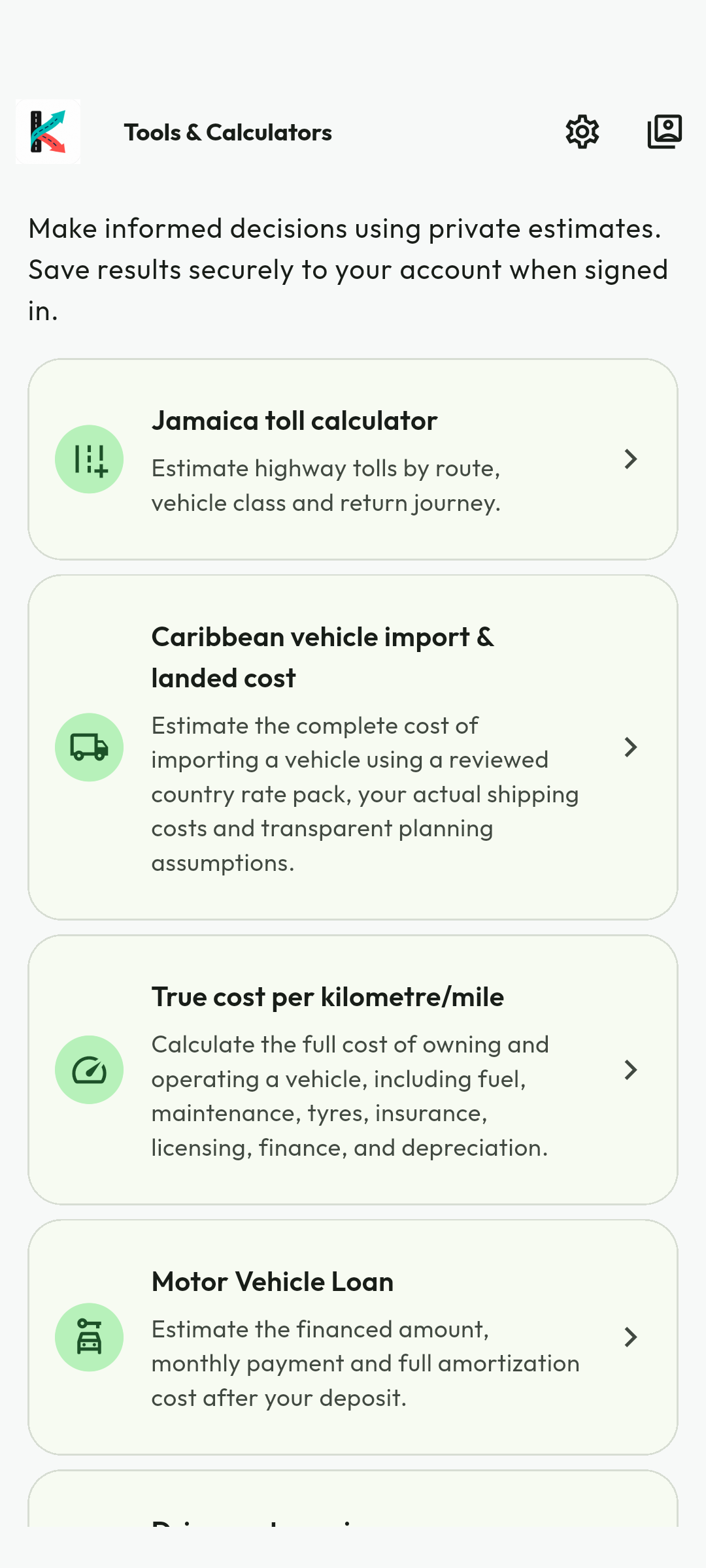
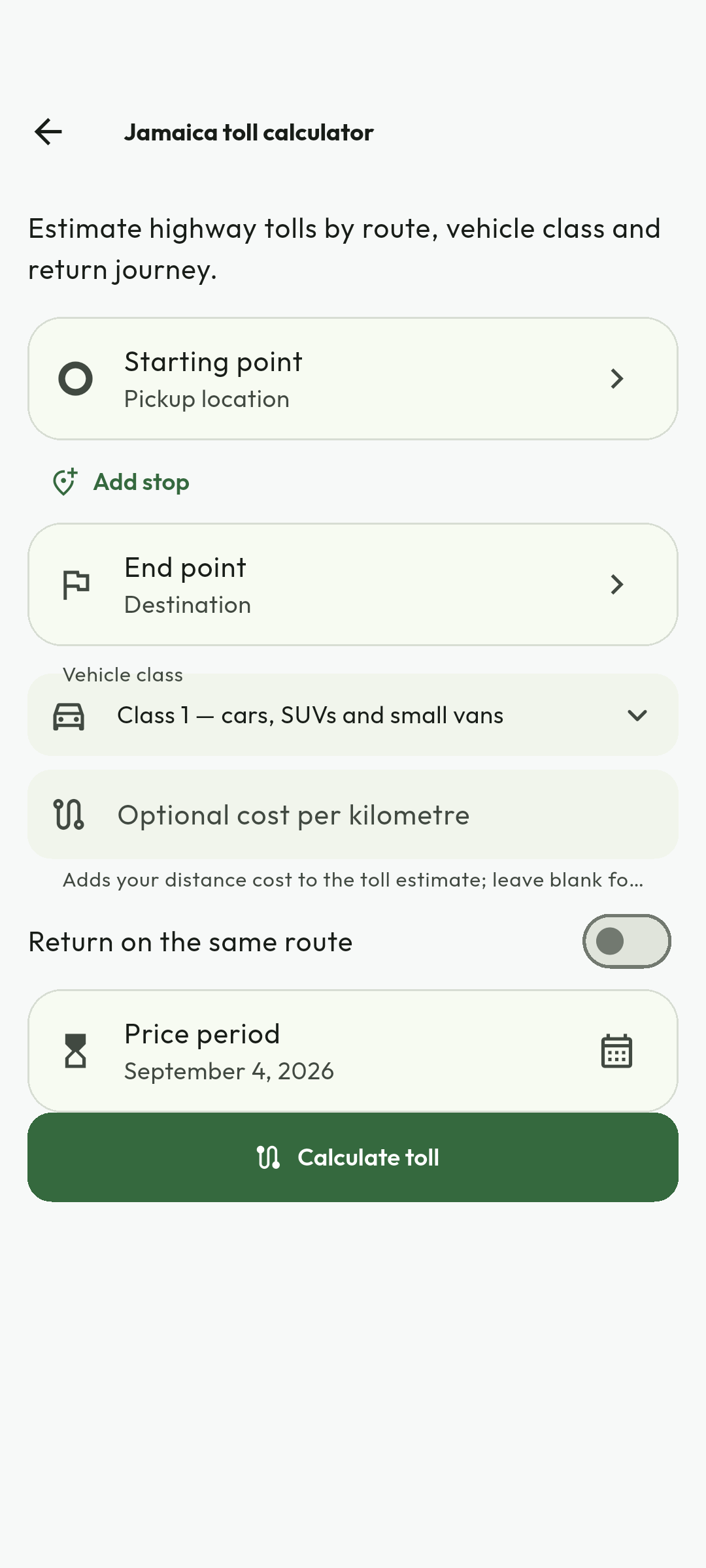
Android calculator demonstration captured 4 September 2026. Sample amounts, dates and labels are historical; check current prices, policies and the live interface. No credentials, customer documents or redeemable codes are illustrated. Use the current workflow and recovery guidance when labels differ.
Plan vehicle finance
Follow the calculator tools instructions with these captured examples. Each caption explains the controls actually shown; your available actions depend on account, country and current record state.
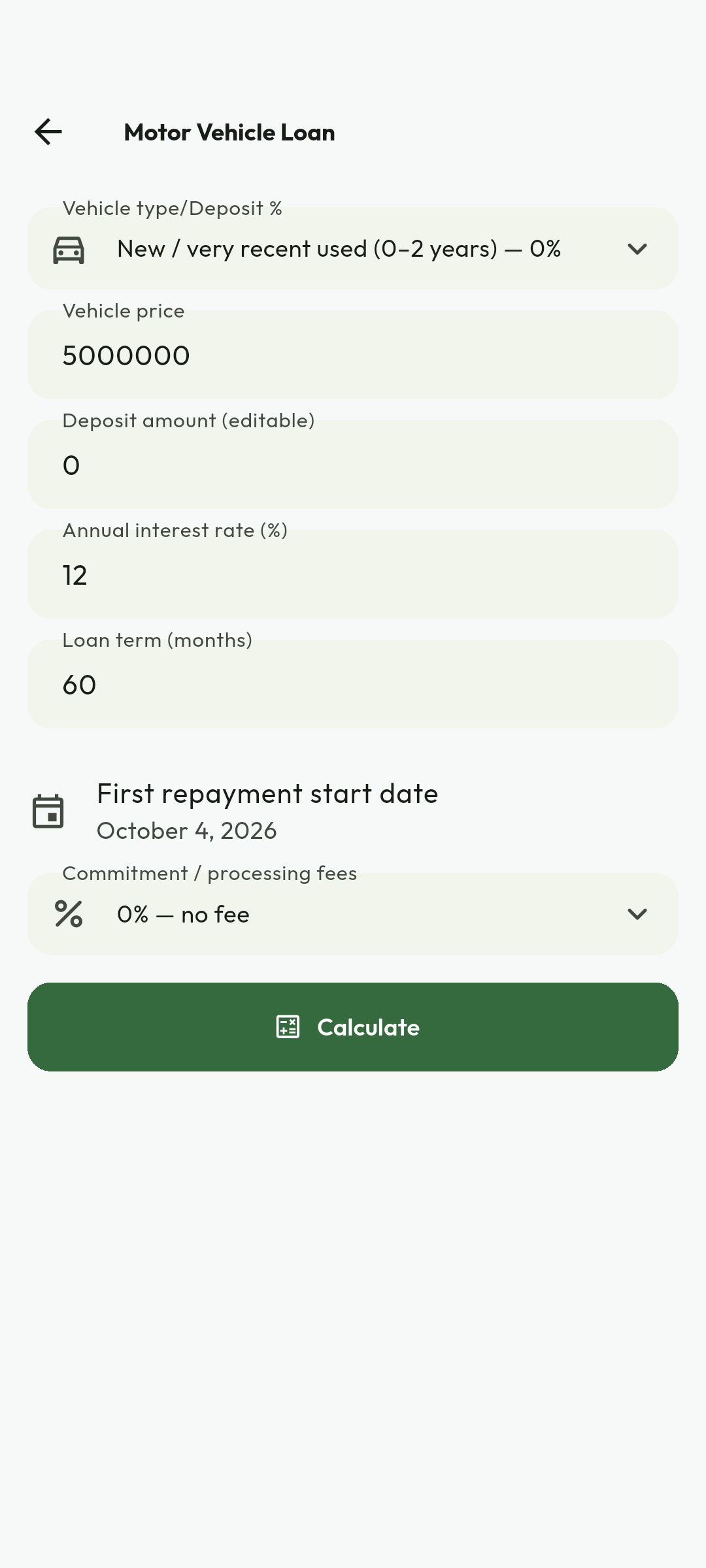
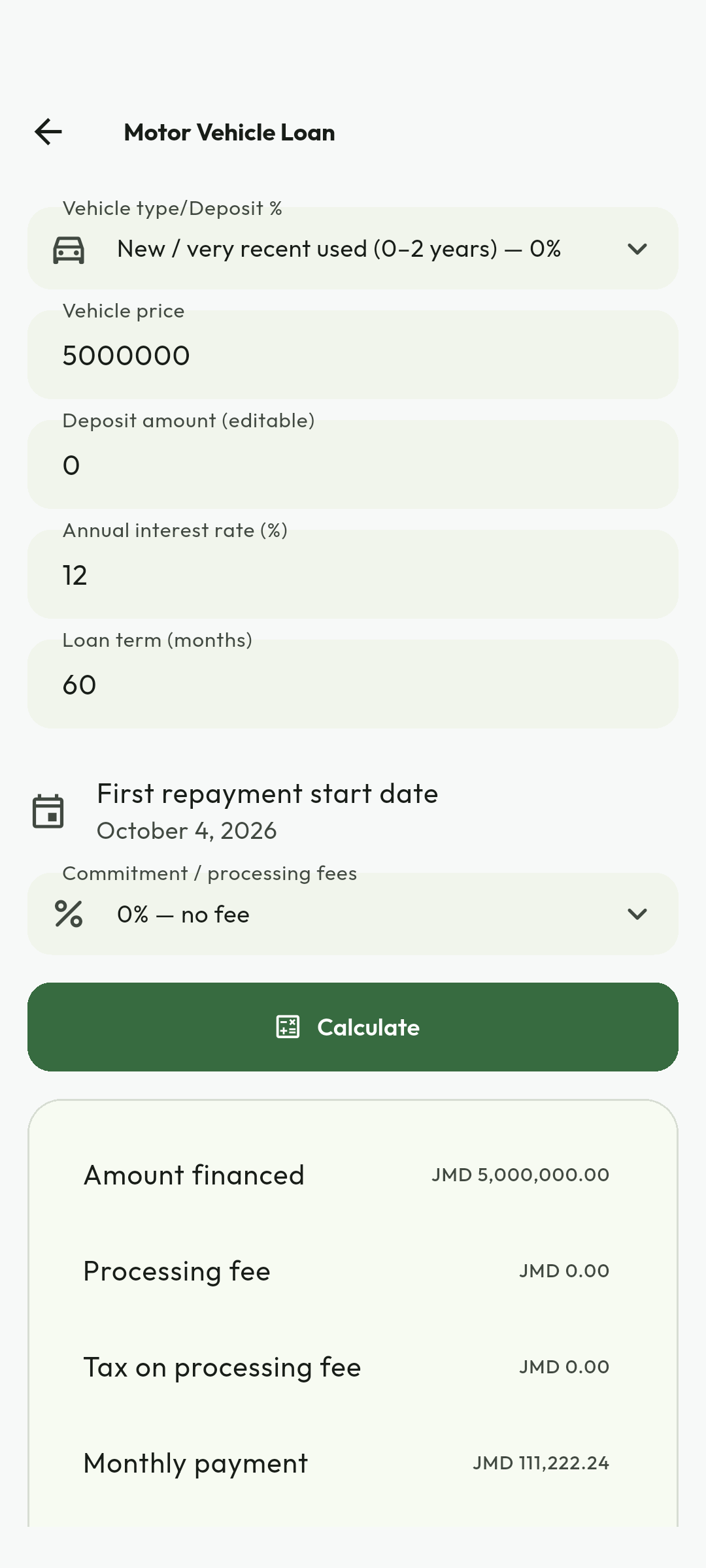
Android calculator demonstration captured 4 September 2026. Sample amounts, dates and labels are historical; check current prices, policies and the live interface. No credentials, customer documents or redeemable codes are illustrated. Use the current workflow and recovery guidance when labels differ.
Estimate trip fuel and cost sharing
Follow the calculator tools instructions with these captured examples. Each caption explains the controls actually shown; your available actions depend on account, country and current record state.
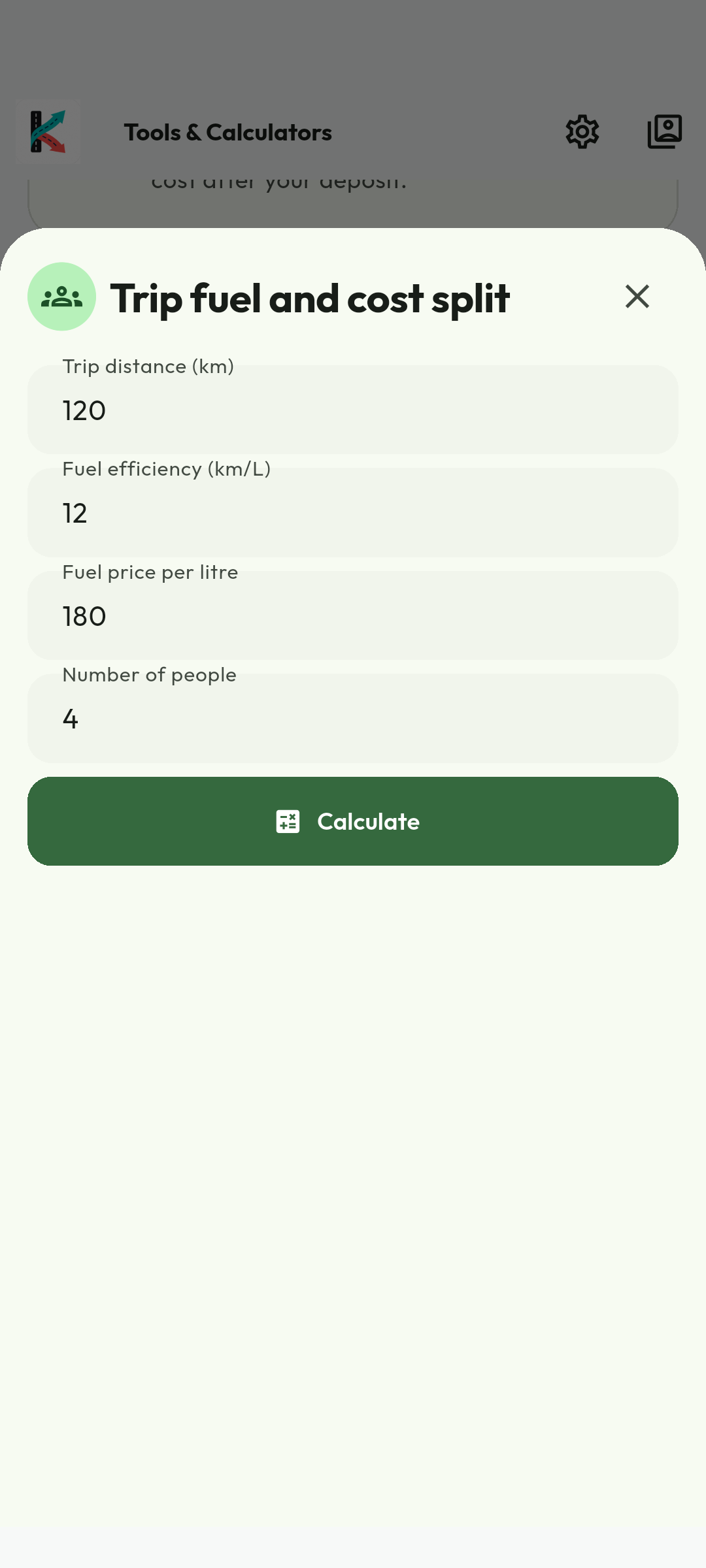
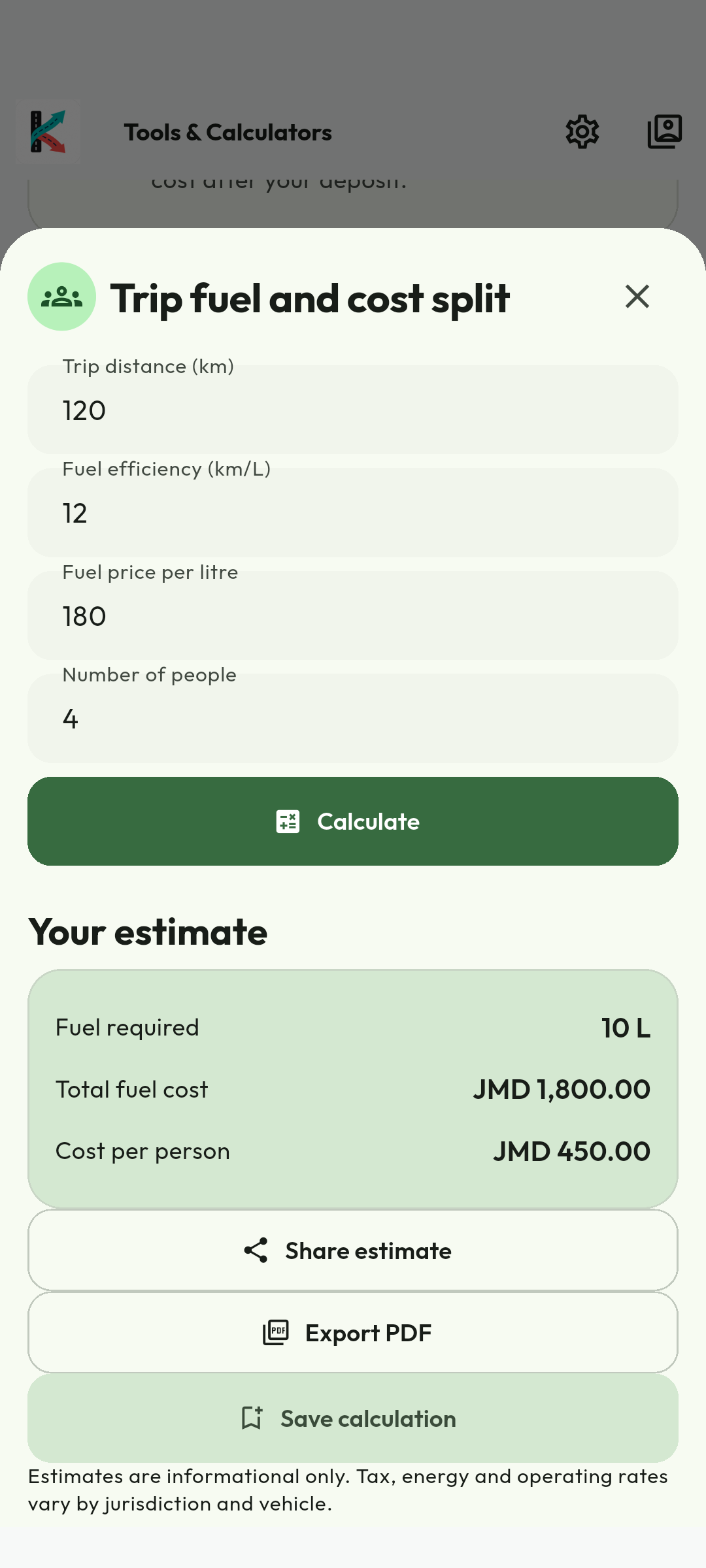
Android calculator demonstration captured 4 September 2026. Sample amounts, dates and labels are historical; check current prices, policies and the live interface. No credentials, customer documents or redeemable codes are illustrated. Use the current workflow and recovery guidance when labels differ.
Compare renting with ride-hailing
Follow the calculator tools instructions with these captured examples. Each caption explains the controls actually shown; your available actions depend on account, country and current record state.
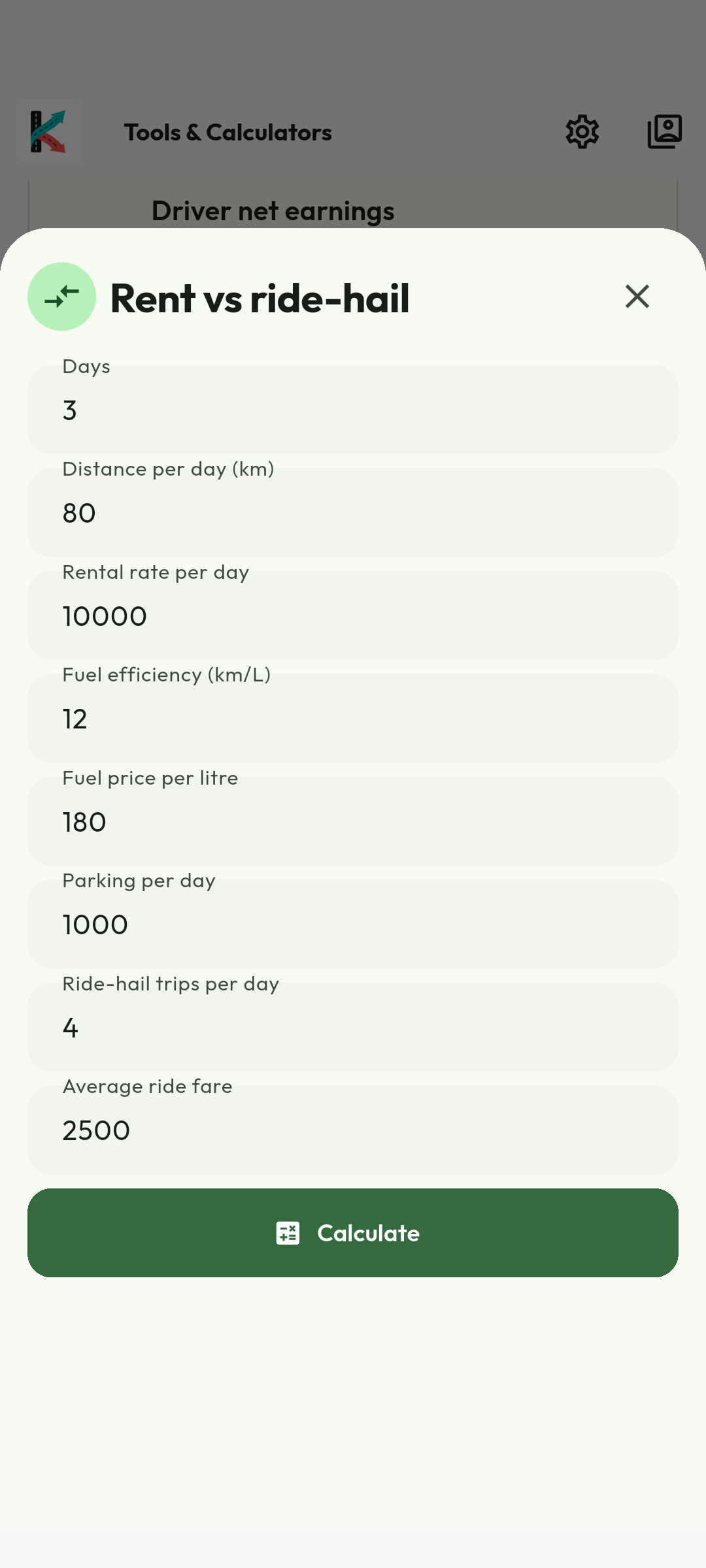
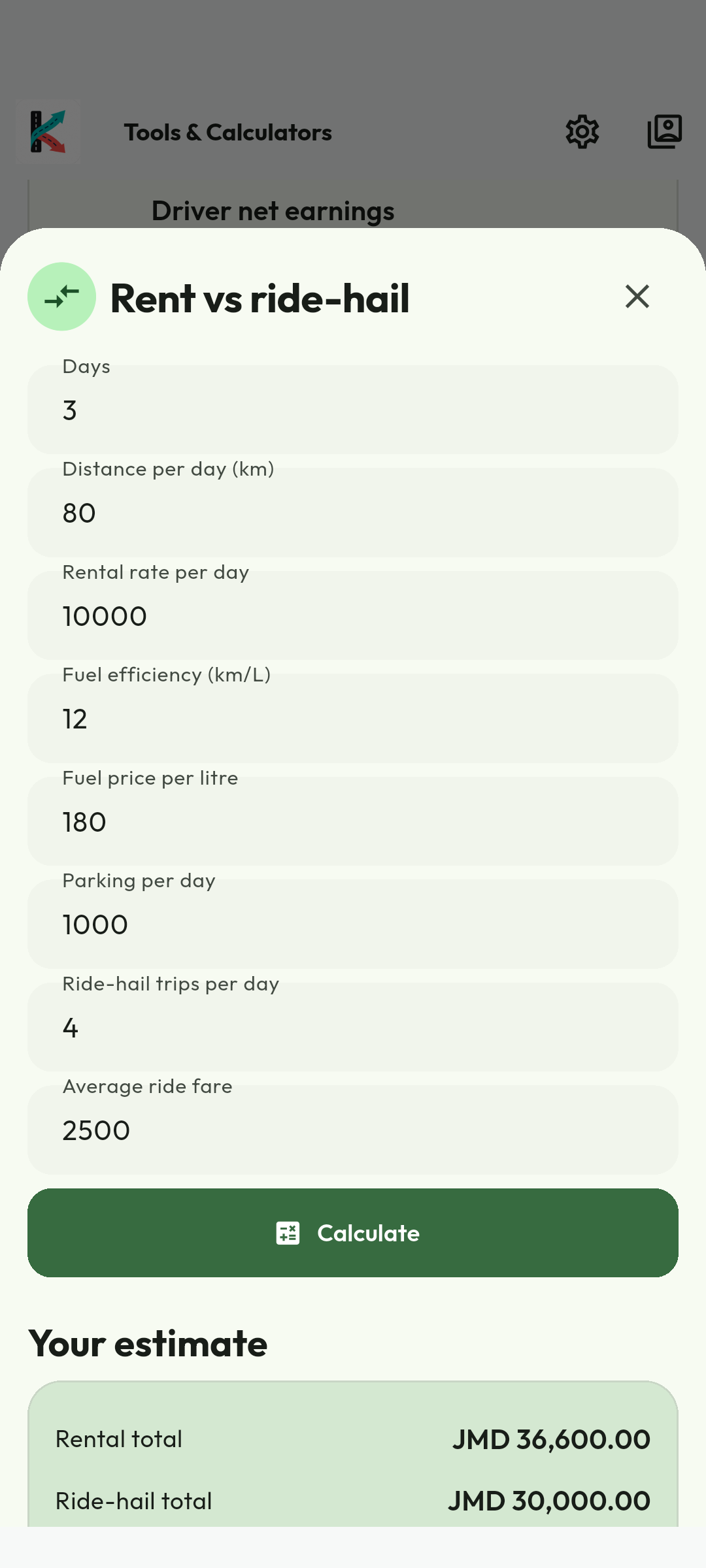
Android calculator demonstration captured 4 September 2026. Sample amounts, dates and labels are historical; check current prices, policies and the live interface. No credentials, customer documents or redeemable codes are illustrated. Use the current workflow and recovery guidance when labels differ.
12. Use the Rider portal
- Visit the official portal at https://my.kilodrive.com.
- Sign in using your approved account method and complete 2FA when prompted.
- Use the rider-aware menu to open dashboard, ride history, wallet, reports, settings and support.
- Open a ride to inspect status and available route/timeline information. Portal content follows your role and permissions.
- Download reports from the Reports area using a preset or valid custom UTC range.
- Manage notification categories, language and available account settings.
- Use the Notification Center's unread and category filters, then open an item to reach the authoritative trip, wallet, membership, support or security workspace.
- Sign out on shared computers.
13. Support and troubleshooting
Before opening a ticket
- Check internet and API connectivity in Settings.
- Confirm the selected country and that the service/category is active there.
- Refresh the screen once; do not repeatedly submit payment or booking actions.
- Record the time, screen, exact message and transaction/trip reference. Never include passwords or OTPs.
- Open Support, select the affected trip/payment/document/delivery or rental, choose the structured issue type, and attach safe evidence.
Continue the conversation in the case message tab and add evidence to the same case. A closed case can retain finance, fraud, safety, or legal evidence even when the account later requests deletion.
Common situations
| 401 / session expired | Sign in again; check that the device time is correct. |
| Location results slow/empty | Check connection and location permission; type a complete place name. |
| Wallet unavailable | Retry once, then report the correlation ID; do not repeat a charge. |
| Emergency | Use active-trip safety controls and call 119 in Jamaica or the local emergency number. |
Available support options
| Option | Use it for | What to provide |
|---|---|---|
| In-app Help & Support | FAQs, troubleshooting, and authenticated ticket creation. | Category, concise description, affected reference, time, and safe attachment. |
| Portal Support | Ticket history, detailed follow-up, reports, billing, verification, and organization issues. | Sign in at https://my.kilodrive.com and quote the exact transaction, trip, booking, vehicle, or ticket reference. |
| General assistance when account access is unavailable. | Email [email protected] from the registered address where possible; never send passwords, OTPs, recovery codes, full cards, or unredacted banking credentials. | |
| Safety toolkit | Active-trip safety check-ins, trusted contacts, live sharing, and incident context. | Use during the active service and preserve the displayed trip/vehicle information. |
| Emergency services | Immediate threats, injury, crime, fire, collision, or kidnapping. | Call the local authority directly—119 in Jamaica—and state location, people involved, vehicle/plate, and direction of travel. |
Severity and response
Choose the category that reflects actual impact. Duplicate tickets slow investigation. Money, safety, privacy, identity, and account-compromise cases receive specialized handling; response time depends on urgency, evidence, provider dependencies, and jurisdiction.
Appendix A. How KiloDrive ride bidding works
KiloDrive uses negotiated bidding: you propose a fare, eligible drivers may accept it or counteroffer, and you—not the matching engine—choose the winner. Creating a request returns an accepted/searching state while a durable background job ranks drivers. It does not create a trip.
Smart dispatch ranking
- Live driver coordinates are held in a country/tenant-isolated Valkey geospatial index.
- The first search begins within 3 km and expands in stages when no suitable bid arrives.
- Before routing, KiloDrive rejects drivers who are offline/inactive, have stale telemetry, are already assigned/arrived/in progress on another trip, lack an active compatible vehicle, are blocked in either direction, lack requested child-seat capacity, do not allow pets, lack WAV capability, or are not airport eligible.
- The nearest candidates are Haversine-sorted; only a small bounded set is sent to OSRM or the traffic-routing provider.
- A lower-is-better cost ranks traffic ETA (50%), road distance (20%), acceptance reliability (15%) and rating quality (15%).
- The best 5–10 receive a short offer wave. Drivers accept your fare or counter-bid; you compare identity, vehicle, ETA, price and ratings and explicitly accept one bid.
Hungarian and Jonker–Volgenant
These linear-assignment algorithms minimize total cost across multiple requests and drivers. Hungarian methods are commonly described as cubic in matrix dimension; Jonker–Volgenant is an optimized shortest-augmenting-path approach. Standard rides do not use either to auto-assign: that would remove rider choice and driver counter-bidding. A future opt-in Speed Match product requires separate terms and consent.
Appendix B. Top-ups, cashouts, taxes, refunds, and disputes
- Card top-up: a hosted provider handles card credentials. KiloDrive credits only after an authenticated idempotent callback and does not store PAN/CVV.
- Cashout: funds move to held balance while limits, cooldown, velocity and fraud checks run; rejection returns the hold.
- Taxes/fees: amounts use local ISO currency/minor units. Displays are records or estimates, not personal tax advice.
- Refund: eligible cancellation releases a hold or writes a linked reversal; bank posting may take longer.
- Dispute/chargeback: quote the original reference. A chargeback can reverse an earlier credit, make a wallet negative and restrict cashout.
Safety, fraud, verification, legal or payment risk can temporarily cool off/suspend an account. KiloDrive provides remediation/appeal where allowed. Termination does not erase valid debts, refunds or required finance, tax, fraud, safety, dispute or legal-hold records.
How data is protected
KiloDrive uses encrypted transport, private object storage, centralized global identity, isolated country operations, UUIDv7 identifiers, role/tenant authorization, audited administration and sensitive-log redaction. Law-enforcement disclosure requires verified authority, jurisdiction and scope; emergency disclosure is limited to a documented good-faith threat to life/safety. Notice is provided unless prohibited or unsafe.
B1–B3Appendix C. Breakdown, towing, collision, and injury
- For injury, fire, crime or traffic danger, call emergency services immediately (119 in Jamaica).
- Move to safety, use hazards and account for occupants. Do not move an injured person except on professional instruction or to escape immediate danger.
- Use active-trip safety; do not falsely complete the trip. The vehicle must stop accepting work.
- When safe, record location, plate, damage, road/weather, parties/insurer and police report number. Do not admit liability or publish private evidence.
- Follow police/insurer/approved roadside towing instructions; verify operator, destination and custody.
- For bodily injury, seek care, notify the insurer, preserve records and open a restricted case. Insurers/authorities determine fault and compensation.
Appendix D. Payments without a rider subscription
Riders do not buy a KiloDrive membership. Payment methods apply to individual transportation, delivery, rental, toll, tip, top-up, cancellation, damage, or other clearly disclosed transactions.
- Review the service price, currency, payment method, cancellation terms, and any hold before confirming.
- Hosted and bank payments remain pending until verified or approved.
- Keep the transaction receipt and reference for support, refunds, or disputes.
- Never interpret a driver or rental-provider membership as a rider charge.
Eligible payments are idempotent and financial events use balanced integer-minor-unit debit/credit journals.
D1-D2Release 1.6
How the current rider experience is meant to work
KiloDrive now treats signup, booking, negotiation, travel, payment, safety, support, and recovery as one continuous journey. A screen is not considered successful merely because it opens: the data, allowed action, timeline, receipt, and other participant must agree.
Account creation and return visits
- The first screen offers separate Sign in and Create account actions. Registration collects a name and a verified email or phone, with supported social providers as additional identity choices.
- A signup carries one country and role intent through review and submission. Changing it is deliberate; the app does not secretly recompute a different account type from an old preference.
- If an email or phone does not exist, the app explains that result and offers registration or another attempt. Password reset requires the requested identity checks and never reveals whether unrelated private data exists.
- An authenticated or partly onboarded user returns to the last safe step after relaunch. Country, language, and role selection are not repeated unless the saved state is missing, invalid, or deliberately changed.
- Social-account collisions use a short-lived linking ceremony. Provider tokens are not placed in links, logs, screenshots, or support messages.
Release 1.6
From quote to completed trip
- Describe the journey. Enter pickup, ordered stops, destination, timing, accessibility needs, ride type, return or hourly settings, and payment choice. The displayed quote is kept separately from your current offer.
- Choose dispatch scope. Near Me uses eligible nearby drivers; Any driver broadens discovery according to country policy without publishing your exact location to a heatmap.
- Watch progress honestly. The awaiting-offers view shows expiry, dispatch scope, response estimate, non-guaranteed pickup probability, freshness, and what Drivers viewing actually means.
- Compare offers in the page. New bids update an in-screen offer inbox instead of dismissing an unrelated confirmation. Review the offer amount, driver, vehicle, rating context, completed trips, arrival estimate, and verification signals.
- Commit once. Selection is versioned and idempotent. Acceptance rechecks that the driver is online, unassigned, compliant, properly equipped, and eligible for the requested trust level; the accepted vehicle and compliance version are snapshotted.
- Confirm pickup and travel. Where enabled, a short-lived pickup PIN or signed QR helps confirm the correct rider and driver. The rider sees the driver's live approach, then trip status, stop progress, location freshness, chat, calls, and safety actions.
- Close the record. Completion uses validated route or telemetry distance, creates a receipt and timeline event, refreshes balances, and opens role-appropriate review and support actions. A cancellation propagates to both clients and cannot remain disguised as an active ride.
Release 1.6
Safety, money, documents, and recovery
Family, business, and supervised travel
A booking identifies the requester, traveler, payer, and authorized supervisor separately. Family and business managers may receive only the trip notifications and live tracking allowed by the profile policy. Their access expires with the trip or consent. A guardian conversation is separate from the private rider-driver thread, and a teen or dependent workflow is enabled only where country policy, guardian authority, age rules, handoff controls, and legal approval are complete.
Money, receipts, and memberships
Riders do not need a membership. Money is stored and transferred in integer minor units using the transaction ISO currency. Wallet lists use server-side date ranges, search, paging, totals, and balance context. A checkout immediately opens a durable Pending, Completed, Failed, or Needs attention record so an app restart or delayed webhook cannot make a payment disappear. Transfer and top-up controls may be restricted by KYC, AML, provider, country, account, or risk policy. Multi-payer fare splitting remains unavailable unless its country and payment-provider policy is explicitly enabled.
Documents, support, and privacy
- Rider verification is Not required, Not started, Pending, Verified, Rejected, Expired, or Unavailable according to the country policy returned by the API. When it is disabled, the app says Not required in this country.
- Identity and compliance evidence remains private, quarantined until a signed clean scan result, and visible only through an authorized in-app viewer. Restricted files are not shared through the normal operating-system share sheet.
- Support cases use Received, Reviewing, Waiting for information, and Resolved. A case shows its number, issue, evidence, conversation, owner, SLA, next action, timeline, closure reason, and permitted reopen or escalation path.
- Active-trip background location is collected only for the necessary trip states. Android shows a persistent notification; iOS shows the platform indicator. Collection stops after completion, cancellation, assignment removal, logout, or an authoritative rejection.
The availability doctrine
A visible feature may still depend on country activation, provider health, legal approval, store products, verification, plan, device permissions, or an administrator capability. Unknown readiness is treated as unavailable for destructive or financial actions. The app should preserve useful last-known data, label it stale when refresh fails, and disable only the action whose current preconditions cannot be verified.
Register and reach the rider dashboard
These physical-device captures show the current email registration path. Manual email registration requires email verification. Phone confirmation may be skipped when the account policy permits it, the profile picture is optional, and the current legal documents must be accepted before the rider dashboard opens.
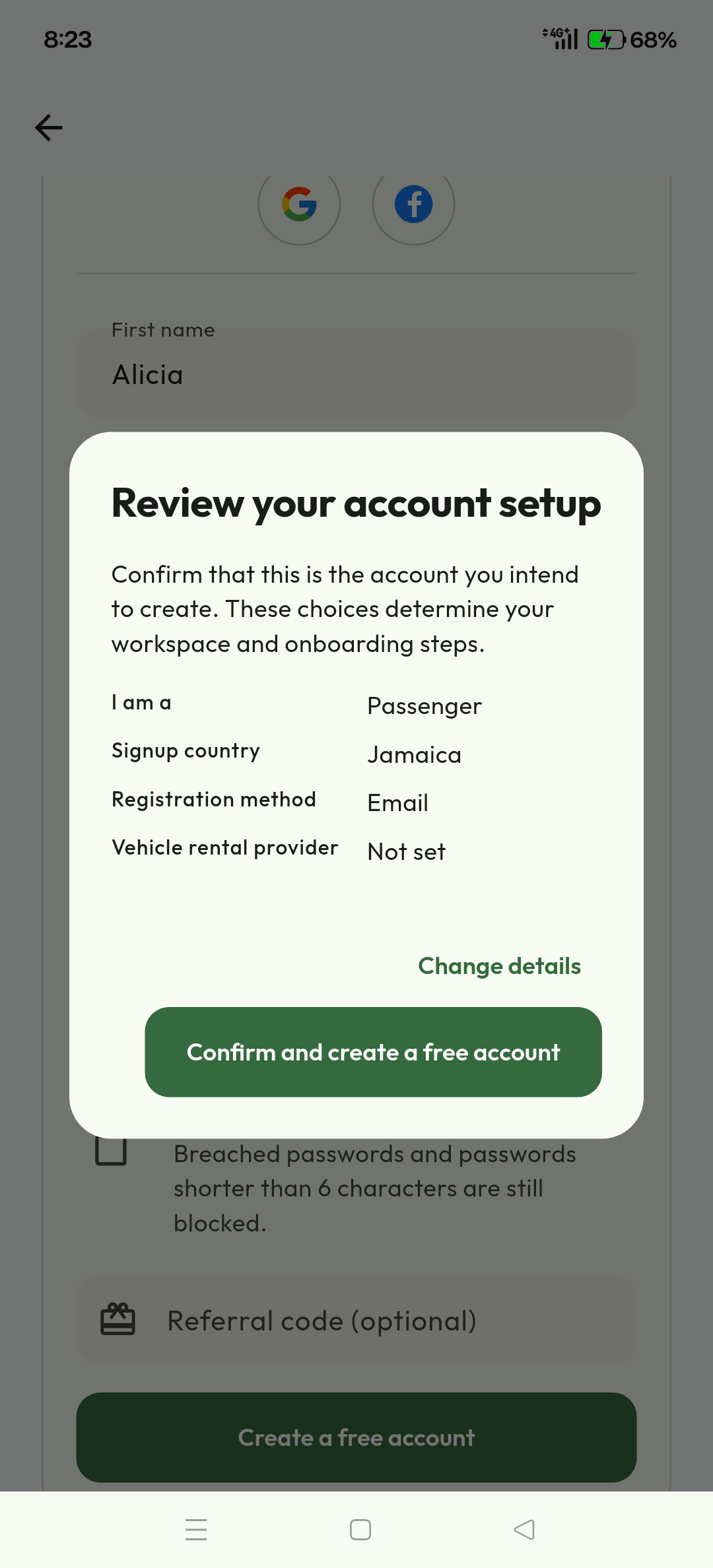
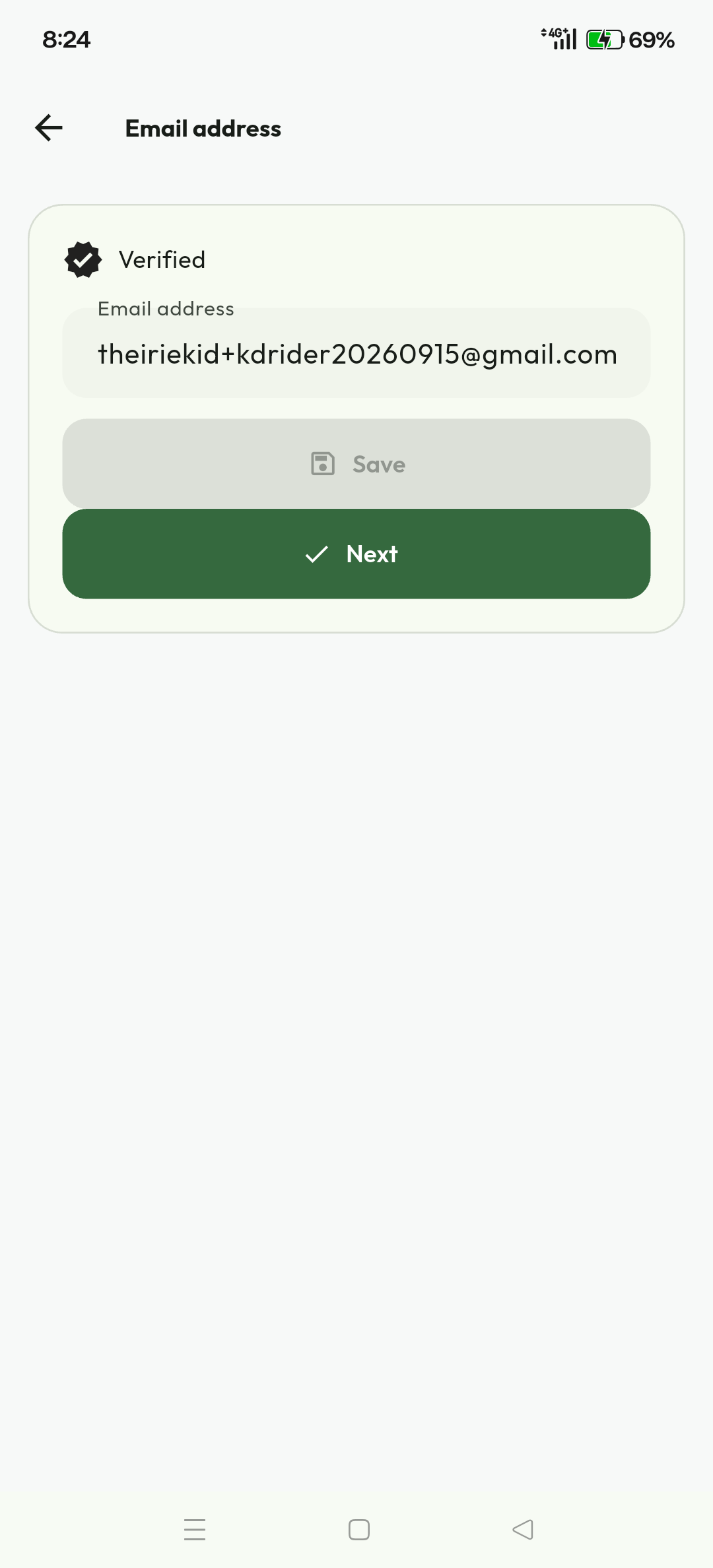
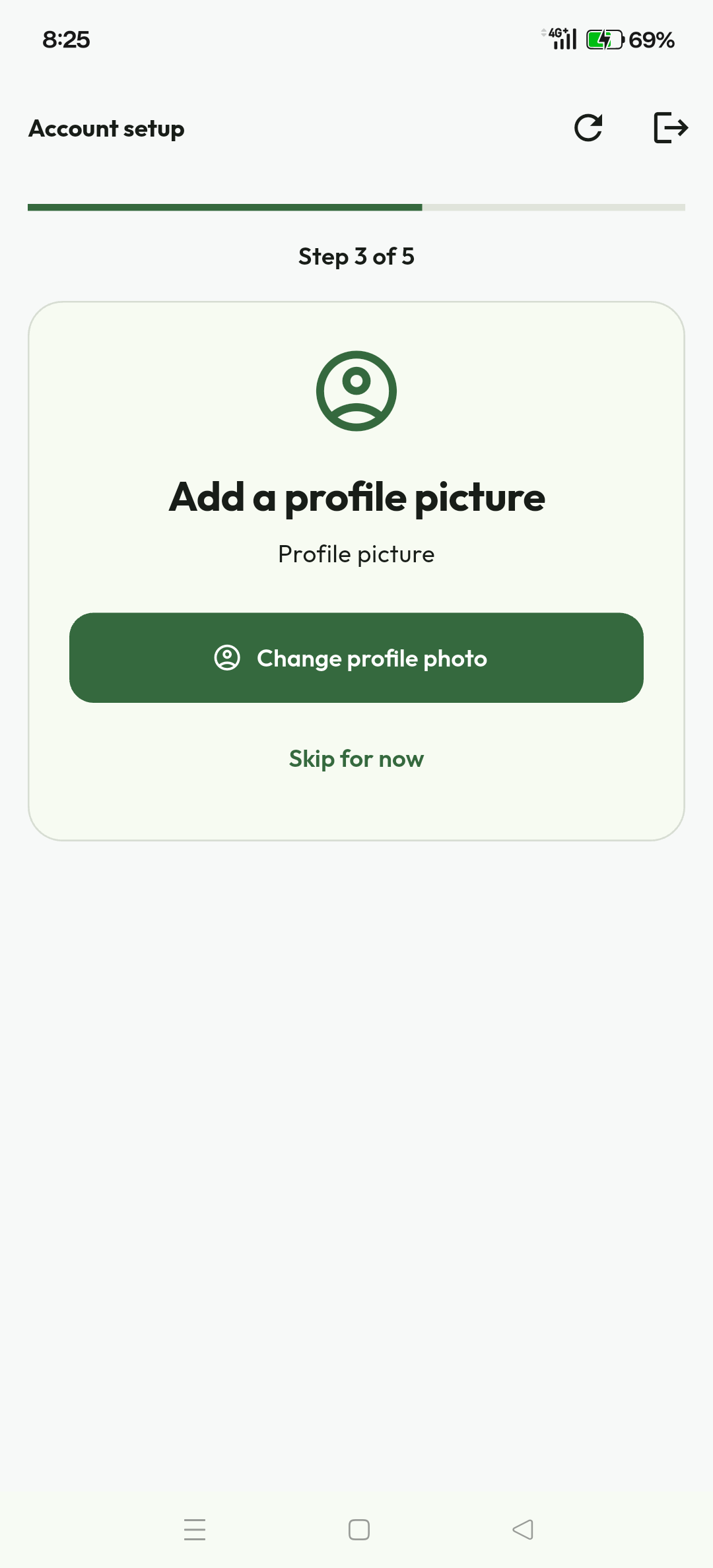
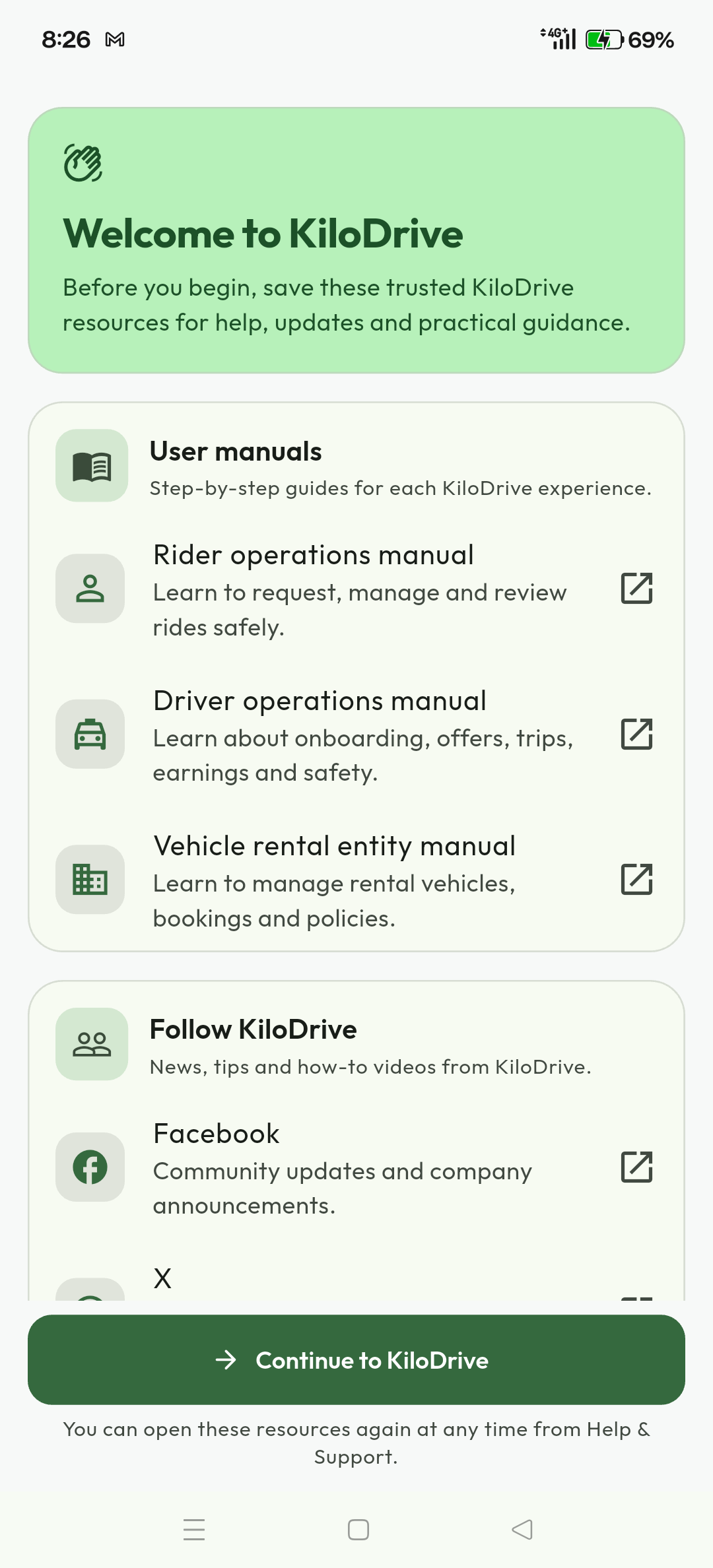
Captured on a physical Android device during the build 120 certification run. The current manual release is source-derived; live policy, text and availability remain authoritative.
Rider workflow 1Request a ride and choose a driver
Set pickup and destination, review the route and fare, choose ASAP or a valid scheduled time, then submit once. The request screen shows expiry, dispatch scope and estimate confidence. An estimate is not a guaranteed driver, pickup time or final price.
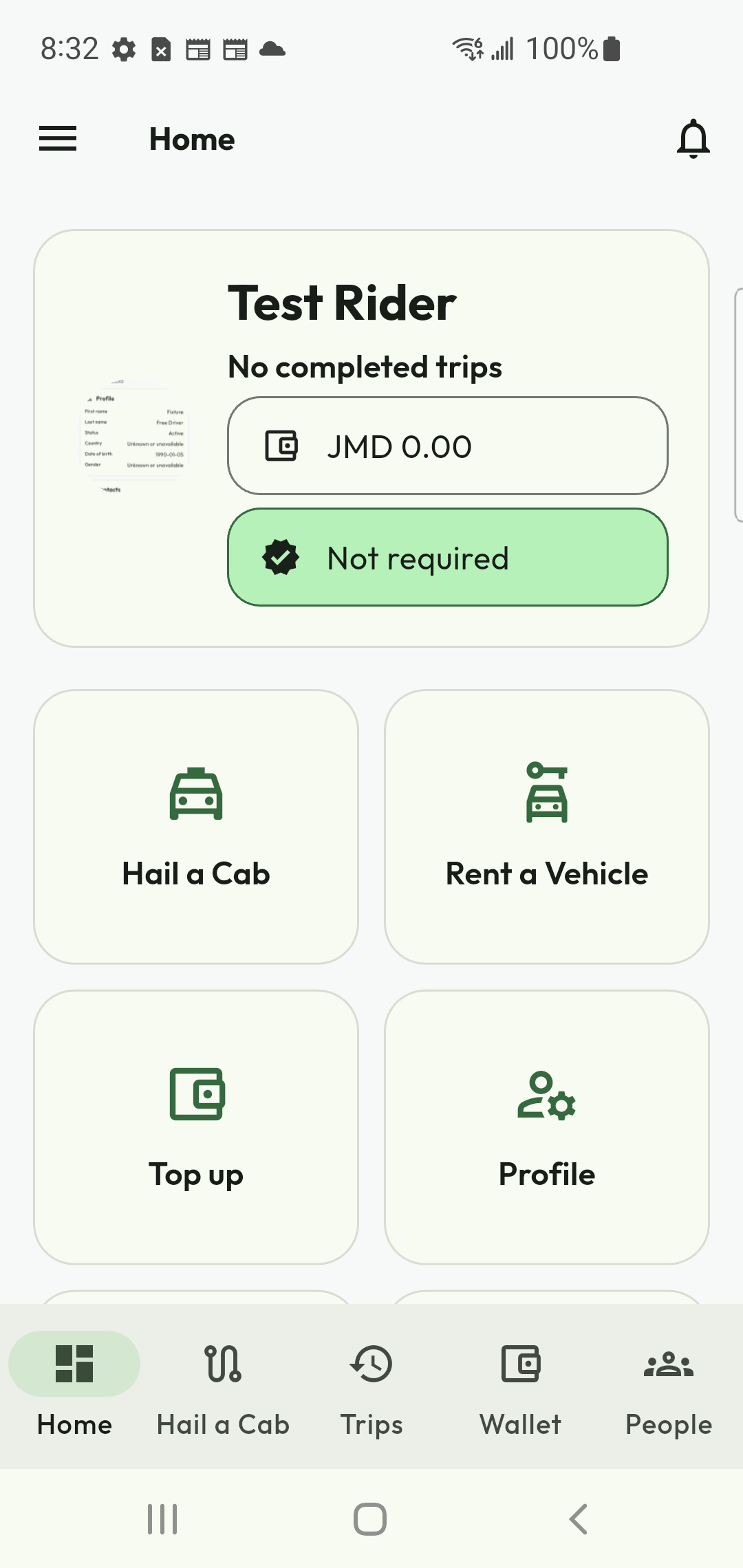
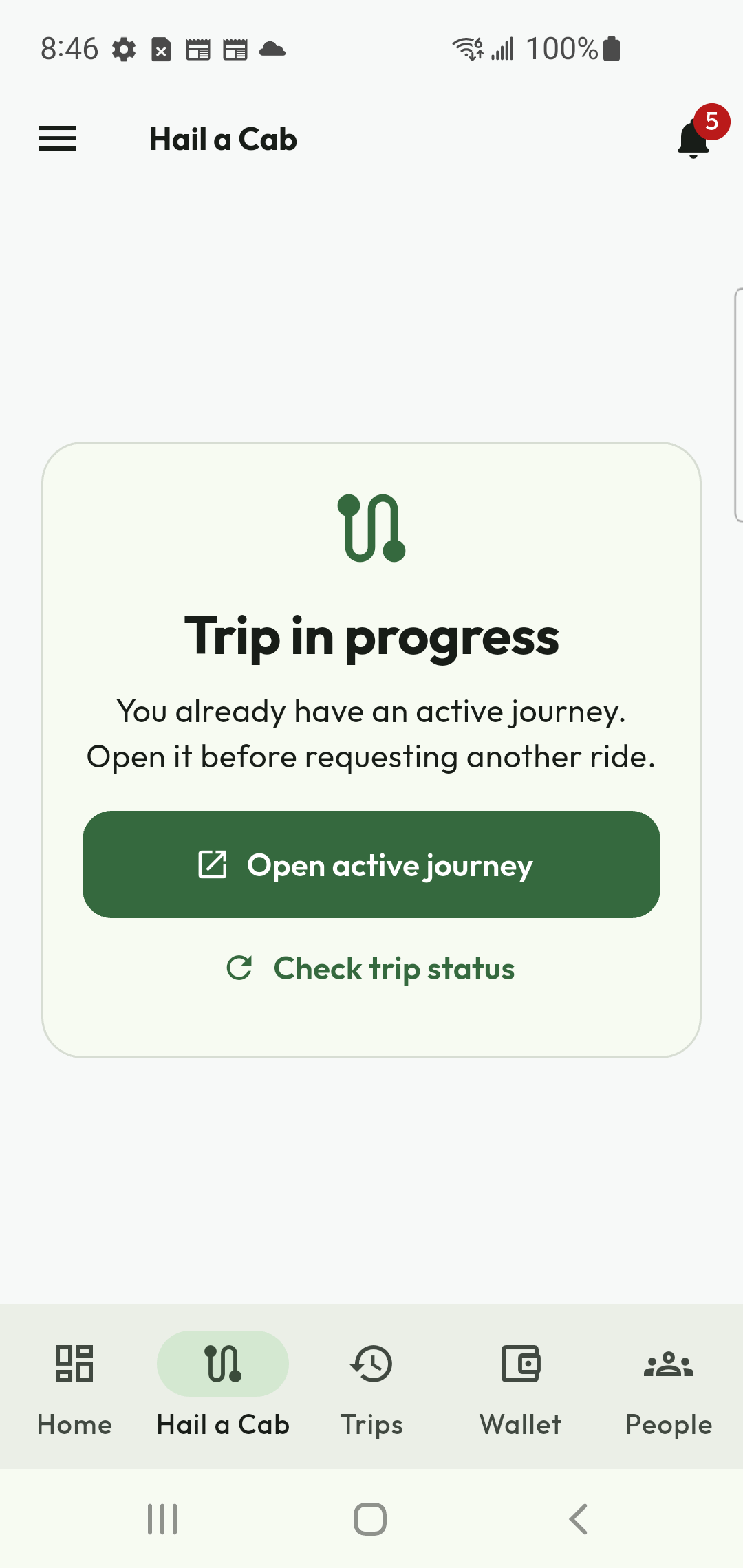
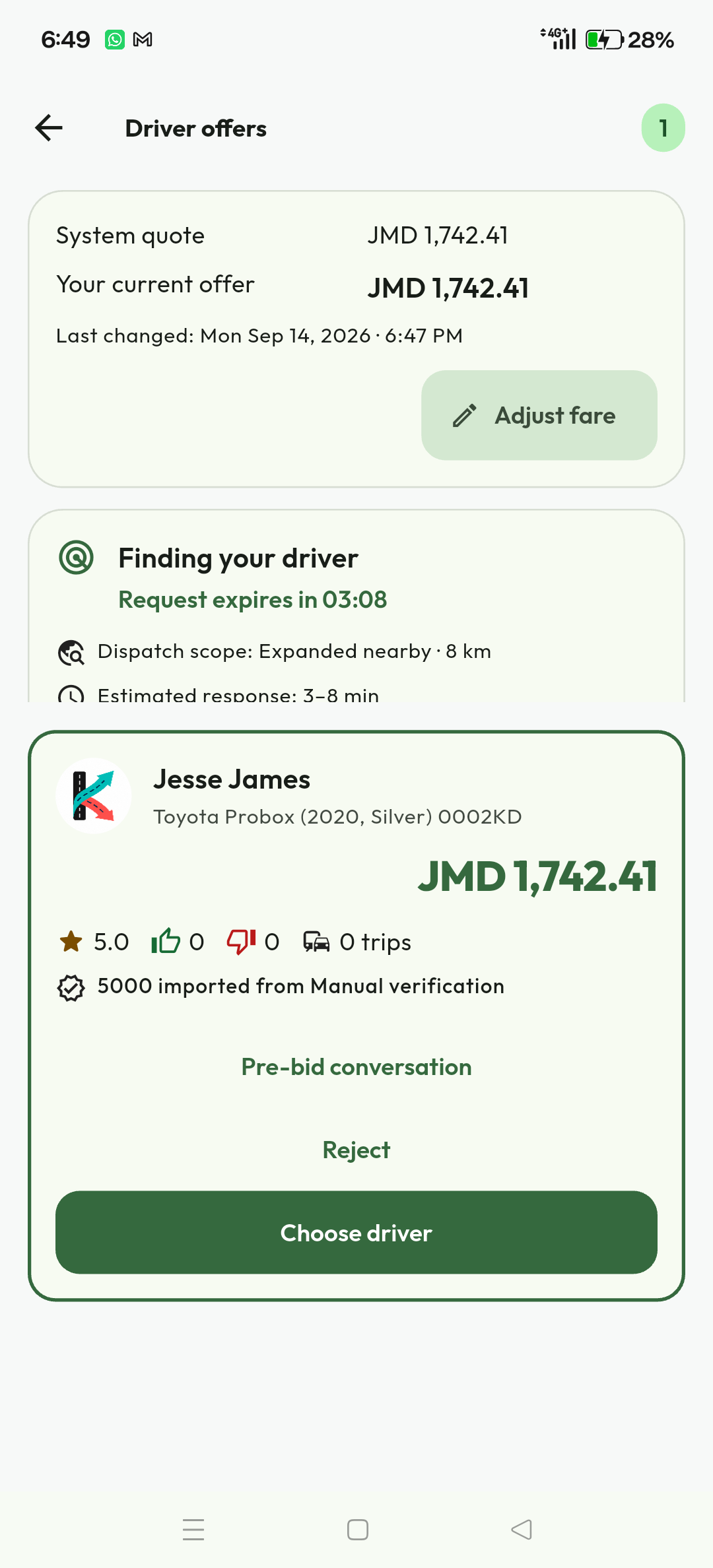
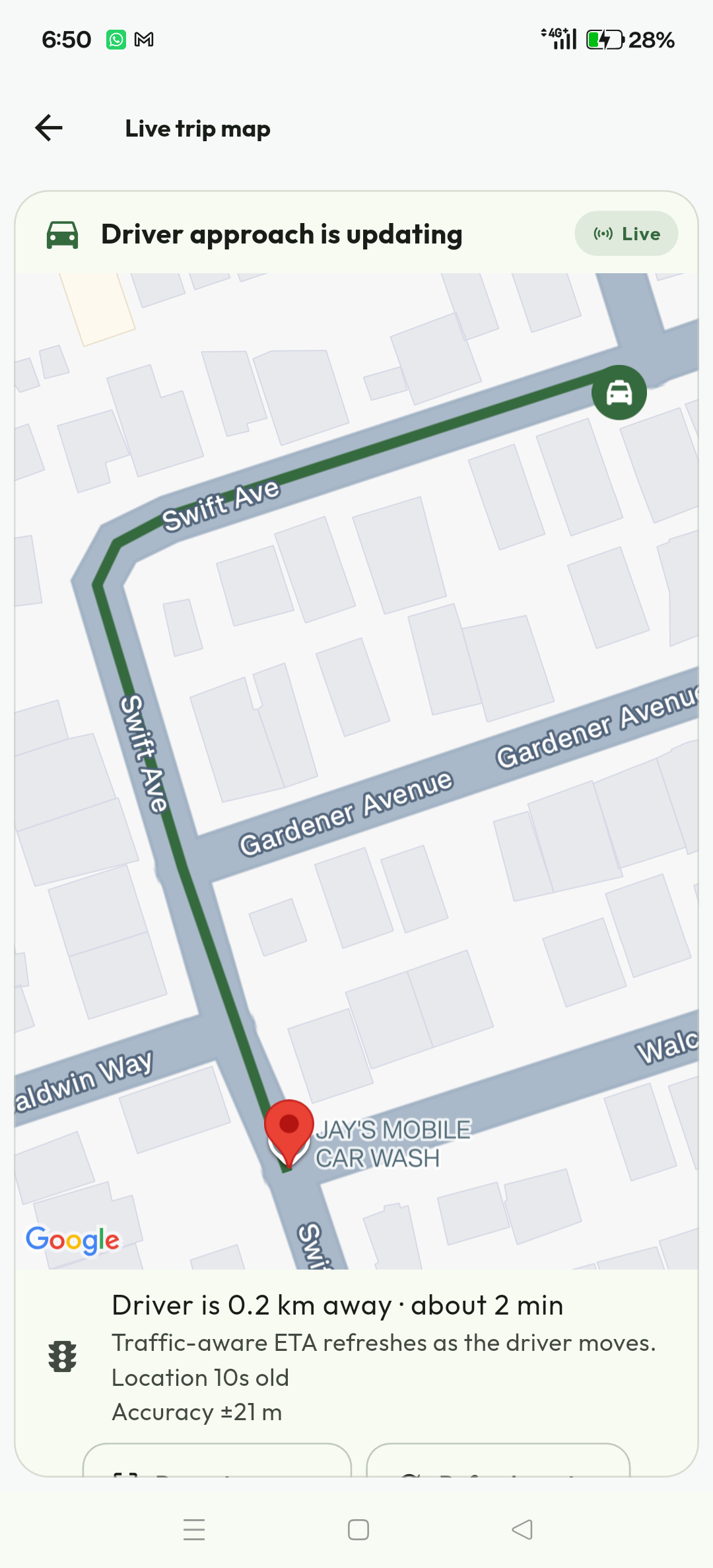
Expected result. A successful acceptance creates one assigned trip and closes competing offers. If the revision changed, reload and review the new state before deciding again.
Rider workflow 2Chat, call, cancel, and review history
Trip communication identifies the other party by full name and role. Messages can queue during a short connection loss. Calls show incoming, connected and ended states; the chat timeline records call outcome and duration. Use the cancellation action only after reviewing the fee and trip state.
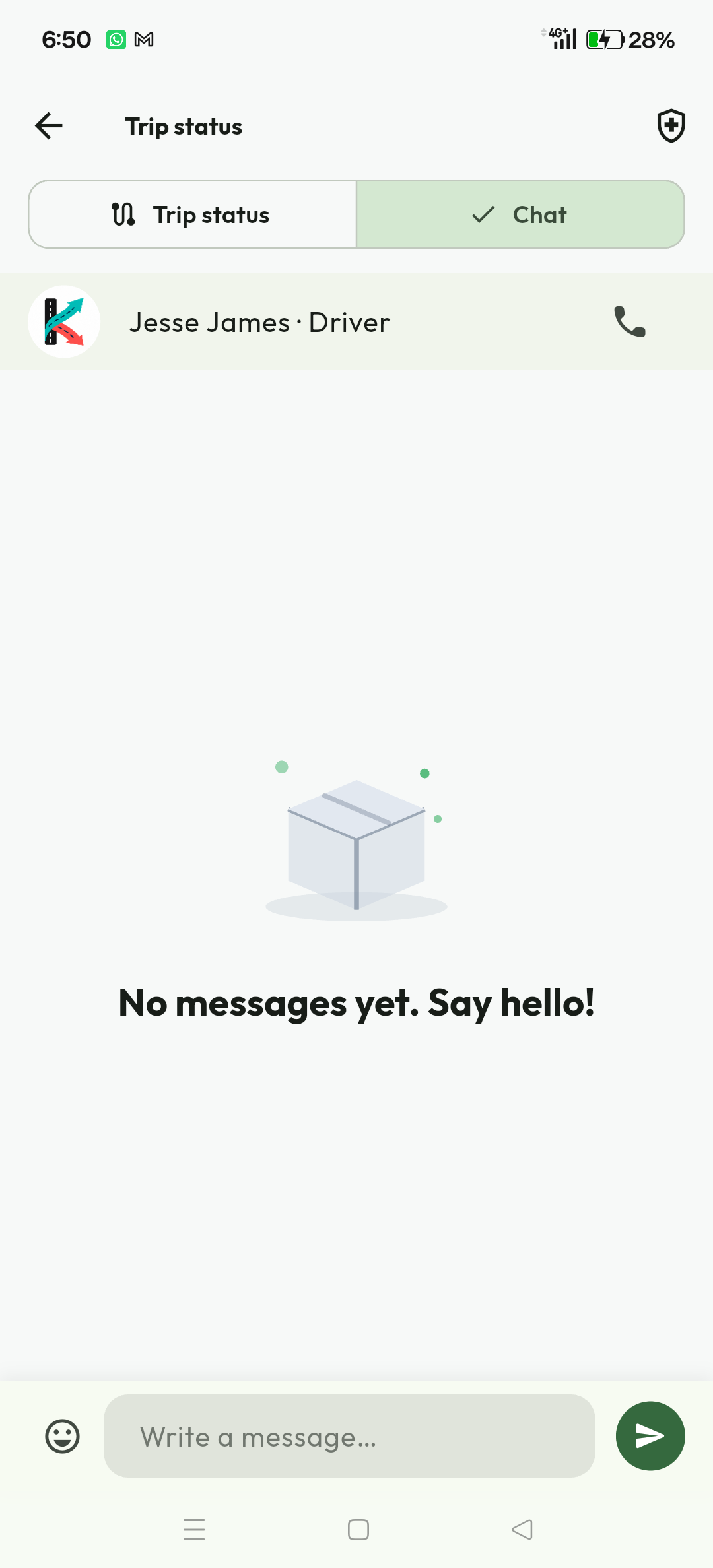
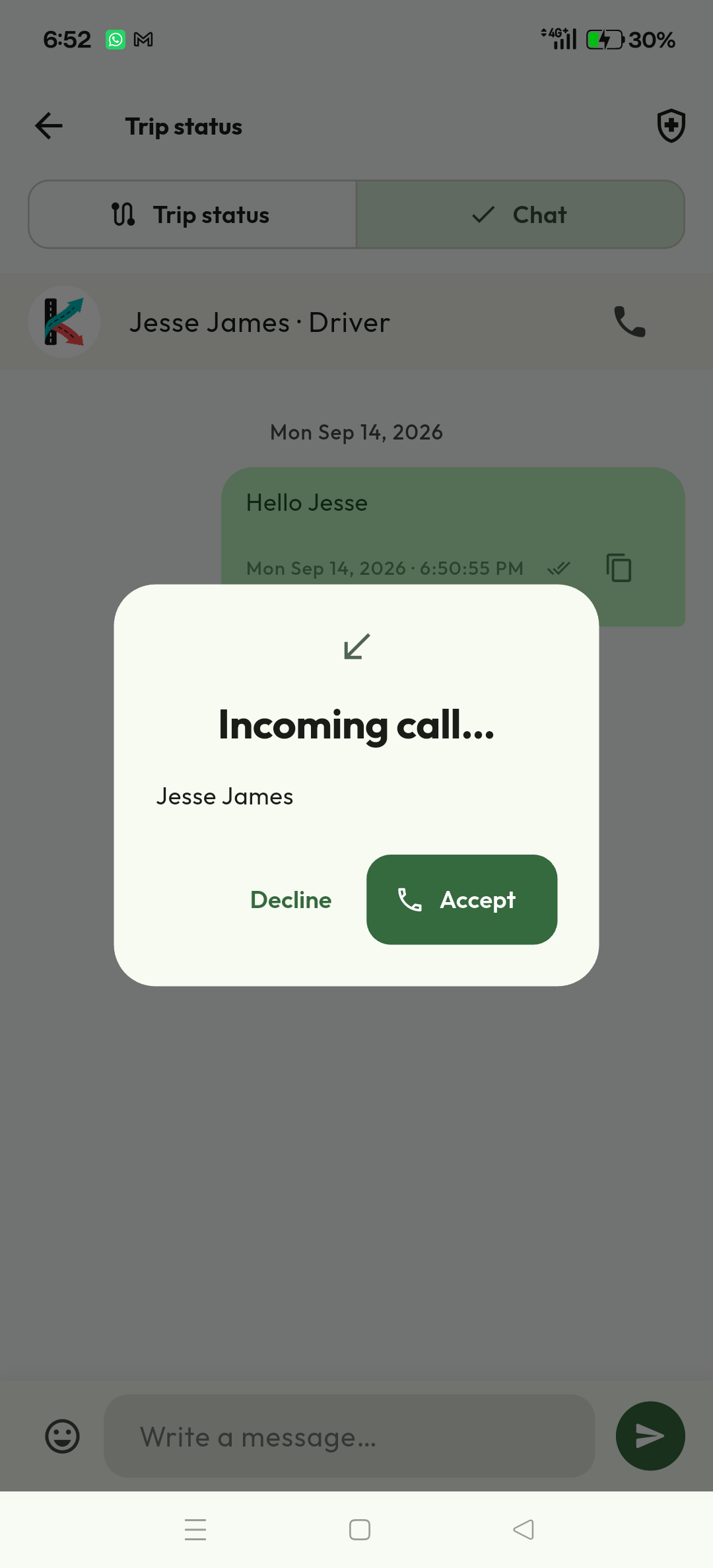
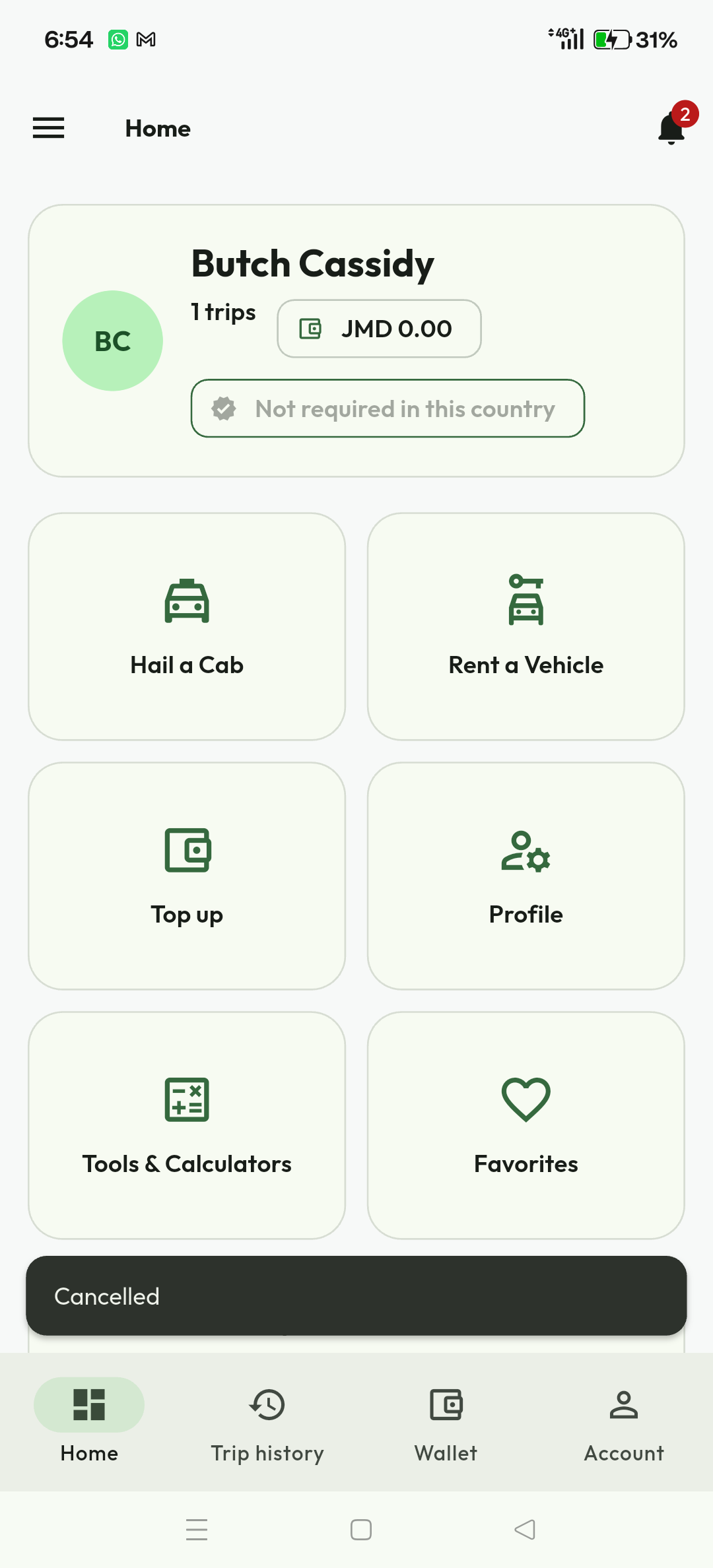
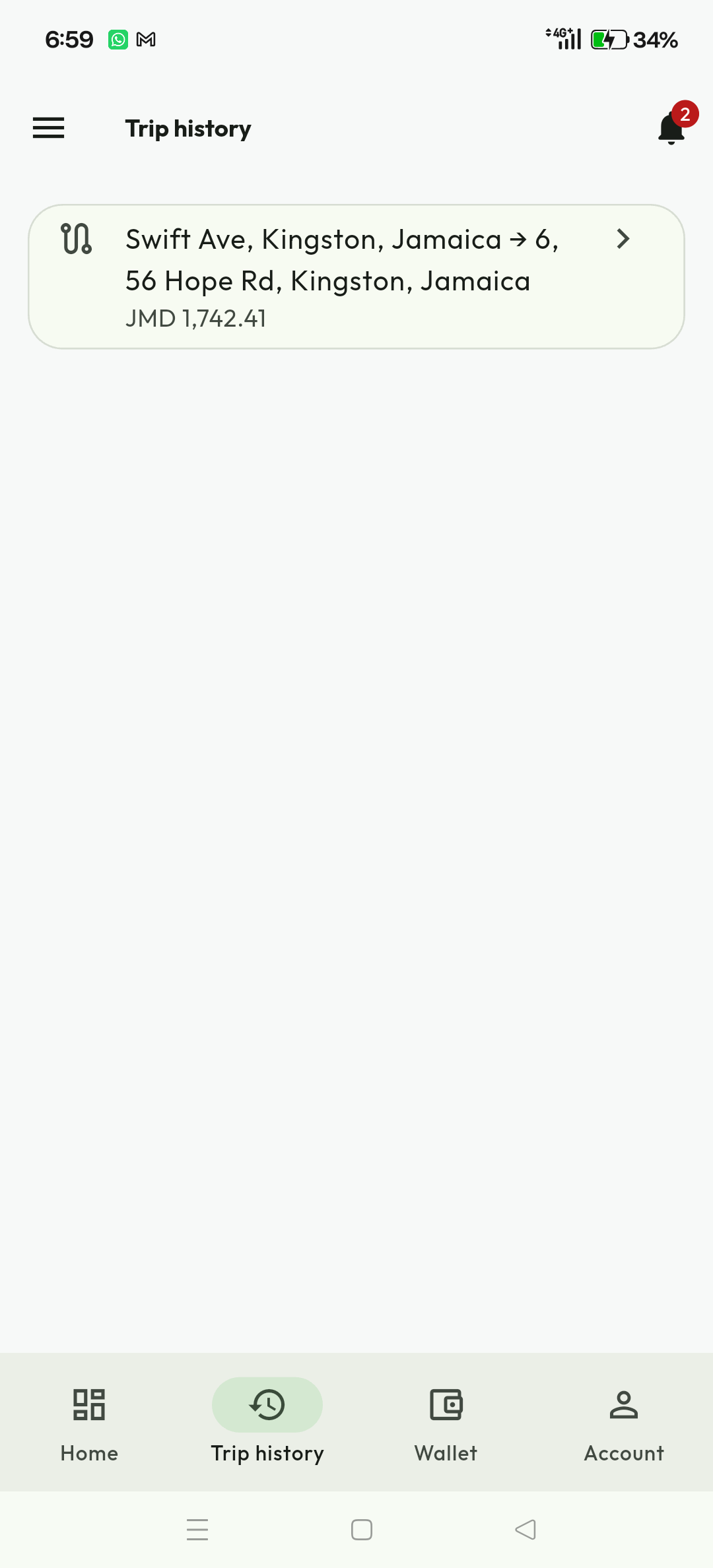
Expected result. Both parties see the same authoritative lifecycle after refresh. For an emergency, use the in-trip safety control and contact local emergency services; do not wait for ordinary support.
Rider workflow 3Task procedure and recovery reference
| Task | Expected result | If the result differs |
|---|---|---|
| Email registration | Verification countdown appears; a valid code verifies the named email and resumes onboarding. | Check spam and device time, request one new code after allowed, and keep the latest code only. |
| Profile picture | The cropped preview returns to the same wizard step and can be saved; Skip also advances. | Keep the app open, grant photo/camera access, retry once, then report KD-2001 with the correlation ID. |
| Legal acceptance | Every mandatory current document is readable and accepted; the rider dashboard opens. | Do not accept stale terms. Retry catalogue loading and use the displayed support path. |
| Create ride | One request shows pickup, destination, proposed fare, expiry and searching state. | Correct map/location fields. If outcome is being checked, do not submit another request. |
| Accept bid | One driver is assigned and other bids close. | For a version conflict, reload offers and review the current winner/status. |
| Chat or call | Participant name and role are visible; sent/delivered or call-state evidence appears. | Use the same queued item, check connectivity/permission, or use the safe fallback. |
| Trip completion | Trip, payment and receipt show determinate status; rating actions appear when eligible. | If payment is unknown, do not pay again. Refresh and contact support with KD-4001 and correlation ID. |
| Wallet top-up or voucher | One balance/ledger credit appears in the correct currency after confirmed completion. | Never repeat an unknown top-up. Reconcile the original payment/card operation first. |
| Support or dispute | One case/reference is created and remains linked to the trip/payment. | Add follow-up evidence to the same case; do not open duplicate cases for the same event. |
KiloDrive support codes
| Code | Meaning | Safe next step |
|---|---|---|
| KD-1001 | Invalid or incomplete request | Correct highlighted information, then submit once. |
| KD-1002 | Sign-in required | Sign in again and return to the task. |
| KD-1003 | Access denied | Confirm the correct account/workspace and complete prompted security proof. |
| KD-1005 | State changed or conflict | Refresh the record and review the latest state. |
| KD-1006 | Original operation in progress | Wait and check the same operation; do not submit a duplicate. |
| KD-1007 | Too many requests | Wait for Retry-After, then try once. |
| KD-1008 | Service temporarily unavailable | Wait briefly, retry once, then contact support if persistent. |
| KD-1009 | Unexpected or unconfirmed result | Refresh the affected status before another mutation. |
| KD-2001 | Verification or onboarding incomplete | Open Account setup or Verification and complete the named item. |
| KD-3001 | Ride, bid or trip state prevents action | Refresh the trip and use the action allowed in its current state. |
| KD-3002 | Location or route unavailable | Check GPS, permission and connection; refresh location. |
| KD-4001 | Financial result unknown | Do not repeat payment; reconcile the original operation. |
| KD-4002 | Financial operation rejected | Review the provider/payment instructions before trying again. |
| KD-4003 | Balance, limit or safety rule | Review available versus held balance and the displayed limit. |
| KD-5001 | External provider unavailable | Use the offered alternative or retry once later. |
| KD-6001 | Feature unavailable | Complete prerequisites, update the app, or follow country/policy guidance. |
Always give support the KD code and correlation ID together. Never send a password, verification code, token, complete card or bank number, identity document, or public screenshot containing private data.
Rider referenceCurrent workflow and recovery
Choose your country and Ride role and retain these choices through registration. Manual email signup requires email confirmation before proceeding. Use the country calling code when adding a phone number; where policy permits, verified email allows the phone confirmation step to be skipped. Complete the profile picture and current legal acceptance. Tools and calculations can be used without an account; saving or bookmarking requires sign-in.
Your rider identity and onboarding requirements are separate from driver activation. Drivers must satisfy the applicable profile, document, vehicle, membership/trial, payout and safety rules before receiving eligible work. The API checks those rules; a nearby map marker is not a guaranteed available driver.
Review the latest offer, trip or booking before a state-changing action. A stale revision means another decision changed the record. Reload and review it before continuing. During a trip, expand the map for route context and use trip details for the next permitted arrival, start or completion control. Stale or inaccurate GPS is not proof of arrival. Avoid interacting with the app while driving.
Calls and chat require available connectivity, eligibility and provider service. Use the safe support/contact alternatives when they are unavailable. Read aloud is optional in accessibility settings and hidden by default. A timeout does not prove that a payment failed: check the original outcome and keep its support reference before another submission. Keep currencies separate when reviewing money.
Authorized operators can use the expandable mobile management domains for people, operations, finance, support, communications, system and insights. Follow the mobile administrator guide for evidence review, readiness refresh, top-up issuance and read-only investigation. A visible route is not proof that every mutation or provider is certified.
Current workflowGlossary
- Bid
- A driver's acceptance or counter-offer for a rider's open request. The rider, not the ranking engine, selects the driver for a standard ride.
- Any driver
- A country-wide request option for eligible drivers beyond the Near Me dispatch expansion.
- Scheduled guarantee
- A future ride state reached only after driver reconfirmation and eligibility checks. A scheduled request can remain not guaranteed.
- Travel profile
- An authorized family or business workspace for members, delegated booking, cost centers, policy, statements, notifications, and selected live tracking.
- Chain of custody
- The ordered parcel pickup, OTP/QR, evidence, stop, delivery, failed-attempt, and return events.
- Country cell
- The country-scoped database boundary that owns local trips, wallets, settlements, rentals, notifications, and operational records.
- Held funds
- Wallet value reserved for an accepted service. It is unavailable for spending until captured, released, or refunded.
- RideCheck
- Consent-based safety monitoring that compares active-trip telemetry with the planned route and checks for material deviation or an unexpected stop.
- Smart ranking
- Candidate filtering and ETA-based ordering used to decide which eligible drivers are notified first. It does not auto-assign standard negotiated rides.
- Trip share
- A short-lived, revocable web link that lets a trusted contact see an authorized subset of active-trip status and location.
- Wallet ledger
- The immutable transaction history supporting the displayed available and held balances. Financial amounts use ISO currency and integer minor units.
Index
Account deletion 16–17
Address search 8–10
Any driver 8–10
App lock 16–17
Bank transfer 13–14
Bids 8–10
Calculators 18
Cash/COD 8–10
Data export 16–17
Delivery escrow 11
Family/business profile 8–10
Identity verification 7
Membership 15
Notifications 19
OTP 5–6
Parcel 11
Payment 13–14
Portal 19
Privacy 16–17
Profile picture 7
Rental 12
Reports 19
Scheduled ride 8–10
Scheduled guarantee 8–10
Security 16–17
Support ticket 20
Tolls 18
Top-up card 13–14
Traffic 8–10
Vehicle loan 18