 KiloDrive
Vehicle Rental Entity Operations Manual
For individual rental providers, sole traders, companies, owners, fleet teams, finance officers, booking agents, inspectors, and auditors.
Reconciled 15 September 2026
Current package and contract: official release facts
Copyright and publication information
Copyright © 2026 Eprecus LLC. All rights reserved.
KiloDrive, the KiloDrive road mark, product names, interfaces, documentation, and original illustrations are owned by or licensed to Eprecus LLC. No part of this publication may be reproduced, redistributed, altered, sold, or represented as official KiloDrive guidance without written permission, except for reasonable personal use and quotations permitted by law.
Edition: 3.0 Publication date: 15
September 2026
Applies to: KiloDrive mobile
applications and portal as described at publication.
This manual explains normal product operation; it is not legal, financial, tax, insurance, medical, or emergency-services advice. In-app terms, plan limits, prices, jurisdiction rules, and administrator-configured controls prevail where they differ from an example in this publication.
OpenStreetMap-derived routing data is used under the Open Database License. Apple, iOS, App Store, Google, Android, Google Play, and other third-party marks belong to their respective owners.
Table of contents
Edition 3.0: current workflow, expected results, and recovery
Rental task procedures, expected results, and support codes
Introduction
This manual is the operating reference for individual rental providers, organizations, owners, and authorized rental-team members. It explains how to prepare a secure account, complete the main service workflows, understand money and membership controls, respond to safety events, and obtain support.
How to use this manual
- Read Requirements and permissions before installing or using the portal.
- Complete the account, identity, and role-specific setup chapters in order.
- Use the operational chapters while performing rides, deliveries, rentals, billing, or administration.
- Consult the safety and incident material before an emergency occurs.
- Use the appendices for technical detail and the final index for subject lookup.
Conventions
Menu → Destination identifies a navigation path. A green callout is operational guidance, amber is a warning, and red identifies immediate safety or loss risk. Currency means the ISO currency of the active country unless expressly stated otherwise. Times originate as UTC and display in the appropriate local timezone.
Minimum requirements and permissions
Mobile application
| Platform | Minimum | Recommended operating condition |
|---|---|---|
| Apple iPhone/iPad | iOS/iPadOS 15.0 or later | Current supported OS release, automatic security updates, working GPS, camera, microphone, notifications, and internet. |
| Android phone/tablet | Android 7.0 (API 24) or later | Android 10 or later, Google Play services where required, current security patches, working GPS, camera, microphone, notifications, and internet. |
Install only from the official App Store or Google Play listing. A stable mobile-data or Wi-Fi connection and access to https://api.kilodrive.com are required for sign-in, current availability, live trip/rental state, payments, and synchronization. Offline-safe actions remain limited and will clearly show pending or failed state.
Permissions
- Location while using the app: pickup, nearby services, navigation, dispatch, route safety, and live trip progress.
- Background/always location: requested only for role and active-service functions that require continued trip or driver telemetry; users receive an explanation before the OS prompt.
- Camera: profile, identity, vehicle, damage, and document capture; in-app calling does not require camera unless a future video feature expressly requests it.
- Photos/files: user-selected images and PDFs through the operating-system picker; KiloDrive does not require broad library access for occasional uploads.
- Microphone: in-app voice calls and voice-enabled features.
- Notifications: OTP/security, bids, trip, delivery, rental, membership, payment, and support alerts.
- Biometrics: optional device biometric app lock; biometric templates remain under operating-system control.
Accessibility and display
Settings → Appearance supports light/dark themes, high contrast, and font scaling up to 1.3×. Critical screens are designed for 320-pixel phones, portrait/landscape tablets, keyboard insets, semantic labels, logical screen-reader order, and minimum touch targets. Currency, timezone, and kilometre/mile presentation follow the selected country and device preferences. Report a clipped, unlabeled, or unreachable control through Support with the screen and device details.
Portal
Use a currently supported version of Chrome, Edge, Safari, or Firefox with JavaScript, TLS 1.2 or later, cookies/session storage, and a screen width of at least 320 CSS pixels. A 1280 × 720 display or larger is recommended for dashboards. PDF downloads require a viewer; exports require sufficient device storage. WebAuthn/passkeys require a compatible browser, HTTPS, and a device/platform authenticator. Do not use compatibility mode or an unsupported embedded browser.
vi–vii1. Rental-provider operating model
A KiloDrive rental provider can be an individual or an organization. It is a marketplace partner—not a KiloDrive country tenant—and operates in the country where pickup occurs.
Individual
Suitable for an owner/operator renting eligible vehicles under their own legal identity, subject to market rules.
Organization
Suitable for sole traders, LLCs and rental companies using legal/trading identity, registration, tax and team controls.
Customer marketplace
Customers browse by proximity, type, provider, availability, photos, price, rating and booking mode.
Provider operations
Owners and authorized team members manage branches, fleet, booking, handover, finance, ratings and reports.
Core lifecycle
Provider setup → verification → branches → vehicles/images → pricing/availability → booking qualification → confirmation → handover → active rental → return/inspection → settlement → dual-sided rating.
3–42. Create and verify the provider
- Choose Service Provider → Vehicle Rental during onboarding, then country and language.
- Sign in or create the central user identity through phone OTP, email/password, Google, Apple or Facebook where enabled.
- Choose provider type: Individual or Organization.
- Enter legal name, trading name, unique provider slug, country, local currency, timezone, registration/tax details and verified contacts.
- Complete owner identity/KYC and upload required business evidence to secure private storage.
- Submit for administrative review. A pending provider may configure draft operations but cannot publish unapproved inventory.
Country scope
Country, currency and timezone must match the active country cell. A Barbados pickup belongs to Barbados operational data even if the owner’s home identity originated elsewhere.
Verify a provider contact by voice
An owner or authorized team member may choose Call me with a code from Contact details. KiloDrive uses AWS End User Messaging Voice to call the international-format number and read a six-digit code twice. Resend is blocked for 30 seconds, the challenge expires after ten minutes, and repeated failures lock it. SMS or WhatsApp may be offered as alternatives.
3. Team, roles, permissions, and invitations
| Role | Typical responsibility |
|---|---|
| Owner | Full control, billing-mode changes, membership purchase, team governance. |
| Fleet Manager | Vehicles, branches, availability, operations. |
| Booking Agent | Requests, approvals, customer communication. |
| Finance Officer | Billing/finance visibility, settlement and reports as granted. |
| Vehicle Inspector | Handover/return condition and evidence. |
| Auditor | Read-only audit and finance review as granted. |
Invite a member
- Open Rental operations → Team.
- Enter the member’s verified email, choose a non-owner role, and grant the minimum permissions needed.
- Send the invitation. The recipient opens the verified HTTPS app-link or safe web fallback.
- The bearer token is validated for hash, expiry, email and replay; superseded invitations are revoked.
- After acceptance, review active role and permissions. Disable access immediately when employment/contract ends.
4. Branches and pickup hubs
- Open Branches and choose Add branch.
- Enter a clear public name, full address, precise map coordinates and IANA timezone.
- Confirm customer access, opening/handover instructions and operational contact details.
- Activate the branch only when vehicles and staff can fulfill bookings.
- Assign every vehicle to the correct branch. Update availability before temporarily closing a hub.
Accurate coordinates power proximity search and map discovery. Do not place the pin at a private/off-limits location unless customer instructions clearly identify an authorized handover point.
95. Vehicle catalog and images
- Choose Add vehicle under the correct provider and branch.
- Select central manufacturer/model/year attributes; enter category, transmission, fuel, seats, color and exact plate/tag.
- Add description, included daily kilometres, extra-kilometre rate, deposit and booking mode.
- Upload high-quality exterior, interior, cargo and feature images. The app crops, corrects rotation and compresses before the 10 MB upload.
- Set an intentional cover-image order. Inspect phone and tablet previews for correct aspect ratio and no distortion.
- Upload registration, insurance and required compliance evidence; submit for review.
- Publish only when approved, maintained and actually available.
Image standard
- Use current photos of the exact vehicle, not stock imagery.
- Show all sides, cabin, odometer/fuel where relevant and existing material damage.
- Remove faces, private documents and unrelated licence plates.
- Replace outdated images after material changes.
6. Pricing, availability, and discovery
Configure price
- Base hourly/daily/weekly/monthly rates where available.
- Weekend, seasonal or demand adjustments.
- Security deposit/preauthorization amount.
- Included mileage and overage rate.
- Add-ons: child seats, additional driver, fuel, delivery/collection, mileage package.
- Taxes, platform fees and other mandatory disclosures.
Configure availability
- Block confirmed booking periods and maintenance/unavailable dates.
- Choose Instant Book for renters who meet automated criteria or Request to Book for manual approval.
- Set licence, age, score, deposit and risk criteria fairly and lawfully.
- Review the marketplace listing by date, type, proximity and provider search.
The calendar separates customer bookings, owner blocks, maintenance, inspections, delivery/collection time, and extension holds. A vehicle must never be sold twice because two channels cached different availability.
7. Booking lifecycle and renter review
Detailed states include Quote, Payment Authorized, Confirmed, Checked In, Active, Checked Out, Returned, Settled, and Disputed.
Before approval
- Review dates, vehicle, branch/delivery request, renter identity, licence/age verification, authorized drivers and risk score.
- Review payment/deposit status without exposing full payment data.
- Approve or decline according to documented, lawful criteria. Provide a clear reason where appropriate.
Handover
- Verify renter and authorized-driver identity in person or approved remote flow.
- Record odometer, fuel/charge, cleanliness, accessories and condition with timestamped photos.
- Explain controls, emergency contact, mileage, toll, fuel, smoking/pet and return requirements.
- Obtain required digital acceptance and release keys/digital access only after confirmation.
7.1 Return, closeout, and exceptions
Return and closeout
- Record actual return time, odometer, fuel/charge and condition.
- Calculate supported overtime, mileage, toll, fuel and add-on differences with evidence.
- Report damage through the dispute/inspection flow; do not privately alter a deposit.
- Finalize charges, release unused deposit and close the booking.
- Rate cleanliness, return punctuality, mileage adherence and communication fairly.
Exceptions that need their own workflow
- No-show or cancellation: apply the snapshotted policy and record the reason.
- Extension or late return: recheck availability, price the extra period, and confirm before extending.
- Damage: open a claim with pre/post evidence, estimate, decision, and dispute status.
- Maintenance/safety: block the vehicle immediately and prevent new handover.
- Optional delivery/collection: record handover location, fee, custodian, and timestamps.
8. Deposits, settlement, and accounting
Security deposits
Use PSP preauthorization where available. A hold is not revenue. Release it after successful closeout or capture only an evidenced, contractually authorized amount through the dispute/settlement workflow.
Settlement
Payment records identify gross booking amount, taxes/fees, platform share, provider net and status. Provider payouts use configured destinations and reconciliation controls. Unknown PSP outcomes must be reconciled before retry.
For bank payout setup, choose an institution from the selected country's regulated catalog, then choose one of that institution's active branches, account type and ISO currency. Branch catalog codes identify the selection inside KiloDrive and are not bank clearing/transit numbers. Verify the destination carefully before confirming; saved views display masked details only.
Billing and reports
- Open Billing to review membership mode, plan, expiry, supported payment methods and billing history.
- Open Finance/Reports for booking revenue, fees, refunds, deposits, settlement and payout reconciliation.
- Export records for the selected period; use local currency and timezone context.
- Restrict finance access to Owner/Finance roles and preserve audit history.
Owner analytics can summarize utilization, booked days, gross and net earnings, deposit exposure, refunds, damage/late-return adjustments, maintenance downtime, payout state, and vehicle ratings. Forecasts are planning aids - never guaranteed bookings, revenue, or payout dates.
Fleet access without percentage commission
9. Rental-provider membership benefits and limits
Rental providers choose Free, Silver, or Gold access. KiloDrive does not deduct a percentage marketplace commission from an ordinary rental settlement under membership mode. Taxes, provider costs, refunds, chargebacks, damage settlements, payout costs, and other disclosed amounts remain separate. Membership never guarantees a booking or a level of earnings.
Rental Free
No subscription price- Published allocation: one active fleet vehicle
- Owner-led core operations
- Basic history and wallet access
- No paid service period
Rental Silver
Review the current store price- Published allocation: up to five active fleet vehicles
- Team, availability, and reporting tools
- Up to five vehicle changes per term
- 7-, 30-, or 90-day terms
Rental Gold
Review the current store price- Published allocation: up to twenty-five active fleet vehicles
- Expanded team operations and analytics
- Up to twenty-five changes per term
- Highest configured rental limits
10. Billing, purchase, renewal, and expiry
Purchase membership
- An Owner opens Membership and checks the current plan and actual fleet usage.
- Choose an active rental-audience plan and 7-, 30-, or 90-day term.
- Review the store-localized price, limits, automatic-renewal disclosure, Privacy Policy, Terms of Service, and service dates.
- Confirm the native store purchase. KiloDrive grants access only after the API verifies the signed Apple transaction or Google purchase token and binds it to the provider owner.
- Wait for the server-verified entitlement. If acknowledgement is pending, do not purchase again. Use Restore Purchases after a reinstall and manage renewal in the platform subscription manager.
Renewal and lifecycle states
Billing distinguishes active, acknowledgement-pending, grace/retry, expired, refunded, revoked, and resubscribe states. Store notification processing, payment, entitlement, and immutable audit evidence must agree. A refund, revocation, or chargeback may remove access for the affected service period without deleting booking history.
11. KYC, risk, safety, security, and privacy
Renter qualification
Use verified DOB, identity, driver’s licence, OCR/biometric outcome where configured, authorized drivers, renter score and global risk flags. Automated signals support—not replace—lawful human review.
Dual-sided reputation
Providers rate renters on defined operational criteria; renters rate maintenance, listing accuracy and customer service. Never retaliate against a truthful review or manipulate ratings.
Vehicle safety
Maintain inspection, registration and insurance. Telematics, geofencing or immobilization require lawful authority, transparent notice and safeguards. Never immobilize a moving vehicle.
Security and privacy
- Use individual team accounts, least privilege, 2FA and prompt access removal.
- Do not download or share renter identity files outside authorized workflows.
- Keep support, verification and document uploads centralized and access-controlled.
- Use data export/deletion workflows; preserve financial/safety records required by law.
- Report fraud, unauthorized drivers, smoking, theft or severe damage with evidence and neutral language.
12. Privacy and data-protection operations
Rental providers act only within their authorized booking and legal purpose. Use least-privilege team roles, unique accounts and 2FA; remove departed members immediately. Identity, licence, selfie, background-check, telemetry and payment evidence must remain in KiloDrive private storage and must not be copied to personal devices, email or messaging apps.
Controls and rights
- Encrypted transport, private object storage, tenant/country isolation and audited administrative access protect records.
- Payment credentials, OTPs, secrets and private chat are excluded from operational logs.
- Access/export/correction/deletion requests follow the Privacy & Safety workflow; legal, fraud, finance and safety retention can override immediate erasure.
- Automated KYC/risk signals assist qualified staff and must not become unlawful discriminatory decisions.
- Suspected compromise, unauthorized disclosure or identity misuse must be escalated immediately with a preserved audit trail.
Background checks
Use only current, lawfully obtained verification results. Restrict raw documents to authorized reviewers, record the decision basis, permit correction/review, and never expose police or identity details to unrelated team members or customers.
23A–23B13. Calculator tools
| Tool | Rental-provider use |
|---|---|
| Vehicle loan/amortization | Model acquisition cost, deposit, rate, term, monthly payment and total interest. |
| Fuel | Estimate delivery/collection or expected operating fuel. |
| Mileage | Convert and estimate distance allowances/overages. |
| Jamaica toll | Estimate vehicle-class toll exposure by entry/exit and return journey. |
| Fare/route | Estimate service transport distance, time and route cost. |
- Open Tools in mobile, portal or public corporate website.
- Enter non-negative, correctly unitized assumptions.
- Save signed-in calculations for audit history.
- Export Letter-size PDF with logo, title, date and schedule where applicable.
Estimate acquisition and landed cost
Follow the calculator tools instructions with these captured examples. Each caption explains the controls actually shown; your available actions depend on account, country and current record state.
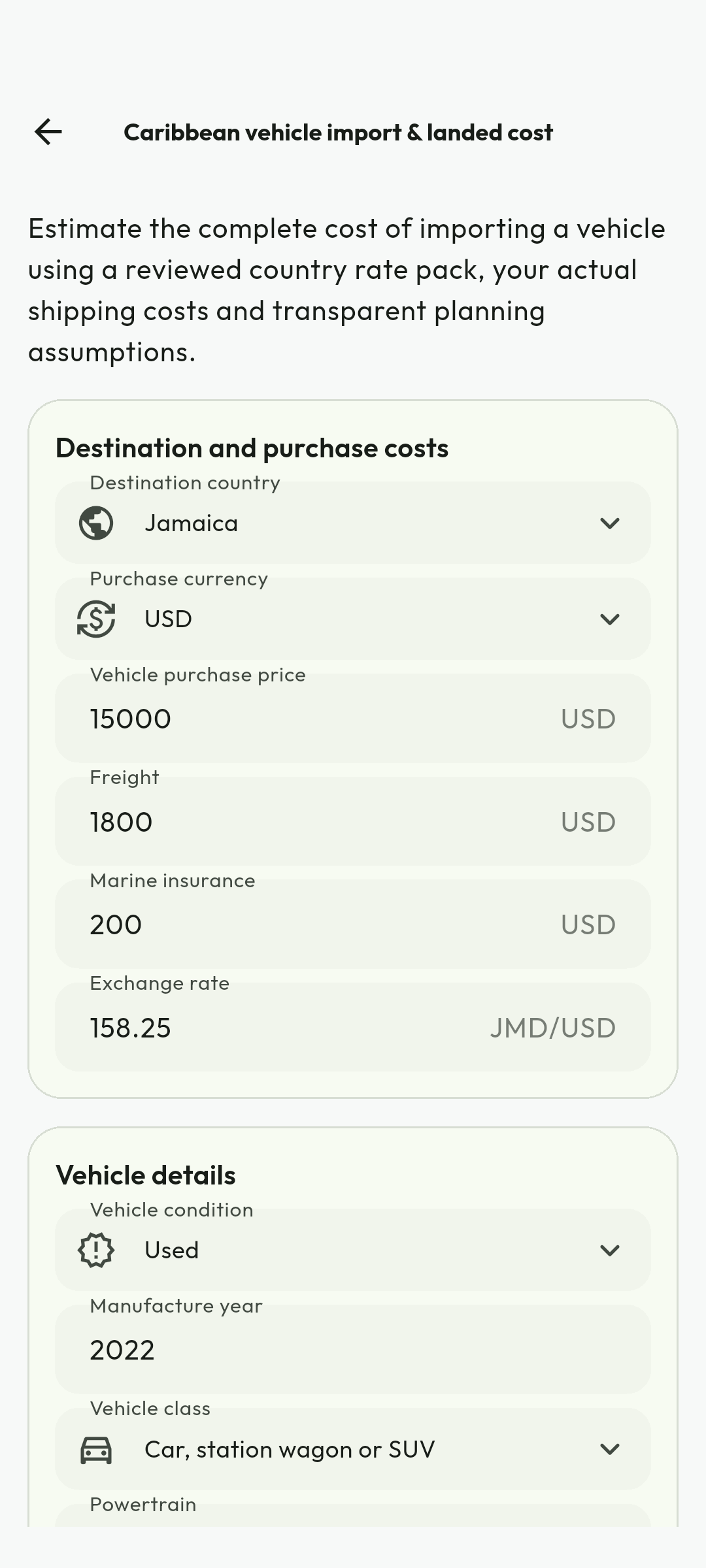
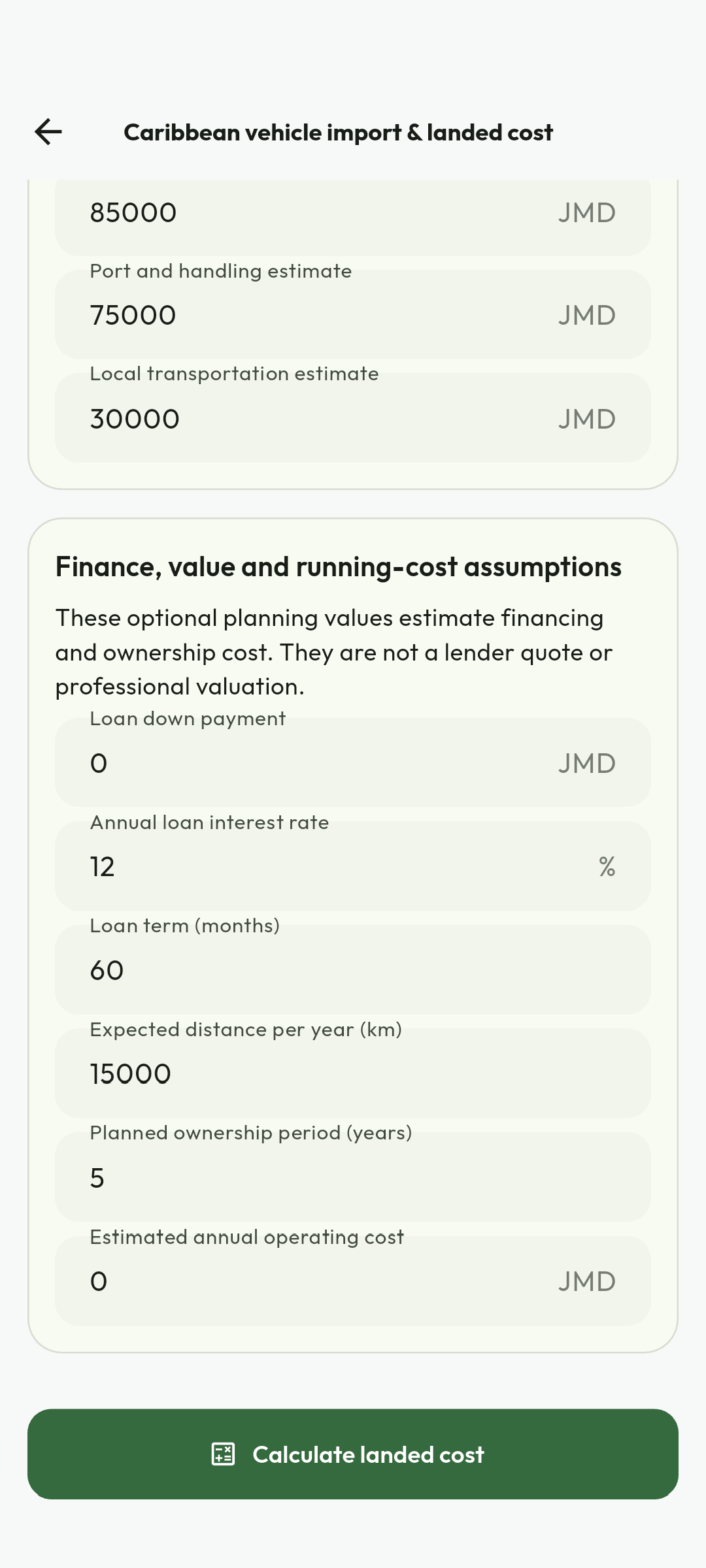
Android calculator demonstration captured 4 September 2026. Sample amounts, dates and labels are historical; check current prices, policies and the live interface. No credentials, customer documents or redeemable codes are illustrated. Use the current workflow and recovery guidance when labels differ.
Read import estimates and their evidence
Follow the calculator tools instructions with these captured examples. Each caption explains the controls actually shown; your available actions depend on account, country and current record state.
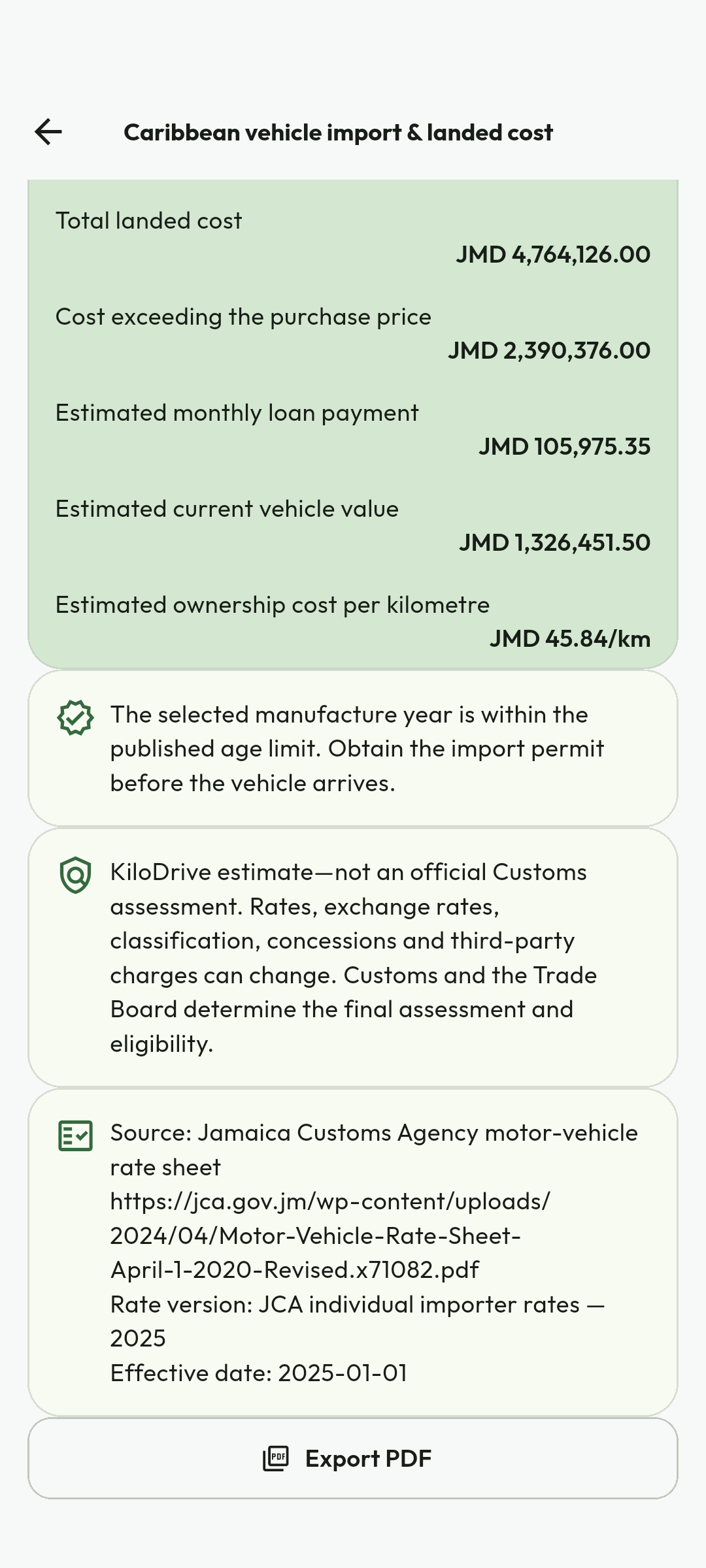
Android calculator demonstration captured 4 September 2026. Sample amounts, dates and labels are historical; check current prices, policies and the live interface. No credentials, customer documents or redeemable codes are illustrated. Use the current workflow and recovery guidance when labels differ.
Budget fleet finance
Follow the calculator tools instructions with these captured examples. Each caption explains the controls actually shown; your available actions depend on account, country and current record state.
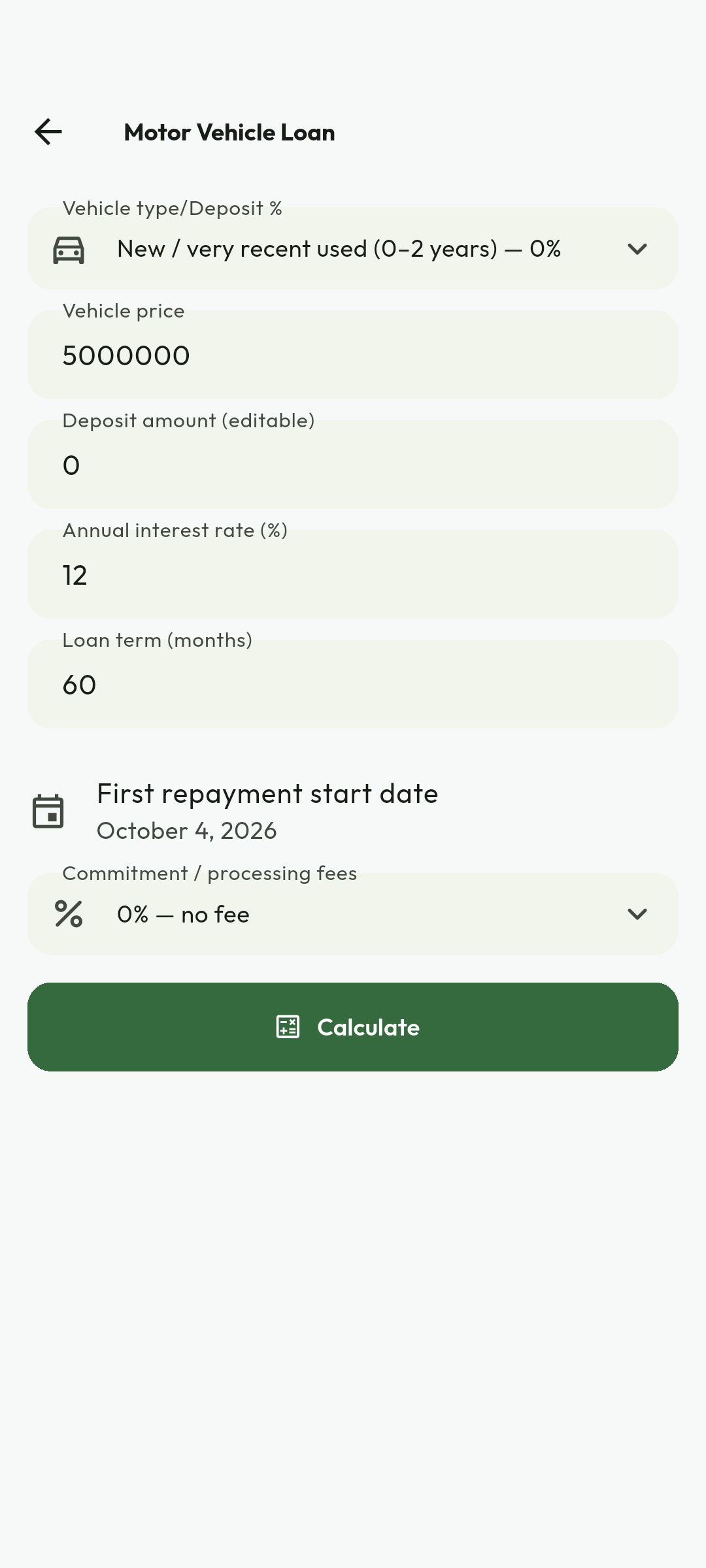
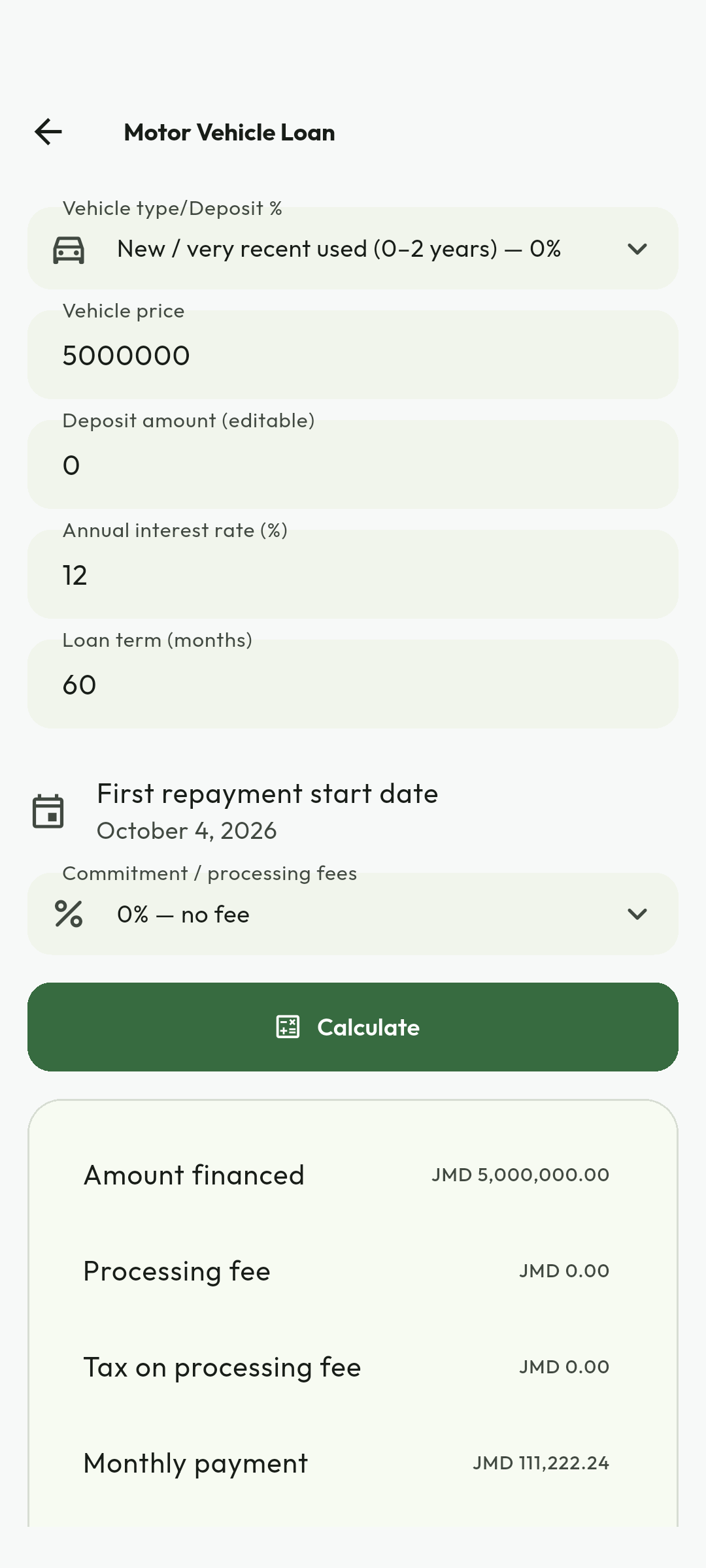
Android calculator demonstration captured 4 September 2026. Sample amounts, dates and labels are historical; check current prices, policies and the live interface. No credentials, customer documents or redeemable codes are illustrated. Use the current workflow and recovery guidance when labels differ.
Estimate rental fleet return
Follow the calculator tools instructions with these captured examples. Each caption explains the controls actually shown; your available actions depend on account, country and current record state.
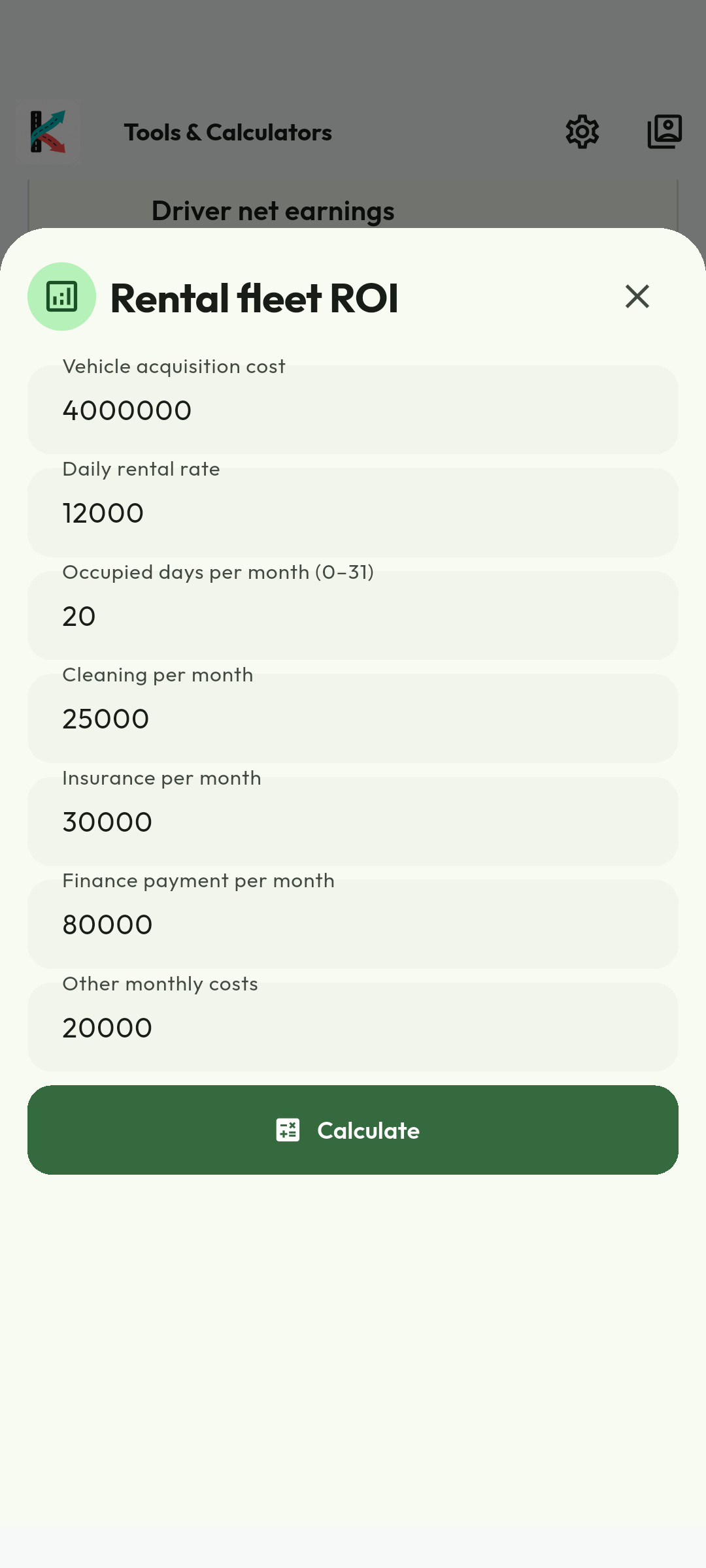
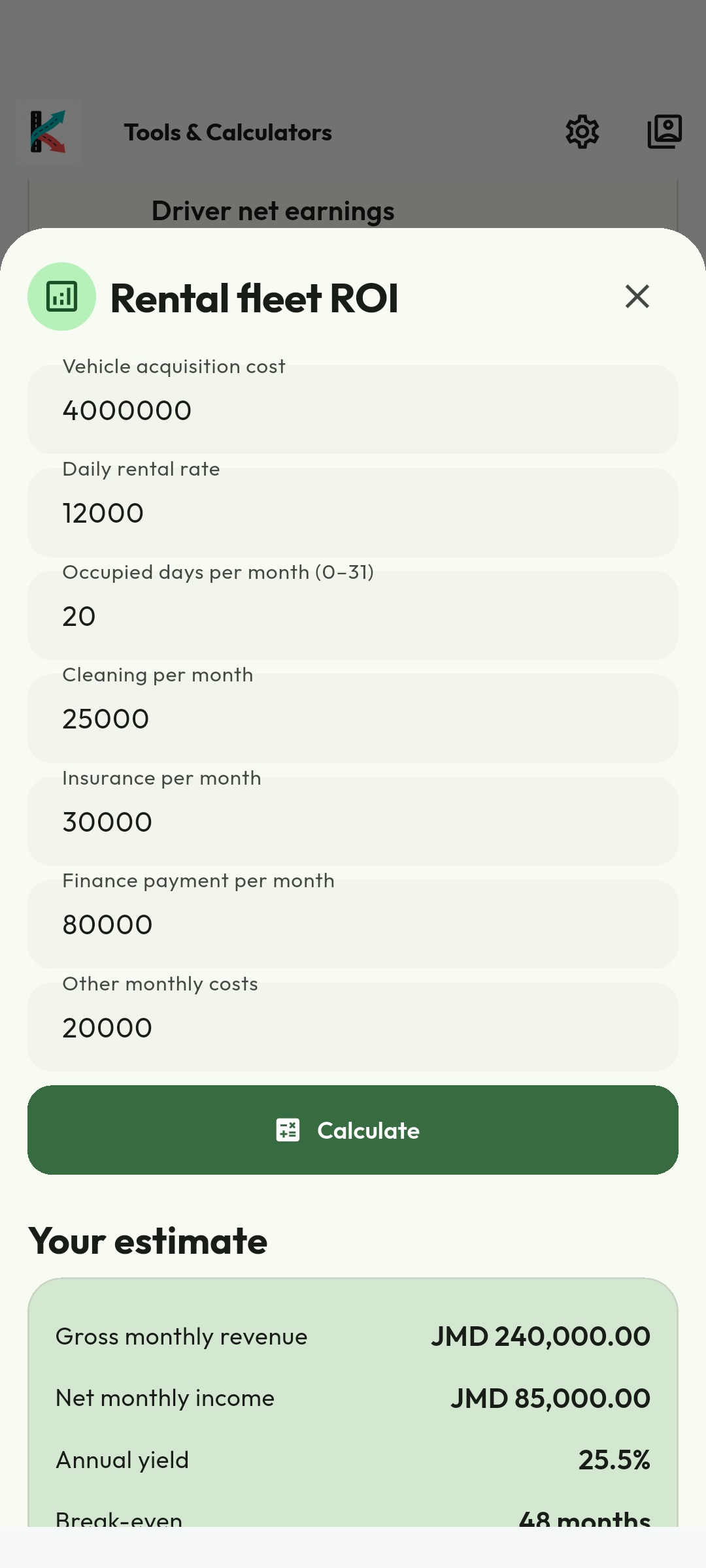
Android calculator demonstration captured 4 September 2026. Sample amounts, dates and labels are historical; check current prices, policies and the live interface. No credentials, customer documents or redeemable codes are illustrated. Use the current workflow and recovery guidance when labels differ.
14. Mobile provider workspace
- Select Vehicle Rental provider mode from the mode selector.
- Use Home for Rental operations, Billing, Wallet, Reports, Calculators, Support and Profile.
- Under Rental operations, select an entity if you manage more than one.
- Manage branches, vehicles, optimized images, availability, bookings and team within granted permissions.
- Use Billing for mode, expiry, payment methods and history. Only the owner changes mode or purchases membership.
- Respond to booking and operational notifications using configured sounds/categories.
- Use Error/Empty/Loading states to retry safely; do not duplicate a financial command.
15. Rental portal
- Open https://my.kilodrive.com, verify HTTPS and sign in.
- Choose the rental entity and confirm your role/permissions.
- Use Dashboard for operational summary; Vehicles/Branches for inventory; Bookings for workflow; Team for access; Billing/Finance for money; Reports for exports; Support for tickets.
- Owners review membership, expiry and billing history. Finance users receive only granted finance views.
- Use responsive tables/forms and server validation. Correct all marked fields before resubmitting.
- Sign out from shared workstations and report unknown sessions.
16. Support and operational incidents
Booking conflict
Stop further confirmation, preserve the booking IDs, block the inventory interval and contact affected renters transparently.
PSP/payout outage
Do not retry unknown transfers. Mark pending, reconcile with provider reference, and follow the documented outage runbook.
Stolen or overdue vehicle
Follow contract, insurer and law-enforcement procedures; preserve location/booking evidence; use remote controls only when lawful and safe.
Compromised team account
Disable member access, revoke sessions/invitations, preserve audit events, reset credentials and report the incident.
Create a support ticket
Include entity, booking/vehicle reference, time, impact and safe evidence. Never attach raw payment credentials, unrelated identity data or private chat exports.
Attachments can be captured with the camera or selected as a PDF, JPEG, or PNG. Images are rotated, cropped, and compressed on-device; the server enforces the 10 MB limit, checks the real file signature, scans the content, and stores it under a randomized encrypted key in the private KiloDrive S3 bucket. After the ticket and attachment references are committed centrally, a durable notification alerts the configured administrator by email. The email includes only routing metadata and never embeds the protected attachment or ticket body.
27Available support options
| Option | Use it for | What to provide |
|---|---|---|
| In-app Help & Support | FAQs, troubleshooting, and authenticated ticket creation. | Category, concise description, affected reference, time, and safe attachment. |
| Portal Support | Ticket history, detailed follow-up, reports, billing, verification, and organization issues. | Sign in at https://my.kilodrive.com and quote the exact transaction, trip, booking, vehicle, or ticket reference. |
| General assistance when account access is unavailable. | Email [email protected] from the registered address where possible; never send passwords, OTPs, recovery codes, full cards, or unredacted banking credentials. | |
| Safety toolkit | Active-trip safety check-ins, trusted contacts, live sharing, and incident context. | Use during the active service and preserve the displayed trip/vehicle information. |
| Emergency services | Immediate threats, injury, crime, fire, collision, or kidnapping. | Call the local authority directly—119 in Jamaica—and state location, people involved, vehicle/plate, and direction of travel. |
Severity and response
Choose the category that reflects actual impact. Duplicate tickets slow investigation. Money, safety, privacy, identity, and account-compromise cases receive specialized handling; response time depends on urgency, evidence, provider dependencies, and jurisdiction.
Appendix A. Roadside, towing, collision, and bodily injury
- Direct the renter to emergency services first for injury, fire, crime or traffic danger.
- Open a restricted incident linked to booking/vehicle; preserve time, location, occupants, police/insurer references and safe evidence.
- For breakdown, disable availability, coordinate approved roadside assistance, and document replacement/refund/amendment. Inspect before relisting.
- For towing, verify authority, operator, destination and custody; record pre-tow condition. Never immobilize a moving vehicle.
- For collision, avoid fault conclusions; preserve evidence and notify insurer by deadline.
- For injury, restrict medical data to claims staff, preserve records and never promise coverage outside authority.
Finance and governance
Deposits are holds, not revenue. Cards remain with the PSP. Refunds/captures require linked evidence; chargebacks can reverse settlement. Account separately for taxes/fees. Risk can cool off/suspend listings or the entity; termination preserves liabilities and legal records.
Data and lawful requests
Use least-privilege teams, private storage, 2FA, TLS and audited access. Do not export renter identity/medical evidence. Send law-enforcement demands to Legal/Security for authority, scope and minimal disclosure review; emergency life/safety disclosures are documented.
A1–A4Appendix B. Organization and individual membership billing
Billing & Membership shows usage fillers against rental-provider limits and permitted finance history. Select a 1-week, 1-month, or 3-month term and review the local-currency quote.
- Pay from the owner's KiloDrive Wallet, a top-up card redeemed into the wallet, PayPal, credit/debit card, or bank transfer where enabled.
- Hosted and bank payments remain pending until verified or approved.
- Keep the congratulations receipt showing plan, cost, effective date, expiry date, and benefits.
- Push, email, and SMS reminders are sent two days before expiry.
Payments are idempotent and financial events use balanced integer-minor-unit debit/credit journals.
D1-D2Release 1.6
A complete rental marketplace, not a vehicle directory
KiloDrive rental operations connect discovery, qualification, pricing, authorization, handover, evidence, active use, return, settlement, disputes, fleet compliance, and provider accountability. Every material promise is selected, versioned, and snapshotted before the renter commits.
Marketplace and provider profile
Renters enter a dedicated marketplace and may browse a map or paged list by place, date, year, manufacturer, model, vehicle type, transmission, seats, price, availability, booking mode, handover option, and relevant capabilities. A missing optional map or provider enrichment must not erase valid vehicle results. Zero eligible inventory is a successful empty result with guidance, not an error.
- Each provider presents a profile image, verified operating name, service area, handover options, policies, support contact route, reputation context, and applicable badges.
- Each vehicle presents a profile image and gallery, make, model, year, type, condition, features, seats, transmission, mileage rules, fuel rules, availability, compliant document status, booking mode, and price components.
- Search and filtering remain server-paged. Map markers use privacy-bounded business or pickup locations and do not expose a staff member's live personal position.
- Availability calendars combine bookings, extensions, maintenance blackouts, manual blocks, inspection time, turnaround time, and jurisdiction restrictions.
Release 1.6
The canonical booking lifecycle
- Browse and quote. The renter selects dates, location, handover method, mileage, protection, and optional services. The quote identifies ISO currency, duration, rate, taxes, fees, deposit or hold, mileage and fuel rules, cancellation terms, and expiry.
- Check eligibility. Country rules, age, identity, licence, payment method, provider policy, vehicle eligibility, overlapping bookings, team authority, and feature readiness are revalidated.
- Authorize protection or deposit. The payment provider returns an explicit Pending, Authorized, Failed, or Needs attention state. A browser return alone does not confirm a booking.
- Confirm. Instant-book confirms only after all conditions pass; approval-mode remains requested until an authorized team member acts. The booking snapshots the vehicle, quote, policy version, protection, payment reference, and accepted agreement.
- Check in. Verify renter and authorized driver, execute the digital agreement, complete the checklist, photograph required areas, record odometer and fuel, document existing damage, and acknowledge keys and accessories.
- Operate and extend. The active record exposes permitted actions, due time, support, extension quote, approved driver, mileage, fuel, and applicable reminders. An extension is a versioned transition, not an informal message.
- Check out. Repeat the inspection and evidence set, record mileage and fuel, identify late time or new damage, confirm vehicle return and custody, and preserve both parties' comments.
- Settle or dispute. Apply the accepted policy, authorized charges, refunds, holds, releases, journals, owner earnings, and renter receipt. A disputed item moves into a structured case without rewriting the original evidence.
Release 1.6
Fleet, finance, evidence, and readiness
Fleet and compliance operations
Rental owners and permitted team members can add and edit vehicles, maintain profile and gallery images, configure type and capabilities, set booking and handover modes, manage calendars, and record important dates. Registration, insurance, fitness, inspection, maintenance, and other country-required evidence have expiry dates, reminders, quarantine and scan state, review status, and approval history. Expired evidence can remove the vehicle from discovery and block handover without deleting its booking or audit history.
Teams, authorization, and least privilege
Organization owners invite named team members into distinct booking, fleet, inspection, finance, support, and administration permissions. Every list, editor, export, and transition checks the organization, country, tenant, permission, current session, and step-up requirement. Revocation takes effect for new actions immediately and does not erase historical authorship. Shared credentials, generic team accounts, and transferring one person's OTP or recovery code are prohibited.
R3Release 1.6
Money, evidence, support, and readiness
Money, membership, and owner analytics
- Money uses integer minor units and the row ISO currency. Deposits, holds, captures, releases, refunds, chargebacks, late charges, damage claims, owner earnings, and payout clearing are separate traceable events.
- Current plan, Billing, and Other plans use exact active plan-term-store mappings. Apple or Google supplies the localized digital-subscription price; a missing mapping disables only that purchase and never invents a price.
- Owner analytics may summarize occupancy, utilization, earnings, expenses, downtime, maintenance, late returns, damage, response time, and rating categories. Forecasts are guidance, not guaranteed income.
- Payout is described as instant only after a certified provider SLA. Otherwise the UI gives a truthful processing estimate and a durable status with reconciliation and support actions.
Evidence, support, and readiness doctrine
Agreements, identity files, inspections, claims, and compliance documents remain private, attachment-only, scanned, signed, audited, and retention-controlled. Support links a case to the booking, payment, vehicle, document, or dispute and uses Received, Reviewing, Waiting for information, and Resolved with owner, SLA, next action, evidence, conversation, timeline, closure, and escalation. Country schema parity alone does not activate rentals: legal, payment, provider, reference-data, safety, insurance, support, and lifecycle certification must all be recorded in the versioned feature policy.
Rental provider task procedure and recovery reference
| Task | Expected result | If the result differs |
|---|---|---|
| Create provider | One individual or organization record is created in the selected country and remains pending until required verification completes. | Confirm workspace and contact verification; resolve KD-2001 without creating a duplicate provider. |
| Invite team member | Invitation is scoped to one provider, role and expiry; acceptance creates only the granted permissions. | Revoke stale invitations and resend only after confirming the recipient and role. |
| Add branch or pickup hub | Address, timezone, service area and operating hours save in the provider country. | Correct geocode/address data; do not move a record across country cells. |
| Add fleet vehicle | Vehicle identity, images, compliance, pricing and availability remain distinct, reviewable states. | Replace only missing/rejected evidence; block booking while safety or compliance is unknown. |
| Publish availability | Eligible intervals appear without overlapping confirmed bookings or maintenance blocks. | Resolve calendar conflicts and refresh the authoritative availability result. |
| Approve Request to Book | Current quote, eligibility, authorization and inventory revision produce one confirmed booking. | For stale revision or unknown payment, reload and reconcile before another approval. |
| Handover and return | Identity, agreement, odometer, fuel/charge, condition photos and timestamps form one evidence trail. | Do not close out until missing evidence or an exception is recorded in the same booking. |
| Deposit or settlement | Hold, capture, release, refund and fee entries reconcile once with provider and rental ledger. | For KD-4001, never submit a second charge; investigate the original operation. |
| Damage or overdue incident | Vehicle is blocked from availability and one restricted case links evidence, insurer/police references and decisions. | Escalate urgent danger to emergency services and continue within the same case. |
KiloDrive support codes
| Code | Meaning | Safe next step |
|---|---|---|
| KD-1001 | Invalid or incomplete request | Correct the marked data and submit once. |
| KD-1002 / KD-1003 | Session or permission problem | Sign in, select the correct provider/workspace and confirm role. |
| KD-1005 | State changed or conflict | Reload booking, vehicle or quote revision before deciding. |
| KD-1006 | Original operation in progress | Check the same operation; do not create a duplicate. |
| KD-1008 / KD-5001 | KiloDrive or external provider unavailable | Use the offered fallback and retry once later. |
| KD-1009 | Unexpected or unconfirmed result | Refresh authoritative status before another mutation. |
| KD-2001 | Verification incomplete | Complete the named provider, person, vehicle or evidence item. |
| KD-3002 | Location or route unavailable | Confirm address, GPS, connection and current provider status. |
| KD-4001 | Financial result unknown | Do not retry payment; reconcile the original provider and ledger records. |
| KD-4002 / KD-4003 | Financial rejection or safety rule | Review authorization, balance, limit, currency and risk guidance. |
| KD-6001 | Feature unavailable | Complete policy/provider prerequisites or follow country/version guidance. |
Record the KD code, correlation ID, booking/vehicle reference, provider workspace and local time. Never place identity evidence, raw payment data, keys or private vehicle tracking in an ordinary email or public ticket attachment.
Rental referenceCurrent workflow and recovery
Select the correct country and organization before editing fleet, booking or financial records. Review vehicle identity, registration, insurance, fitness and defects independently. A stored vehicle is not automatically eligible for marketplace use. Refresh status after changing vehicle data or replacing evidence. Keep booking dates, availability, handover evidence, payment authorization and deposit decisions together.
Identity, driver profile, document review, vehicle approval, membership or trial, payout readiness and safety acknowledgment are separate requirements. The API owns the readiness decision. An approved identity badge alone does not permit bidding or going online. Reload the checklist after review or a country/account change.
Review the latest offer, trip or booking before a state-changing action. A stale revision means another decision changed the record. Reload and review it before continuing. During a trip, expand the map for route context and use trip details for the next permitted arrival, start or completion control. Stale or inaccurate GPS is not proof of arrival. Avoid interacting with the app while driving.
Calls and chat require available connectivity, eligibility and provider service. Use the safe support/contact alternatives when they are unavailable. Read aloud is optional in accessibility settings and hidden by default. A timeout does not prove that a payment failed: check the original outcome and keep its support reference before another submission. Keep currencies separate when reviewing money.
Authorized operators can use the expandable mobile management domains for people, operations, finance, support, communications, system and insights. Follow the mobile administrator guide for evidence review, readiness refresh, top-up issuance and read-only investigation. A visible route is not proof that every mutation or provider is certified.
Current workflowGlossary
- Booking mode
- Instant Book confirms an eligible request immediately; Request to Book requires an authorized provider decision.
- Booking lifecycle
- The controlled Quote, Payment Authorized, Confirmed, Checked In, Active, Checked Out, Returned, Settled, or Disputed state.
- Condition evidence
- Timestamped pre/post inspection photos, odometer, fuel/charge, accessories, damage, and signed agreement evidence.
- Maintenance block
- A calendar interval that prevents a vehicle from being booked or handed over while unavailable or unsafe.
- Entity type
- A rental provider may operate as an individual or an organization. Organizations may invite team members with scoped permissions.
- Fleet availability
- The vehicle and date-range state used to prevent overlapping confirmed bookings.
- Security-deposit hold
- A provider-authorized reservation of funds. Release, capture, damage, mileage, fuel, and dispute actions must follow the configured payment provider and local terms.
- Team role
- A least-privilege permission set for owners, fleet managers, booking agents, finance officers, and auditors.
- Vehicle evidence
- Private registration, insurance, fitness, identity, and image records used for review. Upload availability does not by itself certify authenticity.
- Rental ledger
- The minor-unit financial history for booking charges, holds, releases, refunds, fees, and provider settlement.
Index
Add-ons 13–14
Auditor 7–8
Availability 13–14
Billing history 20–21
Booking agent 7–8
Booking conflict 27
Booking lifecycle 15–17
Branches 9
Calculators 24
No commission 20–21
Deposit 18–19
Damage claim 15–17
Entity type 3–4
Finance officer 7–8
Fleet manager 7–8
Handover 15–17
Images 10–12
Individual provider 3–4
Instant Book 13–14
Invitations 7–8
KYC 22–23
Membership 20–21
Maintenance block 13–14
Mobile app 25
Organization 3–4
Owner 7–8
Permissions 7–8
Portal 26
Pricing 13–14
Privacy 22–23
Request to Book 13–14
Return inspection 15–17
Risk score 22–23
Security deposit 18–19
Settlement 18–19
Support case 27
Team 7–8
Vehicle inspector 7–8
Vehicle listing 10–12